The lineage interface visualizes the data flow for an asset and provides options to filter and refine the lineage view.
To view data lineage for an asset, browse or search for a technical asset or a business asset for which you want to see the data lineage. Click the asset to open the asset details page, and go to the Lineage tab to view the data lineage for the asset.
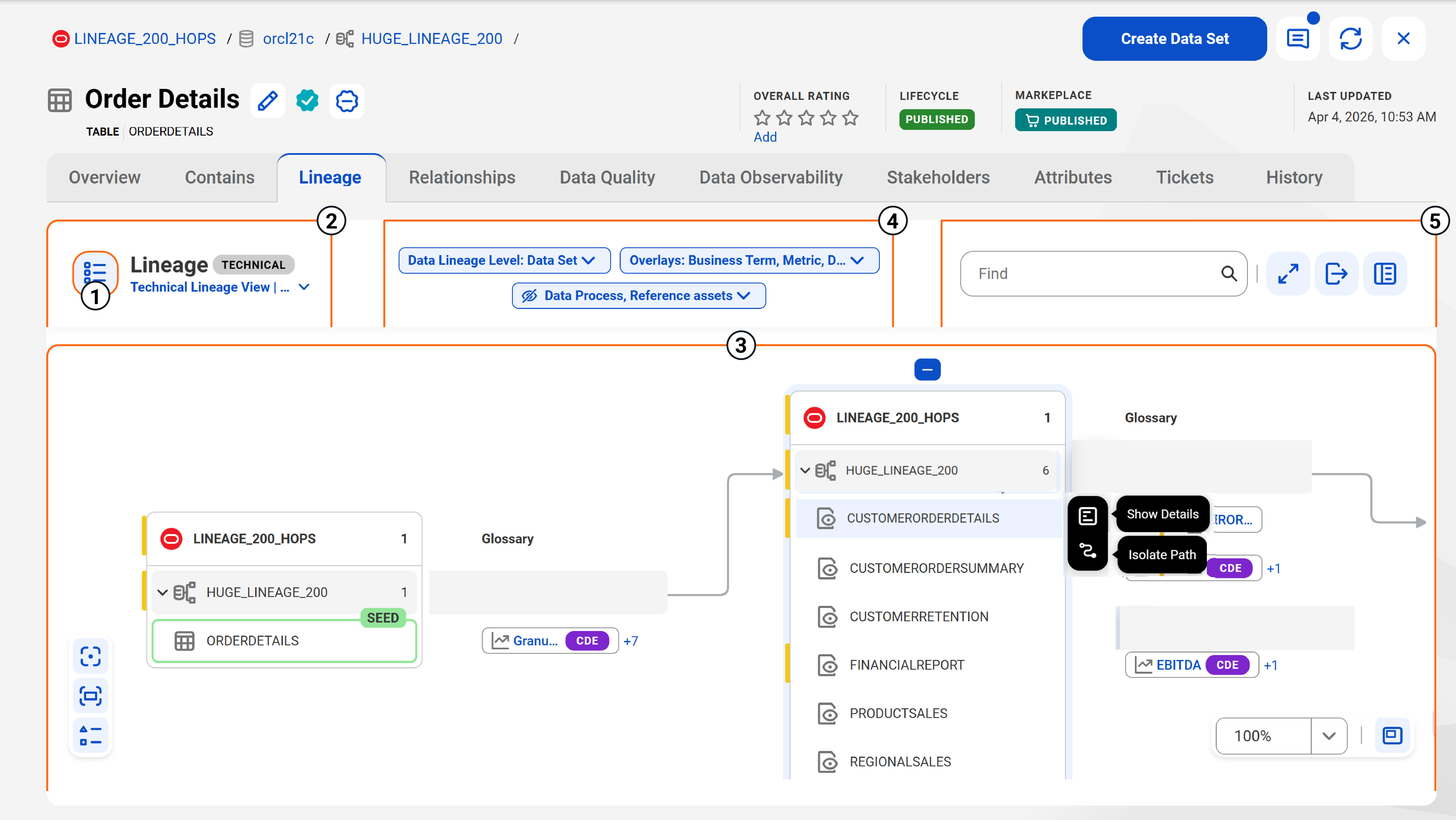
The following image shows the lineage interface and available controls for data lineage for navigating and refining the data flow:
On the Lineage tab of an asset page, the lineage interface shows the following components:
1Lineage configuration. The Manage Lineage Configuration icon opens the configuration hub for your lineage. The hub contains options to specify lineage levels, apply filters and overlays, and define the scope of your lineage. For more information, see Configure an asset's lineage graph.
2Lineage views menu. The Lineage views menu shows the list of your lineage views and lets you switch between views that you have saved, default views, or the views that are shared with you. See Lineage views.
3Interface canvas. The central area displays the seed asset and its data flow.
You can interact with the following components in the lineage canvas:
Data flows
Depending on the configurations set in the configuration hub, you can view flows such as control flow, orchestration flow, flow loops, and attribute flows.
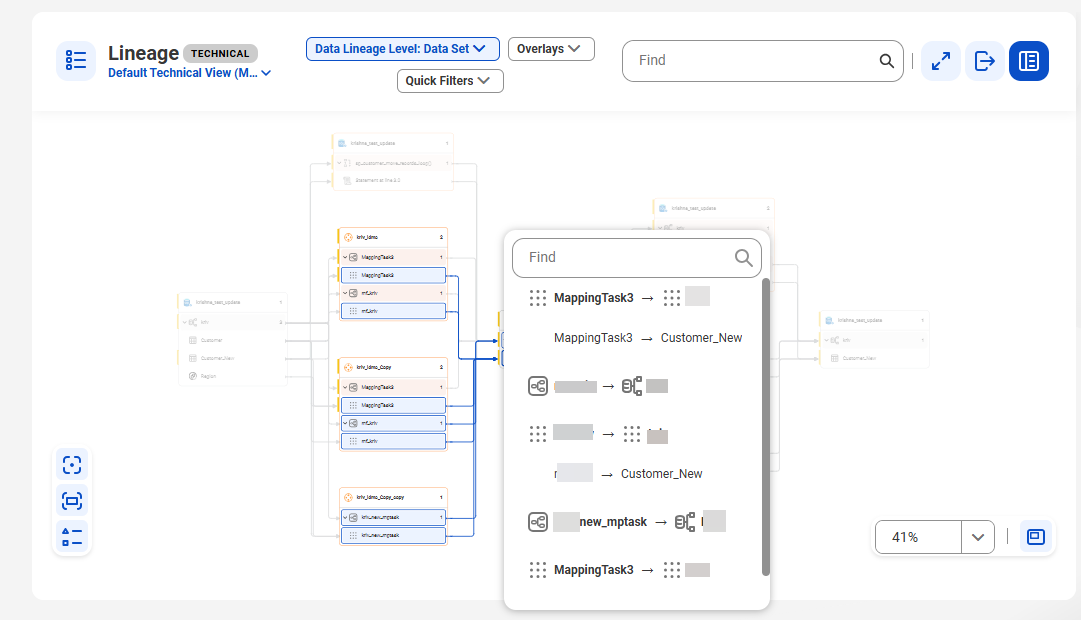
In the canvas, you can interact with the assets and the flows that connect them. This lets you focus into the lineage that you want to see. Select an asset or a flow line to view a menu containing details of the flow and the assets connected to it. The menu contains a Find bar which you can use to locate assets within the selected data flow by their names. You can also hover over a flow listed in the menu to view the type of data flow that connects the assets. For lineages with multiple data flow intersections, click an intersection to view the menu showing the details of the flows and connected assets.
The following image shows a menu containing details of a data flow intersection:
Lineage hops
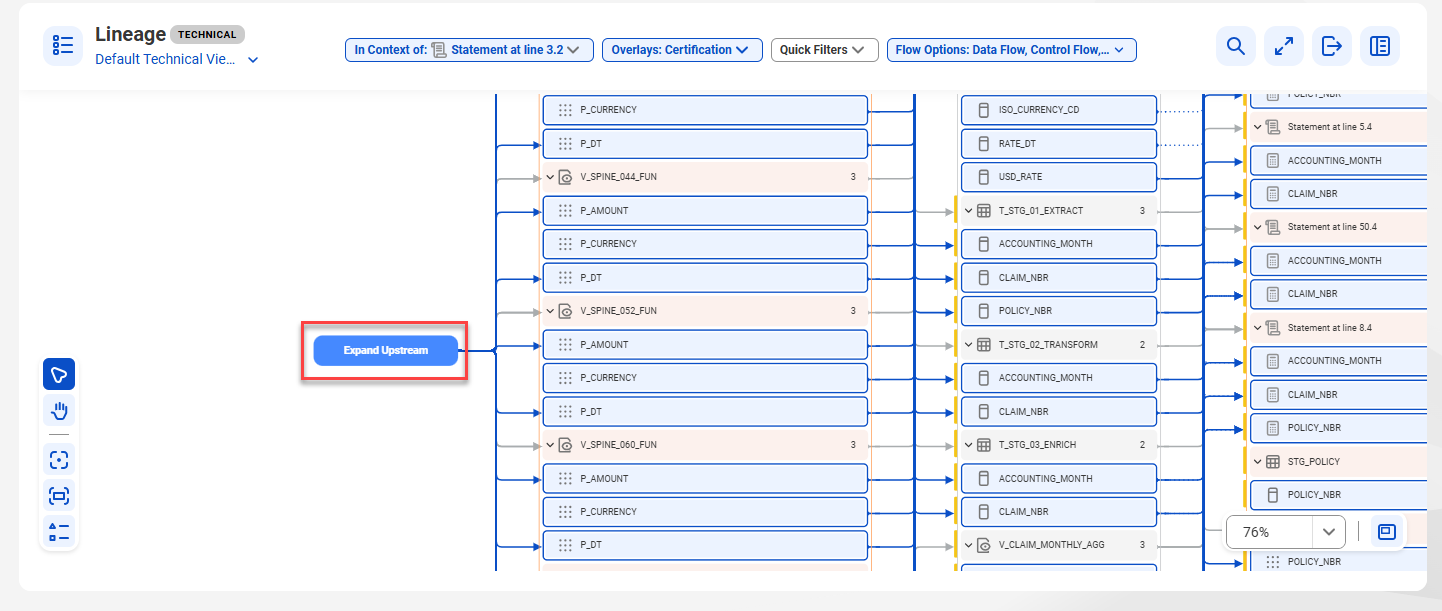
When you open an asset's lineage, Data Governance and Catalog initially loads as many hops as possible. If further hops exist beyond the initial load, you can click Expand Upstream or Expand Downstream to load additional hops. Large lineages might require you to export it, if you want to view it in full.
You can also collapse upstream or downstream nodes in a hop or collapse a selected node using the Collapse Upstream from Here, Collapse Downstream from Here, or Collapse This Node options available on the nodes in the lineage graph. However, you can't collapse the seed asset in the lineage.
The following image shows an asset lineage with the Expand Upstream option for additional hops:
Open Transformation Details
When you hover over data elements in a lineage, you can click the Open Transformation Details icon to view the asset's transformation lineage. For more information about transformation details, see View an asset's transformation details.
Canvas actions
If you hover over a node in the lineage, you can perform the following actions:
▪ Click the Show Details icon to view additional details about the asset in the asset tooltip.
▪ Click the Isolate Path icon to highlight a specific flow in the lineage graph.
▪ Click the Filter Visible Elements icon to filter available data sets in the lineage graph. This icon is available only at the schema or database level.
Additional actions
The canvas features the following additional icons that you can use for precise lineage navigation:
▪ Select and Pan Mode. Select Mode is the default mode for interacting with the lineage graph. Click an asset to select it and inspect its details, or drag an empty area of the canvas to pan. To naviagte anywhere on the canvas including over assets and connections, click Pan Mode. You can't select assets with Pan Mode. To switch from select to pan, hold the space key and drag anywhere on the canvas. Release the space key to return to Select.
▪ Focus on Seed Asset. Takes you to the seed asset in the lineage.
▪ Fit Screen. Zooms in or out of the lineage graph to show the lineage in its entirety on the canvas.
▪ Show Legend. Opens the legend which provides details that might help you interpret the assets participating in the lineage.
▪ Zoom menu. Opens a menu of zoom presets for the lineage graph.
▪ Show Lineage Overview. Opens a mini map to help you orient yourself within large, complex lineage graphs.
4View lineage configurations. View the configurations applied on the current lineage view. You can see the overlays, filters, and data lineage levels that are applied on the selected lineage view.
5Lineage toolbar. The header toolbar provides the following high-level actions for the entire lineage graph:
- Find. Find assets across all pages in all the expanded hops in the lineage. When you search for an asset, the search displays the total number of matches on the current page and highlights the matching nodes along with the page numbers where other matches can be found. You can navigate through the search and click the highlighted page number to see the total number of matches on that page.
If you have applied overlays on the lineage, you can run a search on overlays. For example, if you have applied the Glossary Business Term or Business Name overlays, you can search for assets in the lineage using a business term or a business name. The search highlights the overlays containing the matching business term or business name. The search result returns the total number of matches on the current page and you can navigate through the search.
- Full Screen. Click the icon to view the lineage in full screen.
- Export. Click the icon to export the current lineage as a PNG, PDF, or SVG file, or in a tabular format as an XLSX or CSV file.
- Show Preview. Click the icon to toggle the preview pane on the right to display more details about the selected asset in the lineage. The preview pane shows the data quality score of the asset, the profiling stats, the stakeholders of the asset, the related assets and other details of the asset.