A glossary asset of the Metric type refers to the definition of the measurement of a business result. The asset assigns semantic and business context to an actual business measurement. You can use a metric asset if you use a numerical indicator to measure business success.
For example, you can create a 'Net Profit' and an 'Average Revenue Per User (ARPU)' Metrc assets if your business has numerical indicators for them.
You can rate a metric asset to indicate your assessment of its quality, and add comments to share input on the data. This enables different users to collaborate on assets and make collective decisions on using the data. For more information about collaborating on an asset, see the Asset Management help.
You can view the number of open tickets and overdue tickets. Open tickets indicate the tickets pending in progress to track changes to the metric. Overdue tickets indicate the tickets beyond due date that require your action. You can also view the lifecycle of the metric asset to know the particular stage of the lifecycle in the asset workflow.
Overview tab
On the Overview tab, you can view basic information about the metric.
The following table describes the properties of the Overview tab:
Field
Description
Parent
The metric can have any one of the following assets as the parent asset under which this metric asset hierarchically fits:
- Business Term
- Subdomain
- Domain
- Metric
Description
Description of the metric. The size of the field can't exceed 1 MB.
Attributes
System and custom attributes of the asset.
Reference ID
Unique identifier for the metric.
Alias Names
Alternative names for the metric that applies to your business context.
Enter synonyms and alias names to help people find the metric easily or to make the metric accessible for people from various departments.
Reference Data
Code values and attributes from Reference 360 linked to the metric. You can view the Reference Data tab only if you have the View Reference Data permission.
Security Level
Security level of the asset with respect to the sensitivity of the information. This is manually specified while creating the metric and is suitable only as a governance record.
Business Logic
Business logic or calculation of the metric. The size of the field can't exceed 1 MB.
Examples
Examples of the metric.
Format Type
Format of the metric.
You can select from one of the following formats:
- Text
- Number
- Decimal
- Percentage
- Fraction
- Date
- Time
- Date and time
Default value is Text.
Format Description
Description of the metric format that you have selected.
Critical Data Element
Indicates whether the metric is critical to the success of the business.
Stakeholders
Users responsible for the metric or interested in the metric.
Asset Groups
One or more asset groups assigned to this asset. Use asset groups to give users access to a set of assets in the organization.
You can assign asset groups to an asset if you are the stakeholder of the asset or if your organization administrator has granted you the Manage Access permission on the asset through access policies in Metadata Command Center.
Data Quality
Data quality scores for the metric that is generated from a data quality tool.
Data Marketplace
Details of an asset's presence in Data Marketplace.
If an asset is added to a data collection in Data Marketplace, you can view the details of the data collection.
For more information, see the following topics:
- To connect Data Governance and Catalog to Data Marketplace, see the Set Up Data Marketplace help in Data Marketplace.
- To add an asset to a data collection, see the Working With Data Collections help in Data Marketplace.
Created By
User that created the metric and the date on which it was created.
Updated By
User that last updated the metric and the date on which it was updated.
If the organization administrator has configured custom fields for the Glossary Metric asset type, you can see the fields on the Overview tab of the asset.
Hierarchy tab
See all the assets in the hierarchy of the Glossary Metric asset. This includes the parent and child assets of the Glossary Metric asset, along with the siblings of the child assets.
On the Hierarchy tab, the open asset is highlighted.
The tab also displays the count of downstream assets for the currently open asset.
Click the expand icon to view the upstream and downstream assets of the Glossary Metric asset. Click an asset to open the asset on a new page.
You can sort assets based on asset name and when it was last updated. You can also find top-level assets by their name, description, and alias name.
The following table describes the properties of the assets on the Hierarchy tab:
Field
Description
Name
Name of the parent asset or the child asset.
Type
Type of the parent asset or the child asset.
Description
Description of the parent asset or the child asset.
Alias Names
Alternate names used to refer to the parent asset or the child asset.
Last Updated
Date of the last update to the parent asset or the child asset.
Lifecycle
Lifecycle status of the parent asset or the child asset.
Critical Data Element
Specifies whether any child asset is marked as a Critical Data Element.
Stakeholders
User or user group that you want to assign as stakeholders of the parent asset or the child asset.
Custom Attributes
Custom attributes of the parent asset or the child asset.
Relationships tab
On this tab, you can switch between grid view or graph view to view all the relationships that the metric has with other business assets. Create relationships with other business assets if they can be used together to make business or governance decisions.
The following table describes the fields that appear in the grid view on the Relationships tab:
Field
Description
Name
Name of the related asset.
Type
Type of the related asset.
How It Is Related
Relationship between the other assets and the asset that you have opened.
Hover the pointer over the arrows to see if the relationship is direct, indirect, inbound, or outbound. The term this asset refers to the asset that is open.
Hierarchy
Hierarchical path of the asset.
Note:
This column is hidden by default. To display the column, right-click the column header and select Hierarchy.
You can perform the following activities on the Relationships tab:
•Click the Filters icon on the top of the tab to apply filters to narrow the list of relationships. You can apply filters to view related assets of a praticular type, origin, or lifecycle stage. You can also view assets that are directly or indirectly connected to the asset or view by relationship label.
The direction of the asset can be inbound or outbound. The relationship created from the metric to the related asset is called an outbound relationship. The relationship created from the related asset to the metric is called an inbound relationship.
•Search for a related asset using the Search box.
•Click the Add icon to add a new related asset, or the Delete icon to delete an existing related asset.
Note:
You can delete only outbound direct related assets.
Relationship example
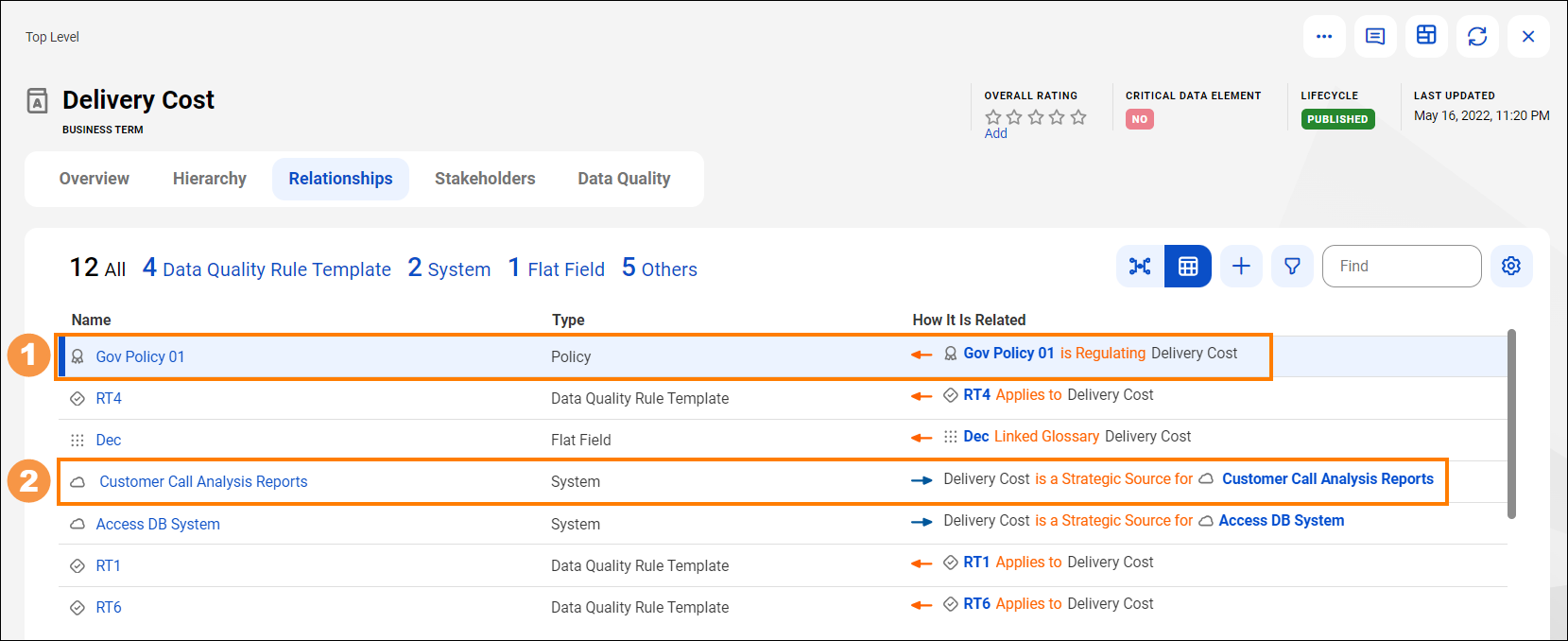
The following image shows a sample asset and the different types of relationships with other assets:
In the image, the business term 'Delivery Cost' is the open asset. The Relationships tab shows the grid view of all the assets related to 'Delivery Cost'.
1The highlighted policy asset 'Gov Policy 01' is related to the open asset through an inbound relationship. The orange arrow that points left indicates that the relationship between the business term 'Delivery Cost' and the policy 'Gov Policy 01' originated in the policy asset 'Gov Policy 01'. The relationship type is Regulating indicates that the policy asset is regulating the business term.
2The highlighted system asset 'Customer Call Analysis Reports' is related to the open asset through an outbound relationship. The blue arrow that points to the right indicates that the relationship between the business term 'Delivery Cost' and the system asset 'Customer Call Analysis Reports' originated in the business term 'Delivery Cost'. The relationship type is a Strategic Source for indicates that the business term is the preferred or recommended source of data for the system asset.
For more information about asset relationships, see the Relationships topic in the Asset Discovery help.
Data Quality tab
View aggregate and individual data quality scores for the data elements that comprise the metric.
The Dimensions Latest Scores section shows the data quality score of the metric for each data quality dimension. The Rules Against Target section shows the data quality score of the metric against the defined target, which is the minimum acceptable data quality value for the asset to be considered "Good".
The Rule Occurrences panel lists all instances of data quality rules that are associated with the asset. The following table describes the properties of the Rule Occurrences panel:
Field
Description
Name
Name of the rule occurrence.
If the rule occurrence is created from an automated rule template, the term Auto- is prefixed to the name of the rule occurrence.
Dimension
Data quality dimension for which the data quality rule is run.
Latest Score
Data quality score from the latest rule run.
Date
Date of the latest rule run.
Total Rows
Total number of rows on which the data quality rule is run.
Failed Rows
Number of failed rows as determined by the data quality rule run.
Primary Data Element
Data element on which the data quality rule is run.
This data element is the input port for the rule in the integrated data quality system. The data quality score is always generated for the primary data element.
Primary Data Element Hierarchy
The hierarchy of the data element on which the data quality rule is run.
Secondary Data Element
Secondary input port for the data quality rule that is run on the Primary Data Element.
Description
Description of the rule occurrence.
Related Rule Template
Data quality rule template that defines the rule that is run on the data element.
On this tab, you can search for a specific rule occurrence by using the Search box.
Reference Data tab
You can view and associate reference data from Reference 360 with Metric assets if you have the View Reference Data privilege for the Data Governance and Catalog service in Administrator. You can use the curated reference data set from Reference 360 to enhance your business assets and improve data accuracy. You can view the first 50 code values. To see the complete list of code values navigate to Reference 360.
To select a different reference data that is more suitable for the metric, click Switch Reference Dataset. To remove an already associated reference data, click the Remove associated reference data icon.
You can also view the general properties of the reference data. For more information about associating a reference data with Metric assets, see the Asset Management help.
Stakeholders tab
View users that have been designated as stakeholders for the metric. Stakeholders are authorized users who are responsible for the metric, and can approve or reject change requests for the metric. If your role has permissions, you can add or remove stakeholders on this tab.
The following table describes the properties of the Stakeholders tab:
Field
Description
Name
Name of the user or user group.
Role
Role of the user or user group in the organization.
Email
Email address of the user.
Note:
This field does not appear for user groups.
User Origin
The origin of the users. For example, when a user logs in using SSO, the value for this field is displayed as SAML.
Tickets tab
View change request tickets that users have created for the metric.
The following table describes the properties of the Tickets tab:
Field
Description
Name
Name of the ticket.
Description
Description of the ticket.
Type
Type of ticket.
Status
Status of the change ticket.
Current Task Owner
The stakeholders who are assigned to the tasks in the ticket.
You can filter the list of tickets by selecting available filters options. For more information about tickets, see the Workflows and tickets topic in the Asset Management help.
History tab
View changes that users have made to the metric. The History tab provides an audit log that you can use for compliance requirements.
The following table describes the properties of the History tab:
Field
Description
Date
Created and last updated dates of the asset.
Event Type
Type of event that is performed on the asset. Event Types include the following:
- Asset. Displays changes in the name, description, certification, or the reference ID of the asset.
- Relationship. Displays additions, deletions, and the updates of the relationships between the assets.
- Stakeholder. Displays additions and deletions of stakeholders to the asset.
Action
Actions performed on the asset: Actions on assets include the following:
- Create. Displayed if the asset is created.
- Updated. Displayed if the asset is updated.
- Deleted. Displayed if the asset is deleted.
Current Attributes
Recently changed attributes of the asset.
Previous Attributes
Earlier attributes of the asset.
Changed By
User who performed any action on the asset.
Asset Name
Name of the asset.
Asset Path
Origin path of the asset.
Asset Type
Type of the asset.
From Asset Type
Source asset type for which the change is applicable. This is applicable when the event type is Relationship.
To Asset Type
Target asset type for which the change is applicable. This is applicable when the event type is Relationship.