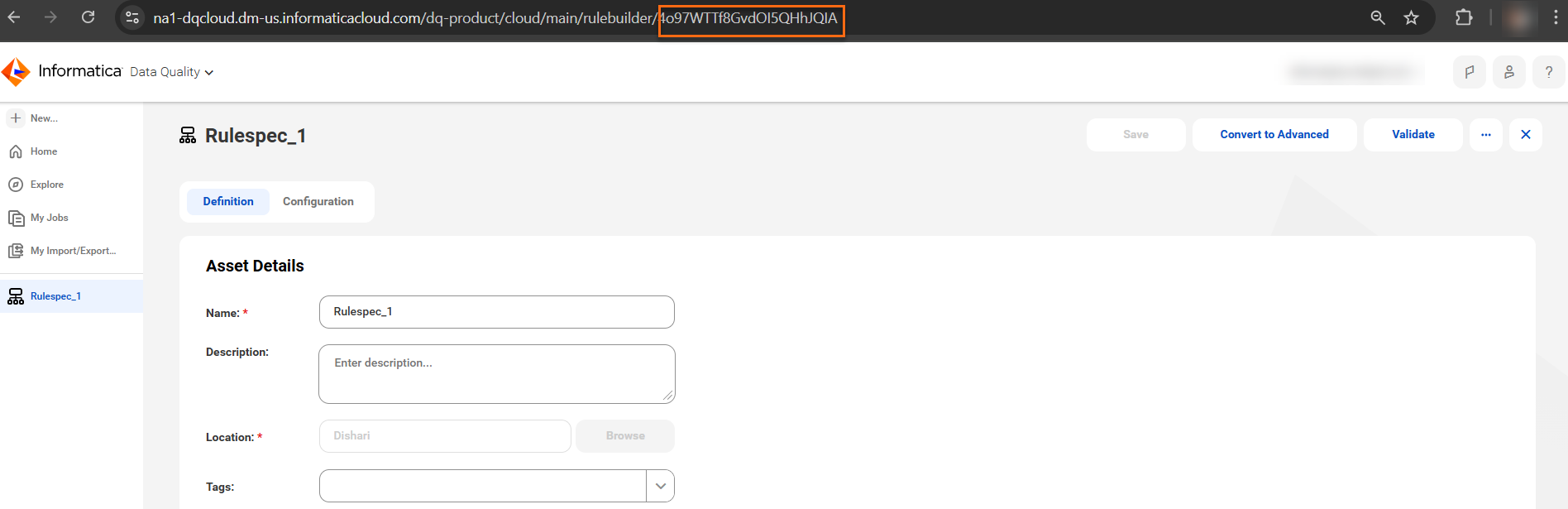
The following image shows the internal ID for a rule specification:
Column | Type | Description |
|---|---|---|
Reference ID | Optional | Reference ID is the unique reference identifier for the asset. If you don't specify a reference ID, the system automatically assigns a unique value to the object. The identifier that you enter here appears in the Reference ID field on the user interface. The system uses the following format to generate a reference ID: <Prefix>-<Number> Example: AI-1, DS-10 If you specify a reference ID, ensure that the value that you enter doesn’t use the format that is used by the system to automatically generate reference IDs. Type of Entry: Alphanumeric characters, including spaces and special characters. There are no restrictions on special characters. Example: AST ID-18, SYS REF:98 |
Name | Required | Name of the asset. To distinguish this asset from other assets, enter a unique name. Type of Entry: Alphanumeric characters, including spaces and special characters. Example: Model 1, Model Name: 29, System Name Note: If you use only special characters in the Name field, the system will allow the import to succeed, but the Name field will remain empty. |
Description | Optional | Definition of the asset. The description appears in the asset page. Enter a detailed description of the asset to help users understand how the asset is used in a governance context. Type of Entry: Formatted text. To add an image to the description, use the following syntax: <p><img src=""data:image/png;base64,""> <img src=""data:image/png;base64,""></p> You can add only an image of Base64 format to the description. Other image formats are not supported. |
Criticality | Optional | Select the criticality of the rule occurrence. You can select one of the following options:
|
Dimension | Required | Specify the data quality dimension for which the data quality rule is run. You can select one of the following options:
Note: If the data quality dimensions listed here differ from what is available in the predefined Microsoft Excel template, the administrator might have defined a different list of dimensions for your organization. For more information about how your administrator can customize the data quality dimensions, see the Administration help in Metadata Command Center. |
DQ Rule Custom | Optional | Specify the data quality rule to map corporate data quality definitions to physical system rules. |
Exception File Path | Optional | Specify the path where the exception records are stored. An exception is a record that fails to meet the criteria defined by the data quality rule occurrence. Type of Entry: Formatted text. Enter the complete path of the location of the file where the exception records are stored. Ensure that the path includes the name and extension of the file. Do not enter hyperlinks. |
Frequency | Optional | Select the frequency of running the data quality rules in the rule template. You can select one of the following options:
|
Lifecycle | Optional | Lifecycle status of the asset. The default status is Published. You can select one of the following options:
Note: Informatica recommends that you don't use a bulk import template to set an asset lifecycle to In Review. |
Measuring Method | Required | Specify the method by which the data quality rules for the rule occurrence are evaluated. You can select one of the following options:
If you select Informatica Cloud Data Quality as the measuring method, ensure that you use the Technical Rule Reference field to specify the identifier of the data quality rule that is defined in Informatica Cloud Data Quality. |
Input Port Name | Optional | Specify an input port name for the primary data element on which the technical rule reference will run in the data quality system. The primary data element must have only one input port. Type of Entry: Formatted text |
Ouput Port Name | Optional | Specify an output port for the technical rule reference that will run in the data quality system. The primary data element must have only one output port. Type of Entry: Formatted text |
Scanned Time | Optional | Specify the date and time on which the data quality rule was run on the assets. Type of Entry: To specify a date and time, use the YYYY-MM-dd'T'HH:mm:ss.SSS'Z' format. Example: 2000-10-31T01:30:00.000-05:00 If you have entered a score in the Score column, ensure that you specify a value in the Scanned Time column. |
Score | Optional | Specify the data quality rule score for the asset that corresponds to the rule occurrence. Type of Entry: Numeric value. If you have entered a score in the Score column, ensure that you specify a value in the Scanned Time, Total Rows and Failed Rows columns. If you update data quality scores through bulk import, the updated data quality scores can take up to one hour to reflect in the Total Runs Table of the Score tab of a rule occurrence. Note: When you upload data quality scores in Data Governance and Catalog using bulk upload, the scores are automatically rounded to two decimal places. If you set a score with more than two decimal points, the score is rounded to the nearest value and retains only two decimal places. |
Technical Description | Optional | Specify the description of the rule template as it is defined in the integrated data quality system. Type of Entry: Formatted text |
Technical Rule Reference | Optional | Specify the internal ID of the rule specification in the data quality system that you want to run on the data element. Type of Entry: Alphanumeric characters, including spaces and special characters. There is no limitation on special characters to be used in rule references. If you select Informatica Cloud Data Quality as the measuring method, the Technical Rule Reference field is mandatory. This field is not mandatory for other measuring methods. |
Target | Required | Specify the minimum acceptable data quality value for the asset to be considered "Good". Type of Entry: Numeric value. Enter a value between 0 to 100 without the percent sign. Example: 90 means on or above 90%. This is the target threshold to be achieved. |
Threshold | Required | Specify the minimum acceptable data quality value for an asset to be considered as "Acceptable". Type of Entry: Numeric value. Enter a value between 0 to 100 without the percent sign. |
Total Rows | Optional | Specify the total number of rows for which the data quality rule is run. Type of Entry: Numeric value. If you have entered a score in the Score column, ensure that you specify a value in the Total Rows column. |
Failed Rows | Optional | Specify the number of rows where the data quality rule run failed. Type of Entry: Numeric value. If you have entered a score in the Score column, ensure that you specify a value in the Failed Rows column. |
Primary Data Element | Required | Enter the path of the data element on which you want to execute the data quality rule. The data quality score is generated only for the Primary Data Element. Type of Entry: Alphanumeric characters, including spaces and special characters. There is no limitation on special characters to be used. To enter the data element path, use the following format: <Catalog Source Name>://<Database Name>/<Schema Name>/<Table Name>/<Column Name> Example: DQ_Oracle://RND12CR2/DQ_AUTOMATION/USERDETAILS/USER ID |
Secondary Data Element | Optional | Enter the path or the Reference ID of the secondary data element. The secondary data element is one of the parameters of the data quality score that is executed on the Primary Data Element. You can add multiple secondary data element paths to a data quality rule occurrence. You can also add Port Names separated by colons in a single line without any spaces at the end of the secondary data element path. Type of Entry: Alphanumeric characters, including spaces and special characters. There is no limitation on special characters to be used. To add multiple secondary data elements, enter data element paths in a single line separated by semicolons and a single space.
CSNAME://DBNAME/SCHEMA/TABLE/COLNAME Example: DQ_Oracle://RND12CR2/DQ_AUTOMATION/USERDETAILS/USER STATUS CSNAME://DBNAME/SCHEMA/TABLE/COLNAME1; CSNAME://DBNAME/SCHEMA/TABLE/COLNAME2 Example: DQ_Oracle://RND12CR2/DQ_AUTOMATION/USERDETAILS/USER STATUS; CUSTOMER_Oracle://CUST_DS/CUST_SCHEMA/CUSTOMERDETAILS/CUSTOMER STATUS CSNAME1://DBNAME1/SCHEMA1/TABLE1/COLNAME1:PORTNAME1 Example: DQ_Oracle://RND12CR2/DQ_AUTOMATION/USERDETAILS/USER STATUS:InputPort1 CSNAME://DBNAME/SCHEMA/TABLE/COLNAME1:PORTNAME1; CSNAME://DBNAME/SCHEMA/TABLE/COLNAME2:PORTNAME2 Example: DQ_Oracle://RND12CR2/DQ_AUTOMATION/USERDETAILS/USER STATUS:InputPort1; CUSTOMER_Oracle://CUST_DS/CUST_SCHEMA/CUSTOMERDETAILS/CUSTOMER STATUS:InputPort2 |
Operation | Required | Select an operation for the asset. You can select one of the following options:
|
Stakeholder: Governance Administrator | Optional | User or user group that you want to assign as stakeholders of the asset under the Governance Administrator role. If you enter the name of the user, the user becomes a stakeholder of the asset. If you enter a user group here, all users that belong to the user group become stakeholders of the asset. You can also remove a user or user group as a stakeholder of the asset. Ensure that the users or user groups that you specify are already assigned the relevant user role. For example, to add a user as a stakeholder with the Governance Owner stakeholder role on an asset, the user must already be assigned the Governance Owner user role from the Administrator console. Type of Entry: Internal ID, email address of the user, first name followed by the last name with a space in between, or last name followed by comma and then the first name, without any spaces in between. Note: To retrieve the internal ID of a user account or a user group, go to Administrator. On the respective user or user group page, the URL contains the internal ID. Example: 23XVYy0NVSdiVYcf4ItJaQ is the internal ID for the following user page URL: To enter multiple values, use a semicolon to separate each value. Do not use a space to separate different values. If you want to add a user and a user group as the stakeholders of an asset, you must enter the user names and the user group names in separate rows. To add a stakeholder, you can prefix the term ADD: to the user or user group. To remove a stakeholder, you must prefix the term DELETE: to the user or user group. Note: You can use the ADD: and DELETE: prefixes in a single upload file to simultaneously add and some remove others. The following examples show how you can add and remove stakeholders:
|
Stakeholder: (Stakeholder role name) | Optional | User or user group that you want to assign as stakeholders of the asset under the (Stakeholder role name) stakeholder role. If you enter the name of the user, the user becomes a stakeholder of the asset. If you enter a user group here, all users that belong to the user group become stakeholders of the asset. You can also remove a user or user group as a stakeholder of the asset. Ensure that the users or user groups that you specify are already assigned the relevant user role. For example, to add a user as a stakeholder with the Governance Owner stakeholder role on an asset, the user must already be assigned the Governance Owner user role from the Administrator console. Type of Entry: Internal ID, email address of the user, first name followed by the last name with a space in between, or last name followed by comma and then the first name, without any spaces in between. Note: To retrieve the internal ID of a user account or a user group, go to Administrator. On the respective user or user group page, the URL contains the internal ID. Example: 23XVYy0NVSdiVYcf4ItJaQ is the internal ID for the following user page URL: To enter multiple values, use a semicolon to separate each value. Do not use a space to separate different values. If you want to add a user and a user group as the stakeholders of an asset, you must enter the user names and the user group names in separate rows. To add a stakeholder, you can prefix the term ADD: to the user or user group. To remove a stakeholder, you must prefix the term DELETE: to the user or user group. Note: You can use the ADD: and DELETE: prefixes in a single upload file to simultaneously add and some remove others. The following examples show how you can add and remove stakeholders:
The template displays all the stakeholder roles that are relevant for the asset. For more information about stakeholder roles, see the Predefined user roles topic in the Asset Management help. |
Stakeholder: Data Steward | Optional | User or user group that you want to assign as stakeholders of the asset under the Data Steward role who maintains high data quality in its underlying pipelines, and remains compliant with corporate risk standards. If you enter the name of the user, the user becomes a stakeholder of the asset. If you enter a user group here, all users that belong to the user group become stakeholders of the asset. You can also remove a user or user group as a stakeholder of the asset. If you want to add a user and a user group as the stakeholders of an asset, you must enter the user names and the user group names in separate rows. To add a stakeholder, you can prefix the term ADD: to the user or user group. To remove a stakeholder, you must prefix the term DELETE: to the user or user group. Note: You can use the ADD: and DELETE: prefixes in a single upload file to simultaneously add and some remove others. The following examples show how you can add and remove stakeholders:
The template displays all the stakeholder roles that are relevant for the asset. For more information about stakeholder roles, see the Predefined user roles topic in the Asset Management help. |
Submit Ticket | Required | Specify whether you want your action to go through a workflow approval. A ticket will be created to track approvals from the required stakeholders, if the administrator has configured a workflow for the asset in Metadata Command Center. You can select one of the following options:
A ticket will be created if the column is left blank. |