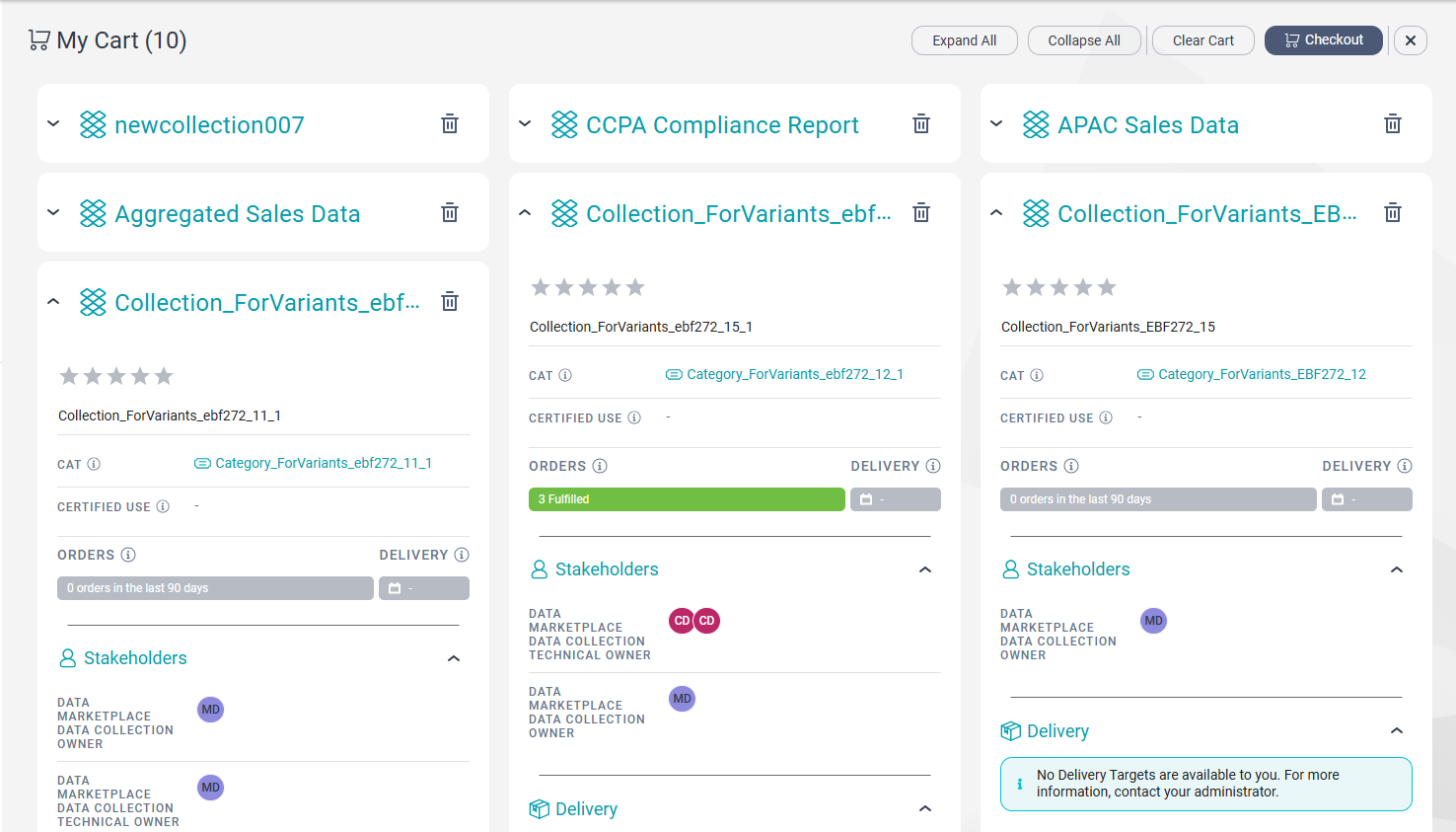
Data Marketplace introduces the My Cart page from where you can order multiple data collections simultaneously.
The My Cart Checkout process provides you the flexibility to use the same details for all the data collections that you order, or to specify different information for each data collection in your cart.
You can also use the My Cart page to compare data collections that interest you. You can compare and order up to 10 data collections from My Cart.
Note:
Ordering multiple data collections provides a new capability to how you order data collections. You can still order a single data collection in Data Marketplace using the Checkout button.
Enhancements for Data Governance and Catalog integration
Import all assets from Data Governance and Catalog
You can import all business and technical assets from Data Governance and Catalog into Data Marketplace. The import includes existing business assets, predefined and custom catalog sources, and assets that you add to Data Governance and Catalog.
The new asset types that you import from Data Governance and Catalog after this upgrade will not be available for use by default regardless of their compatibility values. You must manually enable them for use if you want to add additional asset types.
Search, activate, and filter asset types
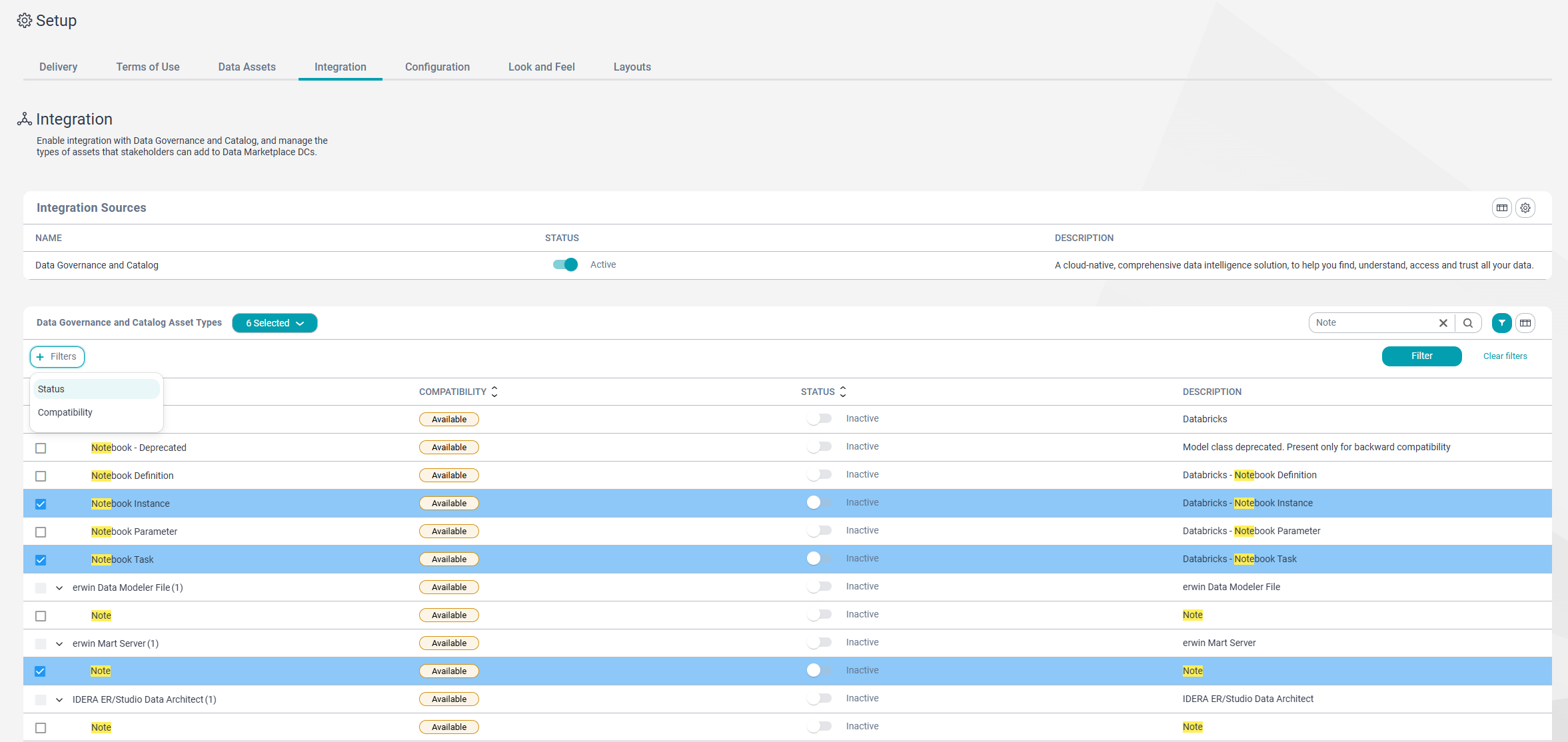
In the Data Governance and Catalog Asset Types section, you can search for asset types that are imported from Data Governance and Catalog.
For assets that are not activated, you can select multiple inactive asset types and activate them simultaneously.
You can also apply filters based on status and compatibility to refine your search results.
Hierarchy for asset types
When you search for an asset type, the Data Governance and Catalog Asset Types section shows assets in an hierarchical view. If you select assets, you select only the searched asset and not the parent assets.
Create data collections from Data Governance and Catalog
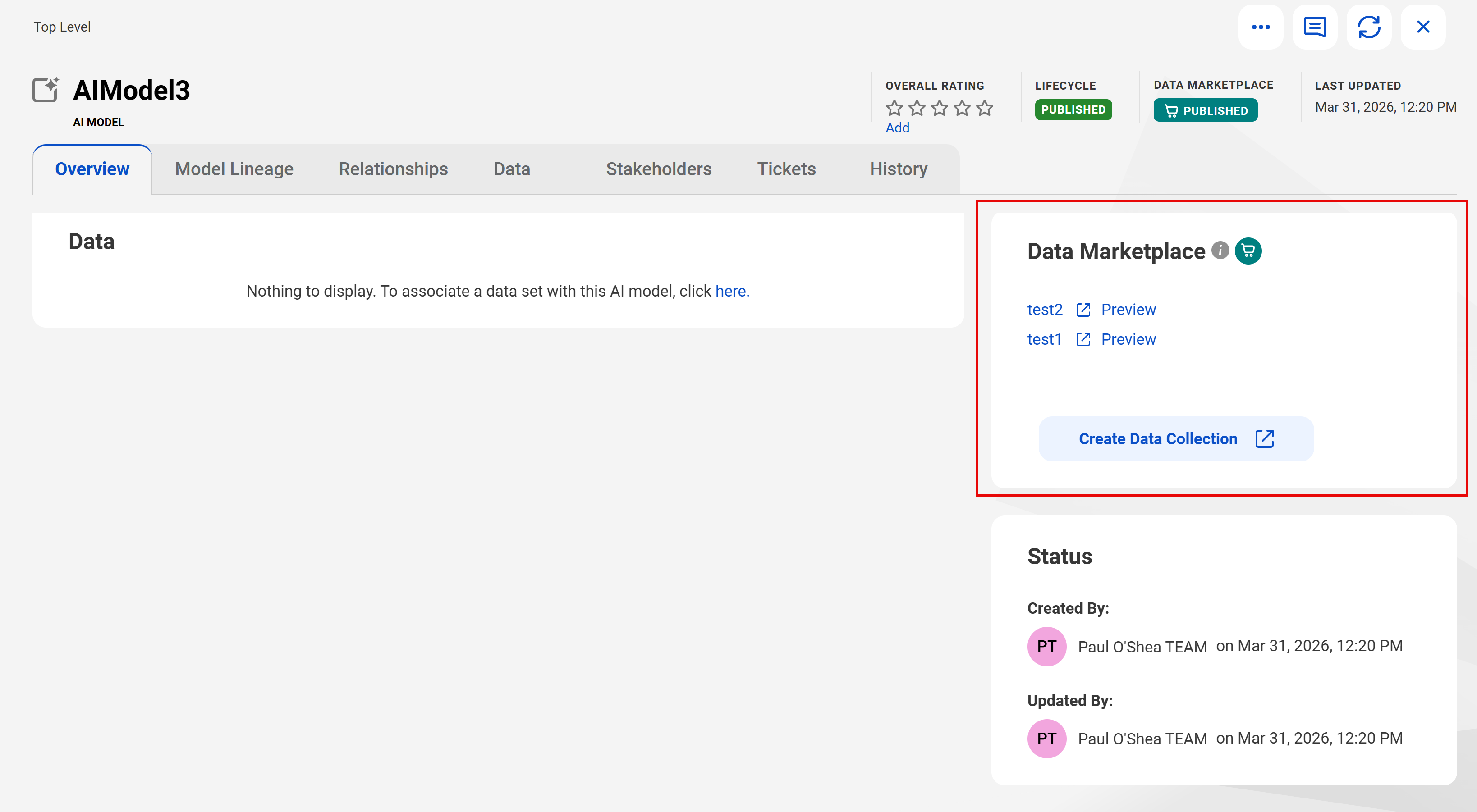
From an asset page in Data Governance and Catalog, you can create a data collection in Data Marketplace. You can create data collections for asset types that are enabled for use from the Integration tab on the Setup page in Data Marketplace.
The following image shows a Data Governance and Catalog asset page: