Configure what a user sees for various layouts in Data Governance and Catalog. You can set a layout as the default for specific user groups and roles, or for all users. For asset layouts, you can hide the visibility of predefined layouts from users in your organization.
Overview
In the Layouts tab for an asset type, each category of a layout corresponds to different layouts that you see for an asset in Data Governance and Catalog.
Each category of a layout corresponds to different layouts you see for an asset in Data Governance and Catalog
On the Layouts tab for an asset type or the Browse page, Metadata Command Center shows the layouts you create. This tab contains the Layouts grid, which shows multiple columns that describe the layouts in your organization. The columns show information such as the name, description, assignment status, lifecycle status, and update details for each layout.
In the grid, you can perform various activities to manage your layouts. You can clone predefined layouts, and create, modify, or delete layouts. For asset types, the Layouts grid categorizes layouts into the following categories:
•Asset Pages. Layouts for the page that a user sees when viewing the asset page in Data Governance and Catalog.
•Asset Preview Panels. Layouts for the preview panel that shows the asset's attributes in different Data Governance and Catalog pages.
•Create Asset Pages. Layouts for the page that a user sees when creating a new asset in Data Governance and Catalog.
Set a preference for default layouts
For each layout category in the Layout grid, the order of the layouts determine which is the default for that layout in Data Governance and Catalog. If there are multiple options for a layout, the first layout in a list appears as the default layout in Data Governance and Catalog pages.
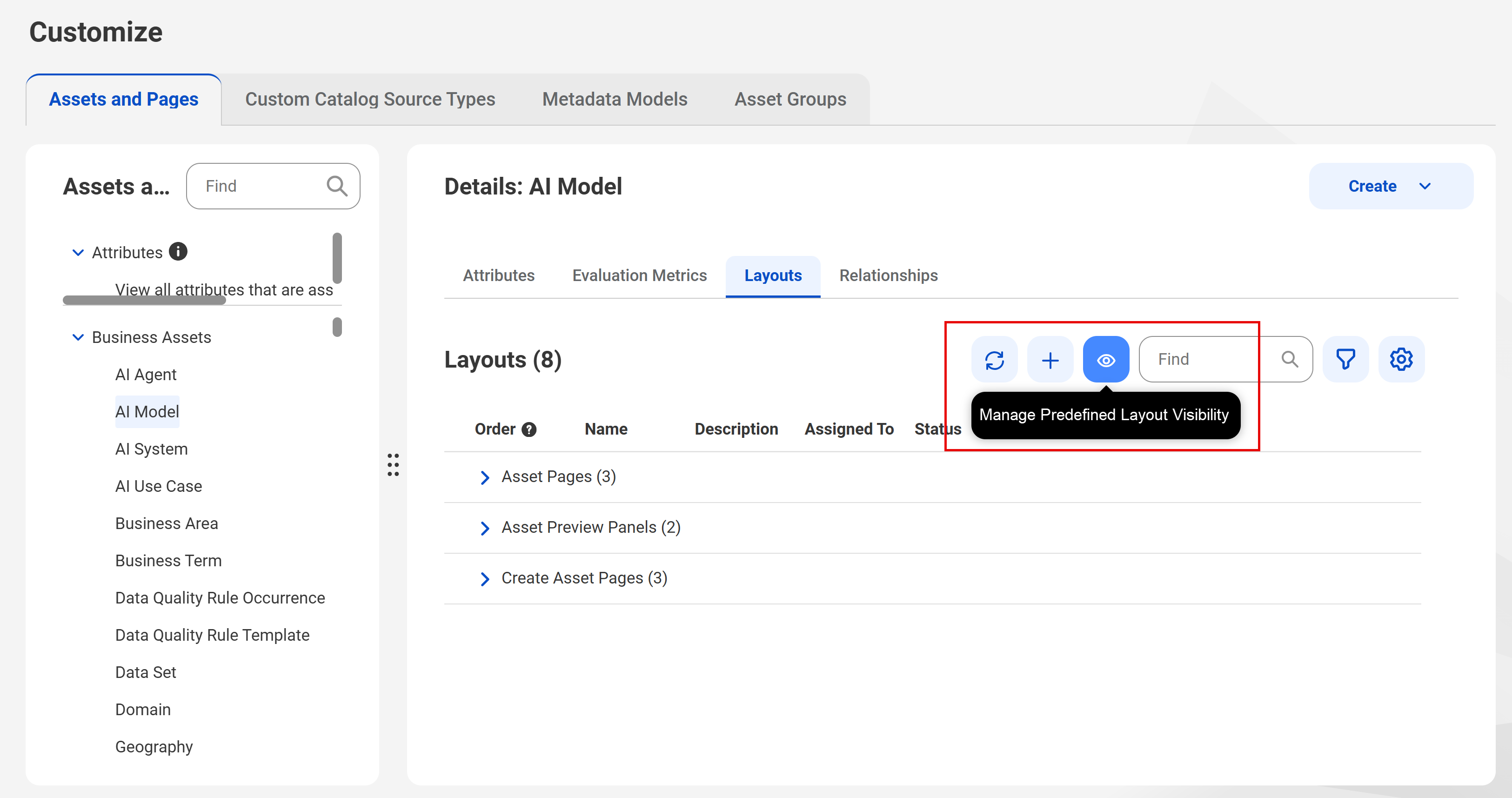
When you create a custom layout for an asset type, you select user groups and roles which you can assign the layout. A custom layout hides the predefined layout for that asset type from the selected users and roles. If certain users are not assigned a custom layout, you can manage the assignments by clicking the Manage Predefined Layout Visibility icon. If there are no custom layouts, the Manage Predefined Layout Visibility icon is disabled.
The following image shows the Manage Predefined Layout Visibility icon in the Layouts grid for the AI Model asset:
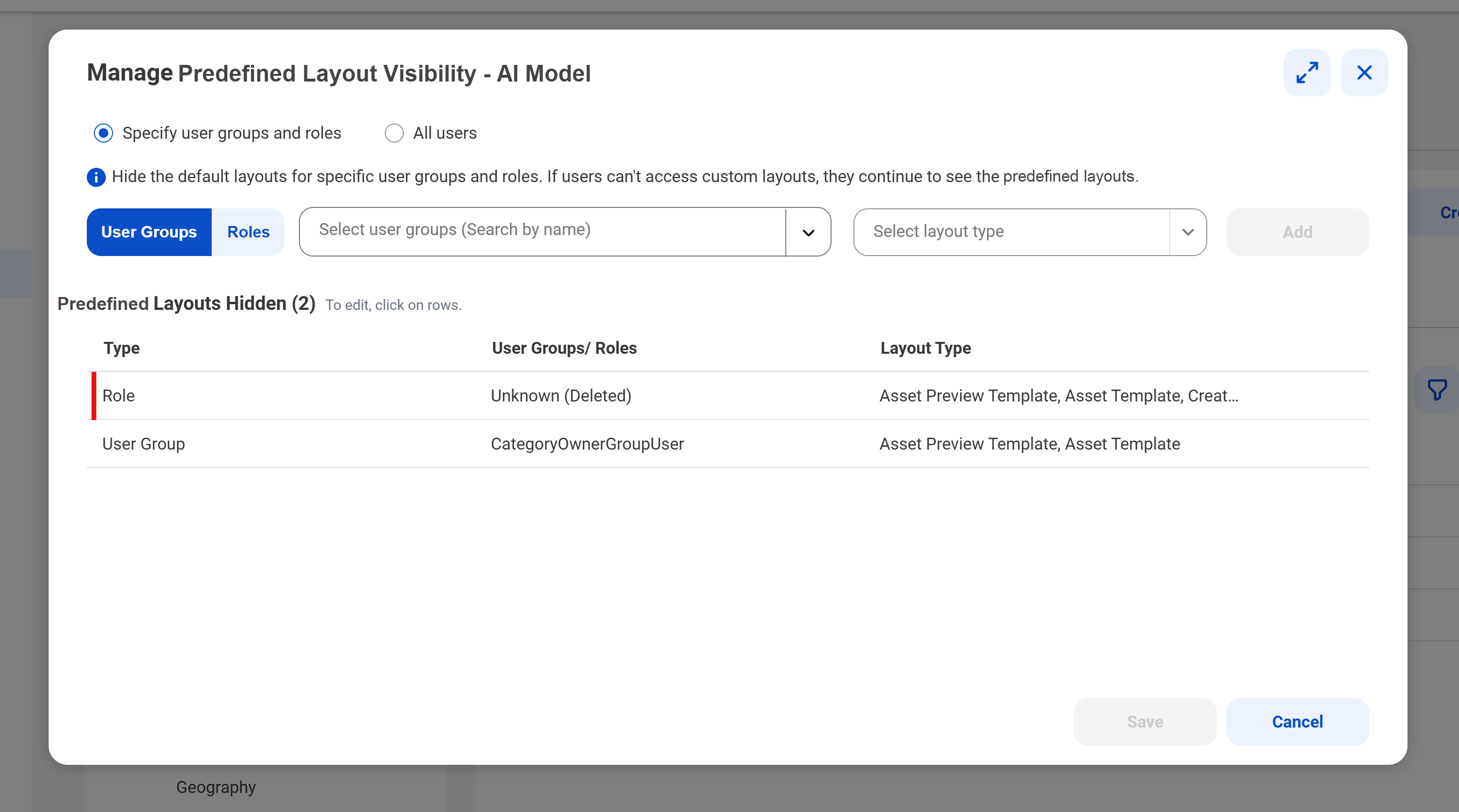
In the Manage Predefined Layout Visibility dialog box, you can manage the visibility of predefined layouts for specific user groups and roles, or for all users. Select Specify user groups and roles to hide the predefined layout's visibility to specific users and roles. Select All users to hide the predefined layouts from all users in your organization.
If you select All users, select one or more predefined layouts and click Save to publish your changes to your users.
If you select the Specify user groups and roles option, you can construct rules that determine who can't view the default layouts. For more information about hiding the predefined layout for user groups and roles, see Hiding predefined layouts for user groups and roles.
Note:
If a user is not assigned a custom layout, the predefined layout appears when a user views an asset, a panel, or the Browse page in Data Governance and Catalog.
Setting the default layout for an asset type
You can specify the default layout in which an asset appears when a Data Governance and Catalog user opens the asset.
Your user role requires the Asset Page Customization privilege in IDMCAdministrator. For more information on feature privileges, see the Introduction and Getting Started help.
1In Metadata Command Center, navigate to the Customize page, and go to the Asset Customization tab.
2In the Asset Types list, select the asset type for which you specify the order of layouts.
The right pane shows the layouts that have been configured for the asset type. The Page header shows all layouts configured for the asset page, and the Asset Preview header shows all layouts configured for the preview pane.
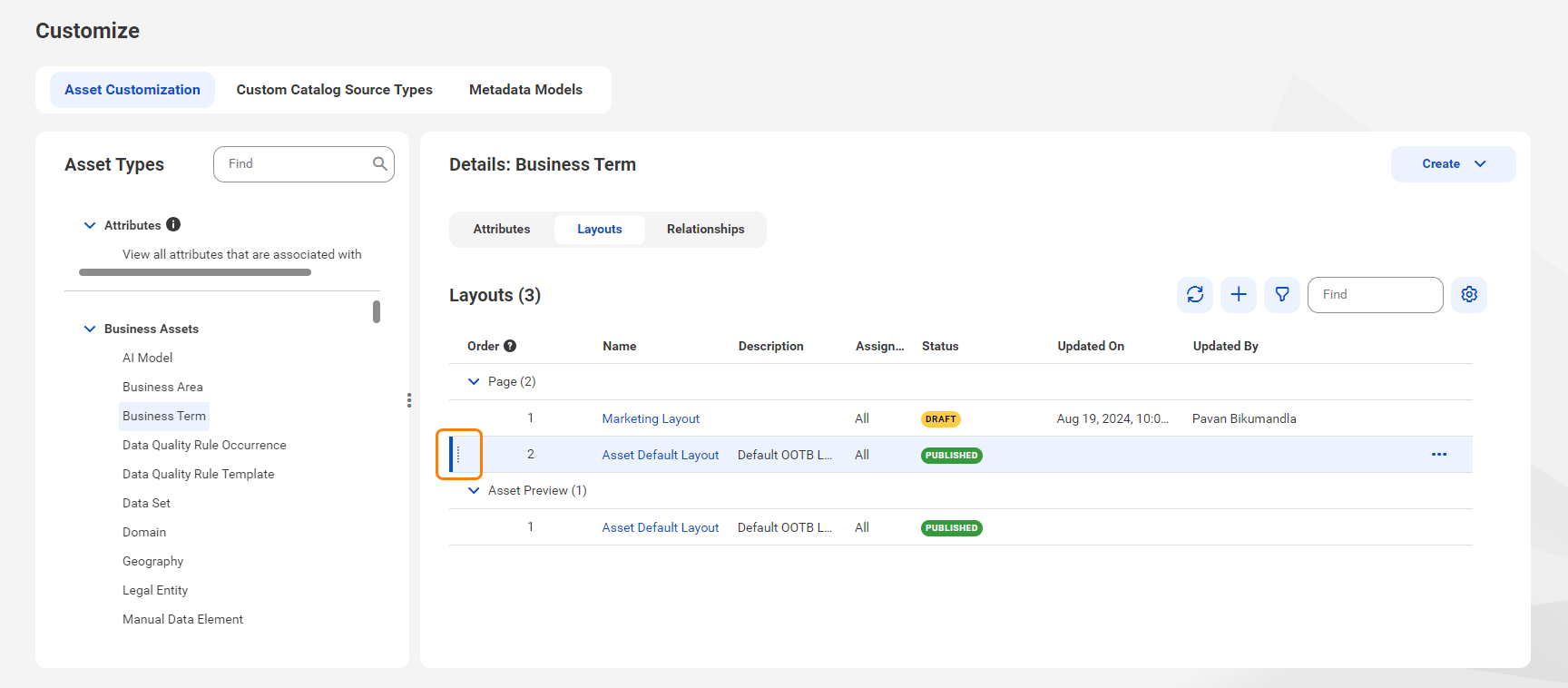
3Click on the handles of a layout and drag it to the first position.
Note:
The predefined layouts for asset pages and preview panes always appear as the last items in the list in Metadata Command Center, and you cannot move them to a new position.
4Click Save Order.
When a Data Governance and Catalog user opens an asset of this asset type, the asset opens in the layout that you specify as the first item here in Metadata Command Center. The user can then override this layout with another layout as default. However, the layouts in the layout switcher list in Data Governance and Catalog always appear in alphabetical order.
Hiding predefined layouts for user groups and roles
Hide the predefined layout of a layout category for specific users by defining rules to control their visibility. In the Manage Predefined Layout Visibility dialog box, you can match a user or role to a predefined layout to hide its visibility.
Your user role requires the Asset Page Customization privilege in Administrator. For more information on feature privileges, see the Introduction and Getting Started help.
Note:
If you choose to hide a predefined layout for a user group or role, ensure that you have replaced that layout with a custom layout.
You hide the default layout for an asset type by adding a rule on the Manage Predefined Layout Visibility dialog box. For more information on how default layout visibility works, see Manage layouts.
1In Metadata Command Center, navigate to the Customize page, and go to the Assets and Pages tab.
2In the Business Assets list, select the asset type for which you want to hide predefined layouts.
The Manage Predefined Layout Visibility dialog box appears.
5In the Manage Predefined Layout Visibility dialog box, select Specify user groups and roles.
6To define a rule, select User Groups or Roles.
For each rule, you can select only one option.
7Select the user groups or roles to which the rule applies. You can search for them by name.
8Select the predefined layout type you want to hide.
9To add the rule to the Predefined Layouts Hidden grid, click Add
10Select the layout types for which the rule hides the default layout.
11In the Predefined Layouts Hidden gird, click Delete if you want to remove a rule.
12To publish your rules for the selected user groups and roles, click Save.
Users affected by the rule no longer see the predefined layouts in Data Governance and Catalog. If an affected user already has a custom layout assigned, their experience doesn't change. If an affected user isn't assigned a layout but has access to custom layouts, they're routed to one of those layouts.