When you configure the Microsoft Azure Data Factory catalog source, you define the settings for the metadata extraction capability and other optional capabilities.
The metadata extraction capability extracts source metadata from external source systems. You can also configure other capabilities that the catalog source includes.
You can save the catalog source configuration at any point after you enter the connection information. After you save the catalog source, you can choose to run the catalog source job. To run the job once, click Run. To run metadata extraction and other capabilities on a recurring schedule, configure schedules on the Schedule tab.
Configure metadata extraction
When you configure the Microsoft Azure Data Factory catalog source, you choose a runtime environment, define filters, and enter configuration parameters for metadata extraction.
Before you configure metadata extraction, configure runtime environments in the IDMC Administrator.
1In the Connection and Runtime area, choose a serverless runtime environment or the Secure Agent group where you want to run catalog source jobs.
Note:
Serverless runtime environment options are available if the catalog source works with a serverless runtime environment.
2Choose to retain, delete, or deprecate objects that are deleted from the source system in the catalog with the Metadata Change Option.
- Retain. Retains objects that are deleted from the source system in the catalog. If you update or add a filter, the catalog retains objects extracted from the previous job and extracts additional objects that match the current filter. Objects deleted from the source system are not deleted from the catalog. Enrichments added on deleted objects and relationships are retained.
- Delete. Deletes metadata from the catalog based on objects deleted from the source system and changes you make to the filter. Enrichments added on deleted objects and relationships are also permanently lost. Objects renamed in the source system are removed and recreated in the catalog.
- Deprecate. When objects are deleted from the source system, the catalog changes the lifecycle of the imported objects to Obsolete. The lifecycle of objects also changes to Obsolete when you add exclusion filters or reduce the scope so that objects extracted in earlier jobs are no longer included. For example, the first job includes the sales schema. The second job also includes the sales schema, but excludes the sales.transactions table. In this case, the second job marks the sales.transactions object as Obsolete, even though the first job includes it. This does not impact enrichments applied to deprecated objects and relationships. Objects renamed in the source system are removed and recreated in the catalog. When you run the catalog source job again for other capabilities such as data classification, relationship discovery, or glossary association, the job doesn't consider obsolete objects. Obsolete objects remain in the catalog until they are purged when you run a Purge Obsolete Objects job on the Explore page.
Note:
You can also change the configured metadata change option when you run a catalog source.
3In the Filters area, define one or more filter conditions to apply for metadata extraction:
aSelect Yes to view filter options.
bFrom the Include/Exclude list, choose to include metadata based on the filter parameters.
cFrom the Object type list, select Path.
dFrom the Filter criteria list, select Pattern.
eType the path to the pipeline or other asset that contains metadata that you want to include or exclude.
fClick OK.
The following image shows the Filter Conditions option:
4Optionally, to define an additional filter with an OR condition, click the plus icon.
5In the Configuration Parameters area, enter configuration parameters.
The following table describes the parameters that you can configure:
Property
Description
Operational Metadata Config
Specifies whether to process operational metadata.
To process operational metadata, set the Should process operational metadata parameter to Yes.
Configure the following parameters:
- Operational Metadata Time Range Mode. Determines the time range from which pipeline runs are processed.
- Should process the latest operational metadata run only. Determines whether to process only the latest pipeline runs or all pipeline runs.
If you select No and run the job with the 'Delete' Metadata Change Option selected, any metadata extracted previously through the operational metadata in the pipeline instance is deleted.
Databricks parameters
Specifies the parameters for Databricks notebooks.
Configure the following parameters:
- Notebooks Python Modules Path. The path to the directory containing custom python user modules. This path must be accessible by the Secure Agent.
Example values:
Y:\etc\user_modules/
opt/etc/user_modules
This parameter appears when you click Show Advanced.
- Python Default Variables Values. Python default variable values for Databricks notebooks. Use [VARIABLES], [FUNCTIONS], or [GLOBAL] sections in the form of [SECTION NAME] before you specify a variable.
This parameter appears when you click Show Advanced.
- Databricks Connection. The connection details for Databricks notebooks. For more information, see Databricks connection.
Microsoft Azure Synapse Analytics parameters
Specifies the parameters to extract Azure Synapse Analytics notebooks from the Microsoft Azure Synapse Analytics source system.
Select the Microsoft Azure Synapse Analytics connection that you created in Administrator.
SecureString key and value that Microsoft Azure Data Factory uses to connect to other data sources. Contact your administrator for the key and value.
SSISDB SQL Server Connection Configuration
Specifies SSISDB SQL Server connections assigned to Integration Runtimes. In the Name field, enter the name of the Integration Runtime configured to run the Execute SSIS Package activity in Microsoft Azure Data Factory. In the Connection field, enter the SSISDB SQL Server connection created in the Administrator service.
Note:
This parameter appears when you click Show Advanced.
Additional Settings
Configure expert parameters to specify additional configuration options to be passed at runtime. Required if you need to troubleshoot the catalog source job.
Caution:
Use expert parameters when it is recommended by Informatica Global Customer Support.
Note:
This parameter appears when you click Show Advanced.
6Configure additional capabilities for the catalog source by clicking on the tabs.
Filter examples
Use filters to include or exclude metadata from different elements of the Microsoft Azure Data Factory system. Filters can contain wildcards. Use an asterisk for multiple characters and a question mark for a single character. For example, A* matches A, Ab, ABC and so on; A? matches A1, Ab, and so on.
You can use the following syntax to create filters: <FactoryName>/<FolderName>|<PipelineName>/<ActivityName>
You can choose one of the following filters to enter in the Microsoft Azure Data Factory input filters parameter:
Syntax
Action
<FactoryName>/*/*
Includes or excludes metadata from all activities, in all pipelines of a specific factory.
For example, Factory1/*/*
In this example, the filter includes or excludes all activities in all pipelines of the Factory1 factory.
<FactoryName>/*|*/*
Includes or excludes metadata from all folders, pipelines, and activities in a specific factory.
For example, Factory1/*|*/*
In this example, the filter includes or excludes metadata from all folders, pipelines, and activities in the Factory1 factory.
Includes or excludes metadata from a specific pipeline in a specific subfolder of a specific factory.
For example, Factory1/Folder1|Folder2|Folder3|Pipeline1/*
In this example, the pipeline name is Pipeline1. The pipeline exists in the Factory1 factory, in the Folder3 subfolder of the Folder2 folder. The Folder2 folder is in the Folder1 folder.
<FactoryName1>/<FolderName1>|<PipelineName1/*
<FactoryName2>/<FolderName2>|<PipelineName2>/*
Includes or excludes all activities in specific pipelines, folders and factories.
For example, AzureDataFactory-Demo/cdgc_pipelines|pl_TO_DataLake_Landing/* and AzureDataFactory-Demo/ cdgc_pipelines|pl_TO_DWH/*
In this example, the pipeline names are pl_TO_DataLake_Landing and pl_TO_DWH. The pipelines exist in the AzureDataFactory-Demo factory, in the cdgc_pipelines folder.
Note:
If your pipelines are directly under a factory and not in folders, use the following syntax: <FactoryName>/<PipelineName>/<ActivityName>
<FactoryName>/<PipelineName>/*
Includes or excludes all activities in the specific pipeline and factory.
For example, AzureDataFactory-Demo/pl_myfirstpipeline/*
In this example, the filter includes or excludes all acitvities in the pl_myfirstpipeline pipeline in the AzureDataFactory-Demo factory.
Python default variables values
Provide Python default variables values when your script uses values that are not defined in the code.
Ensure that the Python default variables values include either both VARIABLES and FUNCTIONS sections or a GLOBAL section.
To escape special characters such as \n or \t, use the backslash (\). For example, to define E:\file\tgtParameterized.csv, enter E:\\file\\tgtParameterized.csv
Variables
Use the following syntax: <VariableName>=<VariableExpression>
Note:
A variable name doesn't require quotes if it contains only standard alphanumeric characters. If a variable name contains special characters, use double quotes.
A sample variable section can have the following structure:
[VARIABLES] a = 42 b = 7 c = a < b ? a + 7 : b - 7 // It's 49 d = e(1,2) + 1 // Expression use call to function. "User::table" = 'table' || "User::tableSuffix" // It's a string table concatenated with the value of User::tableSuffix variable
Functions
Use the following syntax: <FunctionCallSignature>=<FunctionExpression>
Consider the following rules and guidelines when you define functions:
•A function name doesn't require quotes if it contains only standard alphanumeric characters.
•Enclose a function name in double quotes if it contains special characters.
•Define the list of arguments within parentheses.
•Use a question mark for each function argument.
•Ensure that arguments consist of question marks separated by commas.
A sample function section can have the following structure:
[FUNCTIONS] a(?) = 1 a(?,?) = 2 b(?) = a(1) + 1 // Expression use call to another function. c(?,?) = d + 2 // Expression use reference to variable.
You can provide additional sections to match functions. To match an overloaded function, provide placeholders for its arguments. You can also reference matched function arguments inside the matched section.
A sample custom function section can have the following structure:
In the first example, the substring 'bcde' matches the regular expression pattern 'b.*'. The function replaces the matched substring with the replacement string 'f'. As a result, the modified string returned by the function is 'af'.
In the second example the substring 'id20' matches the regular expression pattern 'id(\d+)'. The function replaces the entire matched substring with the captured digits '20'. As a result, the modified string returned by the function is 'graph_20'.
StringLengthLimit(str, limit, hashSize)
Limits the length of the input string based on a specified limit. If the length of the string exceeds the limit, the function appends a hash of the remaining characters using the Hash function, where 'hashSize' specifies the size of the hash.
For example:
- StringLengthLimit('abcc', 3, 2) -> 'a26'
- StringLengthLimit('abcc', 4, 2) -> 'abcc'
In the first example, the input string 'abcc' is longer than the specified limit of 3 characters and it is truncated to 'a'. The remaining characters are replaced with the hash value '26'.
In the second example, the function does not modify or truncate the input string because its length matches the specified limit of 4 characters. The function returns the original string 'abcc'.
StringLengthLimit(str, limit)
Limits the length of the input string based on the specified limit. If the length of the string exceeds the limit, the function appends a hash of the remaining characters using the Hash function with a default hash size of 8 characters.
For example: StringLengthLimit('abcdabcdabcd', 10) -> 'abE340600C'
In this example, the function limits the length of the input string 'abcdabcdabcd' based on the specified limit of 10 characters.
RegexpMatch(pattern, str)
Tests whether the input string matches a specified pattern. For example: RegexpMatch('[A-Za-z]+','Abcd') -> TRUE
In this example, the function returns 'TRUE' because the input string 'Abcd' contains alphabetic characters that satisfy the pattern of one or more occurrences of alphabetic characters specified by [A-Za-z]+.
Upper(str)
Converts the characters in a given input string to uppercase.
For example: Upper('Abc') -> 'ABC'
Lower(str)
Converts the characters in a given input string to lowercase.
For example: Lower('aBC') -> 'abc'
Date(text,format)
Returns objects that represent a date in a specified format. For example: Date('2017-10-31', 'yyyy-MM-dd')
Note:
The function follows the conventions and patterns provided by the SimpleDateFormat class in Java 8.
Contains/ ContainsIgnoreCase(stack, needle)
Checks if a given "needle" string is present within a "stack" string.
Examples:
- Contains('abc', 'ab') -> TRUE
- Contains(' abc', 'AB') -> FALSE
- ContainsIgnoreCase(' abc', 'AB') -> TRUE
- Contains('stack', 'needle') -> FALSE
In the examples, TRUE means that the function contains a given substring and FALSE means that it doesn't.
Global
You can use a GLOBAL section. It contains both variables and function definitions. If you use a GLOBAL section, don't add the VARIABLES or FUNCTIONS sections.
Use the following syntax: DefaultVariable = 'DefaultValue'
Note:
A sample global section can have the following structure:
Note:
A variable name doesn't require quotes if it contains only standard alphanumeric characters. If a variable name contains special characters, use double quotes.
Simple expression
Use the Simple Expression Language to define a value for a variable or a function call. The Simple Expression Language allows you to use values from already defined variables and functions, as well as variables from the current job context.
You can use the following case-sensitive literals:
•Integer: 42
•String: 'str'
•String with quoted single quote: 'str\''
•Boolean: true, false
You can use the following features and functionalities of the Simple Expression Language:
Use comments to provide additional information about Python default variables values. You can use the following comment types:
•Single line: // comment
•Multi line: /* comment */
Note:
Comments don't affect the job.
Databricks connection
Provide connections details for Databricks notebooks.
The following table describes the connection properties:
Parameter name
Description
Host
The Databricks host name.
Workspace path
Optional. The path to the Databricks Notebook workspace.
Connection
The Databricks connection object that you want to use.
Catalog Preload include filter
A list of include filters to preload Databricks catalog assets, such as tables or views. Use the include filter to load a limited set of assets and optimize job time. A job processes an asset when it matches at least one include filter.
A filter value contains segments separated by periods. You can enter two wildcards in each segment. Use a question mark to represent a single character and an asterisk to represent multiple characters.
The first two filter segments contain the Databricks catalog name and the schema name, such as <Catalog name>.<Schema name>. The next segment contains the asset name.
The following examples illustrate the correct syntax:
- hive_metastore.schemaA.*
- hive_metastore.schemaA.TableA
Catalog Preload exclude filter
A list of exclude filters for Databricks catalog assets, such as tables or views.
If there are no include filters, a job processes every internal Databricks asset. It does not process assets that match any of the exclude filters.
If you specify include filters, a job processes assets that match any of the include filters and do not match any of the exclude filters.
A filter value contains segments separated by periods. You can enter two wildcards in each segment. Use a question mark to represent a single character and an asterisk to represent multiple characters.
The first two filter segments contain the Databricks catalog name and the schema name, such as <Catalog name>.<Schema name>. The next segment contains the asset name.
The following examples illustrate the correct syntax:
- hive_metastore.schemaA.*
- hive_metastore.schemaA.TableA
Microsoft Azure Synapse Analytics connection
Provide connections details for Microsoft Azure Synapse Analytics notebooks.
The following table describes the connection properties:
Parameter name
Description
Workspace Name
The Microsoft Azure Synapse Analytics workspace name.
Connection
The Microsoft Azure Synapse Analytics connection that you created in Administrator.
For information about configuring a connection, see Connections.
Configure lineage discovery
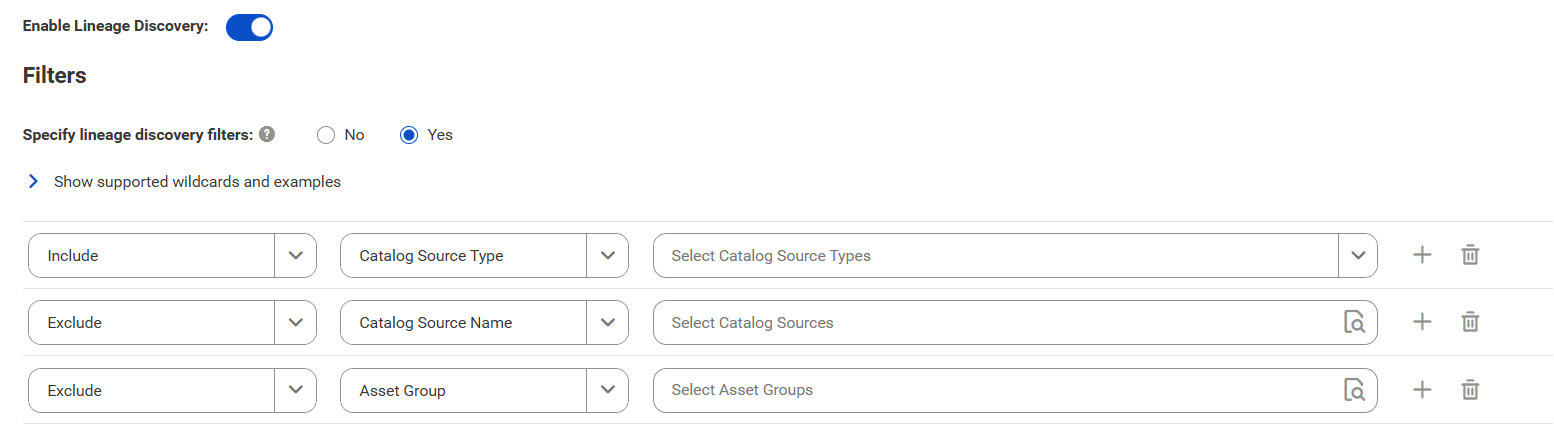
Enable the lineage discovery capability and use CLAIRE to build complete lineage by recommending endpoint catalog source objects to assign to reference catalog source connections.
1Click the Lineage Discovery tab.
2Select Enable Lineage Discovery.
3In the Filters area, define one or more filter conditions to apply for lineage discovery.
To define filters, you can choose to select catalog source types, asset groups, or enter a catalog source name or search from a list of catalog sources.
aSelect Yes to view filter options.
bFrom the Include/Exclude list, choose to include or exclude catalog sources for lineage discovery based on the filter parameters.
cFrom the filter type list, select catalog source type, catalog source name, or asset group.
dIn the filter value field, select the required catalog source types, or click the Search button and select catalog sources or asset groups.
Filters can contain the asterisk wildcard to represent multiple characters or empty text.
The filter options appear.
Examples:
▪ To include or exclude all Oracle catalog sources, select Catalog Source Type as the filter type and select Oracle in the filter value field.
▪ To include or exclude the 'Oracle_Retail' catalog source, select Catalog Source Name as the filter type and search for the catalog source or enter Oracle_Retail in the filter value field.
▪ To include or exclude all catalog sources with names that start with 'Oracle', select Catalog Source Name as the filter type and search for the catalog source or enter Oracle* in the filter value field.
▪ To include or exclude all catalog sources with names that end with 'Retail', select Catalog Source Name as the filter type and search for the catalog source or enter *Retail in the filter value field.
▪ To include or exclude all catalog sources with names that contain 'Ret', select Catalog Source Name as the filter type and search for the catalog source or enter *Ret* in the filter value field.
▪ To include or exclude all catalog sources that are part of the 'Financial Group' asset group, select Asset Group as the filter type and search Financial Group in the filter value field.
Note:
You can't add more than one include or exclude filter for the same filter type.
eOptionally, to define an additional filter with an AND condition, click the Add icon.
For more information about lineage discovery, see Lineage discovery.
Configure data classification
Enable the data classification capability to identify and organize data into relevant categories based on the functional meaning of the data.
1Click the Data Classification tab.
2Select Enable Data Classification.
3Choose one or both of the following options:
- Generated Data Classifications. CLAIRE automatically generates data classifications for the data elements.
- Data Classification Rules. Choose from predefined or custom data classifications.
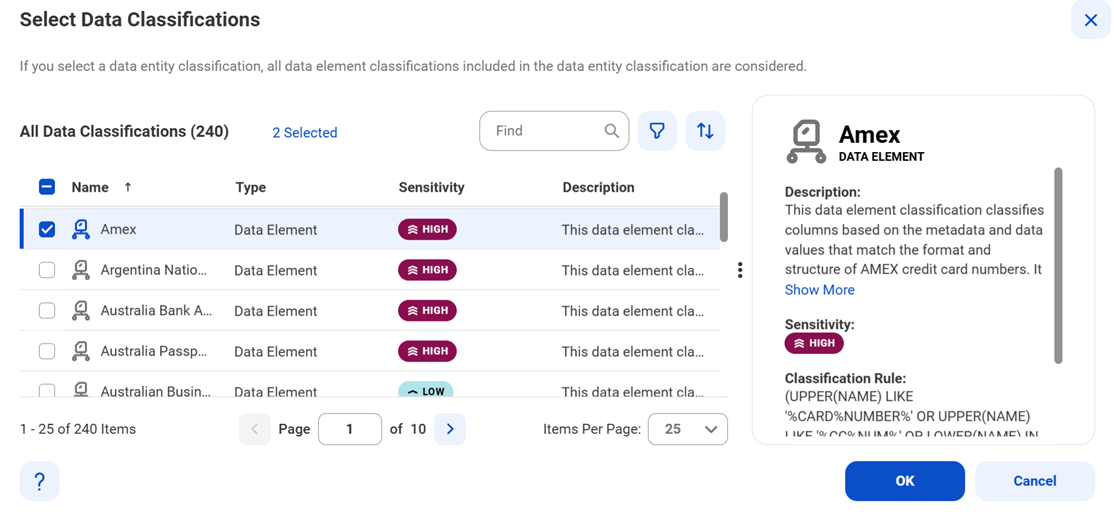
1Click Add Data Classification. The Select Data Classifications dialog box appears.
2Select the data classifications that you want to use.
3Click OK.
Configure glossary association
Enable the glossary association capability to associate glossary terms with technical assets, or to get recommendations for glossary terms that you can manually associate with technical assets in Data Governance and Catalog.
Metadata Command Center considers all published business terms in the glossary while making recommendations to associate your technical assets.
1Click the Glossary Association tab.
2Select Enable Glossary Association.
3Select Enable auto-acceptance to automatically accept glossary association recommendations.
4Specify the Confidence Score Threshold for Auto-Acceptance to set a threshold limit based on which the glossary association capability automatically accepts the recommended glossary terms.
Note:
Specify a percentage from 80 to 100. If the score is higher than the specified limit, the glossary association capability automatically assigns a matching glossary term to the data element.
5Select Enable Below-threshold Recommendations to receive glossary association recommendations below the auto-acceptance threshold. If you enable auto-acceptance, you can enable below-threshold recommendations to receive glossary recommendations below the auto-acceptance threshold.
6Specify the Confidence Score Threshold for Recommendations to set a threshold based on which the glossary association capability makes recommendations
If you enable auto-acceptance, specify a percentage from 80 to the selected auto-acceptance threshold. You can accept or reject the recommended glossary terms that fall within this range in Data Governance and Catalog.
If you disable auto-acceptance, specify a percentage from 80 to 100 inclusive.
7Choose to automatically assign business names and descriptions to technical assets. You can then choose to retain existing assignments and only assign business names and descriptions to assets that don't have assignments, or allow overwrite of existing assignments.
By default, existing assignments are retained.
8Optional. Choose to ignore specific parts of data elements when making recommendations. Select Yes and enter prefix and suffix keyword values as needed.
Click Select to enter a keyword. You can enter multiple unique prefix and suffix keywords. Keyword values are case insensitive.
9Optional. Choose specific top-level business glossary assets to associate with technical assets. Selecting a top-level asset selects its child assets as well. Select Top-level Glossary Assets and specify the assets on the Select Assets page.
10Optional. Choose to use abbreviations and synonym definitions from lookup tables for accurate glossary association. Select Yes to enable, and then click Select to upload a lookup table.