Configuring a connection to use the secrets manager
You can configure any connection that has sensitive credentials to retrieve these credentials from the secrets manager.
1Open the Connections page.
2Perform either of the following actions:
- To create a connection, click New Connection and enter the connection details.
- To edit a connection, click the connection name, and then click Edit.
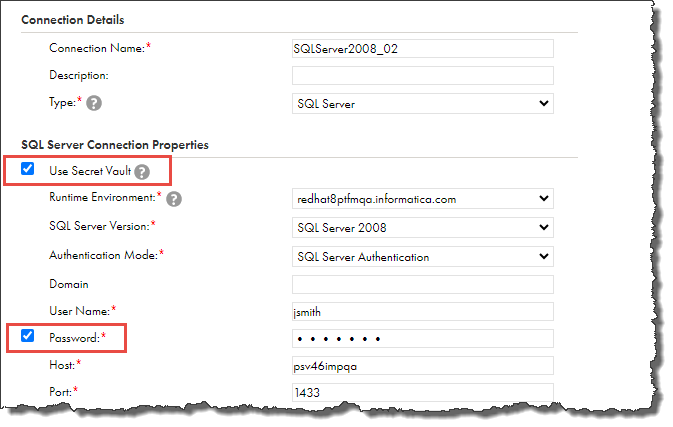
3In the Connection Properties area, select Use Secret Vault.
4Enable the slider next to each property that you store in the secrets manager, and then enter the secret name, including the path, in the corresponding field. If the secret is a JSON object, you'll also need to include the secret key.
For example, you configure a relational connection and you store the database password in HashiCorp Vault. The secret name is secret/data/MyCredentials, and the secret key is MyPassword. To retrieve the password from HashiCorp Vault, select Use Secret Vault, enable the slider next to the Password field, and enter secret/data/MyCredentials:MyPassword in the Password field.
5Select the runtime environment to be used with the connection.
All Secure Agents within the runtime environment must be installed on a local machine or VM and must be able to access the secrets manager. Additionally, the SecretManagerApp service must be running on each agent.
6Configure the connection-specific properties.
7To test the connection, click Test Connection.
8Click Save.
For more information about configuring connections, see Connections.
Connection property format
To configure a connection property to retrieve its value from a secrets manager, first enable the slider next to the property. Then enter the secret name, including the path, in the corresponding field. If the secret is a JSON object, you'll also need to include the secret key.
The following table shows the value to enter based on the format of the secret:
If you use AWS Secrets Manager, you can also enter the secret in the following format:*
<secret ARN>:<key>
Simple value, for example:
--name "MyPassword" --value "Hello123"
<secret name>
If you use AWS Secrets Manager, you can also enter the full ARN of the secret.*
* If you use AWS Secrets Manager and the account that hosts the Secure Agent differs from the account that hosts the secrets, you must enter the secret using the full ARN.
Example: Connection property format for AWS Secrets Manager
You want to configure a connection to retrieve a password from AWS Secrets Manager.
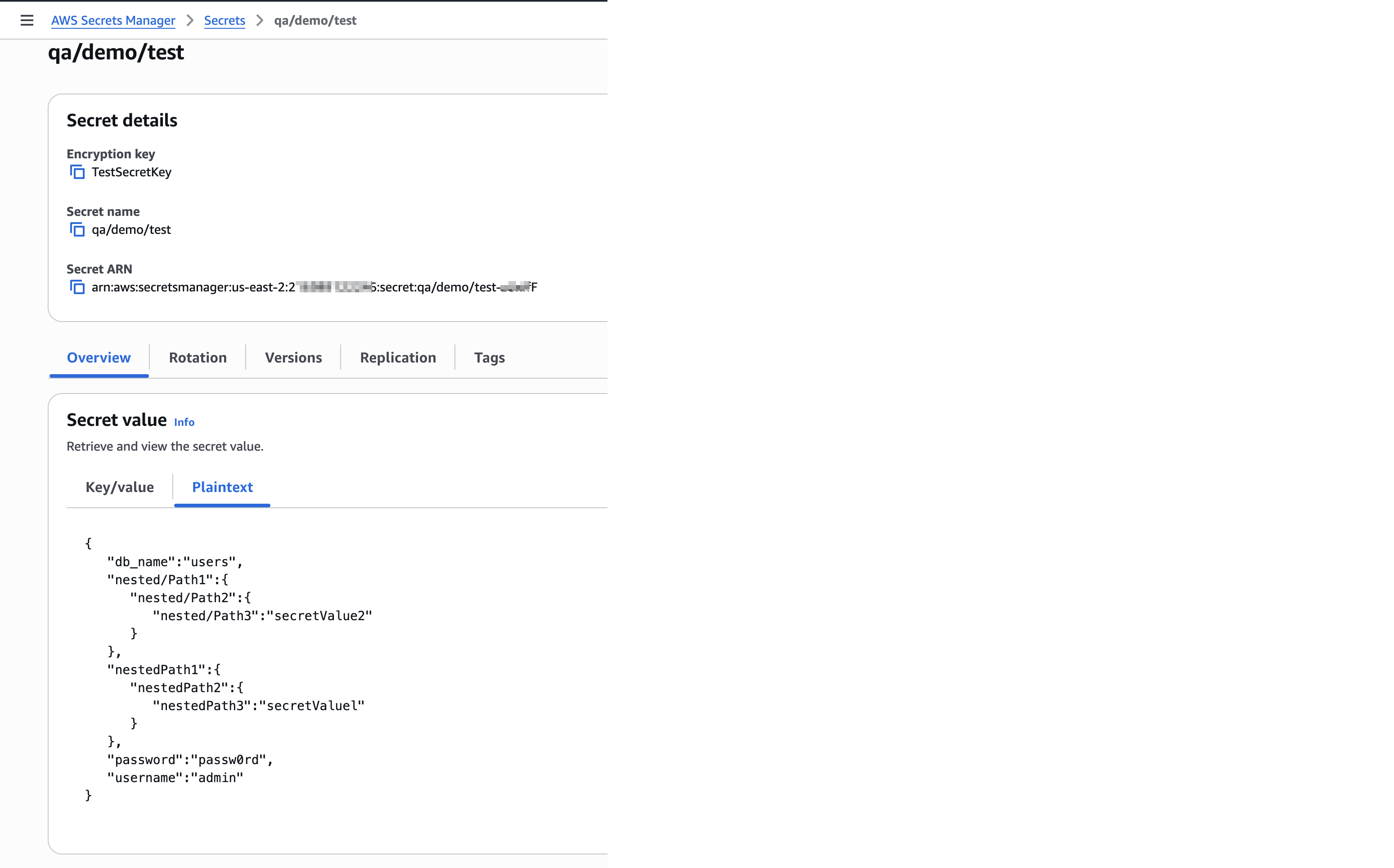
The following image shows the secret:
The secret name is qa/demo/test, the secret ARN is arn:aws:secretsmanager:us-east-2:2*********6:secret:qa/demo/test-zUxff*****F, and the key is password.
Enter either of the following values for the Password connection property: