To build an AI agent, you need to add at least one agent block to the agent flow. An agent block represents one AI agent that your workflow calls to perform a function. It specifies which LLM the agent uses, the planning prompt, and which other agents and tools the agent can use to extend its capabilities.
You can add one or more agent blocks to a workflow. To add an agent block, drag and drop an Agent Block from the Activities menu into the flow.
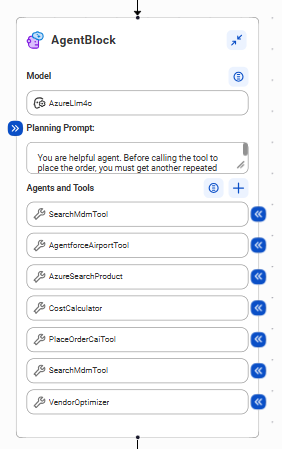
The following image shows an agent block:
After you drag an agent block into the workflow, configure the following fields:
Name
When you drag an AI agent block onto the canvas, the name is set to "AgentBlock" by default. To change the name, double-click it.
Model
Select the model connection that the agent will use. The model connection is a connection to the LLM that the agent uses to understand user input, generate appropriate responses, and provide task assistance.
For information about creating model connections, see Model connections.
Planning prompt
Enter a planning prompt. The planning prompt is a set of text instructions that helps the AI agent generate an action plan to achieve its goal, be more strategic and organized, and improve its responses.
Agents and tools
Optionally, select the other AI agents, tools, and tool connections your agent might needs to accomplish its goal. For example, you might add a Serper Search connection to retrieve up-to-date information from the web or a Salesforce connection to enable the agent to retrieve CRM data from Salesforce. You can also create inline subagents so that the agent you're creating can execute other AI agents.
For information about creating tool connections, see Tool connections.
Planning prompts
When you create an AI agent in an agent block, you need to enter a planning prompt. The planning prompt provides the instructions that guide the AI agent in creating a plan or set of instructions for accomplishing its goal.
The planning prompt appears in the prompt box. Click >> next to the planning prompt to view the entire prompt.
A planning prompt with some basic guardrail checks is provided by default. Update this prompt with instructions for the AI agent.
Tip:
If you want to configure more extensive guardrails checks in an agent flow, you can add a guardrails block to the flow. For more information about guardrails blocks, see
The prompt you enter should be clear about what you want the AI agent to do, provide context to help the agent understand its goal, and use simple, direct language. To get the agent to provide the most useful and accurate results, provide as much information as possible.
For example, you might want to include the following information in the planning prompt:
•The agent's objectives. Define what you want the agent to accomplish to help it understand its goals.
•The context. Provide relevant information to help the agent understand the environment or situation.
•The agent's scope and constraints. Provide information about what should be included or excluded as well as any limits on time, resources, or methods the agent can use.
•How the agent should interact with users. If the agent interacts with a human user, define when the agent should initiate actions, wait for instructions, or collaborate with the person.
•Data sources. Explain where the agent should get its information.
•The process the agent should follow. Provide key tasks and steps to help the agent prioritize its tasks, allocate resources appropriately, and avoid unnecessary steps.
•Desired outcomes. Enter the desired outcomes so that the agent's responses better match your expectations.
•Special instructions. If there are rules or approaches that you want the agent to follow, enter them in the prompt as well.
Example: Planning prompt for order fulfilment agent
You are designing an AI agent that finds alternative fulfillment options for a product when the company's preferred provider experiences a delay. The agent must decide on the best option while considering product cost and delivery time. It must also strive to maintain the company's platinum status in their service level agreement.
The following example shows the prompt:
You are an order fulfillment agent that will help find fulfillment options for a delayed order. You will follow this process:
1. Use Master Data Management to retrieve the company's full profile, SLA terms, and historical preferences. 2. Use Azure AI Search to perform a vector similarity search for alternative suppliers with the product. 3. Use Oracle to query lead times for all potential suppliers. 4. Use Agentforce to assess transportation risks for each route option. 5. Run a Python optimization algorithm for cost vs. speed trade-offs
You will then provide the user with a recommendation for the preferred supplier and dispatch route. Once the user confirms, you will use Salesforce to place the order and use Application Integration to execute the order to cash process.
Example: Planning prompt for risk analysis agent
You are designing an AI agent that analyzes the risk profile for an order and decides whether to use standard or expedited shipping.
The following example shows the prompt:
You are a risk profile analysis agent that assesses the risk profile for an order and recommends whether to proceed with standard or expedited shipping.
You will follow these steps:
1. Retrieve the order details (customer, products, quantities, delivery date) from Salesforce. 2. Use MDM Customer 360 to fetch the customer profile (tier, payment history, SLA requirements). 3. Use Azure AI Search to query product availability and supplier information. 4. Get the optimal supplier lead times for ordered products from an Oracle database. 5. Use Agentforce to analyze transportation risk factors from a PDF. 6. Calculate a risk score and generate a shipping method recommendation. Present the recommendation to the user.
If the user approves the shipping recommendation, use Application Integration to run the order-to-cash process.
Inline subagents and tools
When you configure an agent block, you need to specify which AI agents and tools the agent can use to accomplish its goal. Select all the agents and tools that the agent might need. For example, if your agent might need to use Agentforce to assess transportation risks for an order, add the appropriate Agentforce connection to the agent block.
The agents and tools that you add to an agent block are inline subagents and tools. Add inline subagents and tools to an agent block when you want the AI agent that you're creating to decide if, when, and how often to call these components. You can also add other agent blocks and tools directly to an agent flow if you want them to be executed sequentially.
The following table summarizes the differences between inline subagents and tools and the agent blocks and tools that you add to the flow:
Inline subagents and tools
Agent blocks and tools added to the flow
Location
You add inline subagents and tools directly to an agent block. Select or add them in the Agents and Tools list inside the agent block.
You add these agent blocks and tools to the flow by dragging an agent block, Python block, or tool block into the flow between the start and end nodes.
Execution method
Use inline subagents and tools when you want to delegate their execution to the agent. The agent can call an inline subagent or tool 0 or more times in any order or combination that it deems necessary.
Add agent blocks and tools to the workflow when you want them to be executed sequentially when your AI agent runs. These components always run in the order in which they appear in the agent flow.
Input and output parameter values
When you add inline subagents and tools, the agent determines the values of the input and output parameters. The Value field for each parameter shows "Agent Determines Value."
When you add agent blocks and tools to the workflow, you must set the values of the input and output parameters using agent flow variables. The Value field for each input and output parameter shows the variable name.
To add an inline subagent to the agent block, select Define a new Inline Agent from the Agents and Tools list, and then configure the agent block. An inline subagent can contain other inline subagents.
To add a tool to the agent block, select the tool connection from the Agents and Tools list. You can also create a new tool. For more information about creating tools and tool connections, see Tool connections.
Advanced properties
To fine-tune your AI agent's behavior, you might need to configure some advanced properties. Advanced properties control the temperature setting, retry count, and Top K and Top P settings for the model that the AI agent uses.
Note:
Be sure that the model supports all advanced properties that you configure. If you configure a property that the model doesn't support, the AI agent returns an error at runtime.
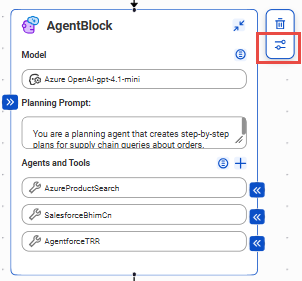
To configure advanced properties, select the agent block on the canvas and click the advanced properties icon on the toolbar that appears on the right.
The following image shows where to configure advanced properties:
The following table describes the advanced properties:
Property
Description
Temperature
Controls the randomness and diversity of the response generated by the AI agent's model. Enter a decimal value between 0.0 and 2.0.
Generally, a low temperature is a value that's close or equal to 0.0. It causes the model to produce more predictive, conservative responses. A high temperature is a value that's equal to or greater than 1.0. It causes the model to produce responses that are less predictable, more creative, and more diverse. A moderate temperature around 0.7 causes the model to generate responses that are balanced for creativity and coherence.
For more information about the temperature setting for the model your agent uses, see the model documentation.
Retry Count
The number of additional attempts that the AI agent makes to resend a request or regenerate a response if it fails initially. Enter a positive integer value.
Typically, retry counts range between 1 and 5. Some managed LLM APIs or SDKs set default retry counts. For more information, see the model documentation.
Top K
Causes the model to select the next token from the "K" most probable tokens predicted for that position rather than from the entire vocabulary. For example, if you set this value to 10, the model considers only the 10 tokens with the highest predicted probabilities for the next word in the text. Enter a positive integer value up to 1000.
For more information about the Top K setting for the model your agent uses, see the model documentation.
Top P
Causes the model to select the smallest set of tokens whose cumulative probability exceeds a predefined threshold "P," rather than a fixed number like Top K. Enter a decimal value between 0.0 and 1.0.
A low value, close to 0.0, causes the model to focus on more probable tokens, which results in more predictable responses. A higher value, closer to 1.0, considers a wider range of tokens, which causes the model to generate more creative and diverse outputs.
For more information about the Top P setting for the model your agent uses, see the model documentation.