You can run a tool like a Serper Search or REST API tool in an agent flow. To do this, add a tool block to the flow and select the connection to the tool you want to run. Then configure the input and output parameters.
To add a tool block to an agent flow, drag and drop a Tool Block from the Activities menu into the flow. The AI agent excutes the tool in the order in which it appears in the agent flow. So, if you add a tool block in an agent flow before an agent block, the tool runs before the AI agent starts its task.
Tip:
If you want the agent to decide whether and how often to execute the tool, add the tool to the agent block instead.
When you configure a tool block, you choose the tool connection. You can't create a tool connection in a tool block. For information about creating a tool connection, see Tool connections.
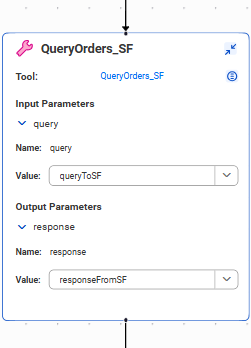
A tool block contains input and output parameters that represent the values that you pass into and receive from the tool. You set the value of each input and output parameter to an agent flow variable.
The following image shows a tool block in an agent flow:
Example: Use a Salesforce tool to query order information
Your agent flow needs to query order information that's stored in Salesforce. You've already configured a Salesforce tool connection named QueryOrders_SF to connect to Salesforce and retrieve the information.
Perform the following steps:
1Drag and drop a tool block into the agent flow.
2In the tool block, select the tool connection QueryOrders_SF.
3Expand the input and output parameters.
You see that the tool contains the input parameter query and the output parameter response.
4In the agent flow, create the following variables to store the query and response:
Variable name
Data type
queryToSF
string
responseFromSF
string
5In the tool block, configure the following values for the input and output parameters: