You can configure business entity properties that suit your business requirements.
The following table describes the business entity properties:
Property
Description
Display Name
Required. Name of the business entity.
Note:
Ensure that you don't use the name of the predefined business entities or the reserved keyword xrefLinks in the display name.
Internal ID
Required. A unique business entity identifier, which is generated based on the display name that you enter. You can't change the internal ID after you create the business entity.
Note:
Ensure that you don't use the name of the predefined business entities or the reserved keyword xrefLinks in the internal ID.
Description
Optional. A description of the business entity.
Location
Required. Project or folder within which you want to save the business entity.
Icon
Optional. Icon to represent the business entity for easy identification.
Subscribed Record Type
Required. Indicates the record type that your organization is licensed to use for managing master data. MDM SaaS uses the record types to track and report data consumption.
Optional. Tags that identify the business data domain of your subscribed record types. You can use predefined or enter custom tags.
For more information about data domain tags, see Data domain tags.
Error Remediation
Optional. Indicates whether you can save records with validation errors in real time through REST APIs or the user interface.
For more information about error remediation, see Error remediation.
Allow product experience agent to share data with external LLMs
Optional. Indicates whether the product experience agent in CLAIRE Copilot can share the metadata and data of a business entity with external LLMs to improve recommendations for data enrichment and classification. Use this property to enable or disable the product experience agent for a business entity.
Preview Notice:
Effective in the April 2026 release, the product experience agent is available for preview.
Preview functionality is supported for evaluation purposes but is unwarranted and is not supported in production environments or any environment that you plan to push to production. Informatica intends to include the preview functionality in an upcoming release for production use, but might choose not to in accordance with changing market or technical circumstances. For more information, contact Informatica Global Customer Support.
Business ID Format
Required. Format for business IDs that MDM SaaS generates for records.
For more information about the business ID format, see Business ID format.
Error remediation
Enable error remediation to save records with validation errors in real time through REST APIs or the user interface. MDM SaaS tags records with validation statuses and provides filters for validation status after you enable remediation. MDM SaaS doesn't automatically validate records that were created before you enabled error remediation. To validate those records, you must edit records.
After you enable error remediation and save records, MDM SaaS tags records with validation statuses. Also, the search results page includes the validation status filter to filter search results by validation status, errors, and error types.
If you don't enable error remediation, you can't save records with validation errors in real time. However, you can ingress records with errors through batch jobs and file import. These records aren’t tagged with validation statuses, and the search results page doesn’t include the validation status filter.
When you disable error remediation for a business entity, you can't view charts in reports generated based on records with validation errors for the business entity.
Note: By default, the user interface displays the field group associated with error remediation for business entities irrespective of whether error remediation is enabled. When you enable error remediation, the field group displays the validation errors of fields. When you disable error remediation, the field group doesn't display any validation errors.
When you import a business entity with error remediation enabled, the imported business entity includes the error remediation settings only if the business entity is new to the target organization. If the business entity already exists in the target organization without error remediation enabled, the imported business entity doesn't reflect the updated error remediation setting.
Business ID format
Business IDs are unique identifiers of records that belong to a business entity. When a record is created, MDM SaaS assigns a business ID to the record in the specified format.
You can select one of the following formats:
•Alphanumeric. Use 14 to 24 characters, starting with a prefix that consists of three characters. The prefix can contain uppercase letters and numbers. For example, P8X4AB78YU2WE2.
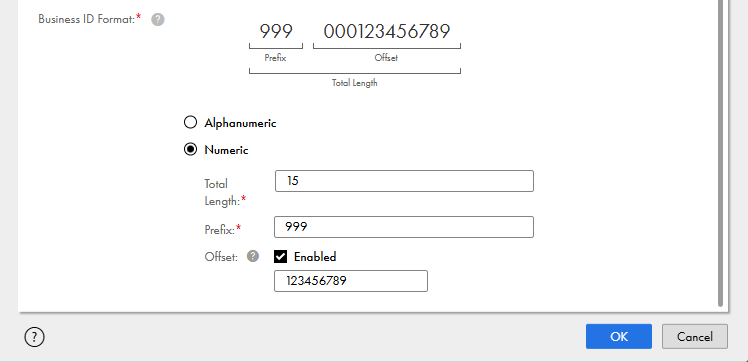
•Numeric. Use 15 to 24 numbers including a prefix of three numbers. For example, 999456789222123. You can enter an offset value. The business ID of records created starts at the offset value, excluding the prefix. For example, with an offset value of 100000 and a prefix of 999, the starting business ID is 999000000100000. Records with the prefix 999 are ingressed if their business IDs are below the offset value and rejected if they are equal to or above it.
Business IDs are generated in a non-linear sequential order. For example, if you have configured the format of the business ID as numeric, length as 15 numbers, and a prefix as 999, 999000000000001 is the business ID generated for a record. MDM SaaS might assign the next business ID as 999000000000012.
Before you set the business ID format for a business entity that contains records, you must purge all of its records. After a data purge, you can reuse the business IDs of the purged records. Ensure that the business IDs are lower than the last generated business ID. For example, if 999000000008899 was the last generated business ID before the data purge, you can ingress records with business IDs lower than the last sequence number 8899, such as 999000000007755.
When you set the business ID format for a business entity, you can now preview it to understand how a business ID appears.
The following image shows the business ID configuration of a business entity:
Note:
When you specify a custom business ID for records that you create through an ingress job or API, ensure that its length doesn't match the length that the business entity uses for the business ID format. For example, if you specified 111 as the prefix and 15 as the length in the business ID format for a business entity, ensure that you don't use 111560000800000 as a custom business ID. However, you can use a custom business ID with a prefix of 111 but with a different length.
Subscribed record type
A subscribed record type is the record type that your organization is licensed to use in MDM SaaS. You can specify the subscribed record type as a business entity property. For example, to manage retail customer master data, specify Customer B2C as the subscribed record type. MDM SaaS uses the subscribed record type to track and report data consumption based on your license.
The following table describes the subscribed record types available in MDM SaaS:
Subscribed Record Type
Description
Customer B2B
Records pertaining to any legal entity, such as commercial, healthcare, or governmental. It excludes any entity that's already an existing predefined subscribed record type, such as Supplier or Vendor.
Customer B2C
Records pertaining to any natural person, such as a customer or employee. It excludes any entity that's already an existing predefined person data domain, such as Healthcare Professionals.
Healthcare Professional
Records pertaining to any individual employed by, affiliated with, or otherwise associated with a healthcare organization.
Product 360
Records pertaining to finished products, parts, product structures, product types, product hierarchies, and associated attributes.
Supplier/Vendor
Records of anyone who provides goods or services to a company. A supplier might be an individual or an organization, such as, a vendor, distributor, or external alliance partner.
Custom Domain
Record types that aren't listed and have no built-in data domain-specific application features in the platform, such as locations or assets.
Supporting Entity
Supporting entity records aren't meant to generate a master record, consolidate data, manage data quality, or support reporting.
By default, MDM SaaS assigns the following subscribed record types to predefined business entities:
•Supplier/Vendor for Supplier and Contact business entities
•Product 360 for Item and Category business entities
You can assign an appropriate subscribed record type based on your use case to the predefined Person and Organization business entities, and custom business entities.
To accurately track data consumption, provide the correct subscribed record type for each business entity. If you are unsure about the subscribed record type, select Assign Later. After you verify the definitions of the subscribed record type against your license contract, update the value. Since MDM SaaS uses the subscribed record type to track data consumption, any inaccurate or arbitrary value affects historical records.
Note:
After you add records to the business entity, MDM SaaS doesn't allow you to update the subscribed record type. If you want to update the subscribed record type, contact Informatica Global Customer Support. Informatica Global Customer Support reviews your request and allows you to update the subscribed record type for the business entity.
Additionally, to update the subscribed record type of a business entity, you can purge the records. However, to avoid inaccurate data consumption tracking, don't update the subscribed record type after you add records to the business entity.
Data domain tags identify the business data domain for the subscribed record type. After you specify the subscribed record type, MDM SaaS displays the predefined data domain tags that are relevant to the subscribed record type. You can use predefined or custom tags to describe your data domain. You can update the data domain tags at any time. Additionally, you can enter more than one custom data domain tag for a subscribed record type. You can also remove custom tags.
Note:
Data domain tags are for information only. MDM SaaS doesn't use the data domain tags to track data consumption.
The following table lists subscribed record types and their predefined data domain tags:
Subscribed Record Type
Data Domain Tags
Customer B2B
Health Care Organization, Legal Entity, and Organization
You can enter custom data domain tags for the Supporting Entity subscribed record type.
After you enter custom data domain tags for a subscribed record type and save the business entity, MDM SaaS adds the tags to the available list of tags for the subscribed record type.