A data model mapping file contains details of base objects and their columns or business entities and their fields. The mapping file includes separate sheets for each business entity in MDM SaaS.
You can either generate a data model mapping file based on the base objects or business entities of the MDM Hub.
A data model mapping file based on base objects uses the base objects and their columns of the MDM Hub for mapping. A data model mapping file based on business entities uses the business entities and their fields of the MDM Hub for mapping. Within a sheet, map each business entity field of MDM SaaS to a business entity field or a base object column of the MDM Hub.
If business entities in MDM Hub include fields that don’t exist in MDM SaaS, you can create those fields as custom fields. For example, consider a business entity called Account in the MDM Hub that contains additional fields, such as Loan_Account and Loan_Type. When you start mapping the fields in the mapping file, you realize that MDM SaaS doesn't have equivalent fields to map with them. You can manually add these fields as custom fields in the mapping file and then map them to a column of a base object or business entity field in the MDM Hub.
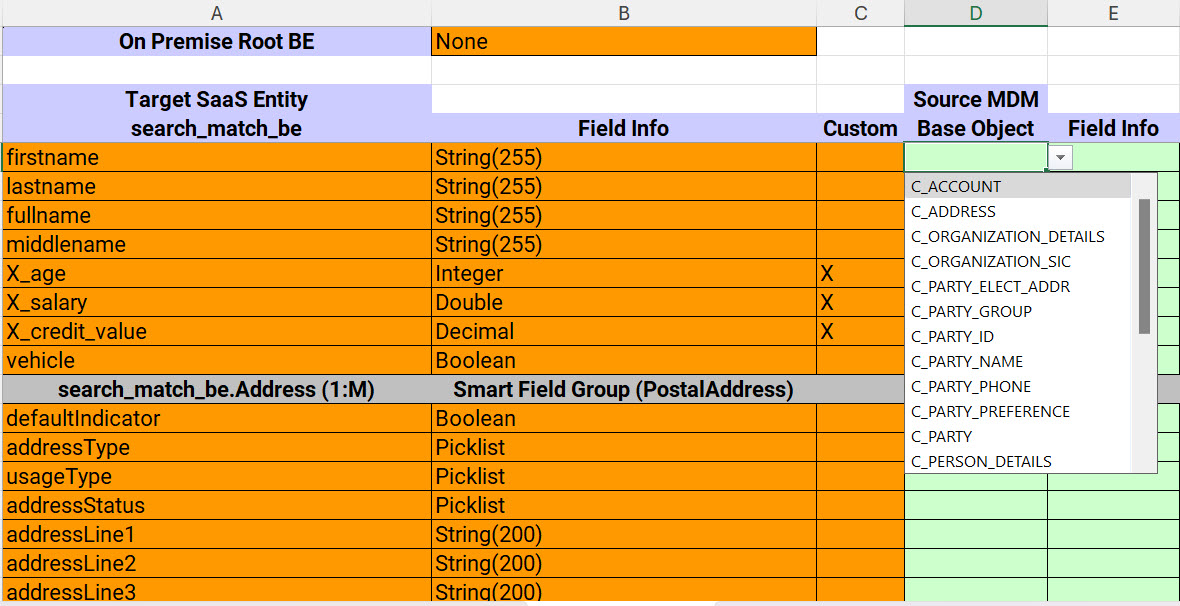
The following image shows a sample sheet in a data model mapping file based on base objects:
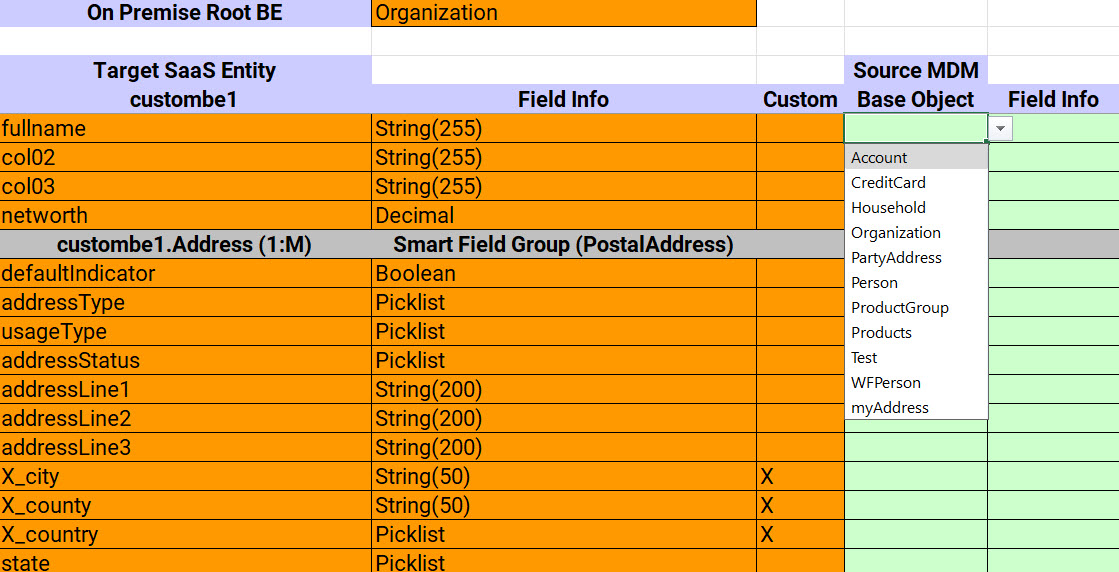
The following image shows a sample sheet in a data model mapping file based on business entities:
Adding custom fields and field groups
If business entities in MDM SaaS don’t include certain fields or field groups present in the MDM Hub, you can add them as custom fields or field groups.
When adding custom fields, prefix the attribute name with either X_ or x_ to indicate that it's a custom field. Also, ensure that you mark custom fields with the character X in the Custom column to indicate that they are custom fields.
Similarly, you can also add custom field groups to the mapping file. When you add a custom field group, ensure that you prefix the character X_ to the name of the field group. For example, when you add a custom PostalAddress field group, ensure that you prefix the character X_ in the following format:
c360.person.X_PostalAddress
Note:
Ensure that you don't delete or add sheets in a data model mapping file.
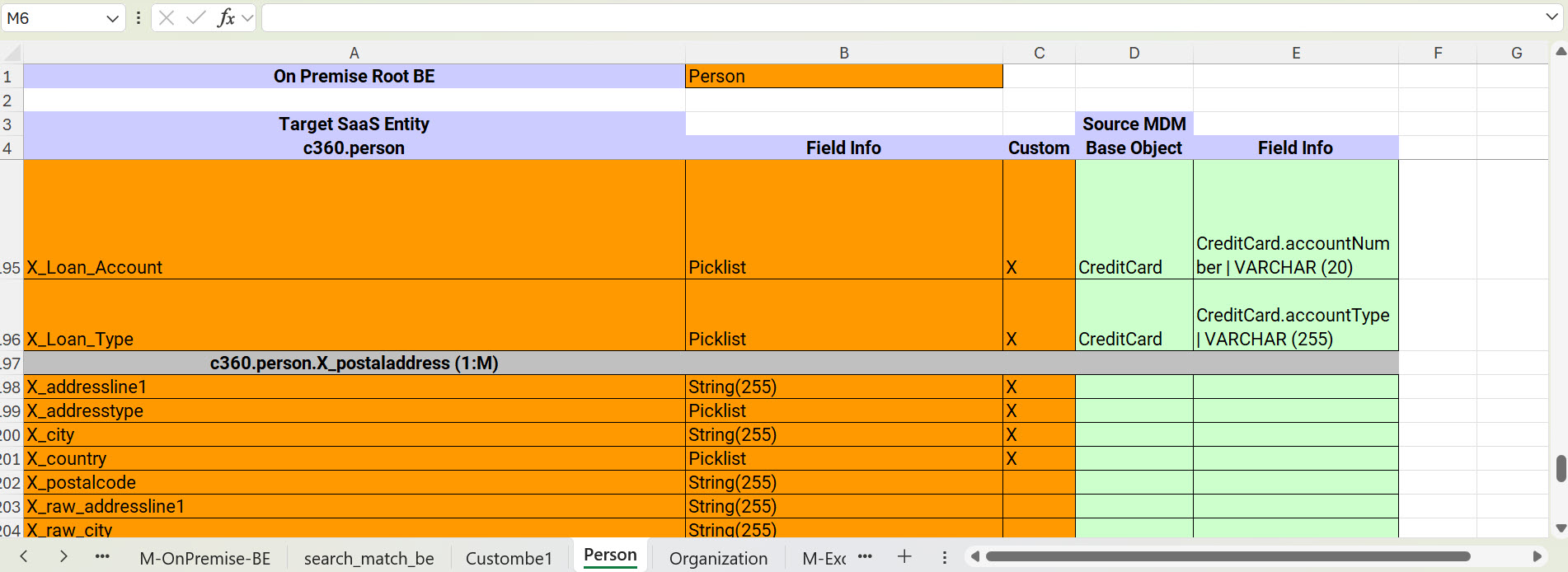
The following image shows custom fields added to the data model mapping file:
The following table describes the headers included in a sheet related to a business entity of MDM SaaS:
Column Name
Description
On Premise Root BE
A root business entity from the MDM Hub. For example, if the sheet name is Person, you can select Individual as a root business entity from the MDM Hub.
Placeholder to map a base object and its column or a business entity and its field to each attribute of the business entity in MDM SaaS.
Note:
After you map picklist fields in a data model mapping file, ensure that the corresponding lookup tables are mapped in the reference data mapping file. If you miss to map a lookup table that a business entity field or a base object column uses, the modernization process returns validation errors.
You can insert new rows to the data model mapping file with the field details, such as name and type and then map them to the corresponding MDM Hub fields. When you add the field name, ensure that you prefix the name with the character X or x to indicate that it's a custom field. Also, ensure that you mark the Custom column with the character X or x to indicate a custom field. You must prefix the field group name with character X or x to indicate a custom field group. You can't create custom fields for smart fields, such as address, phone, and email.
After modernization, the custom fields mapped in the mapping file uses the field properties of the MDM Hub including the display name. However, the predefined MDM SaaS fields uses only the privileges from the MDM Hub.
Mapping on-premises root node
In the MDM Hub, the root node is the uppermost node in a business entity. You can add multiple child nodes to a root node within a business entity.
The child nodes within the business entity are equivalent to the field groups in MDM SaaS. For example, a Person root node in the MDM Hub can include Contact Address, Telephone, and Email Address as child nodes. In MDM SaaS, a business entity can include field groups, such as Address, Phone Number, and Email Address.