Manage Tasks and Tickets > Review tasks in the task inbox > Assigning tasks
  

Assigning tasks

You can assign unclaimed tasks to a user or user group. You can also reassign claimed or assigned tasks to other users or user groups.
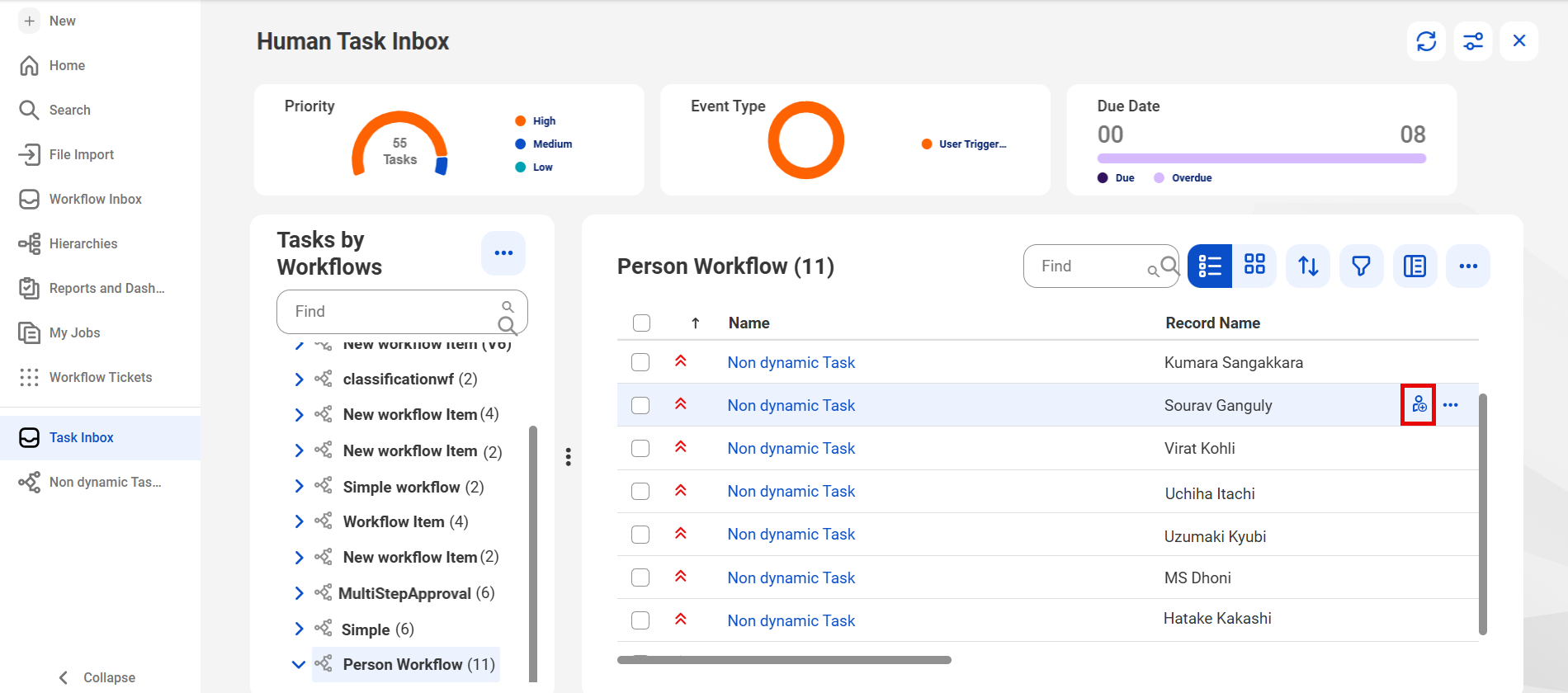
    1To assign a single task to a user or user group, click the Assign icon for the task in the task inbox.
    The following image shows the Assign icon:The image shows the Human Task Inbox dashboard for managing tasks. It features charts categorizing tasks by priority, event type, and due date. The Tasks by Workflows section lists workflow names with task counts, while the main table displays task names, record names, sorting options, and a search bar and icons for filtering and layout adjustments. The Assign button for the entry, Sourav Ganguly, is highlighted.
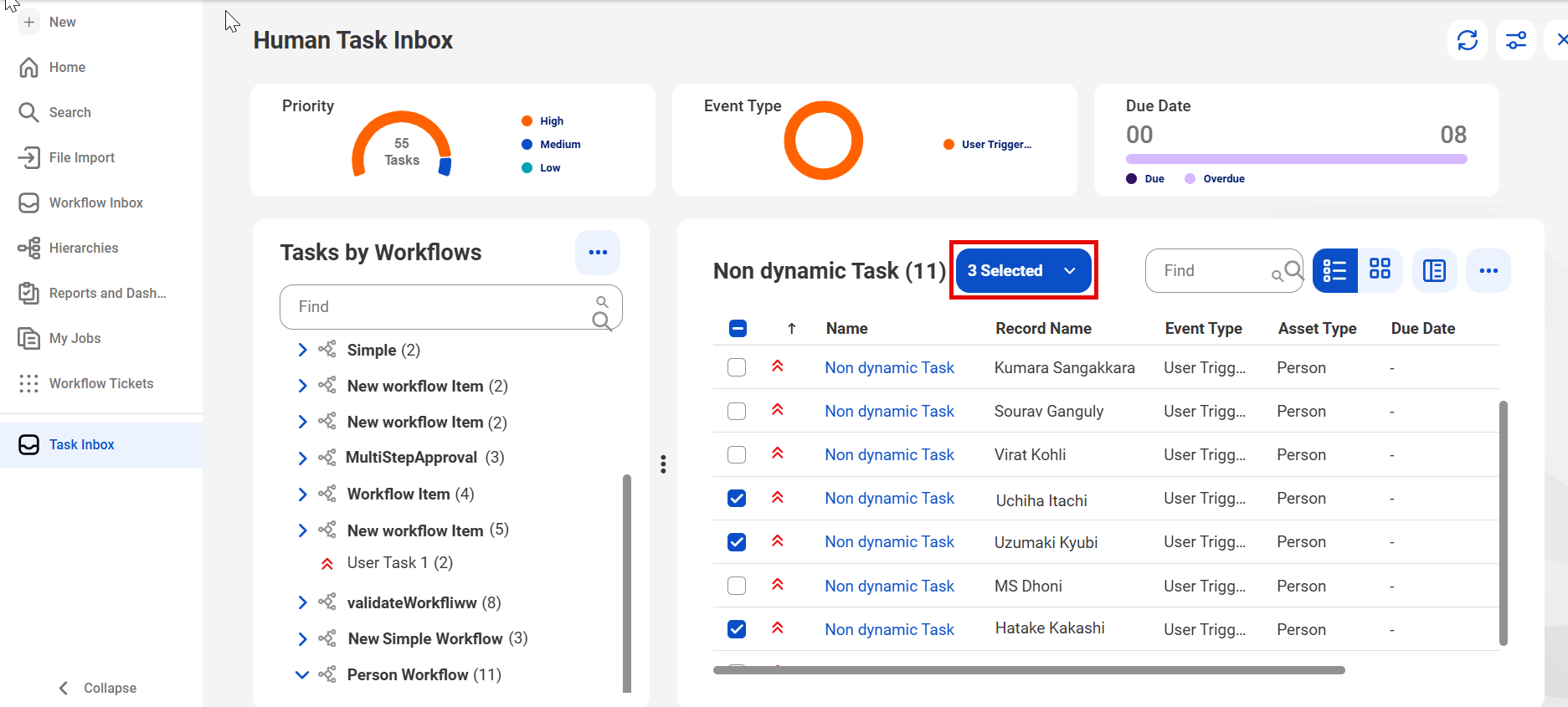
    2To assign multiple tasks to a user or user group, select the tasks and click Bulk Actions > Assign in the task inbox.
    The following image shows the Bulk Actions button:The image shows the Human Task Inbox dashboard for managing tasks. It features charts categorizing tasks by priority, event type, and due date. The Tasks by Workflows section lists workflow names with task counts, while the main table displays task names, record names, sorting options, and a search bar and icons for filtering and layout adjustments. Three Non Dynamic Tasks are selected and the Bulk Actions button, which says that three tasks are selected, is highlighted.
    3To assign tasks to users, click the User tab in the Assign Task dialog box and select the users.
    4To assign tasks to user groups, click the User Group tab in the Assign Task dialog box and select the user groups.
    You can also assign tasks to a user who is part of the user group from the User Group tab.
    5Click Assign.