You can view and act on the tasks assigned to you in the task inbox.
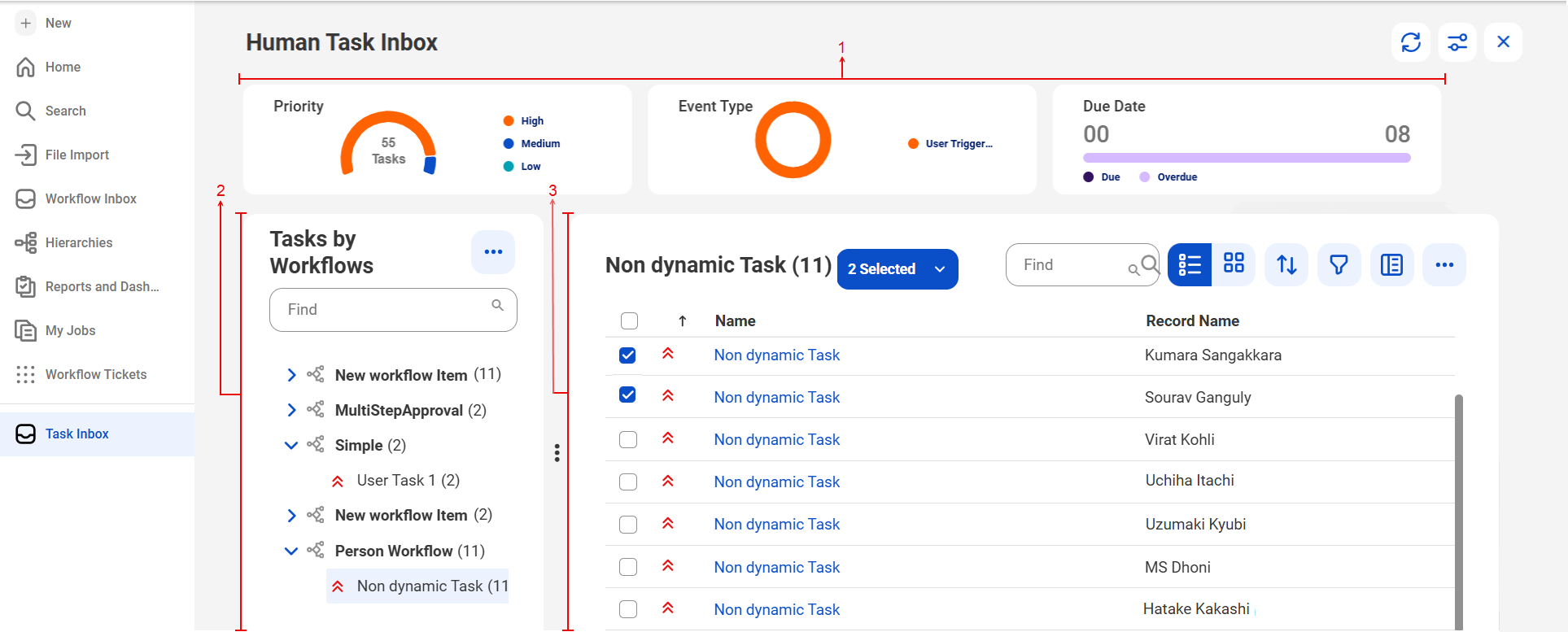
The following image shows the task inbox:
1Overview. Graphical representations of your assigned task metrics, categorized by priority level, event type, and due date. You can hide the section if required.
2Tasks by Workflows. List of workflows for which you're a stakeholder. By default, tasks are grouped by workflows.
3Tasks for a workflow. Review tasks for the selected workflow. To view a list of all the tasks for a workflow, click the workflow. You can also view individual tasks.
You can perform the following actions on tasks:
•Claim, assign, or act on individual tasks or multiple tasks in bulk.
•Search for specific tasks.
•Sort tasks by workflow names or whether tasks are active.
•Adjust the view by choosing between list and card views.
•Sort tasks in ascending or descending order, based on priority, event type, asset type, due date, and created date.
•Filter tasks based on task owners, priority, created date, asset type, and event type.
•Adjust the columns displayed in the section. The Name column is always displayed. You can choose to view or hide the other columns.
To view details of a single task, click the task. The details are displayed in a new workspace.