Use CLAIRE Copilot to add and configure transformations in the mapping canvas based on a natural language prompt.
You can prompt CLAIRE Copilot to generate one or multiple transformations at a time. CLAIRE Copilot can generate the following types of transformations:
•Source
•Target
•Aggregator
•Expression
•Filter
•Joiner
•Lookup
•Rank
•Router
•Sequence Generator
•Union
•Sorter
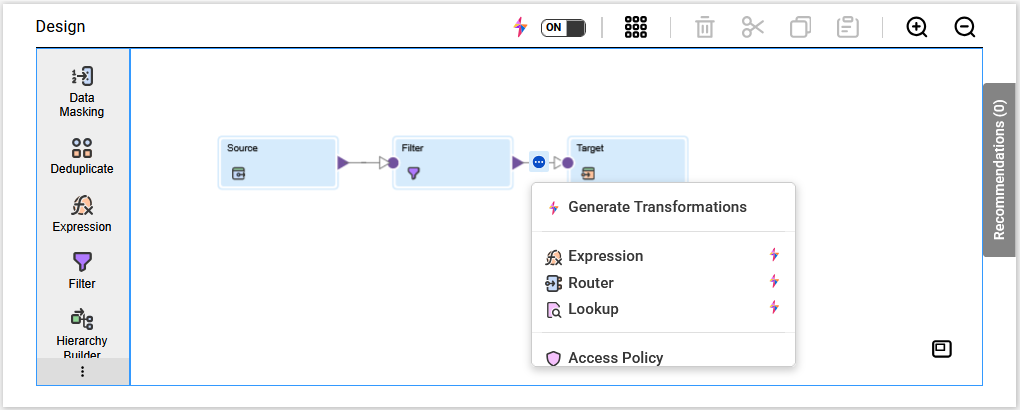
To generate configured transformations, hover over the link between two transformations on the mapping canvas. Click the Add Transformation icon and then select Generate Transformations from the menu.
The following image shows the Add Transformation menu:
CLAIRE Copilot usually adds transformations to the place in the data flow where you selected Generate Transformations. However, if you prompt CLAIRE Copilot to read from a specific source or write to a specific target, CLAIRE Copilot generates a new data flow.
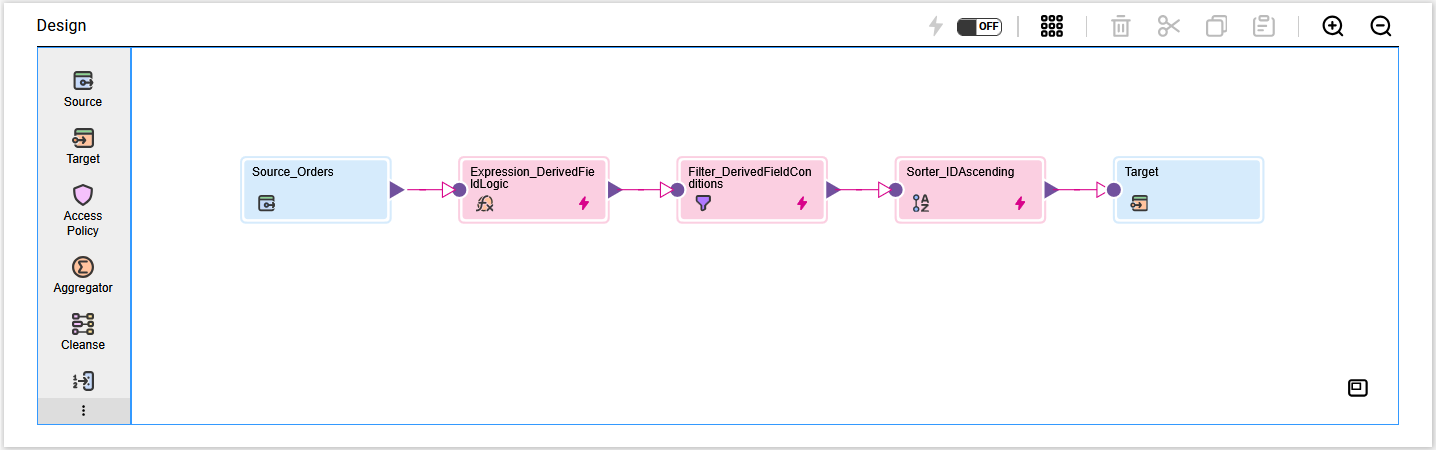
Until you save the mapping, transformations that CLAIRE Copilot adds to the mapping canvas appear in pink with a lightning bolt icon. While the mapping is open, you can review the prompts you've submitted to generate transformations. To review prompts, open the Generate Transformations dialog box and use the arrows to navigate through your prompts. After you save and close the mapping, you can no longer see the prompts or see which transformations CLAIRE Copilot added to the mapping.
The following image shows a mapping with generated transformations:
Prompts to generate configured transformations
To generate configured transformations, you can describe how you want to transform the data in your own words.
The following sample prompts show how you can describe data transformation:
Aggregate orders by state
Apply a filter to include only records where order value is greater than 100
Count the total records where either ID or name is not null and ensure name is distinct
Extract data from AUTO_PRODUCT_CATEGORIES_H using 'OracleConnection'
Create a mapping reading from Merch_Inventory_Table through OracleConnection. Trim all fields. Use a router to direct records to two output groups: Extract the year from the DATE_VAL field using the GET_DATE_PART function and include it in both output groups. First output group should contain records where QUAN is greater than 0 and year is 2025. Second output group should contain records where QUAN is less than or equal to zero and year is less than 2020. Write records from 1st group to Group1 in OracleConnection and 2nd group to Group2 in OracleConnection.
Note:
To generate a transformation that uses an existing connection or object, ensure that the prompt has the exact name of the connection or object that exists in your organization.