Data Quality Agent > Data quality assessment > Sample conversation
  

Sample conversation

Let's take a look at a sample conversation to help you get started on your Data Governance and Catalog data quality assessment journey in CLAIRE GPT.
As a data steward in a retail organization, you want to see vendor data and assess the quality of the data.
To achieve the goal, perform the following steps:
  1. 1Log in to CLAIRE GPT.
  2. 2Start a conversation to identify the table that contains vendor information and run a data quality assessment.
  3. Enter the following prompt:
    Identify the tables that contain vendor details and do a data quality assessment on it.
    The following image shows the response displaying data sets from various catalog sources that include vendor information, along with the data quality scores of the vendor data and key insights into the overall data quality assessment across multiple dimensions.The response displays tables containing vendor details and data quality scores. The response also displays key insights into the overall data quality assessment across multiple dimensions.
    The data quality assessment skill of the data quality agent identifies DIM_VENDOR table that contain vendor details, runs data quality assessment on the table, and shows key insights on the overall data quality assessment on different dimensions of the quality of the vendor data in the table. The agent also states the reason for the selection of the table. It incorporates human-in-the-loop interaction and asks you to select the data set that is best suited for your use case.
  4. 3To preview all the tables, you can click the card named Tables containing vendor details.
  5. The following image shows the canvas with a view of the table that contains vendor details from Data Governance and Catalog. The response displays the DIM_VENDOR table. The right side panel contains contextual information about the vendor data and includes queries for further analysis.
    You can click the DIM_VENDOR table to see the details in Data Governance and Catalog. You can download the table as a CSV file or copy the table to another file.
  6. 4To preview the data quality scores of the vendor table, you can click the card named Data Quality Scores.
  7. The following image shows the canvas with data quality scores distributed by dimensions for the vendor table.The response displays data quality scores in each dimension in the vendor table.
  8. 5Enter the following prompt to run data profiling on the DIM_VENDOR table:
  9. Show data profile for DIM_VENDOR
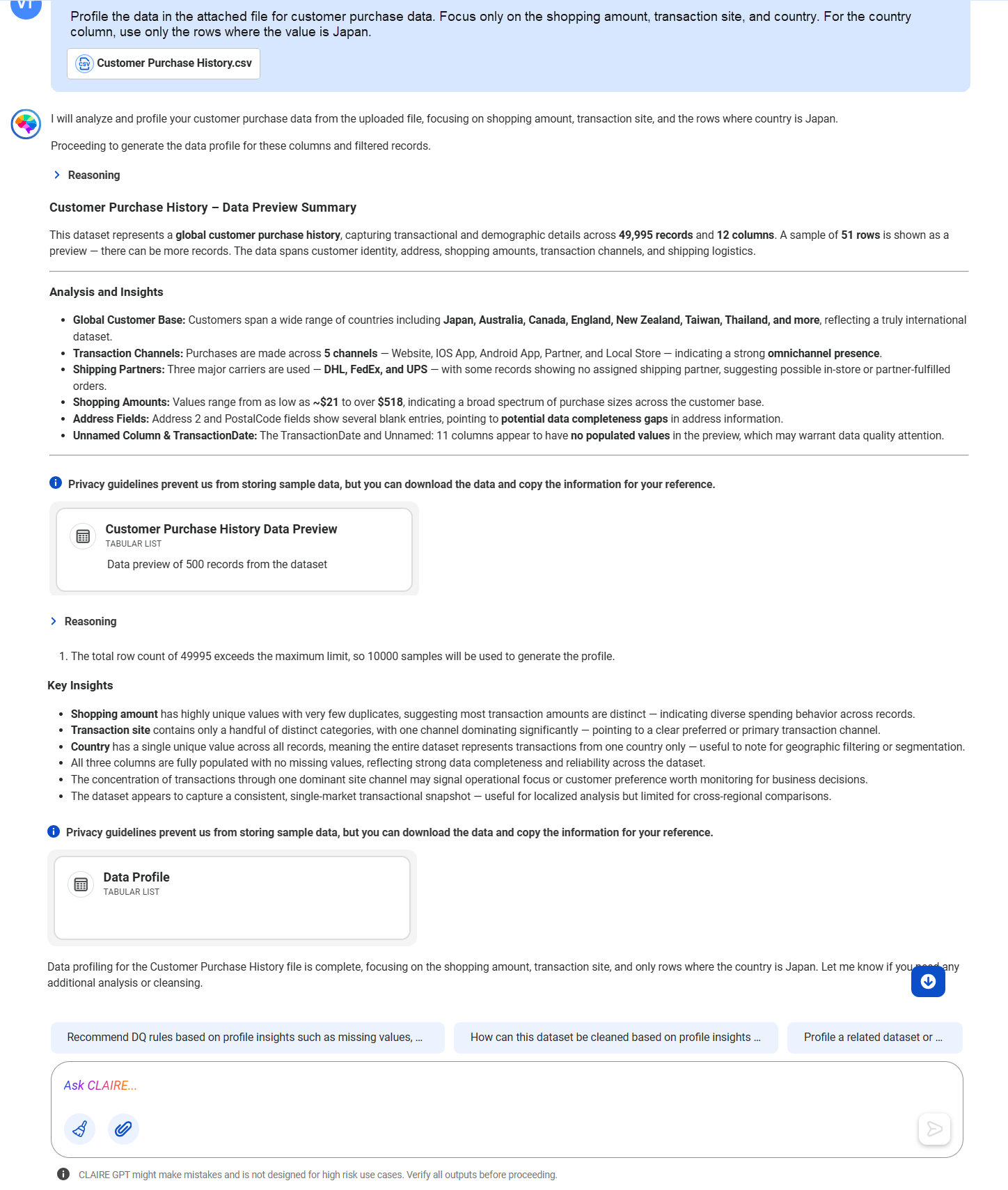
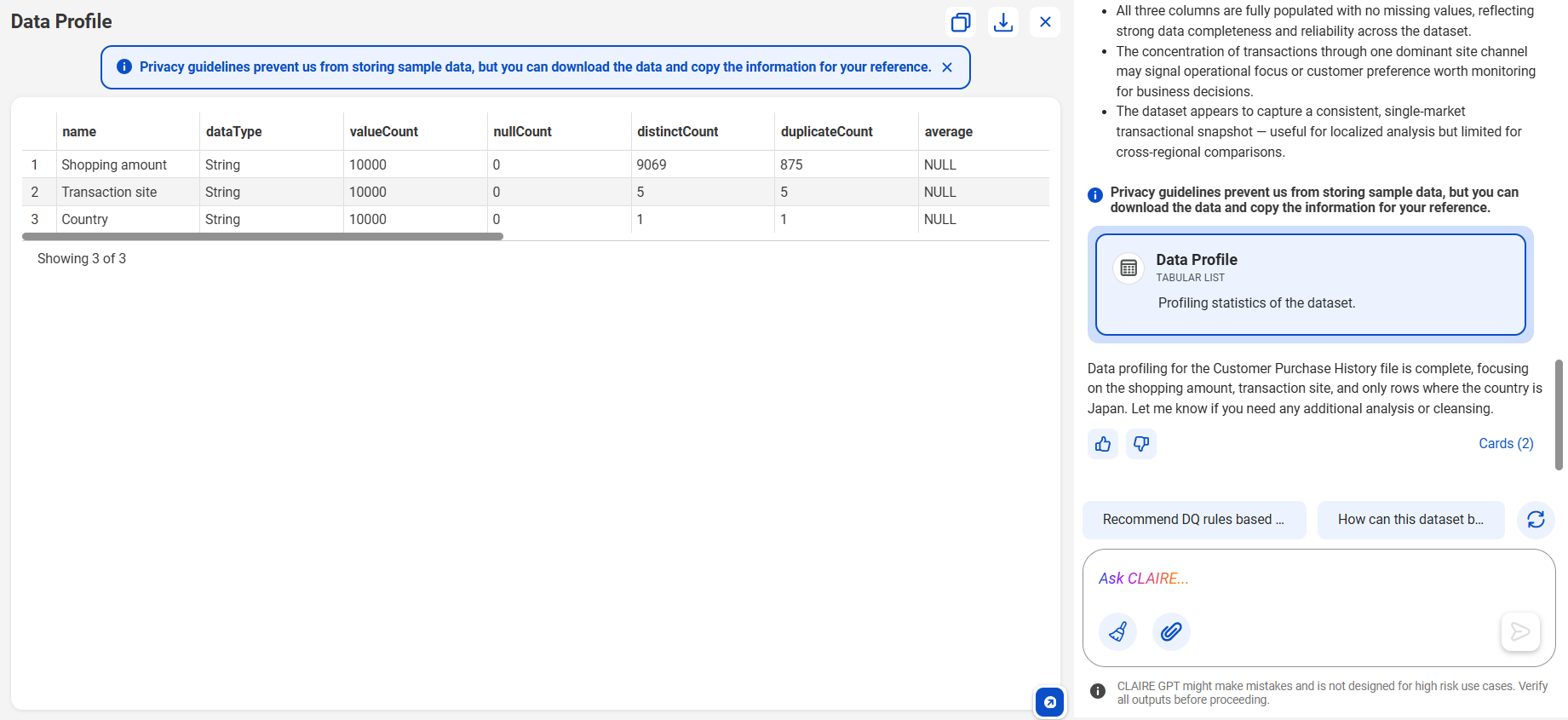
    The following table shows the card containing the detailed data profile of the vendor table, along with key insights on the data profile.The response displays a card that contains detailed data profile in DIM_VENDOR table and key insights to the profiled data.
  10. 6To view the detailed data profile for the vendor table, click the card named Data Profile for DIM_VENDOR Table.
  11. The following image shows the canvas of the data profile of the vendor data.The response displays 10 rows with profiled data.
    Note: If the data profile of the requested asset is not available in the catalog, CLAIRE GPT performs on-demand data profiling of the data elements in the data set to return the data summary.
Using the data quality assessment skill of the data quality agent, CLAIRE GPT has found the table that contains vendor information, completed the data quality assessment on the discovered table, and profiled the table data.