On the Configuration view, define and update the content and structure of a dictionary.
You can select the Configuration view when you create or open a dictionary.
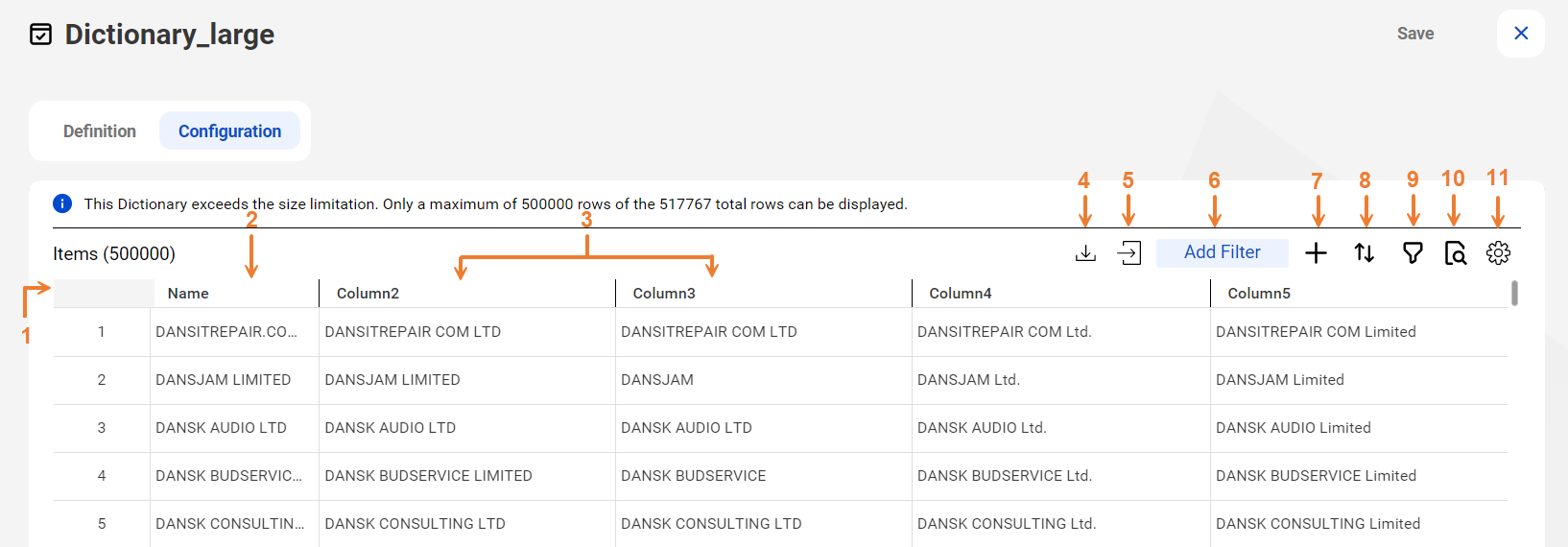
The following image shows the options that you can use to configure the dictionary:
The dictionary contains the following options and elements:
1Row ID.
Shows the current sequence of the dictionary rows. To highlight a row, select its row ID.
2Default valid value column.
Contains the values that the transformation returns at run time by default. You can specify a different valid column when you configure the asset.
3Alternative value columns.
Contains alternative or incorrect versions of the values in the default valid column.
4Download data to a file.
Downloads the data in a dictionary to a comma-separated file.
5Import data from a file.
Imports data to the dictionary.
6Add a filter query.
Opens the Add Filter query options.
The Add Filter query option appears in a dictionary that contains very large quantities of data. For information about very large dictionaries, see Working with very large dictionaries.
7Add a row.
Adds an empty row after the current final row in the dictionary.
8Sort the dictionary data.
Sorts the data rows by values in one or more columns that you specify.
9Filter the current page of dictionary data.
Displays the rows that contain a value that you specify in a column that you select. The option applies a filter on the current page in a dictionary.
10Find and replace data.
Finds and replaces a value that you specify.
Note:
The Filter and Find and Replace options are linked. When the filter is active, you can find and replace data within the filtered results only.
11Settings menu.
Determines the dictionary row height.
12Conversion options.
Enables the dictionary for updates through the Data Integration or Data Quality user interface or updates through the Dictionary API. The option displays Convert to UI or Convert to API based on the current status of the dictionary. For more information about the dictionary conversion options, see Dictionary conversion options.
Note:
If you create a dictionary in Reference 360, you can view the contents of the dictionary in Data Quality or Data Integration, but to edit the dictionary data, you must open the dictionary source in Reference 360.