1In the Explore panel, select a code list and click Open.
The code list opens in a new tab. The Values tab lists the code values.
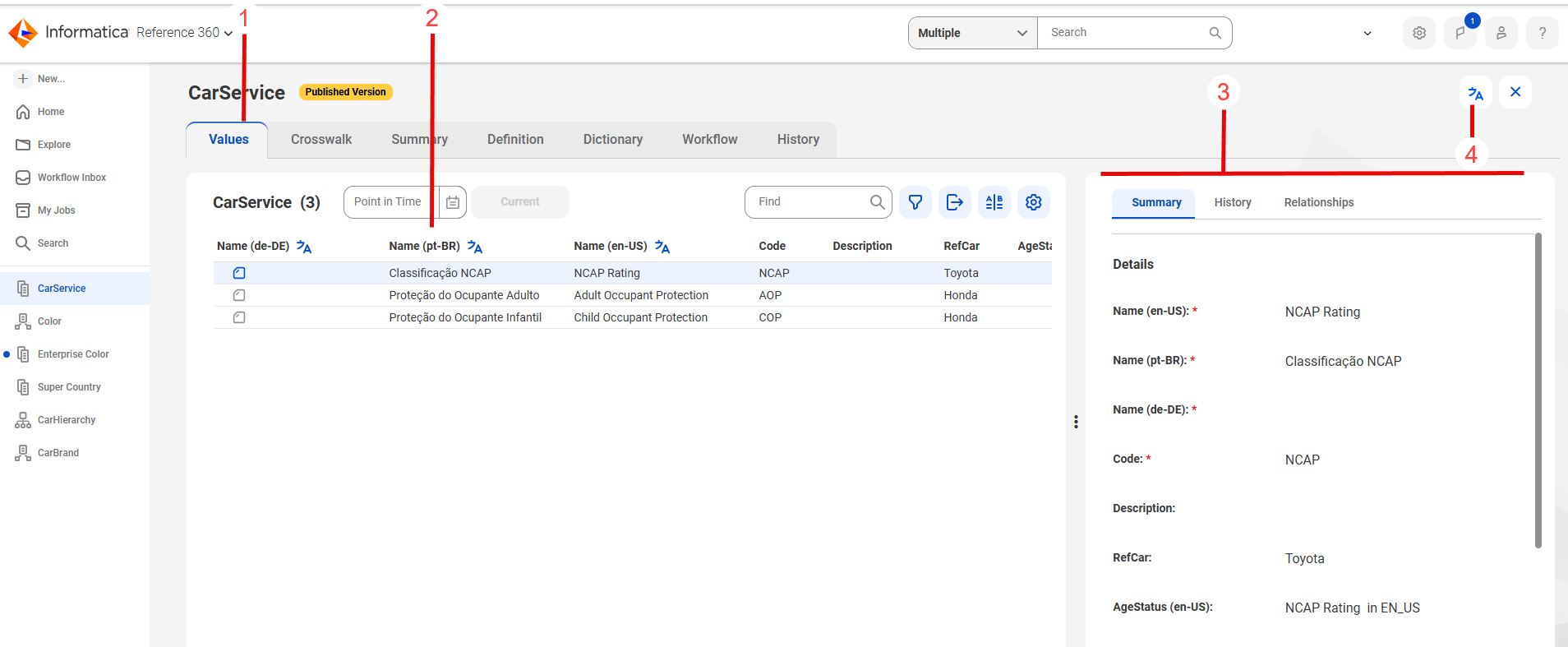
2Click the Values tab to view the list of code values.
By default, Reference 360 displays attributes with default language values in columns.
3If the code list includes multilingual attributes, click the Translate icon to select the languages in which you want to view the attribute values from the language list.
Reference 360 displays a separate column for each selected language.
4To add languages to display the code values, perform the following steps:
- aOn the Definition tab, in the Localization Settings section, add your preferred additional language to appear in the list of asset display languages.
5On the Values tab, select a code value.
The code value details panel displays the details of the code value in different tabs.
The following image shows the change history of a sample code list:
You can search for a code value by a specific search term within the localized attributes. You can also filter code values based on a specific language of the localized attributes.