PowerCenter object conversion
PC to Cloud Conversion converts PowerCenter objects to assets in the Data Integration repository. However, not all PowerCenter objects have equivalent assets in Data Integration.
If a PowerCenter export XML file contains an object with no equivalent Data Integration asset, PC to Cloud Conversion might not convert the object or might replace the object with a different asset.
The following sections explain how PC to Cloud Conversion converts different types of PowerCenter objects.
Connection object conversion
PC to Cloud Conversion converts supported PowerCenter connection objects to connections in Data Integration. PC to Cloud Conversion converts connection objects that are used in source, target, or lookup objects in the PowerCenter mappings, mapplets, and sessions that you import.
Connections for the following types of source, target, and lookup objects are converted to equivalent connections in Data Integration:
- •Flat file
- •IBM DB2
- •Microsoft SQL Server
- •ODBC
- •Oracle
Connections for the following types of source and target objects are converted to equivalent connections in Data Integration:
Additionally, PowerCenter supported Teradata loader connections are converted to Teradata PT connections in Data Integration.
PC to Cloud Conversion assigns the connections to the first runtime environment on the Runtime Environments page in Administrator, excluding the Hosted Agent. If you want to assign a connection to a different runtime environment, edit the connection on the Connections page in Administrator.
PC to Cloud Conversion does not convert the login credentials. After you publish objects that use these types of connections, you must update the connection and provide the login credentials.
Before you can publish assets other than the mapplet and mapping, you must select a run-time environment.
PowerCenter connection with direct connection conversion from PowerCenter to Cloud Data Integration
The following table describes the PowerCenter connection with direct connection conversion from PowerCenter to Cloud Data Integration:
PowerCenter Connection | Cloud Data Integration Connection to Source, Target, or Lookup (Connected and Unconnected Lookup) |
|---|
Flat File (Delimited or Fixed-Width) | Flat File (Delimited or Fixed-Width) |
FTP Connection | FTP Connection |
Oracle | Oracle |
Oracle RDS | Oracle RDS |
IBM DB2 | ODBC |
SAP | Not supported |
ODBC | ODBC |
SQL Server | SQL Server |
Sybase ASE | Sybase ASE |
Sybase IQ Loader | Supported as target |
Teradata | Teradata |
Netezza | ODBC |
Informix | Not supported |
Greenplum | Not supported |
Snowflake | Snowflake |
Snowflake version 1 | Supported for Snowflake targets. |
Azure Synapse | Azure Synapse |
Google BigQuery | Google BigQuery |
Amazon Redshift | Amazon Redshift |
Amazon Redshift V1 | Amazon Redshift V2 |
Amazon S3 | Amazon S3. Supported for sources and targets. |
Azure Blob | Supported for sources and targets. Not supported for lookup. |
PostgreSQL | PostgreSQL |
SAP HANA | SAP HANA |
PowerExchange for DB2 z/OS | PowerExchange for DB2 z/OS |
SAP Static ABAP | SAP Dynamic ABAP |
SAP Dynamic ABAP | SAP Dynamic ABAP |
Azure Datawarehouse v1 | Azure Synapse |
Azure Datawarehouse v2 | Azure Synapse |
Microsoft Dynamics 365 for Sales | Microsoft Dynamics 365 for Sales |
The following table describes the PowerExchange for CDC connections with direct connection conversion from PowerCenter to Cloud Data Integration:
PowerCenter Connection | Cloud Data Integration Connection | Source Conversion | Target Conversion | Lookup (Connected and Unconnected Lookup) Conversion |
|---|
PowerExchange for VSAM CDC | PowerExchange for VSAM CDC | Yes | No | No |
PowerExchange for DB2 LUW CDC | PowerExchange for DB2 LUW CDC | Yes | No | No |
PowerExchange for CDC DB2 z/OS (Mainframe) | PowerExchange for DB2 for z/OS CDC | Yes | No | No |
PowerExchange for CDC with Microsoft SQL Server | SQL Server CDC | Yes | No | No |
PowerExchange for CDC with Oracle | Oracle CDC V2 | Yes | No | No |
PowerExchange for IMS CDC | PowerExchange for IMS CDC | Yes | Yes | Yes |
PowerExchange for CDC with DB2 i5/OS | Db2 for i CDC | Yes | Yes | Yes |
PowerExchange for CDC with MySQL | MySQL CDC | Yes | No | No |
PowerExchange for PostgreSQL CDC | PostgreSQL CDC | Yes | No | No |
PowerExchange for SAP HANA CDC | SAP HANA CDC | Yes | No | No |
The following table describes the PowerExchange for Batch connections with direct connection conversion from PowerCenter to Cloud Data Integration sources:
PowerCenter Connection | Cloud Data Integration Connection | Source Conversion | Target Conversion | Lookup (Connected and Unconnected Lookup) Conversion |
|---|
PowerExchange for VSAM Batch | PowerExchange for VSAM Batch | Yes | No | No |
PowerExchange for Sequential File Batch | PowerExchange for Sequential File Batch | Yes | No | No |
PowerExchange for IMS Batch | PowerExchange for IMS Batch | Yes | Yes | Yes |
PowerExchange for Batch with DB2 i5/OS | Db2 for i | Yes | Yes | Yes |
PowerExchange for Batch with DB2 z/OS | Db2 for zOS | Yes | Yes | Yes |
PowerCenter connection conversion with repointed connections
The following table describes the PowerCenter connection conversion with repointed connections in Cloud Data Integration:
PowerCenter Connection | Repointed CDI Connections |
|---|
Netezza | Oracle Database Cloud Service, Oracle, Snowflake, Aurora PostgreSQL, Redshift, Azure Synapse, Google BigQuery, Teradata Vantage, SAP HANA, Amazon S3, and ADLS Gen2. |
Teradata | Oracle Database Cloud Service, Snowflake, Aurora PostgreSQL, Redshift, Azure Synapse, Google BigQuery, Teradata Vantage, SAP HANA, Amazon S3, and ADLS Gen2. |
SQL Server | Oracle Database Cloud Service, Oracle, Snowflake, Aurora PostgreSQL, Redshift, Azure Synapse, Google BigQuery, Teradata Vantage, SAP HANA, Amazon S3, and ADLS Gen2. |
Oracle | Microsoft SQL Server, Snowflake, Aurora PostgreSQL, Redshift, Azure Synapse, Google BigQuery, Teradata Vantage, SAP HANA, Amazon S3, PostgreSQL RDS, and ADLS Gen2. |
IBM DB2 | Oracle Database Cloud Service, Oracle, Snowflake, Aurora PostgreSQL, Redshift, Azure Synapse, Google BigQuery, Teradata Vantage, SAP HANA and ADLS Gen2. |
Flat File | Redshift targets, Amazon S3, and ADLS Gen2. |
Oracle ADW | Oracle and ADLS Gen2. |
XML sources and targets | Flat file sources and targets. |
Besides homogeneous connections, you can also convert heterogeneous repointed connections from PowerCenter to Cloud Data Integration. Suppose you have a PowerCenter mapping with an Oracle source and a Microsoft SQL Server target. PC to Cloud Conversion can convert it to a Cloud Data Integration mapping with a Snowflake source and Oracle.
PowerCenter Connected Stored Procedure transformation conversion to the Connected SQL transformation
The following table describes the PowerCenter Connected Stored Procedure transformation conversion to the Connected SQL transformation in Cloud Data Integration:
PowerCenter Connected Stored Procedure Transformation Connection | Connected SQL transformation in Cloud Data Integration Connection |
|---|
Oracle | Oracle |
IBM DB2 | ODBC |
ODBC | ODBC |
SQL Server | SQL Server |
Sybase | Not supported |
Teradata | Teradata |
Netezza | Not supported |
Informix | Not supported |
Greenplum | Not supported |
PowerCenter Stored Procedure (Connected) transformation connection conversion to the repointed SQL transformation connections
The following table describes the PowerCenter Stored Procedure (Connected) transformation connection conversion to the repointed SQL transformation connections in Cloud Data Integration:
PowerCenter Connected Stored Procedure Transformation Connection | Repointed SQL Transformation Connection |
|---|
Netezza, Teradata, SQL Server, Oracle, or IBM DB2 | Snowflake with native connection |
Netezza, Teradata, SQL Server, Oracle, or IBM DB2 | Redshift with native connection |
Netezza, Teradata, SQL Server, Oracle, or IBM DB2 | Azure Synapse with native connection |
Netezza, Teradata, SQL Server, Oracle, or IBM DB2 | Google BigQuery with native connection |
Netezza, Teradata, SQL Server, Oracle, or IBM DB2 | Aurora PostgreSQL with an ODBC connection |
Netezza, Teradata, SQL Server, Oracle, or IBM DB2 | Teradata Vantage with an ODBC connection |
PowerCenter Unconnected Stored Procedure transformation conversion to the Unconnected SQL transformation
The following table describes the PowerCenter Unconnected Stored Procedure transformation conversion to the Unconnected SQL transformation in Cloud Data Integration:
PowerCenter Connection | Cloud Data Integration Connection |
|---|
Oracle | Oracle |
IBM DB2 | ODBC |
ODBC | ODBC |
SQL Server | SQL Server |
Sybase | Not supported |
Teradata | Teradata |
Netezza | Not supported |
Informix | Not supported |
Greenplum | Not supported |
PowerCenter Unconnected Stored Procedure transformation connection conversion to the repointed SQL transformation connections
The following table describes the PowerCenter Unconnected Stored Procedure transformation connection conversion to the repointed SQL transformation connections in Cloud Data Integration:
PowerCenter Unconnected Stored Procedure Transformation Connection | Repointed SQL Transformation Connection |
|---|
Netezza, Teradata, SQL Server, Oracle, or IBM DB2 | Snowflake with an ODBC connection |
Netezza, Teradata, SQL Server, Oracle, or IBM DB2 | Redshift with an ODBC connection |
Netezza, Teradata, SQL Server, Oracle, or IBM DB2 | Azure Synapse with an ODBC connection |
Netezza, Teradata, SQL Server, Oracle, or IBM DB2 | Google BigQuery with an ODBC connection |
Netezza, Teradata, SQL Server, Oracle, or IBM DB2 | Aurora PostgreSQL with an ODBC connection |
Netezza, Teradata, SQL Server, Oracle, or IBM DB2 | Teradata Vantage with an ODBC connection |
PowerCenter SQL transformation connections with a direct connection to the SQL transformation
The following table describes the PowerCenter SQL transformation connections with a direct connection to the SQL transformation in Cloud Data Integration:
PowerCenter Connection | Cloud Data Integration Connection to SQL Transformation |
|---|
Oracle | Oracle |
IBM DB2 | ODBC |
ODBC | ODBC |
SQL Server | SQL Server |
Sybase | Not supported |
Teradata | ODBC |
Netezza | Not supported |
Informix | Not supported |
Greenplum | Not supported |
PowerCenter SQL transformation connection conversion to the repointed SQL transformation connections
The following table describes the PowerCenter SQL transformation connection to the repointing SQL transformation cases in Cloud Data Integration:
PC SQL Transformation Connection | Repointed SQL Transformation Connection |
|---|
Netezza, Teradata, SQL Server, Oracle, or IBM DB2 | Snowflake with an ODBC connection |
Netezza, Teradata, SQL Server, Oracle, or IBM DB2 | Redshift with native connection |
Netezza, Teradata, SQL Server, Oracle, or IBM DB2 | Azure Synapse with a native connection |
Netezza, Teradata, SQL Server, Oracle, or IBM DB2 | Google BigQuery with a native connection |
Netezza, Teradata, SQL Server, Oracle, or IBM DB2 | Aurora PostgreSQL with an ODBC connection |
Netezza, Teradata, SQL Server, Oracle, or IBM DB2 | Teradata Vantage with an ODBC connection |
You might have other types of connection objects, such as Netezza, SAP, or PowerExchange mainframe sources or targets that are not converted to Data Integration. You must create those types of connections manually in Data Integration or Administrator.
Mapping conversion
PC to Cloud Conversion converts PowerCenter mappings to Data Integration mappings.
Mapplet conversion
When you create a conversion project, you can choose whether to convert PowerCenter mapplets to native mapplets in Data Integration. To convert PowerCenter mapplets to native mapplets, select the Convert PC Mapplet to Native Mapplet option when you create a conversion project.
PC to Cloud Conversion converts the mapplets in the different ways based on whether you select the Convert PC Mapplet to Native Mapplet option. If you enable this option, PC to Cloud Conversion converts all PowerCenter mapplets in the workflow XML file to mapplets that you can edit in Data Integration. You can also convert PowerCenter mapplets referenced by shortcuts to mapplets in Data Integration.
If you disable the Convert PC Mapplet to Native Mapplet option, PC to Cloud Conversion converts PowerCenter mapplets in the following ways:
- •If the PowerCenter export XML file contains mappings and mapplets, PC to Cloud Conversion converts the mapplets that are used in mappings to PowerCenter mapplets in Data Integration mappings. These mapplets are not editable in Data Integration. The PowerCenter mapplets that are not used in mappings are not converted.
- •If the PowerCenter export XML file contains only mapplets, then PC to Cloud Conversion converts the PowerCenter mapplets in the XML file to PowerCenter mapplets in Data Integration. These mapplets are not editable in Data Integration.
Mapplets that are created in Informatica Data Quality are expanded into runtime transformations.
PC to Cloud Conversion converts mapplets that contains mapplet variables with the ConvertInParamToInOutParam flag. Default is true.
If you select the Convert PC Mapplet to Native Mapplet option when you create a conversion project, PC to Cloud Conversion converts PowerCenter mapplets to editable mapplets in Data Integration. Mapplet Input and Output transformations are converted to equivalent transformations in Data Integration.
PC to Cloud Conversion converts Input and Output transformations according to the following rules:
- •In an Input transformation, the data type for all input fields is set to string.
- •In an Output transformation, the data type for all output fields is set to string.
You can change the data type after you publish the mapplet.
Sources, targets, and lookup objects conversion
PC to Cloud Conversion applies different conversion rules for sources, targets, lookup objects, and their properties.
PC to Cloud Conversion applies the following conversion rules for sources, targets, and lookup objects:
- •PC to Cloud Conversion converts sources, targets, and lookup objects in mappings to input parameters. You can supply values for input parameters when you configure a mapping task.
- •PC to Cloud Conversion converts mappings with Netezza or Teradata on-premises data warehouse sources, targets, and lookup objects to the cloud data warehouse sources, such as Snowflake, Aurora PostgreSQL, Azure, or Amazon Redshift based on the configuration file that you specify when you create the conversion project.
- •PC to Cloud Conversion supports the conversion of fixed-width flat file sources, targets, and lookup objects.
- •PC to Cloud Conversion supports the conversion of Oracle, IBM DB2, SQL Server, Teradata, or Netezza to Google BigQuery.
- •PC to Cloud Conversion converts the IBM DB2 connections in PowerCenter to ODBC connections in cloud. You can also override the source, target, and lookup connection at the session level.
- •PC to Cloud Conversion converts the session with schema overrides for relational sources, targets, or lookups in the mapping.
Source Conversion
PC to Cloud Conversion applies different conversion rules for sources and their properties.
Consider the different conversion rules for flat file, relational, and cloud data warehouse sources and their properties.
- Flat File Sources
- - PC to Cloud Conversion converts flat file sources with the Indirect file type and the Command input type.
- - PC to Cloud Conversion converts the currently processed file name as part of the flat file source conversion.
- Relational and Cloud Data Warehouse Sources
- - PC to Cloud Conversion converts multiple sources with primary key-foreign key relationships to cloud data warehouse sources by generating a SQL query with a join condition.
- - PC to Cloud Conversion converts relational and cloud data warehouse sources with sorted ports and generates the ORDER BY clause during the conversion.
Note: If the source includes an SQL override, the PC to Cloud Conversion does not add the ORDER BY clause.
PC to Cloud Conversion converts the sources with sorted ports in the following ways:
- ▪ For Snowflake, Aurora PostgreSQL, and Azure data warehouse V3, the PC to Cloud Conversion generates a SQL override query and adds the ORDER By clause.
- ▪ For Amazon Redshift V2, you can convert the sorted ports in source.
- - PC to Cloud Conversion enables the Retain existing fields at runtime option for the sources object properties. The option retains the existing object data types at runtime for the converted mappings and mapping tasks.
Targets Conversion
PC to Cloud Conversion applies different conversion rules for targets and their properties.
Consider the different conversion rules for flat file, relational, and cloud data warehouse targets and their properties.
- Flat File Targets
- - PC to Cloud Conversion converts a flat file target with the file name port enabled to the target with the dynamic file name option enabled.
After conversion, the fileName port contains the target name appended as a suffix as follows: fileName_TargetName
- Relational and Cloud Data Warehouse Targets
- PC to Cloud Conversion converts relational and cloud data warehouse targets based on the following guidelines:
- - PC to Cloud Conversion converts a Number data type in an Oracle target to a Decimal data type with a precision of 28 digits.
- - PC to Cloud Conversion converts the target with the update override property. If the target update override property is parameterized, the value of the parameter is taken from the parameter file at run time.
- - PC to Cloud Conversion converts the target load order setting in multiple group mapping to the flow run order of mapping in cloud Data Integration.
- - PC to Cloud Conversion converts the ODBC targets with the Sybase IQ Loader connections to the native SAPIQ connection.
Lookup Objects Conversion
PC to Cloud Conversion applies different conversion rules for lookup objects and their properties.
- •Lookup SQL overrides and lookup source filters are converted. PC to Cloud Conversion converts the Lookup Source Filter property by generating custom lookup SQL query for cloud data warehouse sources, such as Snowflake, Aurora PostgreSQL, Azure, and Amazon Redshift.
- •If you have a Lookup transformation with SQL override in PowerCenter, the PC to Cloud Conversion converts it to a Lookup transformation with the object type as SQL query.
- •PC to Cloud Conversion converts dynamic Lookup transformation settings for relational and cloud data warehouse connectors. PC to Cloud Conversion also converts persistent cache for the Lookup transformation.
- •PC to Cloud Conversion removes the parameterized and the absolute schema from the lookup table name for relational sources during direct conversion.
Sources and Targets Conversion
Certain conversion rules applies to both sources and targets.
- •PC to Cloud Conversion converts a relational source that contains the SQL query at the session level to the Source Query object type overriding the SQL query at the mapping level. PC to Cloud Conversion creates a field mapping parameter for the target. If the SQL query is parameterized, the parameter value is taken from the parameter file at run time.
- •When a source or target contains an owner name property in PowerCenter, the PC to Cloud Conversion converts the owner name property to the schema name attribute with the source or target cloud connection that the mapping task uses.
- •If the Not Null property is selected for a PowerCenter flat file source or target column, PC to Cloud Conversion does not convert this property.
- • If you enable the ConvertToNativePDO flag in the conversion settings of the conversion project, PC to Cloud Conversion converts the mappings enabled for pushdown of cloud data warehouse source or target to native pushdown. With the flag enabled, the PC to Cloud Conversion converts the mapping objects to cloud data warehouse objects.
If the ConvertToNativePDO flag is set to false, PC to Cloud Conversion converts a pushdown enabled mapping to an ODBC-based pushdown. With the flag disabled, PC to Cloud Conversion converts the mapping objects to ODBC objects.
- •PC to Cloud Conversion converts the SQL query at the mapping and session levels for Aurora PostgreSQL.
After conversion, ensure that you perform the following steps:
- 1Add the schema name.
- 2Insert the schema name in double quotes for the table and column names.
Note: Perform the post-conversion steps for the SQL queries in the following objects:
Source filter, source, pre or post query in the source, lookup filter, pre or post query in the target, and the SQL transformation.
Sources and Lookup Objects Conversion
Certain conversion rules applies to both sources and lookup objects.
- •PC to Cloud Conversion converts sources and lookup objects in mapplets to input parameters. You can supply values for input parameters when you configure a mapping task.
- •PC to Cloud Conversion converts the first or last row match options in the cached lookup for cloud data warehouse sources, such as Snowflake, Aurora PostgreSQL, Azure, and Amazon Redshift.
- •PC to Cloud Conversion converts the Filter Override property at the session level for relational and cloud data warehouse sources to the Filter property of the Source transformation in the mapping in cloud. PC to Cloud Conversion supports the conversion of the Lookup Source Filter property for relational and cloud data warehouse sources.
- •PC to Cloud Conversion supports the conversion of the Lookup SQL override property for relational and cloud data warehouse sources.
- •PC to Cloud Conversion converts the Lookup transformation in Cloud data warehouse. When the Lookup transformation has a Lookup scope in a mapping or mapplet, the PC to Cloud Conversion converts the lookup connections from the relational sources to the native connections in the cloud data warehouse connection.
- •PC to Cloud Conversion converts a parameterized flat file source or lookup to a flat file object with the advanced flat file overrides for flat file name and flat file directory.
Source qualifier conversion
PC to Cloud Conversion converts PowerCenter Source Qualifier transformations to sources. It also converts source query overrides and saves pre- and post-SQL commands.
PC to Cloud Conversion applies the following conversion rules to PowerCenter Source Qualifier transformations:
- •Source Qualifier transformations that extract data from one source are converted to sources in mappings and mapplets.
- •Source Qualifier transformations in mapplets that join multiple sources are not converted.
- •When a Source Qualifier transformation in a mapping joins multiple relational sources that use the same connection, it is converted to a relational source that joins related objects.
- •PC to Cloud Conversion converts a mapping that contains a Source Qualifier transformation that joins multiple sources with a join override. This type of transformation is converted to a Source transformation having the Multiple Objects source type and Advanced Relationship between the source objects in the Data Integration mapping.
- •PC to Cloud Conversion converts multiple Source Qualifier transformations with the user-defined join to a source with the Multiple Objects source type and with Advanced Relationship between the source objects, such as with Google BigQuery source objects without pushdown optimization.
- •PC to Cloud Conversion converts a Source Qualifier transformation with multiple sources that have parameterized connections at the session level. This type of transformation is converted to the equivalent Source transformation of multiple object type with the required connection parameters in cloud.
- •PC to Cloud Conversion converts the Select Distinct property of the Source Qualifier transformation to the SQL query override property of the Source transformation by adding a DISTINCT keyword in cloud.
- •PC to Cloud Conversion converts pre- and post-SQL override at the session level for relational sources and targets.
- •PC to Cloud Conversion converts the relational Source Qualifier transformation with SQL override in PowerCenter to either an SQL query source object or a parameterized source object. By default, the PC to Cloud Conversion converts the transformation to a SQL query object. To convert the source object as a parameter, set the ConvertToSourceSqlMappingParameterization override conversion property to true.
Transformation conversion
PC to Cloud Conversion converts some PowerCenter transformations to equivalent transformations in Data Integration. If Data Integration does not contain an equivalent transformation, PC to Cloud Conversion converts the PowerCenter transformation to a placeholder Expression transformation, or it might not convert the transformation.
The following table explains how non-reusable PowerCenter transformations are converted to Data Integration transformations:
PowerCenter transformation | Converted to... |
|---|
Address Validator | Verifier |
Aggregator | Aggregator |
Case Converter | Cleanse |
Consolidation | Deduplicate |
Decision | Rule Specification |
Expression | Expression |
Filter | Filter |
Input | Input |
Java | Java |
Joiner | Joiner |
Labeler | Labeler |
Lookup (connected or unconnected) | Lookup (connected or unconnected) |
Match | Deduplicate. PC to Cloud Conversion converts Match transformations that are configured for identity analysis. |
Normalizer | Normalizer. PC to Cloud Conversion converts Normalizer tranformations to a maximum of two levels of output groups. |
Output | Output |
Parser | Parse PC to Cloud Conversion converts Parser transformations that are configured in token parsing mode. |
Rank | Rank |
Router | Router |
Rule Specification | Rule Specification |
Salesforce Lookup (with lookup ports specified and connected) | Lookup For more information about Salesforce Lookup transformation conversion, see Salesforce lookup conversion. |
Salesforce Lookup (with no lookup ports specified and connected) | Not converted For more information about Salesforce Lookup transformation conversion, see Salesforce lookup conversion. |
Salesforce Merge | Not converted |
Salesforce PickList | Not converted |
Sequence Generator or Shared Sequence Generator | Sequence Generator |
Sorter | Sorter |
Standardizer | Cleanse |
Stored Procedure (connected) | SQL For more information about Stored Procedure transformation conversion, see Stored procedure conversion. |
Stored Procedure (unconnected, with at least one input port and one output port) | SQL For more information about Stored Procedure transformation conversion, see Stored procedure conversion. |
Stored Procedure (unconnected, with no input ports or no output ports) | Not converted For more information about Stored Procedure transformation conversion, see Stored procedure conversion. |
SQL transformation (connected, cloud data warehouse) | Cloud SQL Transformation PC to Cloud Conversion supports the conversion of active and passive SQL transformations in Cloud Data Integration. |
Transaction Control | Transaction Control |
Union | Union |
Other types of non-reusable transformations | Placeholder Expression When you publish the mapping or mapplet, replace the placeholder Expression transformation with other transformations to preserve the mapping or mapplet logic. |
Instances of reusable transformations that are used in a mapping or mapplet are converted in the same way as non-reusable transformations. Reusable transformations that are not used in a mapping or mapplet are not converted.
PC to Cloud Conversion converts the Expression transformation with defaults to a placeholder Expression transformation before linking it to the original Expression transformation as a downstream transformation in cloud. If there are no default ports in the Expression transformation that is linked from the upstream transformation, the PC to Cloud Conversion links the output ports from the upstream transformation directly to the Expression transformation in cloud.
The Address Validator, Case Converter, Consolidation, Labeler, Match, Parser, Rule Specification, and Standardizer transformations originate in Informatica Data Quality. Users export mappings and mapplets that contain the transformations from the Informatica Model repository to the PowerCenter repository.
While you can export Data Quality metadata from the Model Repository or from PowerCenter, Informatica recommends that you export or convert from the Model Repository. If you export Data Quality metadata from the PowerCenter repository, the Data Quality transformations, such as Matcher gets expanded and disappears effectively.
Salesforce lookup conversion
PC to Cloud Conversion converts Salesforce Lookup transformations to Lookup transformations in Data Integration with some restrictions.
PC to Cloud Conversion converts Salesforce Lookup transformations according to the following rules:
- •Salesforce Lookup transformations in which the Salesforce lookup ports are specified and connected are converted to Lookup transformations.
PC to Cloud Conversion uses the lookup ports in the Salesforce Lookup transformation to create the lookup condition in the Lookup transformation.
- •If the Salesforce Lookup transformation contains filter conditions in the LKP_FILTER port, PC to Cloud Conversion adds a Filter transformation to the mapping.
The filter conditions in the LKP_FILTER port are converted to an advanced filter in the Filter transformation. When you publish the mapping, update the filter condition to preserve the mapping logic.
- •PC to Cloud Conversion does not convert Salesforce Lookup transformations if the LKP_FILTER port is connected but no lookup ports are specified and connected.
- •PC to Cloud Conversion does not convert Salesforce Lookup transformations in mapplets.
Stored procedure conversion
PC to Cloud Conversion converts Stored Procedure transformations to SQL transformations in Data Integration with some restrictions.
PC to Cloud Conversion converts Stored Procedure transformations according to the following rules:
- •PC to Cloud Conversion can convert Stored Procedure transformations that are based on database stored procedures or on database stored functions.
- •Connected or unconnected Stored Procedure transformations are converted to SQL transformations.
- •Unconnected Stored Procedure transformations that contain at least one input port and one output port are converted to unlinked SQL transformations.
- •Unconnected Stored Procedure transformations that contain no input ports or no output ports are not converted.
- •PC to Cloud Conversion converts connected Stored Procedure transformation in PowerCenter to connected SQL Transformation using ODBC or native connections for cloud data warehouse connectors. For more information, see PowerCenter Connected Stored Procedure transformation conversion to the Connected SQL transformation in the Connection Object Conversion topic. Similarly, PC to Cloud Conversion converts unconnected Stored Procedure transformation in PowerCenter to unconnected SQL Transformation using ODBC connections for cloud data warehouse connectors. For more information, see PowerCenter Unconnected Stored Procedure transformation conversion to the Unconnected SQL transformation in the Connection Object Conversion topic.
- •If the database that contains the stored procedure is a Microsoft SQL Server or Oracle database, PC to Cloud Conversion converts the connection object to a connection in Informatica Intelligent Cloud Services. For other database types, PC to Cloud Conversion creates a placeholder ODBC connection.
When you publish a session that contains a Stored Procedure transformation that uses a connection other than Microsoft SQL Server or Oracle, update or replace the ODBC connection so that you can run the mapping task.
Update strategy conversion
PC to Cloud Conversion handles the update strategy expression in different ways based on the PowerCenter mapping configuration.
In Informatica Intelligent Cloud Services, Cloud Data Integration does not have a separate Update Strategy transformation but provides the similar functionality through the target that contains the update strategy expression. PC to Cloud Conversion translates the PowerCenter Update Strategy transformation functionality to the equivalent Cloud Data Integration functionality seamlessly.
Mapping parameter and variable conversion
PC to Cloud Conversion converts the mapping variables and parameters to the in-out parameters in cloud data integration mapping.
Session conversion
PC to Cloud Conversion converts sessions that contain flat file, Microsoft SQL Server, ODBC, Oracle, Salesforce, or Teradata connections to mapping tasks. It does not convert sessions that contain connections to other types of sources, targets, or lookup objects.
PC to Cloud Conversion supports the conversion of the table name override at the session level.
PC to Cloud Conversion converts sessions with on-success or on-failure email attributes to the mapping task success and failure email attributes.
PC to Cloud Conversion converts SQL override for the source objects at the session to the SQL override property under the mapping task advanced attributes for the source in Cloud Data Integration.
If the input xml in PowerCenter has session level properties that are different from the default values, the PC to Cloud Conversion converts only the non-default properties and the converted mapping task explicitly overrides the non-default values.
Session parameter conversion
PC to Cloud Conversion converts some session parameters that are used in sessions to input parameters in mappings, mapplets, and mapping tasks. PC to Cloud Conversion converts session parameters that represent source and target connections for flat file and relational connection types. It also converts session parameters that represent source and target objects for flat file and relational data objects.
PC to Cloud Conversion converts session parameters according to the following rules:
- •PC to Cloud Conversion converts session parameters that represent source and target connections for the following connection types:
- - Flat file
- - Microsoft SQL Server
- - ODBC
- - Oracle
- - Teradata
Connection parameters that represent lookup or stored procedure connections are not converted.
- •Source and target connection parameters are converted to input parameters in the Data Integration mapping. The parameters are converted to connection parameters, and the connection type is set to Flat File or Relational Database.
- •If the session parameter represents the source connection in a multi-source Source Qualifier transformation, PC to Cloud Conversion does not convert the session parameter.
- •PC to Cloud Conversion converts session parameters that represent source and target objects for flat files and the following types of relational data objects:
- - Microsoft SQL Server
- - ODBC
- - Oracle
- - Teradata
Data object parameters that represent lookup or stored procedure objects are not converted. Additionally, data object parameters that represent source objects in mapplets are not converted.
- •Source and target object parameters are converted to input parameters in the Data Integration mapping. The parameters are converted to data object parameters.
In the mapping task, enter a value for the connection so that you can run the task.
- •Parameters in the session are converted to input parameters with the same name in Data Integration, excluding the leading dollar sign ($).
For example, a PowerCenter session uses database connection parameter $DBConnection_Source for the source connection. In Data Integration, the mapping and mapping task contain input parameter DBConnection_Source for the source connection.
- •PC to Cloud Conversion enables the Allow parameter to be overridden at run time property for the connection parameter created as part of the mapping conversion for all connections, except for Salesforce and SAP HANA.
- •The parameter file name in the PowerCenter session is copied to the mapping task in Data Integration.
Note: The parameter file that you use in Data Integration must conform to the Data Integration parameter file requirements which are different from the PowerCenter parameter file requirements. For more information about parameter files, see Mappings in the Data Integration help.
- •PC to Cloud Conversion converts the $Source and $Target variables used as connection parameters for source and target connections.
- •If the SQL query contains $param, the PC to Cloud Conversion converts the parameter to $$Param and creates an in-out parameter in the cloud data integration mapping.
- •PC to Cloud Conversion converts session parameters with range or pass-through partitioning in the flat file or relational source.
Workflow and worklet conversion
PC to Cloud Conversion converts PowerCenter worklets within workflows to subtask flow inside the taskflow in cloud.
PC to Cloud Conversion supports the conversion of the PowerCenter workflows to the Data Integration advanced taskflow in cloud. You can use a taskflow to control the execution sequence of a Data Integration task.
PC to Cloud Conversion supports conversion of a workflow in the following scenarios:
- •Converts the Timer task from PowerCenter to the Wait task in Cloud Data Integration. You can choose to start the next task in the taskflow at a specified time. You can specify the time to wait before the Cloud Data Integration runs the next task in the taskflow with the Wait task.
- •Converts a workflow with a session to Data Integration taskflow with a Data task.
- •Converts a workflow with an Email task in cloud.
- •Converts a workflow with a Control task that contains one of the following options:
- - fail me
- - fail parent
- - fail top-level workflow
- •Converts a reusable session that contains an Email and Command tasks with workflow level overrides to the corresponding Email and Command tasks in Cloud Data Integration.
- •Converts a workflow with user-defined workflow variables. PC to Cloud Conversion converts the variables defined in conditions and in both the post-session and pre-session assignments.
- •Converts a workflow with assignment tasks. PC to Cloud Conversion supports the following functions for the assignment task:
IIF, DECODE, TO_DATE, TO_CHAR, TRUNC, ISNULL, SUBSTR, INSTR, LTRIM, RTRIM, UPPER, LOWER, INDEXOF, ADD_TO_DATE, SYSTIMESTAMP, TO_INTEGER, LENGTH, MOD, and ABS
- •Converts workflows with an assignment task for the following nesting functions that reside within another function:
IIF, DECODE, DATE_DIFF, TO_DATE, TO_CHAR, TRUNC, ISNULL, LPAD, SUBSTR, INSTR, LTRIM, RTRIM, UPPER, LOWER, INDEXOF, ADD_TO_DATE, SYSTIMESTAMP, TO_INTEGER, TO_DECIMAL, ROUND, LENGTH, MOD, ABS, and LAST_DAY
- •Converts a workflow with predefined parameters to corresponding taskflow parameters. PC to Cloud Conversion supports the conversion of workflow with the built-in parameter on the left side of the expression. For example, $Pmfoldername = 'foo'.
- •Converts a workflow with concurrent, parallel, or nested parallel sessions to Data Integration taskflows with links.
- •Converts a workflow Event Wait and Event Raise task to a taskflow wait step. Additionally, PC to Cloud Conversion also converts a PowerCenter Event Wait task with a pre-defined event, such as file watch to taskflow file watch task.
- •Converts a workflow decision task to a taskflow decision step. PC to Cloud Conversion converts PowerCenter conditions for decision task to taskflow equivalents only if the conditions are supported in Cloud Data Integration. Otherwise, the taskflow becomes invalid.
- •Converts workflows with a Decision task containing composite link conditions, such as AND or OR to taskflows with Decision task and link conditions.
- •Converts a session within a worklet without a parent workflow.
- •Converts mapping parameters as part of post-session failure or success email tasks. You cannot convert email variables, such as %a, %t, and session and workflow parameter files for $PMSuccessEmailUser and $PMFailureEmailUser.
- •Converts workflow-level setting for Suspension On Error and suspension email for Session and Command task. Ensure that you set the recovery strategy set to Restart tasks for tasks under the taskflow in Cloud Data Integration.
- •Converts Command task with multiple commands into a Command task with multiple scripts in Cloud Data Integration.
- •Converts pre- and post-session command tasks to command tasks in taskflow. Each command task can have multiple commands.
- •Converts Command tasks with command path containing service variables. PC to Cloud Conversion converts service variables in command, parameter file, and filewatch. PC to Cloud Conversion converts service variables to Temp fields in the taskflow.
- •When you convert a Command task with multiple commands and you have set the Fail task if any command fails property, the PC to Cloud Conversion adds the Assignment tasks to store the Command task output. The converted mapping passes the values from the Assignment task values to use in the subsequent Decision task.
- •PC to Cloud Conversion converts a Command task with the Fail parent if task does not run and Fail parent if the task fails workflow properties from PowerCenter into the Command task properties within the taskflow. Similarly, PC to Cloud Conversion converts the same workflow properties for the Worklet task from PowerCenter into the subtask flow properties within the taskflow.
- •When you convert a Command task with multiple commands, the PC to Cloud Conversion converts multiple commands into a Command task with multiple scripts based on the following conversion property setting:
- ▪ If you do not select the Fail task if any command fails property and you set the Fail parent if this task fails property, PC to Cloud Conversion does not enable the Fail Taskflow on completion property under Error Handling of the Command task in Cloud Data Integration.
- ▪ If you select the Fail task if any command fails property and you also set the Fail parent if this task fails property, PC to Cloud Conversion sets the Fail Taskflow on completion property under Error Handling of the Command task in Cloud Data Integration.
- •Converts a PowerCenter task with mapping parameters and variables.
- •Converts the workflow level parameter file property to corresponding taskflow attribute. Parameter file at the workflow level converts to parameter files for all the mapping tasks in the task flow. PC to Cloud Conversion creates a taskflow input variable called InputMappingTaskParameterFile and a taskflow temp variable called tempMappingTaskParameterFile. PC to Cloud Conversion also creates an assignment task that contains the parameter file name and directory.
- •Converts sessions in the workflow XML that are inside the worklets.
- •Converts a PowerCenter workflow with Command task and Session task in sequence into a Data Integration taskflow with Command task and Data task in sequence.
If there are unsupported tasks in the workflow, the PC to Cloud Conversion replaces those tasks with the placeholder Command task.
If you have parallel links in the PowerCenter workflow, PC to Cloud Conversion converts the workflow into an empty workflow with the Start and End tasks but displays a conversion error with the PowerCenter workflow name.
If you have sessions that cannot be published, PC to Cloud Conversion replaces the Session task with the Command task that has the same name as the session name. For example: dummy_sesn_ <session_name>
- • Converts a workflow with multiple session and multiple Command tasks with a linear flow with link condition.
PC to Cloud Conversion converts the predefined link conditions as present in PowerCenter. For example, Status of the command or session, PrevTaskStatus, and TgtFailedRows.
Any conversion error of unsupported link conditions appears in the PC to Cloud Conversion report.
PC to Cloud Conversion converts Command task with operating system commands. After conversion, the script file contains the name field that lists all the operating system commands. Any conversion error for operating system commands, such as rm and mkdir appears in the PC to Cloud Conversion report.
PC to Cloud Conversion converts a PowerCenter session to the PowerCenter task. After conversion, the underlying mapping remains within the converted PowerCenter task.
Under the PC Task Mappings file option available for workflow conversion, you can specify the session that you need to convert to PC task.
For the workflow conversion, set the PC Task Mappings file and ensure that it contains the conversion details in the following format: FOLDER_NAME|MAPPING_NAME <Folder_Name>|<mapping_name>
When PC to Cloud Conversion converts a Data task or a Command task with an ErrorCode expression, the ErrorCode=0 expression gets replaced by Status=Succeeded. When you convert both the Status=Succeeded and ErrorCode=0 expressions of the Session or Command task in PowerCenter, the converted expression contains the Status=Succeeded.
PC to Cloud Conversion converts a task with multiple input links based on the value of the Treat the input links as task property in PowerCenter. PC to Cloud Conversion sets it to either AND or OR within the link conditions in taskflow in Cloud Data Integration.
Built-in Parameters
The following table compares the built-in parameters at the mapping and workflows in PowerCenter and Cloud Data Integration:
PowerCenter Variables | Cloud Data Integration Variables |
|---|
$PM<SourceName>@TableName, $PM<TargetName>@TableName | Not supported. Need to be hardcoded in the mapping or taskflow. |
$PMFolderName | Not supported. Create In/Out parameter ($$PMFolderName) in the mapping and pass the value from the taskflow: util:getAssetLocation() |
$PMIntegrationServiceName | Not supported. Create In/Out parameter ($$PMIntegrationServiceName) in the mapping and pass the value from taskflow. Value depends on customer requirement. |
$PMMappingName | '$CurrentMappingName' (with quotes) |
$PMRepositoryServiceName | Not supported. Create In/Out parameter ($$PMRepositoryServiceName) in the mapping and pass the value from the taskflow: util:getOrganizationId() or any other value. |
$PMRepositoryUserName | Not supported. Create In/Out parameter ($$PMRepositoryUserName) in the mapping and pass the value from the taskflow: util:getUserName() |
$PMSessionName | '$CurrentTaskName' (with quotes) |
$PMSessionRunMode | Not supported. Can be hardcoded to Normal as there is no recovery. |
$PMWorkflowName | Not supported. Create In/Out parameter ($$PMWorkflowName) in the mapping and pass the value from the taskflow: util:getAssetName() |
$PMWorkflowRunId | Not supported. '$CurrentRunId' gives system generated run ID for currently running mapping task. Or, create In/Out parameter ($$PMWorkflowRunId) in the mapping and pass the value from the taskflow: util:getProcessId() |
$PMWorkflowRunInstanceName | Not supported. Create In/Out parameter ($$PMWorkflowRunInstanceName) in the mapping and pass the value from the taskflow. Value depends on customer requirement. |
$$$SessStartTime | SESSSTARTTIME |
SESSSTARTTIME | SESSSTARTTIME |
SYSDATE | SYSDATE at taskflow, use: fn:current-date() |
WORKFLOWSTARTTIME | Not supported. Create In/Out parameter ($$WORKFLOWSTARTTIME) in the mapping and pass the value from the taskflow: util:getInstanceStartTime() |
Schedule conversion
PC to Cloud Conversion does not convert PowerCenter schedules.
User-defined function conversion
PC to Cloud Conversion converts PowerCenter user-defined functions to the Cloud Data Integration user-defined functions.
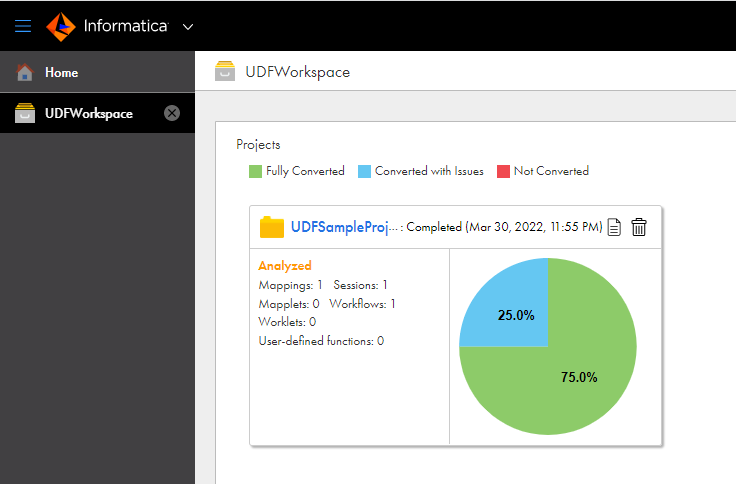
PC to Cloud Conversion converts PowerCenter user-defined functions as publishable assets and you can view the statistics in the workspace summary dashboard.
In PC to Cloud Conversion, you can view the statistics of the converted user-defined functions in the workspace and project.
The following image shows the workspace containing the conversion project and its assets:
Consider the following guidelines when publishing a user-defined function:
- •Publish the user-defined function as an independent asset.
- •Publish the user-defined function as a dependent asset if it is inside an Expression transformation within the mapping or mapplet.
- •Suppose a user-defined function, UDF 1 is called inside the expression of another user-defined function, UDF2. UDF1 is a dependent asset of UDF2. If you publish UDF2, the PC to Cloud Conversion also publishes its dependent asset, UDF1.
Consider the following guidelines when publishing a user-defined function with the rename option to create a unique user-defined function name in an org:
- •If there is no existing user-defined function with the same name in Cloud Data Integration, PC to Cloud Conversion creates the user-defined function in the Cloud Data Integration.
- •If a user-defined function exists with the same name, the user-defined functions gets published and renamed to the user-defined function name with the suffix that includes the project name, folder name, and a random integer.