1On the PC to Cloud Conversion page, you can navigate to the workspaces available. Or, create a new workspace.
2To create a new conversion project, click New within the workspace.
3In the New Conversion Project dialog box, enter the following information:
Property | Description |
|---|---|
Project Name | Name of the project. |
Description | Optional description for the project. |
Opportunity ID | Salesforce opportunity ID that appears in the Informatica Sales Management System, for example, OP123456. |
RPA | Enables the RPA project creation. If you enable the flag, you can create an RPA project type after you specify the config file information. If you disable the flag, you can create a regular conversion project. |
Convert PC Mapplet to Native Mapplet | Determines how PC to Cloud Conversion converts PowerCenter mapplets. If enabled, PowerCenter mapplets are converted to mapplets that can be edited in Data Integration. If disabled, PowerCenter mapplets are converted in the following ways:
|
DQ Conversion | Enables the conversion for the Informatica Data Quality assets. Converts the Model repository XML files with their corresponding Cloud Data Integration assets. If you enable the flag, the mapplets that contain Informatica Data Quality transformations are converted to mapplets in their editable state in Cloud Data Integration. If you disable the flag, the Informatica Data Quality mapplets are not converted. If you set the EnableMercuryMappletSubstitution flag to true and if the PowerCenter mapplets are present in the exported XML files, the mapplet gets substituted with the equivalent mapplet in Cloud Data Integration. |
Dictionary file(s) (Zip format) | Identifies a compressed file that contains dictionary files. Required when a mapping or mapplet in the export XML file contains an Informatica Data Quality transformation that reads a reference dictionary. The export process in Step 1 creates the compressed file in addition to the XML export file when the XML file includes an Informatica Data Quality transformation that reads reference dictionaries. The maximum permitted size of an extracted dictionary file is 50 GB. |
Source Files | XML files to include in the project. Click Choose Files to select one or more XML files. |
Config file | To repoint existing ODBC or relational connections in a PowerCenter mapping to Cloud Data warehouse connections, you need a config file. Ensure that you generate the config zip file before creating the conversion project with the Informatica utility. |
PC Task Mappings file | File indicates the mappings that have to be converted to PowerCenter tasks. |
Multi-session Mappings | CSV file that contains information about mappings that have more than one session. Specify the CSV file for optimal conversion of the assets. |
Connection Assessment File | Text file containing connection type information. |
DFA Input | The data flow analysis input file with the original and duplicate mappings information in the text file. |
Workflow Loop Info File | Text file containing looping workflow information, such as the workflow name, schedule script name, folder name, child workflow name, and unschedule script name. Workflow loop info file format: WORKFLOW NAME|SCHEDULE SCRIPT|FOLDER ARGUMENT|CHILD WORKFLOW NAME ARGUMENT|UNSCHEDULE SCRIPT Sample workflow loop info file: wf_loop|schedule*|1|2|unschedule* In the workflow loop info file, you can specify a workflow name that contains a regular expression. You can also specify the script file name to contain wildcards. For instance: wf_loop[12]|schedule*|1|2|unschedule* where the workflow loop information applies to both wf_loop1 and wf_loop2. |
Edit conversion properties | Select the checkbox to override the default conversion properties. |
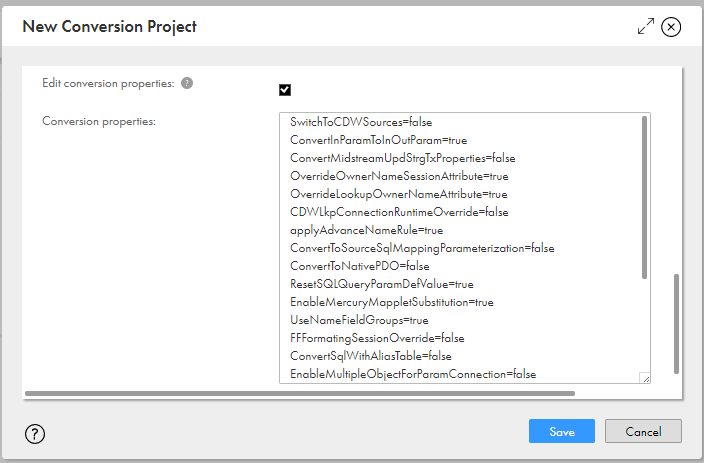
Conversion properties | Custom conversion properties for the conversion project that can be overridden based on the specific use case scenarios. |
The following image shows some of the custom conversion properties that you can set:
The following table describes the conversion use cases and properties available for the conversion project:
Property Name | Suggested conversion values appear or not | Description |
|---|---|---|
ConvertToSourceSqlMappingParameterization | No | When you enable the flag, the mapping gets parameterized at the mapping level and the query gets present in the mapping task. For relational sources: The source SQL gets added at the mapping level with the source type as query. If the source is overridden, it will be present at the mapping level after conversion. For cloud data warehouse sources: The SQL query is present at mapping level for PowerCenter mapping level SQL. It appears at the mapping task level under advanced option for SQL override after conversion. Default is false. |
UseNameFieldGroups | No | Groups the individual port rules under one of the two group categories. The group categories are the include group and the rename group. Default is true. |
ConvertToNativePDO | Yes | When you enable the flag, the source, target, or lookup gets converted to the corresponding object in cloud as mentioned in the configuration file. If you disable the flag and if pushdown is set to To Source, the source connection gets converted as ODBC and the target connection gets converted as Native. If you disable the flag and if the pushdown property is set to To Target, the source connection gets converted as Native and the target connection gets converted as ODBC. If you disable the flag and if the pushdown property is set to Full, the source or target gets converted as ODBC. If you disable the flag and if the pushdown property is set to None or Parameterized, the source or target gets converted as Native. Note: For Teradata Vantage, when you disable the flag and the pushdown property is set to To Target, the source or target gets converted as Native. When you disable the flag and the pushdown property is set to Parameterized for Teradata Vantage, the source or target gets converted as ODBC. Default is false. |
EnableMercuryMappletSubstitution | No | Enables the mapplet substitution for the Data Quality conversion. Replaces the converted PowerCenter mapplet with the corresponding Data Quality mapplet. The latter mapplet retains Data Quality transformations in their editable state. If you disable the flag, the PowerCenter mapplets are not substituted and remain as expanded runtime transformations. Default is true. |
ResetSQLQueryParamDefValue | No | Sets the default parameter value to an empty string when the converted mappings have an in-out parameter with an SQL query that contains more that 4000 characters. Default is true. |
OverrideLookupOwnerNameAttribute | No | Converts the LookupOwnerName session level overrides. If you disable the flag, PC to Cloud Conversion skips the lookup owner name overridden at the session level. Default is true. |
OverrideOwnerNameSessionAttribute | No | Supports the owner names overrides by creating connections with names suffixed with owner name and have the names referenced by the converted mapping tasks. If you disable the flag, PC to Cloud Conversion does not pick the owner name session values. Default is true. |
ConvertInParamToInOutParam | No | Converts PowerCenter mapping or mapplet parameters in mappings or mapplets to Cloud Data Integration in-out parameters in the converted mappings and mapplets. If you disable the flag, PC to Cloud Conversion converts mapping parameters to Cloud Data Integration input parameters. Default is true. |
ConvertMidstreamUpdStrgTxProperties | No | Converts the Midstream Update Strategy transformation properties into a dummy expression in the cloud. Default is false. |
setFlowRunOrder | No | Converts the flow run order property of the target. If you disable the flag, PC to Cloud Conversion skips the flow run order property conversion. Default is true. |
SkipTableSessionOverrideProperties | No | Changes the cloud data warehouse sources advanced properties. When the SQL override is present, advanced properties, such as table name override, schema name, database, role or warehouse based on the connector type gets set to empty. Default is true. |
EnableMultipleObjectForParamConnection | Yes | Creates the connection parameter for each transformation instance. You can provide different connection values to each transformation instance at the Mapping task level. Note: You must provide the parameter value in the parameter file for each transformation instance. Default is false. |
convertSqlWithAliasTable | No | Converts the SQL query object. The columns in the SQL query object are in the same order as the Source Qualifier port order. Default is false. |
EnableAdvancedLookupSessionAttributes | No | Converts the Lookup SQL override from the session property in PowerCenter to the mapping task advanced property in the Cloud Data Integration. If you disable the flag, the PC to Cloud Conversion converts the Lookup SQL override property for relational and cloud data warehouse sources. Default is true. |
WrapOSCommand | Yes | If you enable the flag, the PC to Cloud Conversion property converts command task from PowerCenter to Cloud Data Integration. The converted command task invokes a wrapper script that runs the operating system commands. Default is false. |
AgentOSLinux | Yes | Specifies whether the runtime environment is on Linux or Windows. Required if you convert command tasks that contains specific commands of the operating system from PowerCenter to Cloud Data Integration. If the runtime environment is Linux, set the flag to true. The PC to Cloud Conversion conversion property sets the following command for the script file name field for the command task: $PMRootDir\invoke_os_command.sh. If the runtime environment is on Windows, set the flag to false. The PC to Cloud Conversion conversion property sets the following command for the script file name field for the command task: $PMRootDir\invoke_os_command.bat. Default is true and the agent operating system is on Linux. |
RetainDirectConnections | No | If you enable the flag, the PC to Cloud Conversion conversion property retains the direct connection in a session to a direct connection in the converted mapping. If you disable the flag, the PC to Cloud Conversion conversion property converts the direct connection in a session to the parameterized connections in the converted mapping. Default is false. |
TaskflowAPIUserGroup | Yes | If you set the flag to point to user groups, you can publish the taskflow with the user groups that you specify. For example, when you enter TaskflowAPIUserGroup=CDI_TFlow_API_group, the taskflow publishes with the mentioned user group, CDI_TFlow_API_group. To convert multiple groups in the published taskflows, enter the group names separated by a comma, such as TaskflowAPIUserGroup=gp1,gp2. |
TaskflowEmailInParam | Yes | If you set the flag to true, the converted taskflow shows values of PMFailureEmailUser and PMSuccessEmailUser specified as taskflow inputs rather than the temp variables. The Assignment_PC_Variables assignment task does not initialize the input values. After conversion, you can assign email as a value in PMFailureEmailUser and PMSuccessEmailUser. Default is true. |
AddTreatSourceRowsAs | No | The Treat Source Rows As property marks each source row with an indicator to specify which operation to perform when the row reaches the target. You can specify Insert, Delete, Update, or Data Driven as the option for the Treat Source Rows As property. If you set the flag to true, the Treat Source Rows As property appears as one of the advanced properties in the converted mapping task. Default is false. |
ForceSuspendTaskflow | Yes | If you set the flag to true, the taskflow containing the Data or Command task moves to a suspend status when a failure occurs. You can then choose to resume from the faulted step. If the set the flag to true and the session contains the Command and Email tasks in PowerCenter, the PC to Cloud Conversion creates the workflow with an additional Command Task followed by a Jump task at the end. The additional Command task handles the error to be in suspended state. The Jump task points to the initial Data task in the workflow. Default is false. |
enableCheckForSPSrcTgtConnProps | No | If you set the flag to true, the PC to Cloud Conversion converts Oracle ADW to ODBC with an ODBC connection parameter type for the unconnected Stored Procedure transformation. If you disable the flag, the PC to Cloud Conversion converts Oracle ADW to Oracle with an Oracle connection parameter type for the unconnected Stored Procedure transformation. Default is true. |
EnableFlatFileAutoGenerateFields | No | If you set the flag to true and the number of rows to skip property to 0 in the conversion file, the PC to Cloud Conversion creates source or lookup rows with generic row names, such as FIELD 1 and FIELD 2. The converter also creates an Expression transformation after the source or lookup and then renames the generic row names to the row names based on the Source Qualifier or the Lookup transformation. The source or lookup also has the auto generate header formatting option set. If you set the flag to true and the number of rows to skip property has a value other than zero in the conversion file, the PC to Cloud Conversion imports the headers from the object file. If you set the flag to false, the PC to Cloud Conversion imports the headers from the object file. Default is true. |
SkipSessionLogFileName | Yes | If you set the flag to true, PC to Cloud Conversion skips the conversion of the SessionLogFileName session property. If you disable the flag, PC to Cloud Conversion converts the SessionLogFileName session property according to the value specified in the PowerCenter XML file used as input for conversion. Default is true. |
AppendRunIDToSessionLogFileName | Yes | If you set the AppendRunIDToSessionLogFileName conversion property to true, the run ID gets appended to SessionLogFileName, such as <SessionLogFileName>_$$runId$$.log during conversion. If you disable the flag, PC to Cloud Conversion converts the SessionLogFileName session property according to the value specified in the PowerCenter XML file used as input for conversion. If you set both the SkipSessionLogFileName and AppendRunIDToSessionLogFileName conversion properties to true, the AppendRunIDToSessionLogFileName conversion property takes precedence. Default is false. |
AppendCurrentTimeToSessionLogFileName | If you set the conversion property to true, you can append the current time to the session log name. If you set both the SkipSessionLogFileName and AppendCurrentTimeToSessionLogFileName conversion properties to true, the AppendCurrentTimeToSessionLogFileName conversion property takes precedence. If you set AppendRunIDToSessionLogFileName and AppendCurrentTimeToSessionLogFileName conversion properties to true, the AppendCurrentTimeToSessionLogFileName conversion property takes precedence. If you set SkipSessionLogFileName, AppendRunIDToSessionLogFileName, and AppendCurrentTimeToSessionLogFileName conversion properties to true, the AppendCurrentTimeToSessionLogFileName conversion property takes precedence. Default is false. | |
setGBQTargetOperation | No | If you set the flag to true and the Update Strategy transformation contains the data driven option in PowerCenter, the PC to Cloud Conversion allows you to specify Insert, Update, Delete, or Upsert options based on the Update Strategy expression for the Google BigQuery target. When PowerCenter contains the data driven options, the PC to Cloud Conversion maps it to the corresponding target operations for Google BigQuery:
If you disable the flag, the PC to Cloud Conversion sets the Update Strategy transformation with the data driven option for the Google BigQuery target. Default is false. |
ConnectionBasedConversion | Yes | If you set the flag to true, PC to Cloud Conversion does additional checks if the source or target object qualifies for the connection specified before converting based on the configuration file. If you disable the flag, PC to Cloud Conversion converts the connection based on the source or target database type. There is no additional checks when the object connection is specified in the connection map in the configuration file. Default is false. |
convert$ParamAtMappingLevel | No | If you set the flag to true and the SQL query contains $param, the PC to Cloud Conversion converts the parameter to $$Param and creates an in-out parameter in the cloud data integration mapping. If you disable the flag and the SQL query contains $param, the PC to Cloud Conversion does not edit the SQL query post conversion. Default is true. |
convert$ParamAtSessionLevel | No | If you set the flag to true and the SQL query contains $param, the PC to Cloud Conversion converts the parameter to $$Param and creates an in-out parameter for the session level SQL properties. If you disable the flag and the SQL query contains $param, the PC to Cloud Conversion does not edit the SQL query post conversion at the session level. Default is false. |
FFFormatingSessionOverride | No | If you set the flag to true, the PC to Cloud Conversion sets the object type as parameters for all flat file objects at the mapping level. After conversion, you can modify the parameter values at the mapping task. If you disable the flag, the session does not perform the flat files or the table overrides. Default is false. |
GenerateDefaultTags | Yes | If you set the flag to true, the PC to Cloud Conversion creates the default tags and assigns it to the published assets in Cloud Data Integration. PC to Cloud Conversion creates the following default tags:
Default is false. |
GenerateDefaultSourceTargetTags | Yes | If you set the flag to true, the PC to Cloud Conversion creates the default tags and assigns it to the published assets in Cloud Data Integration. PC to Cloud Conversion creates the following default tags:
Default is false. |
RemoveTaskflowVarAssignmentsWithoutDefaults | No | If you set the flag to true, the generated workflow variables assignment task does not contain an entry for any workflow variable without a default value. Default is true. |
RetainMinimumPrecision | Yes | The generated mapping contains an additional Expression transformation for retaining the minimum field when you set the following three conditions:
Default is false. |
MinPrecisionThreshold | Yes | Required if you set the RetainMinimumPrecision flag to true. Based on the threshold value, the PC to Cloud Conversion retains the minimum precision of the field in the converted mapping. Default is 1000. |
UseDSQFieldsForFieldMapping | No | If you repoint to Google BigQuery and the PowerCenter mapping has a data Source Qualifier with a SQL Override, you can set the flag to true. If you set the flag to true, the Source transformation fields in the converted mapping contains the data Source Qualifier field name and data types from the PowerCenter mapping. Default is true. |
SetDateTimeAsNativeTypeAtSource | No | Required if you set the UseDSQFieldsForFieldMapping flag to true. If you set the flag to true, all the data types gets converted to DateTime by default. If you set the flag to false, it sets to timestamp. Default is false. |
WriteFFTargetFieldsInOrder | Yes | If you set the flag to true, the PC to Cloud Conversion generates the target flat file with the same field order as the flat file target in the PowerCenter mapping. The converted mapping has an additional Expression transformation before the flat file target. Default is true. |
RetainEmptyWorkflowVarAssignmentTask | No | If you set the flag to true, the converted taskflow retains the Assignment_Workflow_Variables assignment task even if there are no workflow variables defined or if all the assignments have been ignored. The converted taskflow gets invalid. Default is false. |
RemoveAllFiedsForLkpInput | No | If you set the flag to true and if lookup object is parameterized, the downstream transformation attached to the Lookup transformation contains the exclude and include rules but does not contain all field rules. If you set the flag to false and if lookup object is parameterized, the downstream transformation attached to the Lookup transformation contains all the field rules, exclude, and include rules. Default is true. |
ExpandChildTaskflow | Yes | If you provide the workflow loop info file during conversion and if you set the flag to true, the child taskflow contents gets expanded and appears as part of the converted parent taskflow. If you provide the workflow loop info file during conversion and if you set the flag to false, the parent runs the child taskflow content in the converted sub taskflow. Default is false. |
IgnoreTaskSuccessLink | Yes | The PC to Cloud Conversion ignores the link condition that has "$task.Status = SUCCEEDED" or "$task.ErrorCode = 0" for a Session or Command task when you set the flag to true and any of the following conditions are met:
When either of these conditions are met, the PC to Cloud Conversion does not ignore the composite link conditions. Default is true. |
RemoveUnusedTaskOutputs | No | If you set the flag to true, the PC to Cloud Conversion removes the temp variable representing a command task output that is not used in the taskflow. Default is true. |
ConvertAsGBQMultiObject | No | If you set the flag to true, PC to Cloud Conversion renames the source field names. For example, it renames the field name appended with table name. If you set the flag to false, PC to Cloud Conversion does not rename the source field names. For example, the field name does not append with table name for Google BigQuery with multiple source objects. Default is false. |
ParseSQLQueryInMetadataExtension | No | If you set the flag to true, PC to Cloud Conversion uses the string manipulation and preserves the \n in the SQL query. If you set the flag to false, PC to Cloud Conversion parses the SQL query with the XML parser and fails to preserve the \n in the SQL query. Default is true. |
FFFormatingSessionOverride | Yes | If you set the flag to true, the PC to Cloud Conversion sets the object type as parameters for all flat file objects at the mapping level. After conversion, you can modify the parameter values of the mapping task. If you set the flag to false, the PC to Cloud Conversion does not set the object type as parameters for flat file objects at the mapping level. Default is false. |
SkipUDFConversion | No | If you set the flag to true, PC to Cloud Conversion skips the conversion of user-defined functions. If you set the flag to false, PC to Cloud Conversion converts the user-defined functions. Default is false. |
SwitchToSessionConnection | Yes | If you set the flag to true, PC to Cloud Conversion converts based on the connections at the session level. If you set the flag to false, the source and target connections in the mapping takes precedence. Default is false. |
UseMappletOutputFieldMetadataFromLink | No | If you set the flag to true, PC to Cloud Conversion sets the datatype, scale, precision values for the output fields of the Output transformation based on the metadata of the upstream connected transformation. If you set the flag to false, PC to Cloud Conversion sets the datatype, scale, precision values from the Output transformation of the mapplet. Default is true. |
UniquifyMappletTxNames | No | If you set the flag to true and the transformation is inside a mapplet, the PC to Cloud Conversion generates a mapping task with the parameter names by prefixing the mapplet instance name as <Mapplet>_<Transformation Name> . If you set the flag to false, you cannot rename the transformation names within the mapplet. Default is true. |
IncludeUnMappedFFSourceDefFields | No | If you set the flag to true, the PC to Cloud Conversion adds the flat file source fields according to the source definition instead of the source qualifier. If you set the flag to false, the PC to Cloud Conversion adds the flat file source fields according to the source qualifier. Default is true. |
SanitizeMappingName | No | If the mapping name contains special characters like <, >, " , you can sanitize the name by setting this conversion property as true. If you set the flag to true, it will remove the above characters from mapping name. Default is false. |
ConvertReusableTx | No | If you set the flag to true, the PC to Cloud Conversion converts reusable connected Lookup and Expression transformations by placing the reusable transformations within the converted mapplet. If you set the flag to false, the PC to Cloud Conversion converts the reusable Lookup and Expression transformations to be non-reusable transformations. Default is false. |
RemoveUnUsedGroupsInUNION | No | If you set the flag to true, the PC to Cloud Conversion removes the unused union groups. For instance, if there are no incoming fields to the union group and you set the flag to true, the PC to Cloud Conversion removes the union group after conversion to make the mapping valid. If you set the flag to false, the PC to Cloud Conversion does not remove the unused union groups. Default is true. |
EnableHighPrecision | No | Enables or disables high precision in Cloud Data Integration. If you set the flag to true, the converted mapping runs with the high precision set. If you set the flag to false, the PC to Cloud Conversion disables the high precision option. Default is true. |
HandleLKPOutputPortDefaultValue | Yes | Sets the default value for the Lookup transformation that contains one or more output ports. Applicable for cloud data warehouse lookups. If you set the flag to true, the PC to Cloud Conversion creates an Expression transformation after the Lookup transformation. The Expression transformation contains an expression field of type output with the IFF condition. If you have a default value for the Lookup output port but there is no default value for the downstream transformation input port, the PC to Cloud Conversion creates the following expression: Expression [Output port]: IIF( (ISNULL(lookup_output_port_with_default_value) AND ISNULL(lookup condition ports) ), lookup_default_value, lookup_output_port_with_default_value) If you have default values for both the Lookup output port and for the downstream transformation input port, the PC to Cloud Conversion creates the following expressions: Expression 1 [Variable port]: IIF( (ISNULL(lookup_output_port_with_default_value) AND ISNULL(lookup condition ports) ), lookup_default_value, lookup_output_port_with_default_value) Expression 2 [Output port]: IIF(ISNULL (Variable_port), next_tx_input_default_value, Variable_port). Default is false. |
RenameDuplicateTasks | No | Renames the duplicate task names. If you set the flag to true, the PC to Cloud Conversion renames the task instances with duplicate names in PowerCenter workflow to unique task names in Cloud Data Integration. If you set the flag to false, the PC to Cloud Conversion does not rename the duplicate tasks. Default is false. |
PrefixParentName | No | Renames the task instances by prefixing the parent name. If you set the flag to true, the PC to Cloud Conversion renames task instances by prefixing the parent name in the following format: <parent workflow or worklet>_ < task instance name>. If you set the flag to false, the PC to Cloud Conversion renames the task instance by appending the parent name as suffix in the following format: <task instance name>_ <parent workflow or worklet> If you set the RenameDuplicateTasks flag to false, the PC to Cloud Conversion ignores the PrefixParentName flag. Default is false. |
IgnoreDependentPublishFailure | No | Ignores dependent asset publish failures when PC to Cloud Conversion publishes the asset. If you set the flag to true, the PC to Cloud Conversion publishes an asset even if PC to Cloud Conversion did not publish all the dependent assets. If you set the flag to false, the PC to Cloud Conversion does not publish an asset if PC to Cloud Conversion did not publish all the dependent assets. Default is true. |
TaskSuccessAndWarningAreEqual | No | If you set the flag to true, the PC to Cloud Conversion converts the Decision task and the link conditions containing $task.Status = SUCCEEDED to the equivalent of $task.Status = SUCCEEDED or $task.Status = WARNING. If you set the flag to false, the PC to Cloud Conversion converts the Decision task and the link conditions containing $task.Status = SUCCEEDED to $task.Status = SUCCEEDED. Default is true. |
4Click Save.
PC to Cloud Conversion scans the XML files and adds the project to the home page. When the scan completes, the project panel displays the number of mappings, mapplets, and sessions in the project and the percentage of objects that were fully converted, converted with issues, or not converted to assets in the Cloud Data Integration repository.