You can map MDM Hub business entity fields, base object columns, and lookup tables to MDM SaaS business entity fields and Reference 360 code lists in Business 360 Console user interface.
During the mapping process, each MDM SaaS business entity and reference data object shows a status that indicates whether its mapping is complete. The status remains incomplete until you review the mapping and mark it as complete. Additionally, each field or attribute shows a status that indicates whether it was mapped.
To map fields using custom mapping, perform the following steps:
The reference data configuration defines the source and target attributes of code lists from Reference 360 and lookup tables from the MDM Hub. If the source or target definitions change, refresh the configuration to retrieve the latest changes in the reference data configuration.
1On the Map Fields page, navigate to the Reference Data section.
2Click Get Configuration.
The modernization process retrieves the configuration from the MDM Hub lookup tables and code lists in Reference 360. After you retrieve the configuration for the first time, you can also refresh the configuration to retrieve the latest changes.
3To refresh the configuration, click Refresh Configuration.
4Optionally, to review the retrieved configuration manually, click Download Reference Data Configuration.
5To begin the reference data mapping process, click Map Reference Data.
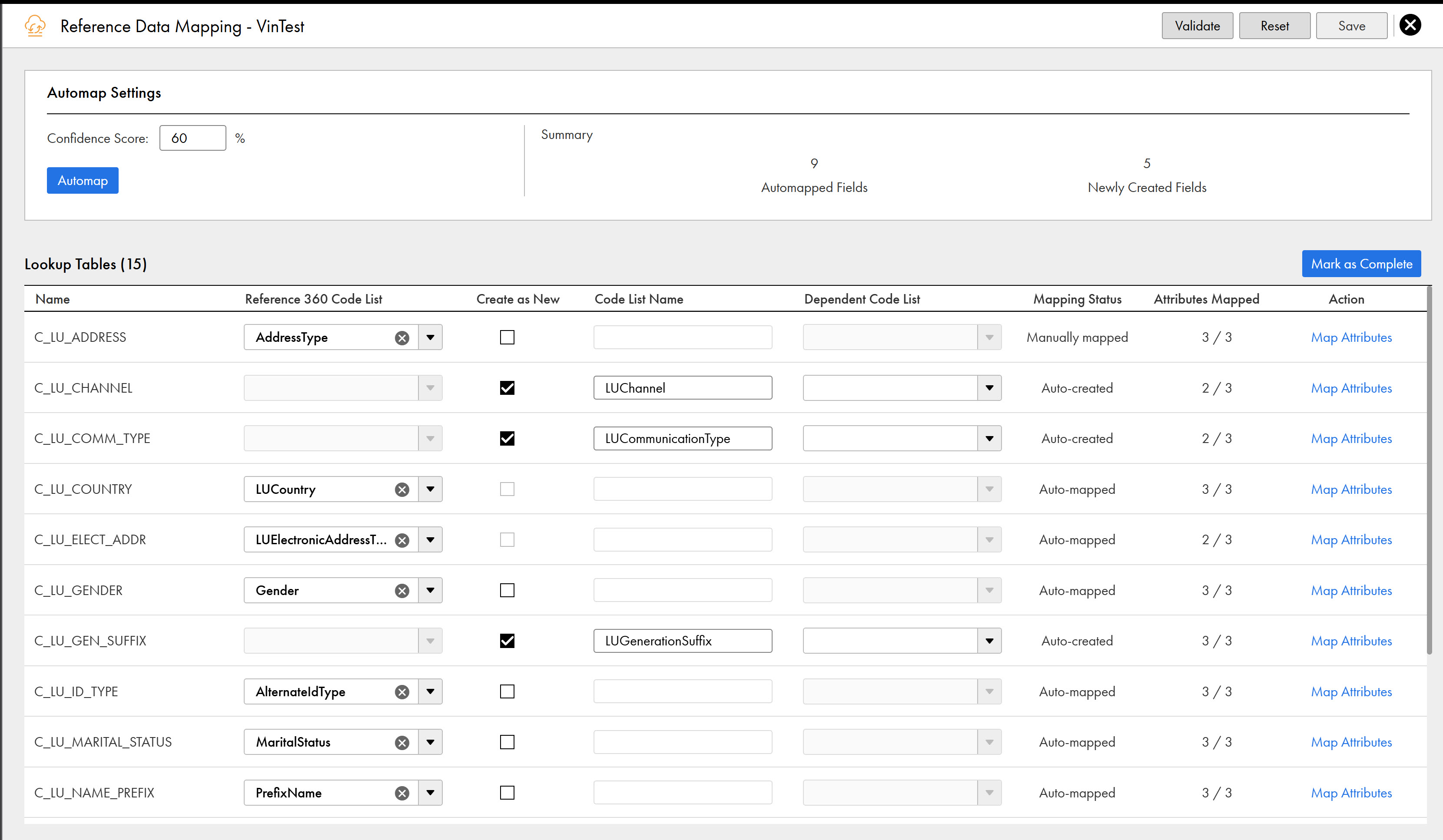
The Reference Data Mapping page appears. You can view a list of lookup tables that were retrieved from the MDM Hub in the Lookup tables section.
The following image shows the Reference Data Mapping page along with the retrieved configuration:
The following table describes the user interface elements that you can see in the Reference Data Mapping section:
User Interface Elements
Description
Name
Name of the lookup table retrieved from the MDM Hub configuration.
Reference 360 Code List
Code list retrieved from Reference 360. Select a code list to map to the lookup table.
Create as New
Creates the lookup table as a new code list in Reference 360. To skip mapping, create the lookup table as a new code list.
Code List Name
Unique name for the new code list. Applicable when you create the lookup table as a new code list in Reference 360.
Dependent Code List
Code lists whose values depend on the values of a parent code list. For example, the State code list is a dependent code list of the Country code list. You can select a dependent code list only if you have already mapped its parent code list to a lookup table. Select the dependent code list from a list.
Mapping Status
Status of the reference data mapping.
The Mapping Status column shows one of the following values:
- Auto-mapped. Indicates that the lookup table column is mapped to a code list attribute.
- Auto-created. Indicates that the lookup table column has no equivalent in Reference 360 and it is created as a new code list in Reference 360.
- Manually Mapped. Indicates that the lookup table and Reference 360 code list were manually mapped.
- Unmapped. Indicates that the lookup table isn't mapped to a Reference 360 code list.
Attributes Mapped
Number of code list attributes mapped, out of the total. For example, 2/3 means two of three attributes are mapped.
Action
Opens the attribute mapping dialog box, where you map the columns of the lookup table to the attributes of the code list.
6To automatically map the MDM Hub lookup tables to Reference 360 code lists, perform the following steps:
aIn the Confidence Score field, set a confidence score.
You can set the confidence score value from 0 through 100 percent.
bClick Automap.
The MDM Hub lookup tables and their columns are automatically mapped to Reference 360 code lists and their attributes based on the confidence score. If the confidence score of a lookup table or column falls below the threshold, the modernization process doesn't map it, and you can map it manually. For more information about confidence scores, see Automapping fields by confidence score.
cReview the mapping results in the Summary section.
The following table describes the metrics that appear in the Summary section after you automap lookup tables to code lists:
Metrics
Description
Automapped Fields
Total number of lookup table columns automapped to code list attributes.
Newly Created Fields
Total number of code lists created in Reference 360.
7To manually map the lookup tables from the MDM Hub to code lists in Reference 360, perform the following steps:
aIn the Reference 360 Code List column, select a code list for a lookup table that you want to map.
bTo create the lookup table as a new code list, select Create as New.
cEnter a unique name for the code list.
dOptionally, select a dependent code list in the Dependent Code List column if the code list that you are creating is dependent on another code list.
eRepeat steps a through d to map the remaining lookup tables to their corresponding code lists.
Step 2. Map attributes
After you map the MDM Hub lookup tables to Reference 360 code lists, map the lookup table columns to the code list attributes for each mapped lookup table.
If a lookup table is automapped to a code list, then the corresponding lookup table columns are also automapped to the code list attributes. However, if some columns aren't mapped to the attributes, you can manually map them.
1On the Reference Data Mapping page, find the lookup table and its mapped code list, and then click Map Attributes in the Action column.
2To map the lookup table columns in the MDM Hub Lookup Table section to the code list attributes in the Reference 360 Code List section, perform the following steps:
aDrag each column from Column Name to Mapped Column for the corresponding attribute.
bClick Save.
3To validate the mapping for errors, click Validate.
The modernization process checks for validation errors in the mapping. If validation errors are found, they are displayed on the Reference Data Mapping page. You must fix the validation errors before marking the mapping as complete.
4To reset the mapping, click Reset.
The modernization process resets the mapping. You can start mapping the lookup tables to code lists from the beginning.
5To complete the mapping process, click Mark as Complete.
6Click Save.
7Click Close.
The Map Fields page appears. You can proceed to retrieve the business entity configuration and map business entity fields.
Step 3. Retrieve business entity configuration
Retrieve the business entity configuration from the MDM Hub and MDM SaaS and then map business entity fields from MDM SaaS. You can then map business entity fields from MDM SaaS to base object columns or business entity fields in the MDM Hub.
You can also create a custom business entity in MDM SaaS and map an MDM Hub business entity or base object that doesn't have an MDM SaaS equivalent.
1In the Business Entity section, select one of the following options:
- Base Object. Includes base objects of the MDM Hub and their columns in the configuration.
- Business Entity. Includes business entities of the MDM Hub and their fields in the configuration.
2Click Get Configuration.
The modernization process retrieves the configuration from the MDM Hub base objects or business entities based on your selection along with the configuration of MDM SaaS. After you retrieve the configuration for the first time, you can also refresh the configuration to retrieve the latest changes.
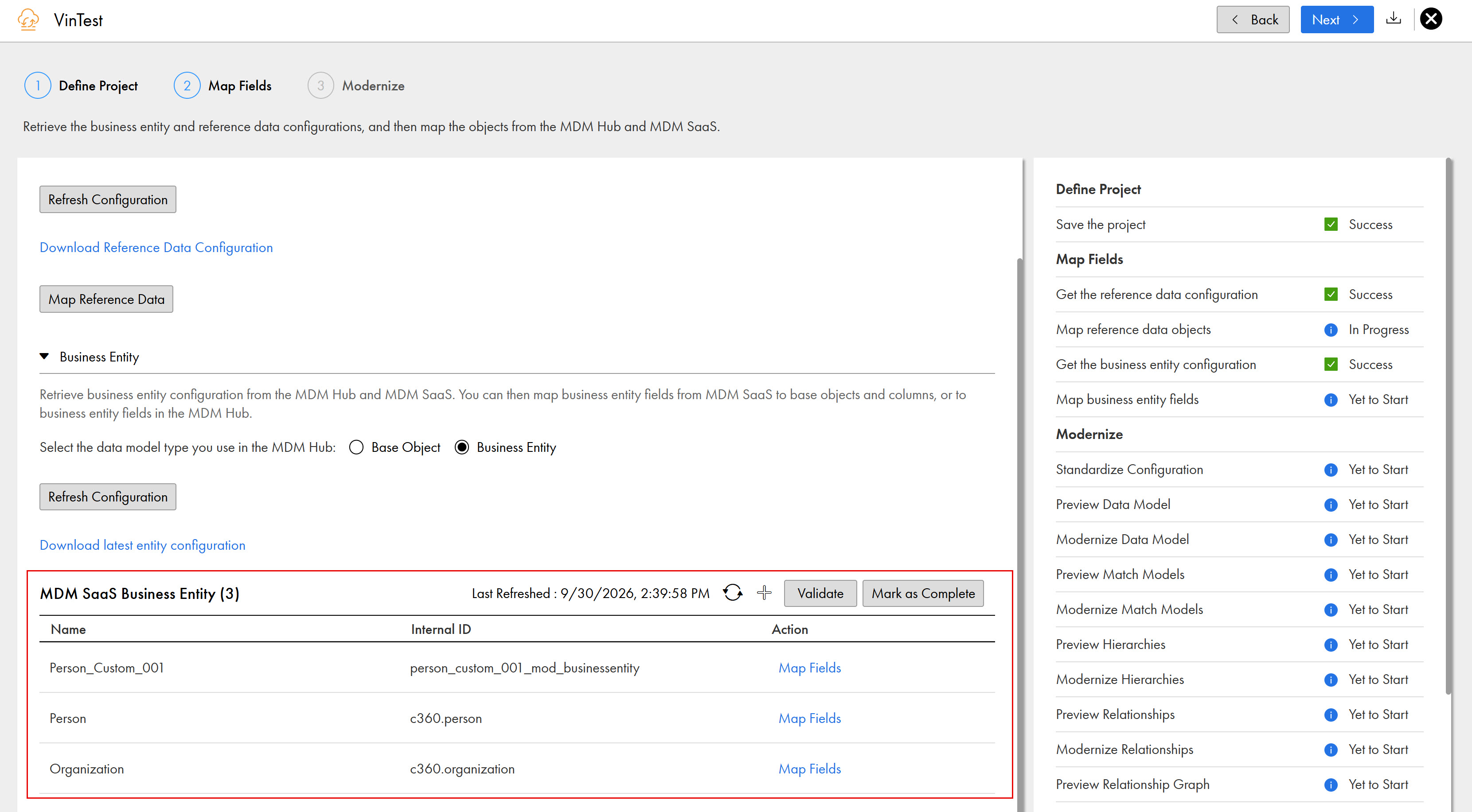
The following image shows the retrieved configuration from the MDM Hub and MDM SaaS business entities on the Map Fields page:
The following table describes the user interface elements that you can see in the MDM SaaS Business Entity section:
User Interface Elements
Description
Name
Display name of the MDM SaaS business entity whose fields you map to MDM Hub business entity fields or base object columns.
Internal ID
Internal identifier of the MDM SaaS business entities.
Action
Opens the field mapping page, where you can map the MDM SaaS business entity fields to the MDM Hub business entity fields or base object columns.
3To refresh the configuration, click Refresh Configuration.
4Optionally, to review the retrieved configuration manually, click Download Business Entity Configuration.
5To create a custom business entity in MDM SaaS, perform the following steps:
aIn the MDM SaaS Business Entity section, click Create MDM SaaS Business Entity.
bEnter a unique name.
cSelect the MDM Hub Object to map to the business entity.
dClick Create.
The newly created custom business entity appears in the MDM SaaS Business Entity section.
Step 4. Map fields
After you review the retrieved business entity configuration, map the MDM Hub business entity fields and base object columns to MDM SaaS business entity fields.
1On the Map Fields page, in the MDM SaaS Business Entity section, click Action > Map Fields.
The business entity field mapping page appears. If you retrieved the MDM Hub base object configuration, the MDM Hub Base Objects (Source) appears in the source section. If you retrieved the MDM Hub business entity configuration, the MDM Hub Business Entities (Source) appears in the source section.
2To include the child nodes of an MDM Hub root node, select the MDM Hub Root Node.
3To add the MDM Hub business entities, click Add MDM Hub Business Entities.
4To add the MDM Hub base objects, click Add MDM Hub Base Objects.
5Select the MDM Hub objects for which you want to map the MDM Hub business entity fields.
Note:
You can select multiple MDM Hub objects to map to the selected MDM SaaS business entity.
6To automatically map fields from the MDM Hub objects with MDM SaaS business entity fields, perform the following steps:
aSet a confidence score in the Confidence Score field.
You can set the confidence score value from 0 through 100 percent.
bClick Automap.
The modernization process automatically maps the fields or columns from the selected MDM Hub objects to MDM SaaS business entity fields, based on the confidence score. For fields or columns whose confidence score falls below the defined limit, the modernization process creates new business entity fields in MDM SaaS. You can then manually map those fields or columns to the appropriate business entity fields in MDM SaaS. For more information about confidence scores, see Automapping fields by confidence score.
cReview the mapping results in the Summary section.
The following table describes the metrics that appear in the Summary section:
Metrics
Description
Automapped Fields
Indicates the total count of automapped fields.
Newly Created Fields
Indicates the total count of newly created fields.
7To manually map fields or columns from the MDM Hub objects to MDM SaaS business entity fields, perform the following steps:
aSelect the business entity fields or base object columns that you want to map to MDM SaaS business entity fields.
bDrag each column from Column Name to the Mapped Hub Fields column.
cClick Save.
8To create source fields that don't have an MDM SaaS equivalent, perform the following steps:
aSelect the source fields, and then click Create as New.
The Create as New dialog appears.
bEnter a name for the field.
Note:
For a custom field in a predefined business entity, include the X_ prefix in the name.
cTo create the selected field as a new field within an existing MDM SaaS field group, select a field group from the MDM SaaS Field Group list.
dTo create the selected field as a root field in MDM SaaS, select Root Field from the MDM SaaS Field Group list.
eClick Create.
9To validate the mapping for errors, click Validate.
The modernization process validates the mapping and lists any validation errors. To view the validation errors, click View Details. Correct all the validation errors to save the mapping.
10To reset the mapping, click Reset.
11Click Save.
The Map Fields page appears.
12To complete the mapping process, click Mark as Complete.