You can search for data collections and view their properties to determine which collections meet your requirements.After you find suitable data collections, you can place an order to gain access to them.
On the Search page, enter a search query or a keyword in the search box for the data that you want to find.
You can create search queries using a combination of reserved words and keywords or characters that describe the data collection you want to find. For example, to search for data collections that contain the letter 'A', enter 'ALL A' in the search box. For more information about reserved words, see Reserved words.
When you search for data collections, consider the following guidelines:
•Enter a search term of 1000 characters or fewer.
•If you want to use a reserved word to search for a data collection, enter the reserved word in quotes. For more information about reserved words, see Reserved words.
•If your search query contains a special character, ensure that you enter your search query in quotes.
If you want to view the data assets or data elements that relate to one or more data collections, open the Other Items tab. For more information about the Other Items tab, see Other Items tab. Additionally, you can use the data assets or data elements on the Other Items tab to find relevant data collections. For more information, see Related Data Collections tab.
To clear the search box, click Clear Search.
Ranking of search results
When you search for data, Data Marketplace ranks your search results according to the following conditions:
•Search term match with one or more data collection names or descriptions.
•Search term match with properties within data collections.
•Frequency with which the search term appears across data collections.
•Similarity with other terms across Data Marketplace.
•Relevant results based on other matching criteria.
Switch between page layouts
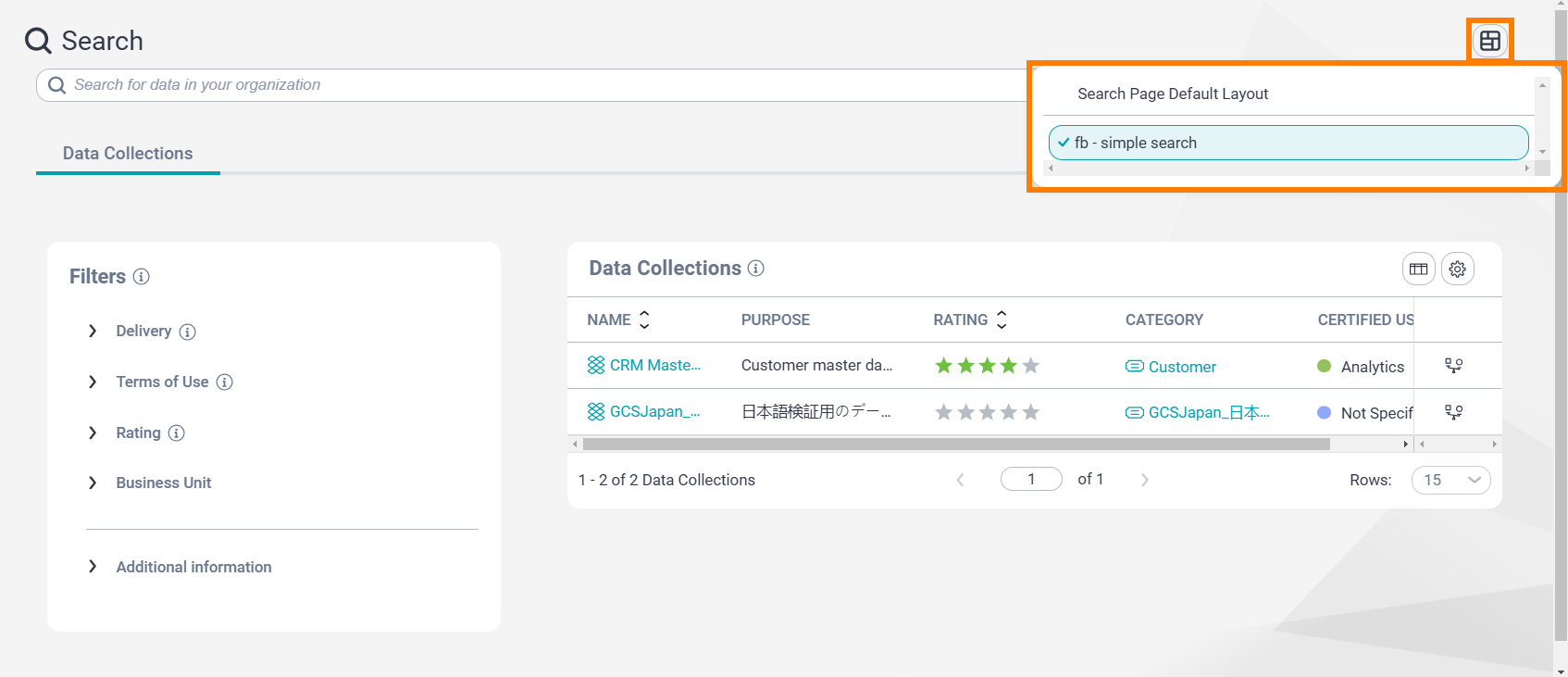
Your administrator can customize the data search experience by creating a different layout for the Search page. If you have multiple layout options available to you, you can use Switch Layout to switch between the layouts to view a different presentation of information on each layout. You can click Set As Default next to a particular layout to set it as your personal default.
The following image shows the Switch Layout icon on the Search page:
Data Collections tab
On the Data Collections tab of the Search page, you can view the data collections that are published in Data Marketplace.
Prerequisites
To search for data on this tab, verify one of the following prerequisites:
- Your user profile is assigned at least one of the predefined roles for Data Marketplace. For more information about the predefined roles for Data Marketplace, see the Predefined roles topic in the Introduction and Getting Started help.
- Your user profile is assigned a role for which the following privileges and permissions are enabled:
▪ Access Data Marketplace privilege is enabled in Administrator.
▪ Read permission for categories and data collections is enabled in Metadata Command Center.
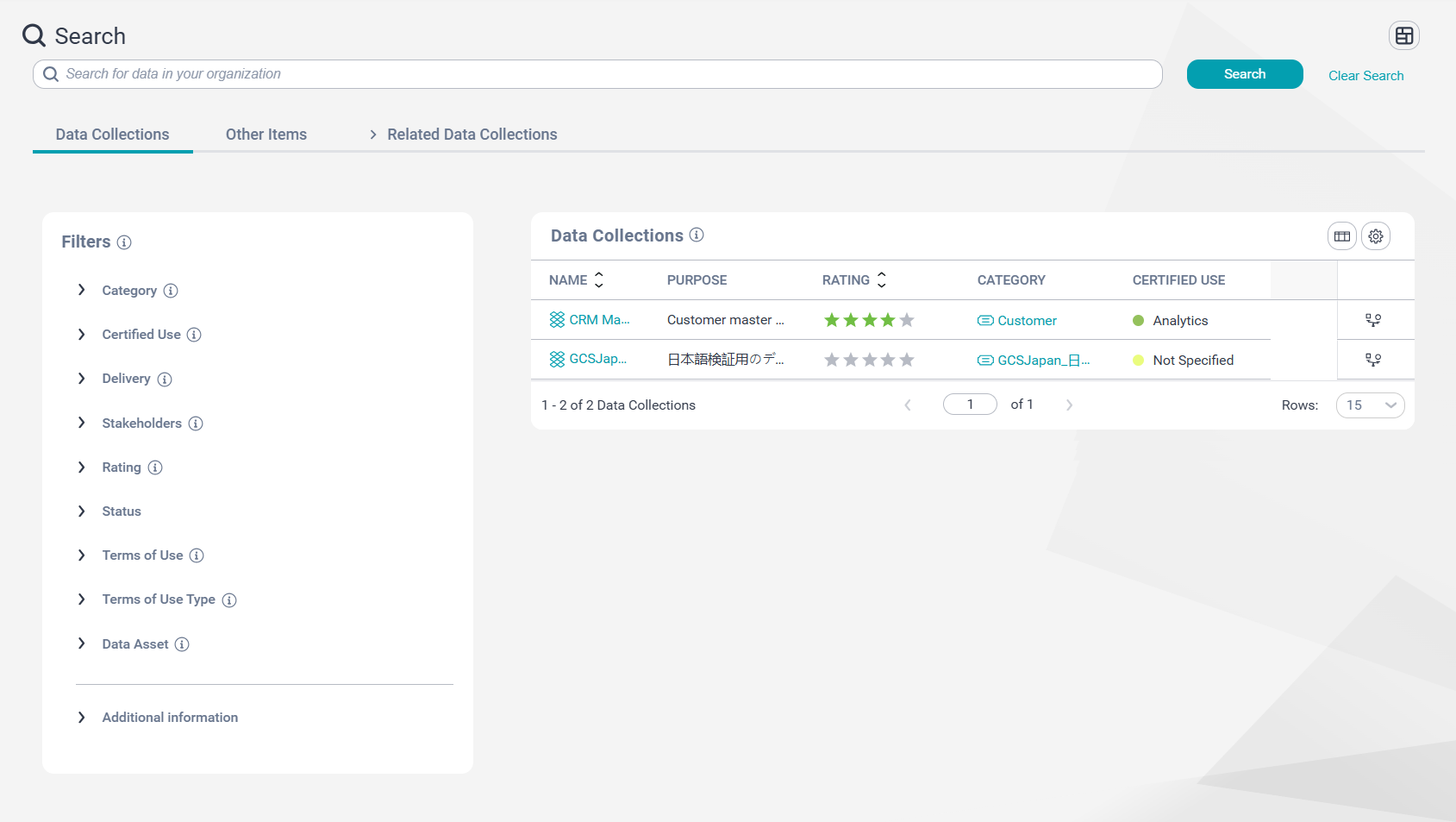
The following image shows the Data Collections tab listing some data collections in response to a search query:
The Data Collections grid displays all the data collections whose names or descriptions contain a keyword that matches your search query. When you search for data collections and their categories, consider the following guidelines:
•When you use the Category filter, the filter displays only effectively active categories.
•If a data collection is present in an effectively inactive category, the Data Collections grid won't display the data collection.
•If a data collection is added to an asset group for which you aren't assigned the required permissions, the Data Collections grid won't display the data collection. For more information about asset groups, see the Implement access controls on metadata topic in the Set Up Data Marketplace help.
It's possible that more than one data collection meets your requirements. In such a situation, you can compare these data collections for differences in content, usage, and available locations for consumption. To compare the data collections that you find, click Add to Cart to add a data collection to the My Cart page. For more information about how you can compare data collections, see Compare data collections.
Filter search results
To use the filters on this tab, ensure your user profile is assigned at least one of the predefined roles for Data Marketplace. For more information about the predefined roles for Data Marketplace, see the Predefined roles topic in the Introduction and Getting Started help.
Alternatively, ensure that your user profile is assigned a role for which the following privileges and permissions are enabled:
•Access Data Marketplace privilege is enabled in Administrator.
•Read permission for data assets, delivery targets, terms of use and usage contexts is enabled in Metadata Command Center.
You can use one of the filters in the Filters panel to assist you with your search for data. For example, to include terms of use in your search from the Terms of Use list, select the terms of use that best describes the rules around the data usage suitable to you.
If your administrator has configured custom attributes in Metadata Command Center for the data collections in Data Marketplace, you can use the custom attributes to filter the search results. In the Additional Information section of the Filters panel, you can view the custom attribute filters that are available to you. The custom attribute filters are displayed only if in Metadata Command Center the administrator has configured them to be usable for search purposes. For more information about custom attributes, see the Create custom attributes for objects topic in the Set Up Data Marketplace help.
Note:
You can use the Status filter only if your user profile is assigned the Data Marketplace Administrator role.
Other Items tab
On the Other Items tab of the Search page, you can view the data assets or data elements that relate to one or more data collections.
Prerequisites
To search for data on this tab, verify one of the following prerequisites:
- Your user profile is assigned at least one of the predefined roles for Data Marketplace. For more information about the predefined roles for Data Marketplace, see Predefined roles in the Introduction and Getting Started help.
- Your user profile is assigned a role for which the following privileges and permissions are enabled:
▪ Access Data Marketplace privilege is enabled in Administrator.
▪ Read permission for categories, data assets, data collections and data elements is enabled in Metadata Command Center.
▪ Read permission for Data Governance and Catalog business assets and technical assets is enabled in Metadata Command Center.
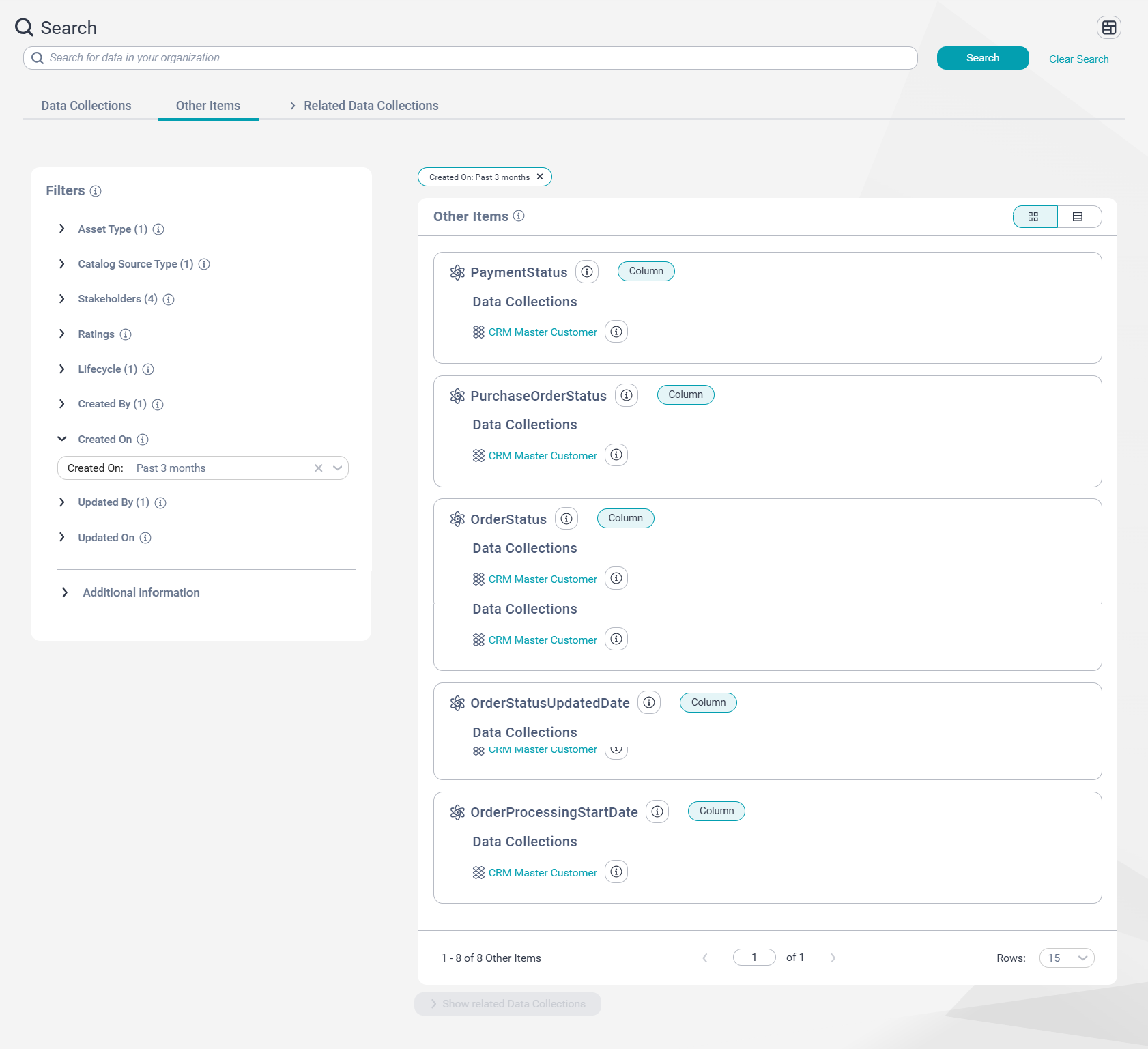
The following image shows the Other Items tab on the Search page listing a data asset and some data elements in response to a search query:
The Other Items grid displays all the data elements or data assets whose names or descriptions contain a keyword that matches your search query. To view more information about the data collection that is associated with a data element or a data asset, click the data collection to open its details page.
Note:
If you aren't assigned the required permissions for an asset group to which a data collected is added, you can't view the associated data asset and the data elements in the Other Items grid. For more information about asset groups, see Implement access controls on metadata in the Set Up Data Marketplace help.
If a data asset or data element is associated with fewer than three data collections, you can use Compare All to compare the data collections for differences in content, usage, and available locations for consumption. For more information about how you can compare data collections, see Compare data collections.
To review all the data collections that contain the listed data assets or data elements, click Show related data collections. This button is clickable only when you have a maximum of 25 data assets or data elements available on this tab. To reduce the number of data assets or data elements that are displayed on this tab, use the filters in the Filters panel.
If you disabled the Advanced Search option on the Setup > Configuration tab, Data Marketplace won't display the Other Items tab on the Search page, and will run your search query on only the names or descriptions of data collections. For more information about how you can configure advanced search, see Advanced Search in the Set Up Data Marketplace help.
Filter search results
You can use one of the filters in the Filters panel to assist you with your search for data. For example, to view only the data assets that are created in Data Marketplace, select the Native Data Asset option in the Asset Type filter.
For an asset that was imported from Data Governance and Catalog into Data Marketplace, you can use its custom attributes to filter the search results. In the Additional Information section of the Filters panel, you can view the custom attribute filters that are available to you. The custom attribute filters are displayed only if in Metadata Command Center the administrator has configured them to be usable for search purposes. For more information about custom attributes, see Asset customization in the Administration help for Metadata Command Center.
Changing the search result layout
You can use the layout buttons to change the layout of the Other Items grid. You can select either a Table layout or a Card layout for the Other Items grid. The Card layout is selected by default.
Related Data Collections tab
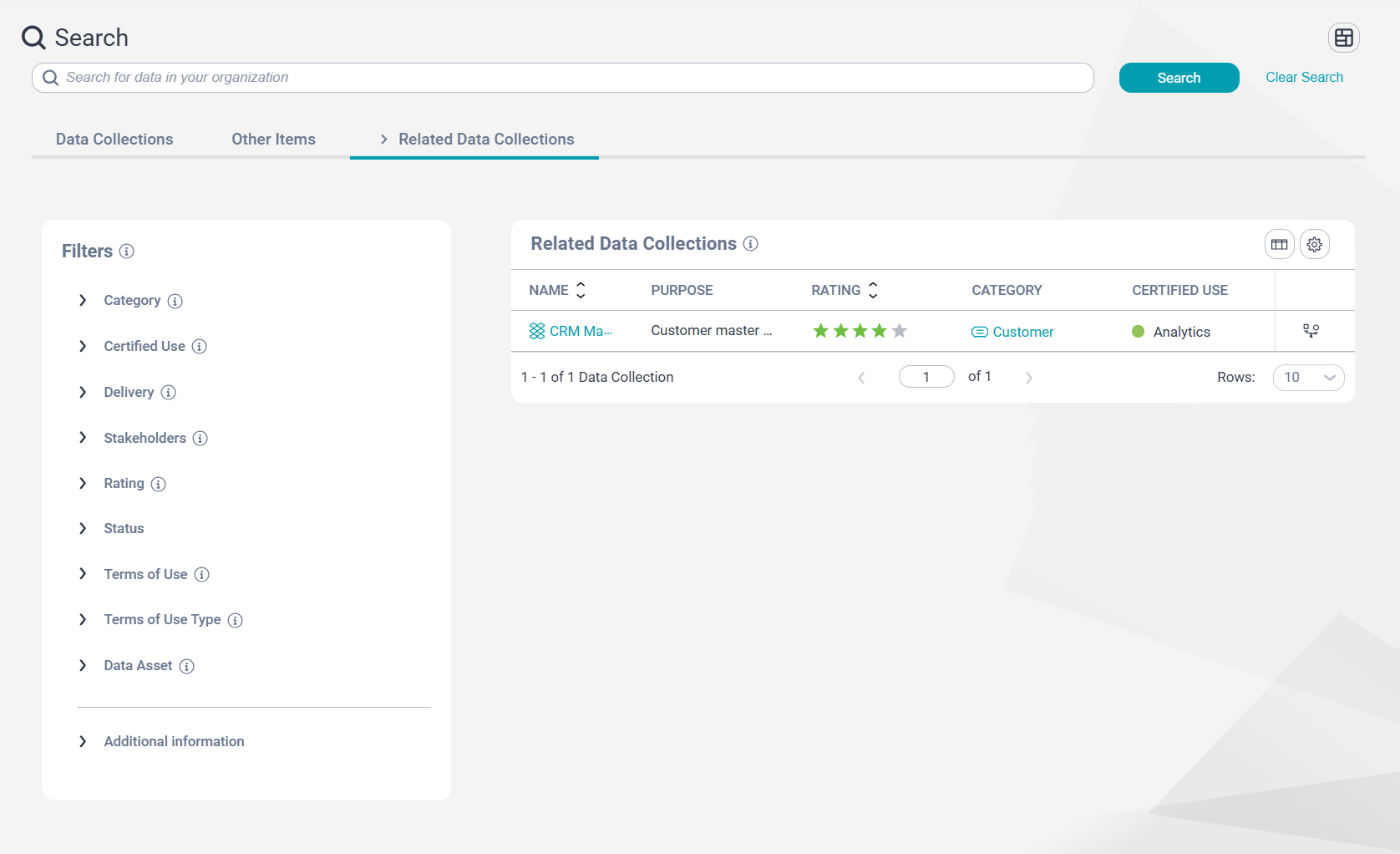
When you click Show related data collections on the Other Items tab, the Related Data Collections tab opens. On the Related Data Collections tab, you can view the data collections that are associated with the data assets or data elements on the Other Items tab.
Prerequisites
To search for data on this tab, verify one of the following prerequisites:
- Your user profile is assigned at least one of the predefined roles for Data Marketplace. For more information about the predefined roles for Data Marketplace, see the Predefined roles topic in the Introduction and Getting Started help.
- Your user profile is assigned a role for which the following privileges and permissions are enabled:
▪ Access Data Marketplace privilege is enabled in Administrator.
▪ Read permission for categories and data collections is enabled in Metadata Command Center.
The following image shows the Related Data Collections tab on the Search page:
If none of the data collections meet your requirements, you can update the item selection on the Other Items tab to get a new set of data collections that you can assess for your business needs. When updating the item selection on the Other Items tab, ensure that you click Show related data collections again to refresh results in this tab.
Note:
If you aren't assigned the required permissions for an asset group to which a data collected is added, you can't view the data collection in the Related Data Collections grid. For more information about asset groups, see Implement access controls on metadata in the Set Up Data Marketplace help.
It's possible that more than one data collection meets your requirements. In such a situation, you can compare these data collections for differences in content, usage, and available locations for consumption. To compare the data collections that you find, click the Add to Cart icon to add a data collection to the My Cart page. For more information about how you can compare data collections, see Compare data collections.
Filter search results
To use the filters on this tab, ensure your user profile is assigned at least one of the predefined roles for Data Marketplace. For more information about the predefined roles for Data Marketplace, see the Predefined roles topic in the Introduction and Getting Started help.
Alternatively, ensure that your user profile is assigned a role for which the following privileges and permissions are enabled:
•Access Data Marketplace privilege is enabled in Administrator.
•Read permission for data assets, delivery targets, terms of use and usage contexts is enabled in Metadata Command Center.
You can use one of the filters in the Filters panel to assist you with your search for data. For example, to include terms of use in your search from the Terms of Use list, select the terms of use that best describes the rules around the data usage suitable to you.
Note:
You can use the Filters panel only if the Related Data Collections tab displays fewer than 200 results.
If your administrator has configured custom attributes in Metadata Command Center for the data collections in Data Marketplace, you can use the custom attributes to filter the search results. In the Additional Information section of the Filters panel, you can view the custom attribute filters that are available to you. The custom attribute filters are displayed only if in Metadata Command Center the administrator has configured them to be usable for search purposes. For more information about custom attributes, see the Create custom attributes for objects topic in the Set Up Data Marketplace help.
Note:
You can use the Status filter only if your user profile is assigned the Data Marketplace Administrator role.
Reserved words
Reserved words are words that are reserved for specific functions in Data Marketplace.
Data Marketplace reserves the following words:
•ALL
•ARE
•TYPE
•AND
•ANY
•AS
•CONTAINING
•DAY
•DAYS
•EQUALS
•GREATER
•HOUR
•HOURS
•HAS
•IN
•INBOUND
•IS
•LAST
•LESS
•BETWEEN
•MATCHING
•NOT
•NULL
•OR
•OUTBOUND
•RELATED
•TRAVERSE
•REPEAT
•UNTIL
•HOPS
•UNBOUNDED
•RELATIONSHIPS
•ROLE
•THAN
•THROUGH
•TO
•WHERE
•WHICH
•WITH
•WITHIN
•WITHOUT
•HAVING
•STAKEHOLDER
Note:
If you want to use a reserved word to search for a data collection, enter the reserved word in quotes.