The My Cart page is a centralized location in Data Marketplace where you can add data collections to compare and order the data collections that are of interest to you.
Add data collections to your cart
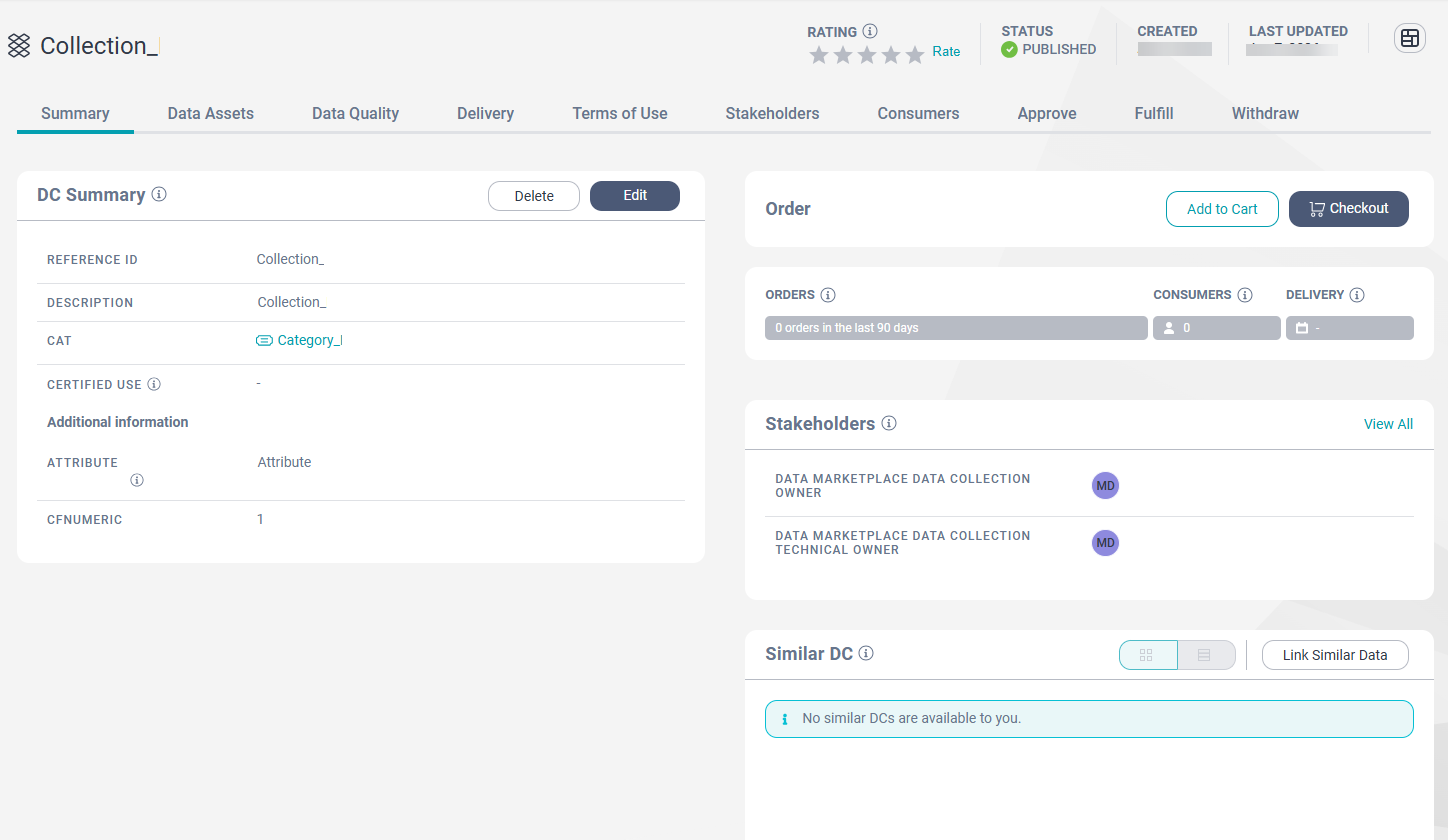
To add a data collection to your cart, use Add to Cart on a data collection grid from the Browse and the Search pages, or from within a data collection. You can add up to 10 data collections to your cart.
If you can't find a data collection that meets your requirements, you might request the creation of a new data collection. For more information about how you can submit a request for a new data collection, see Requesting new data collections.
Compare and check out data collections
On the My Cart page, you can compare data collections that you have added to your cart and check out multiple data collections simultaneously.
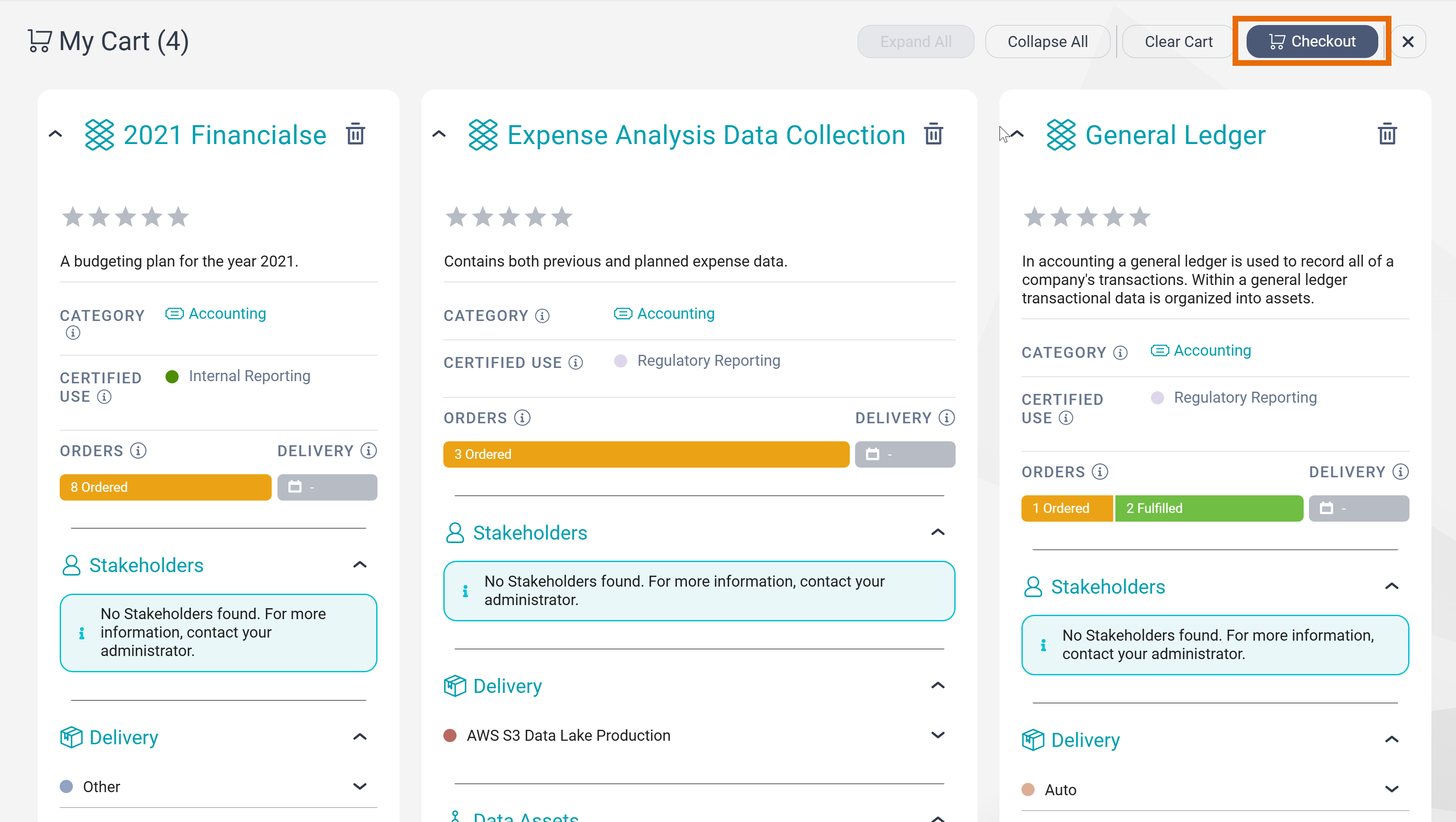
When comparing the data collections in your cart, you can collapse and expand collection details to better understand and identify the collections that meet your requirements. If you want to remove a data collection, click Remove or click Clear Cart to empty your cart. After you have determined the data collections you need, click Checkout to proceed to the My Cart Checkout page. On the checkout page, there are multiple rows where you can provide order information to data collection stakeholders for the items that you want to order. For more information about the information you can provide in an order, see Ordering a data collection.
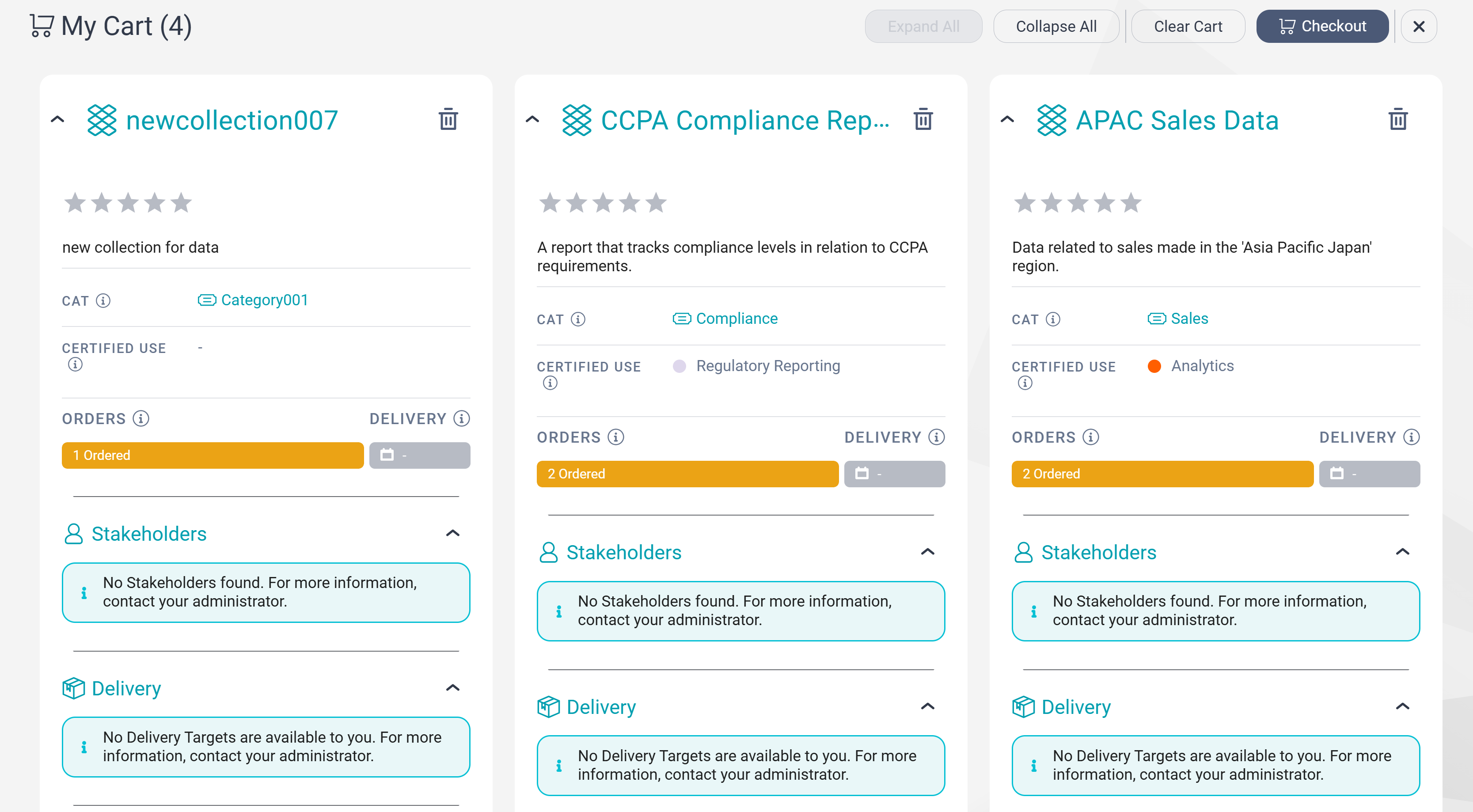
The following image shows data collections on the My Cart page:
Compare data collections
On the My Cart page, you can compare data collections to determine the collection that best suits your needs.
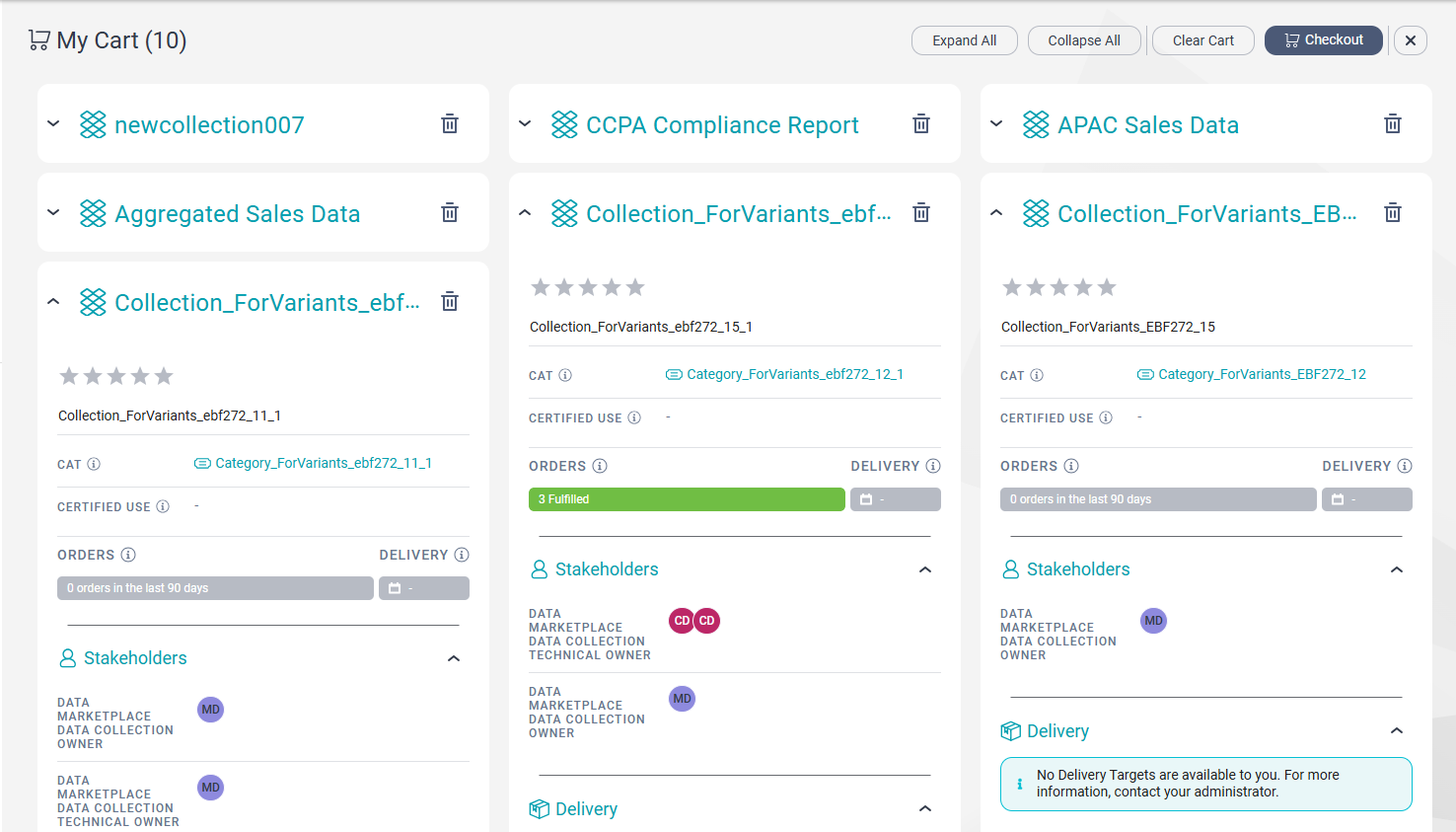
The following image shows data collections on the My Cart page:
How do I use My Cart to compare data collections?
To compare data collections in My Cart, verify one of the following prerequisites:
- Your user profile is assigned at least one of the predefined roles for Data Marketplace. For more information about the predefined roles for Data Marketplace, see the Predefined roles topic in the Introduction and Getting Started help.
- Your user profile is assigned a role for which the following privileges and permissions are enabled:
▪ Access Data Marketplace privilege is enabled in Administrator.
▪ Read permission for categories, data assets, data collections, delivery targets, terms of use and usage contexts is enabled in Metadata Command Center.
Use Add to Cart to add a data collection to the My Cart page. You can compare data collections based on stakeholdership, categorization, certified use, and delivery options. You can also use statistics around recent orders and average delivery time to compare data collections, and also compare the data assets that the data collections contain. If your Administrator has configured custom attributes in Metadata Command Center for data collections in Data Marketplace, you can view additional fields in the Additional Information section and use these fields as another point of comparison.
Note:
As a Data User, you can't add an unpublished data collection to the My Cart page. As a stakeholder, you can add an unpublished data collection to the My Cart page only if you are responsible for the unpublished data collection.
As a Data User, how does the compare feature benefit me?
As a Data User, when more than one data collection seems to meet your requirements, you can add multiple data collections to your cart and compare them using My Cart's compare feature. On the My Cart page, you can view helpful information about the data collections that you have added, such as certified use, delivery options, and stakeholders. The information can help you home in on the data collections that meet your requirements.
After you have identified the data collections you want to order, you can proceed to the checkout wizard from the My Cart page to simultaneously order all the data collections in your cart.
As a stakeholder, how does the compare feature benefit me?
As a stakeholder of a data collection, you can use the compare capability in My Cart to evaluate how your data collections relate to other data collections in Data Marketplace. If you discover overlaps between data collections, you can link the data collection to your own data collection. This improves the data discovery experience for Data Users. For more information about how you can link similar data collections, see Linking data collections.
Order data collections
You can order a single data collection or order multiple data collections simultaneously.
Prerequisites for ordering a data collection
To order a data collection, verify one of the following prerequisites:
- Your user profile is assigned at least one of the predefined roles for Data Marketplace. For more information about the predefined roles for Data Marketplace, see the Predefined roles topic in the Introduction and Getting Started help.
- Your user profile is assigned a role for which the following privileges and permissions are enabled:
▪ Access Data Marketplace privilege is enabled in Administrator.
▪ Create and Read permissions for orders are enabled in Metadata Command Center.
▪ Read permission for cost centers, data collections, delivery targets, terms of use and usage contexts is enabled in Metadata Command Center.
Note:
Your administrator might tailor the data ordering experience according to the needs of your organization by creating a different layout for the wizard. If you have multiple layout options available to you, you can use the Switch Layout icon to switch between the layouts to view a different presentation of information on each layout. You can click the Set As Default icon next to a particular layout to set it as your personal default.
Order data collections
Depending on your requirements, you can check out a single data collection or add and check out multiple data collections from your cart. Checking out collections takes you to the checkout wizard, which leads you through a step-by-step process.
Navigate the checkout wizard
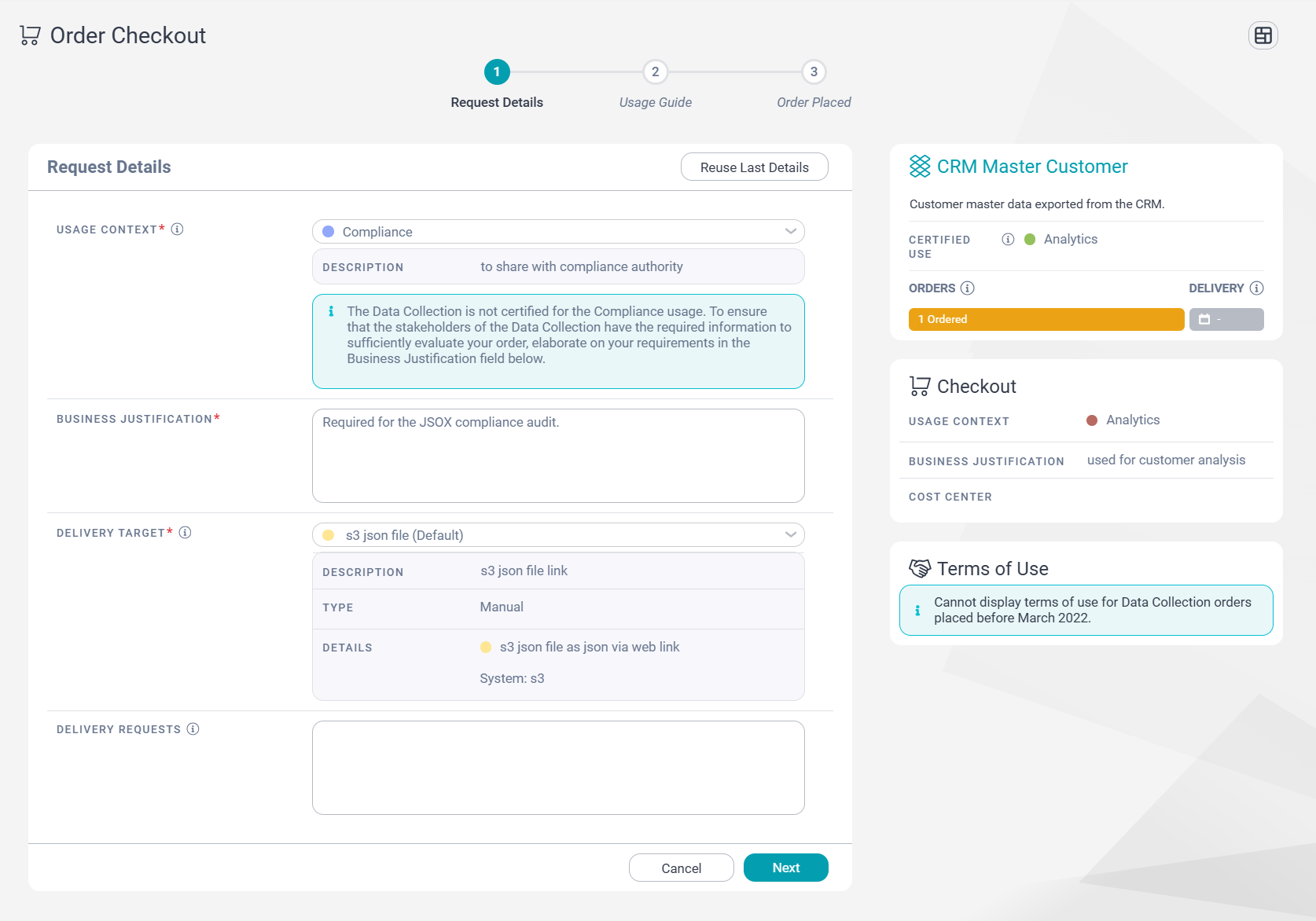
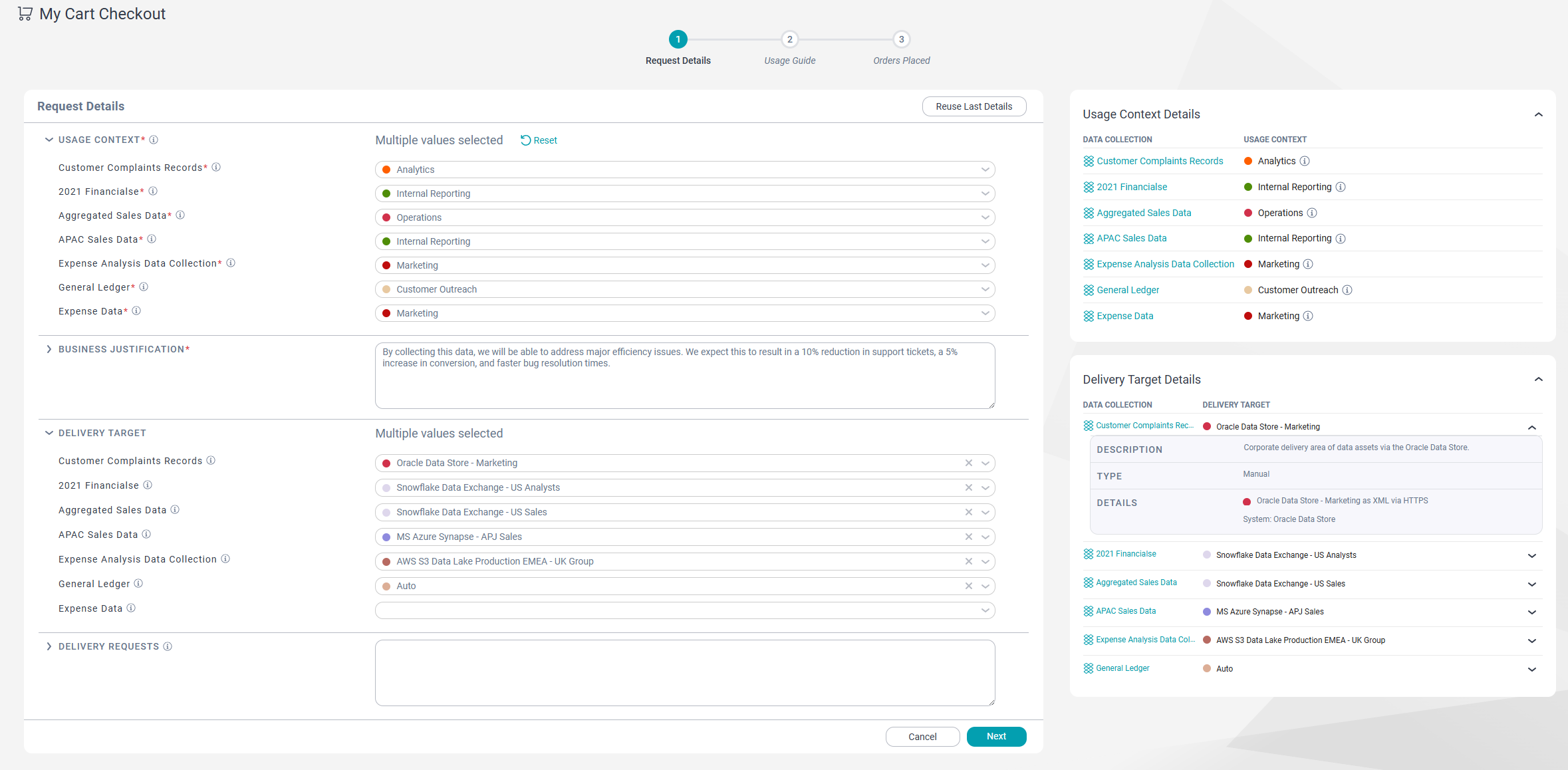
When you check out one or more data collections, the Request Details stage of the check out wizard opens. Here, you can provide various details related to your order. The details include information such as the intended use of the data, the business justification for ordering the data, and where you would like to use the data. Enter values for all required fields to proceed to the Usage Guide stage of the wizard.
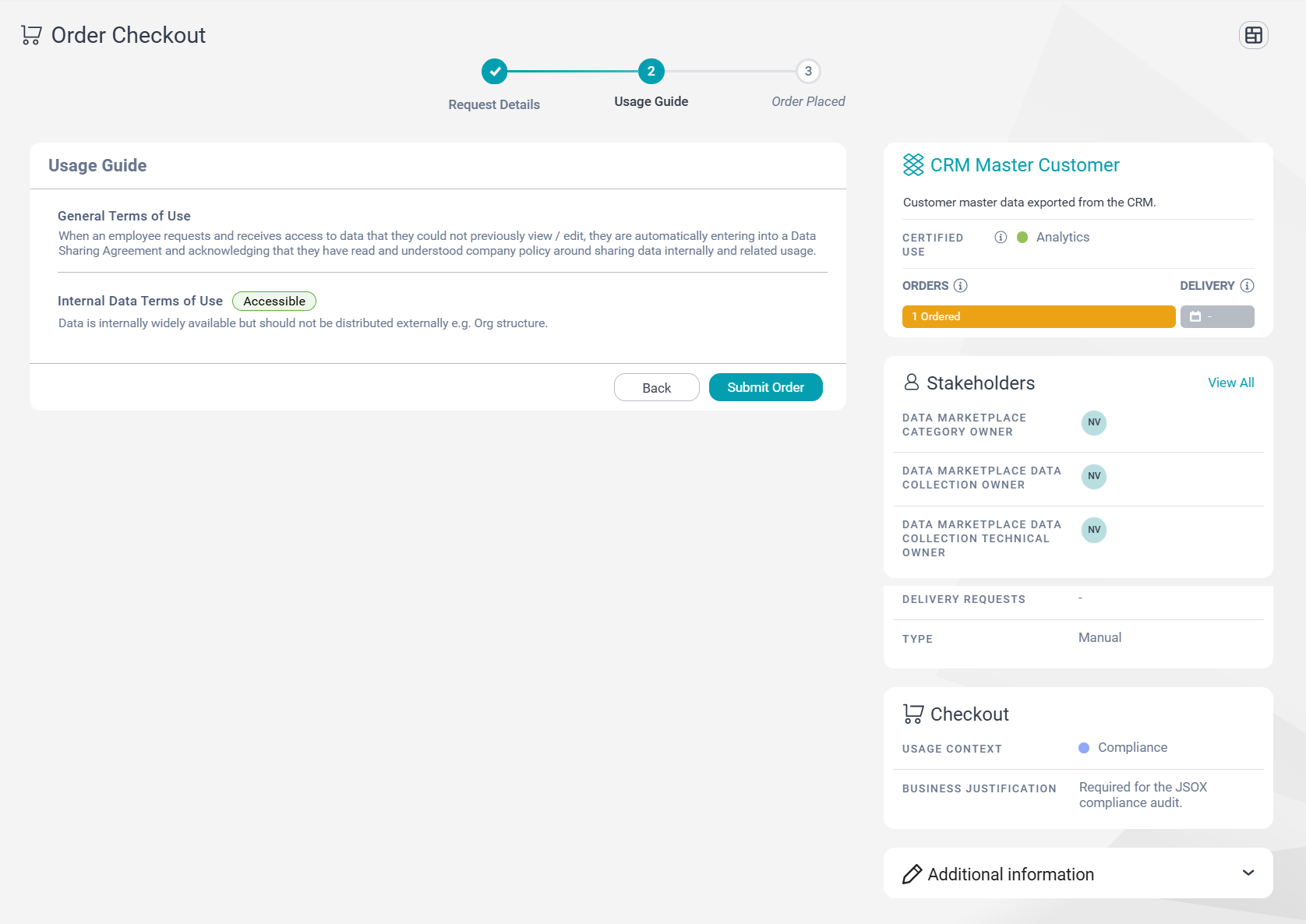
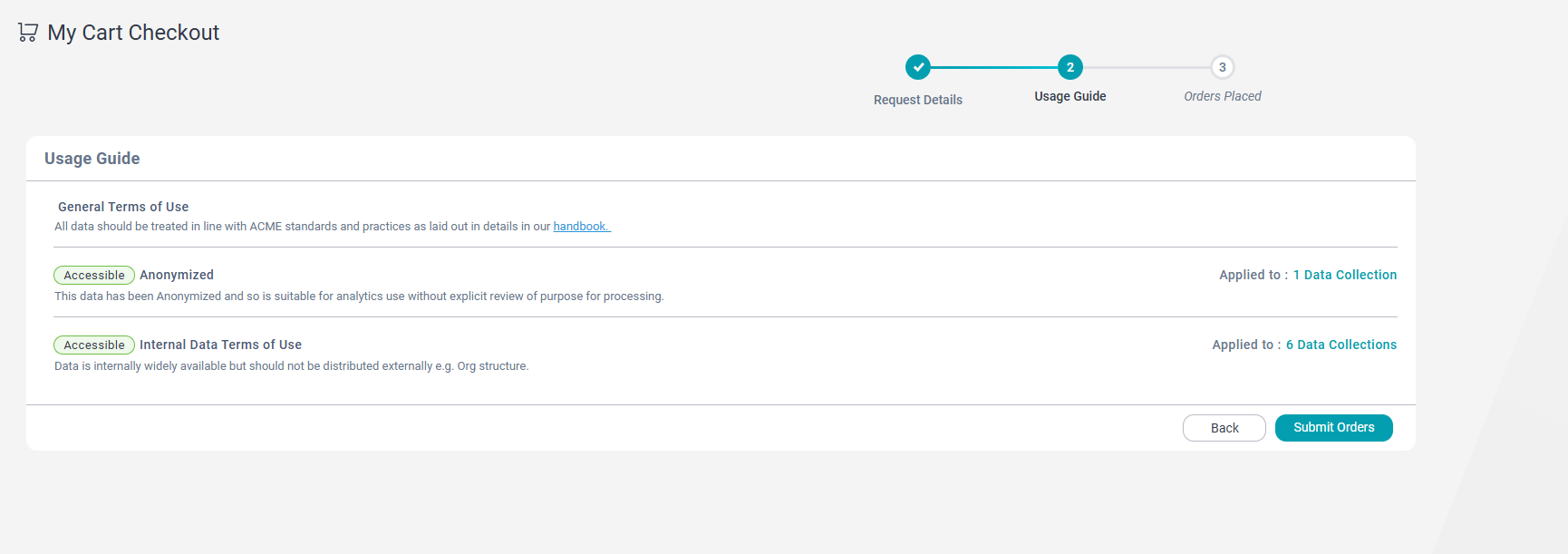
The Usage Guide stage provides the general terms of use for data collections in Data Marketplace, and terms of use that are specific to the data collections you are ordering. You must review the terms of use for all data collections. Some data collections might require explicit agreements to place your orders.
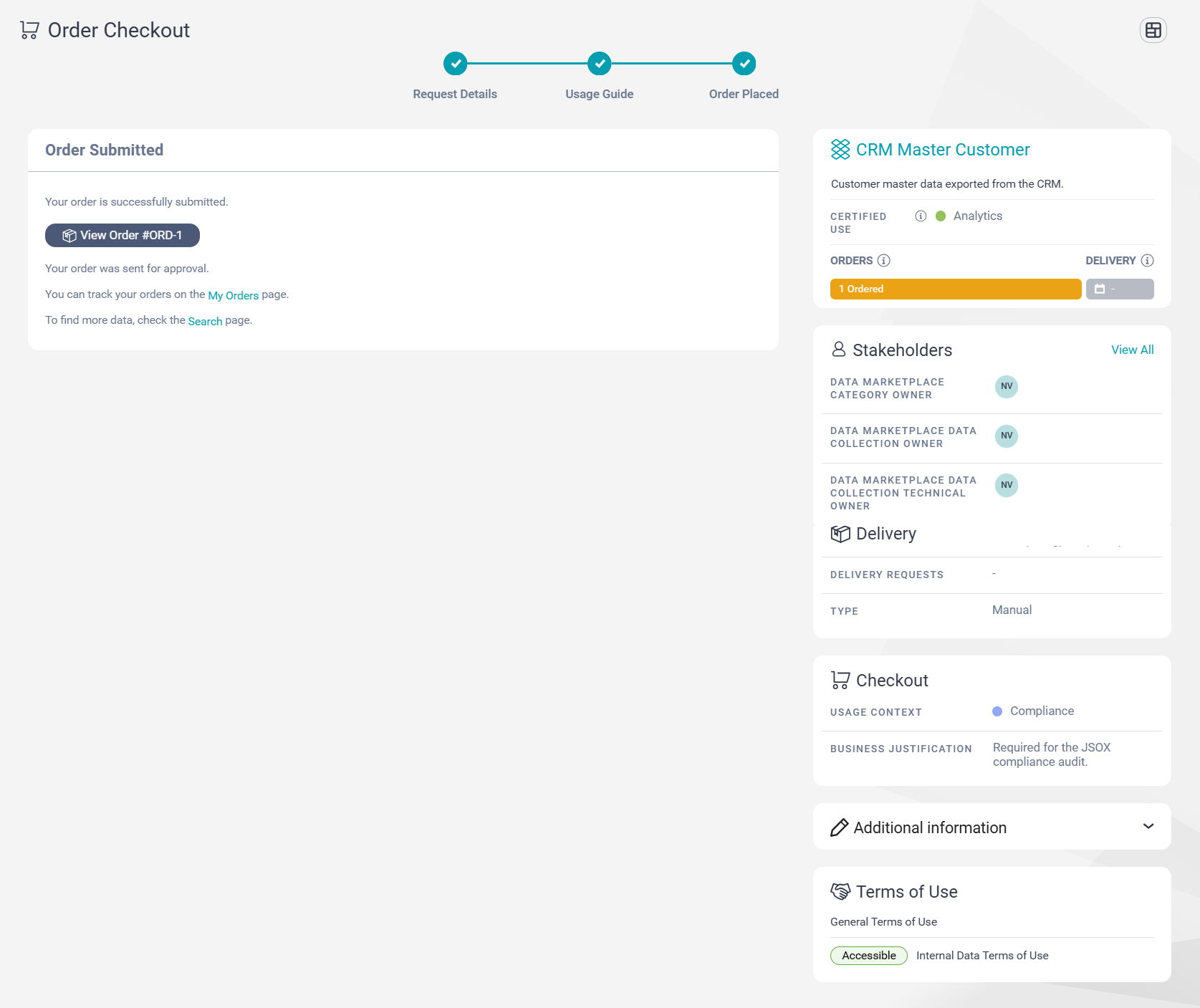
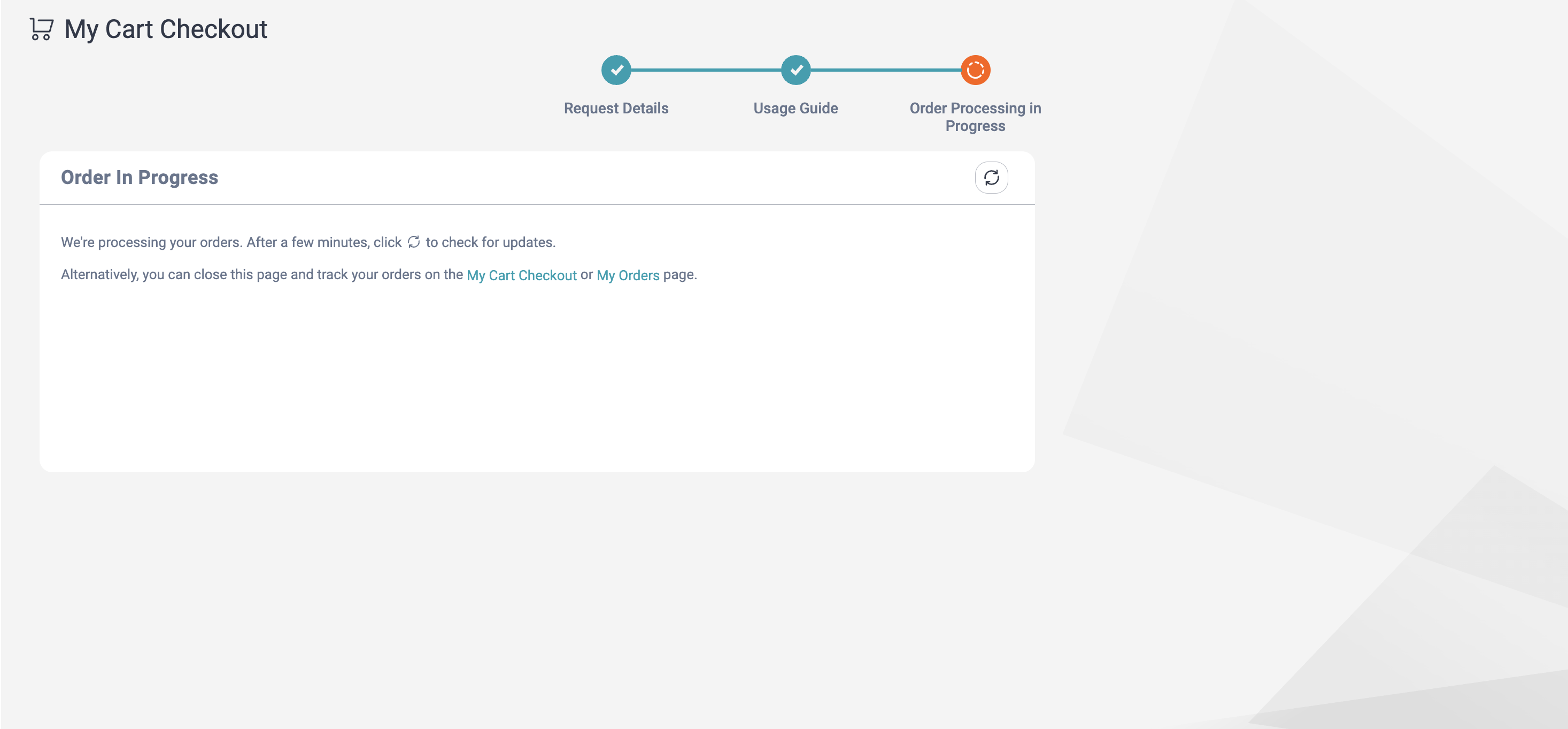
After submitting your orders, you are taken to the Orders Placed stage where you can see if your orders were placed successfully. You can review the status of the different orders. Successful orders show timeline, summary, and delivery details of the data collection for which you have requested access. You can also view if any orders have failed. These orders are resent to your cart so you can retry ordering for them.
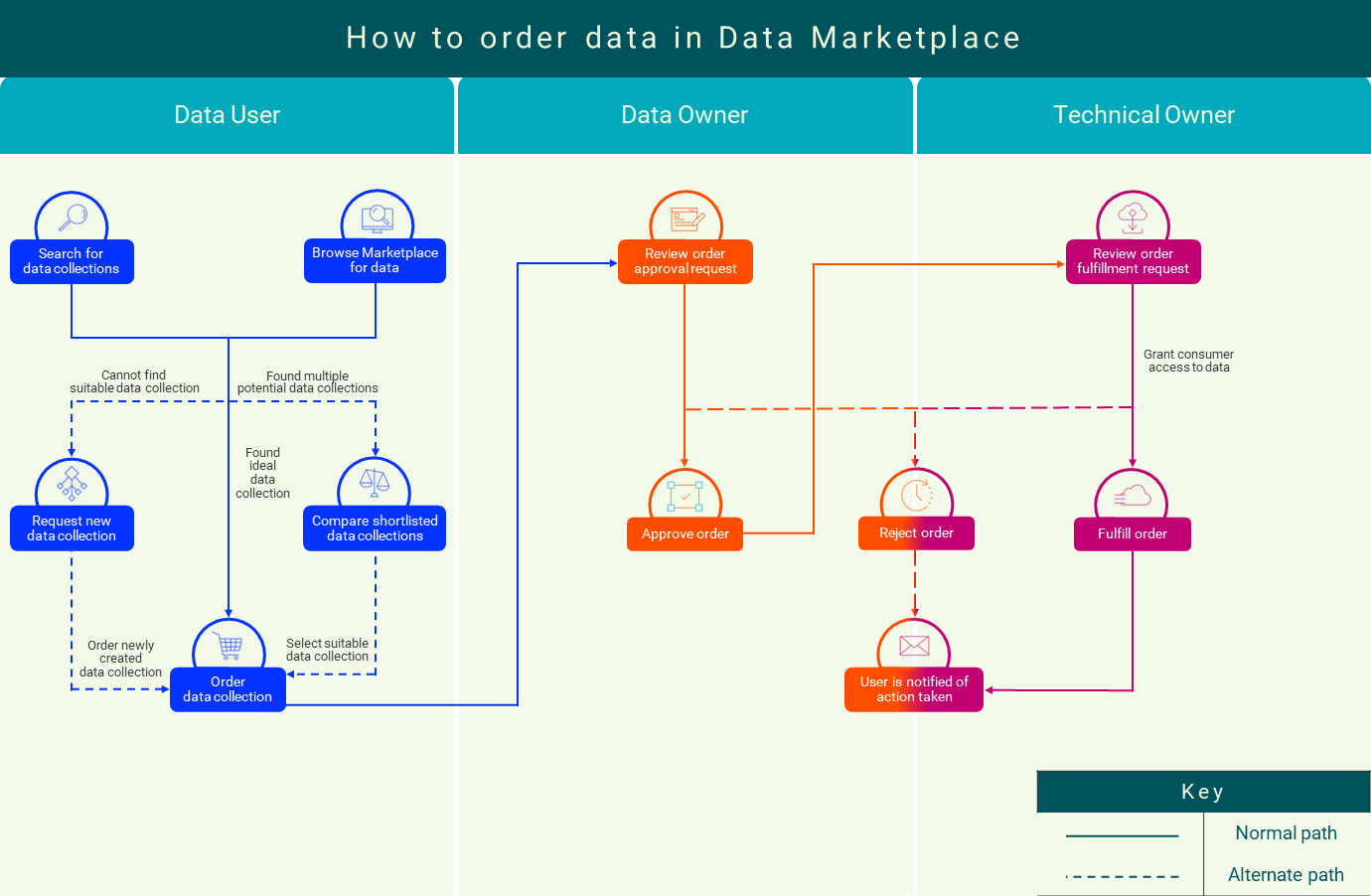
The following image shows the overall process of ordering a data collection in Data Marketplace:
Note:
The process flow is illustrated using the predefined roles for Data Marketplace.
Ordering a data collection
After you find a data collection that meets your requirements, you can place an order to gain access to the data collection.
2On the data collection page, click Checkout in the Order section.
The Order Checkout wizard appears.
3On the Request Details stage, enter the order details.
Alternatively, you can also reuse the information from your previous order or from the last data collection in your previous My Cart checkout. To do this, click Reuse Last Details. If you order the same data collection that you previously ordered, all the fields are automatically populated. If your previous order was for a different data collection, Delivery Target is left empty.
The following table describes the fields that you can configure on the Request Details stage:
Field
Description
Usage Context
Select the option that describes how you intend to use the data after you receive access to the collection.
If none of the listed options accurately describe how you intend to use the data, select the option that bears the most resemblance to your usage.
Business Justification
Enter a brief description of how you intend to use the data after you receive access to the collection.
A stakeholder of the data collection might read this description to decide whether to approve your order.
Delivery Target
Note:
If no delivery targets are configured for the data collection, this field is hidden.
Select a delivery target for the data collection.
If a default delivery target is configured for the data collection, that delivery target is selected by default which you can configure.
If no delivery targets are configured for the data collection, this field is hidden.
If you select a delivery target for which the Managed Access option is enabled, a stakeholder might be more likely to approve your order. With managed access, the data will be delivered in a location that is accessible only to you. Additionally, the delivered data might get customized based on the characteristics of the data and the usage context that you specify in the Usage Context field. For more information, see the Manage access to data with Data Access Management topic in the Set Up Data Marketplace help.
Delivery Requests
Enter any additional information that pertains to your order. For example, you can specify the urgency or the preferred delivery method in this field.
Cost Center
Note:
This field is visible to you only if it is configured on the Configuration tab of the Setup page. For more information, see Cost centers in Set Up Data Marketplace.
Select your cost center.
If the listed options don't list your cost center, you can enter your cost center. If required, a stakeholder of the data collection can select an alternate cost center value when they approve or fulfill the order.
Note:
If your administrator has configured custom attributes in Metadata Command Center for orders in Data Marketplace, the Request Details stage will display additional fields. You can use these fields to specify additional information about the order. For more information, see the Create custom attributes for objects topic in the Set Up Data Marketplace help.
4Click Next.
The Usage Guide stage appears.
5On the Usage Guide stage, review the terms of use.
6Click Submit Order.
The wizard moves to the Order Placed stage.
Note:
- If a data collection contains a terms of use with a check box, select the check box to accept the terms of use. If you don't select the check box, Submit Order remains disabled.
- If the stakeholders didn't specify the General Terms Of Use for the data collection, Submit Orderremains disabled.
7On the Order Placed stage, you can view the details of the order that you placed.
If you want to navigate to the order page, click View Order. On the order page, you can view the timeline, summary, and delivery details of the data collection for which you have requested access.
After you place an order, Data Marketplace notifies the stakeholders of the data collection about the order. For more information about how a stakeholder responds to an order, see Responding to orders.
Note:
Data Marketplace notifies only users that are specifically assigned as stakeholders on the ordered data collection and have the Approve or Reject Orders privilege enabled for their user role in Administrator.
If your order is fulfilled, you can navigate to the consumer access page by clicking the consumer access link on the order page. For more information about consumer access, see Consumer accesses.
Ordering multiple data collections
If multiple collections meet your business requirement, you can add the data collections to your cart and order them all at once.
1On a data collection page, click the Add to Cart to add the data collection to your cart.
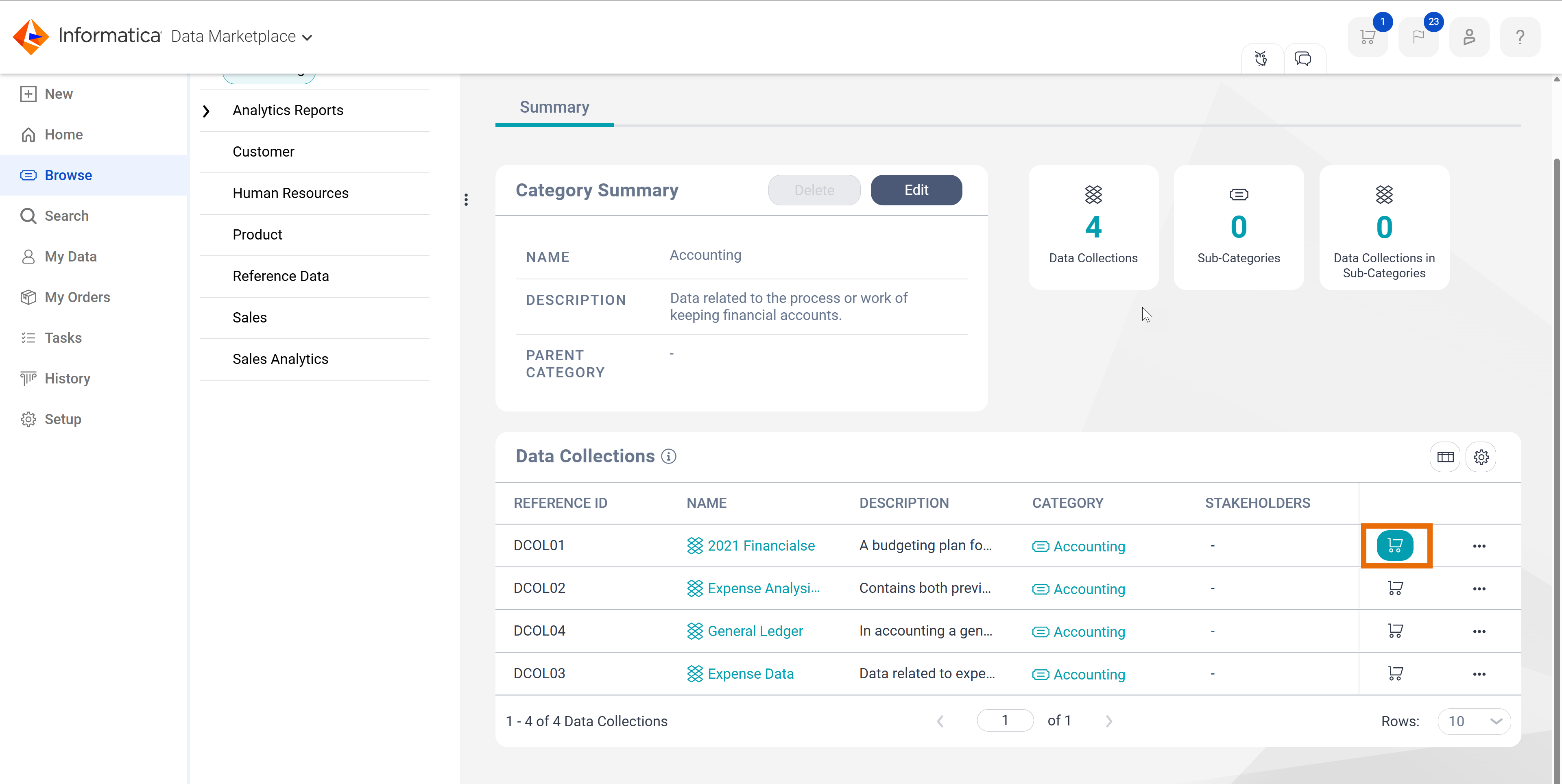
Alternatively, on the Search and the Browse pages, click the Cart icon to add a data collection to your cart. You can add up to 10 data collections to your cart.
4After you have finalized on the data collections you want to order, click Checkout.
The My Cart Checkout wizard appears.
5On the Request Details stage, enter the order details.
Alternatively, you can also reuse the information from the final data collection in your previous cart checkout or from a previous data collection order. To do this, click Reuse Last Details. If you order the same data collection that you previously ordered, all the fields are automatically populated. If your previous order was for a different data collection, Delivery Target is left empty.
The following table describes the fields that you can configure on the Request Details grid:
Field
Description
Usage Context
Select the option that describes how you intend to use the data after you receive access to the collection.
Select an option that applies to all the data collections in your cart, or expand this field to select a unique value for each data collection.
If none of the listed options accurately describe how you intend to use the data, select an option that bears the most resemblance to your usage.
Business Justification
Enter a brief description of how you intend to use the data after you receive access to the collection.
Enter a description that applies to all the data collections in your cart, or expand this field to enter a unique description for each data collection.
A stakeholder of the data collection might read this description to decide whether the orders for the data assets are valid.
Delivery Target
Note:
If no delivery targets are configured for the data collection, this field is hidden.
Select a delivery target for the data collections.
Expand this field to select a unique value for each data collection.
If a default delivery target is configured for the data collections, that delivery target is selected by default which you can configure.
If you select a delivery target for which the Managed Access option is enabled, a stakeholder might be more likely to approve your order. With managed access, the data will be delivered in a location that is accessible only to you. Additionally, the delivered data might get customized based on the characteristics of the data and the usage context that you specify in the Usage Context field. For more information, see the Manage access to data with Data Access Management topic in the Set Up Data Marketplace help.
Delivery Requests
Enter any additional information that pertains to your requests. For example, you can specify the urgency or the preferred delivery method in this field.
Enter a description that applies to all the data collections in your cart, or expand this field to select a unique description for each data collection.
Cost Center
Note:
This field is visible to you only if it is configured on the Configuration tab of the Setup page. For more information, see Cost centers in Set Up Data Marketplace.
Select your cost center.
Select an option that applies to all the data collections in your cart, or expand this field to select a unique value for each data collection.
If the listed options don't list your cost center, you can enter your cost center. If required, a stakeholder of the data collection can select an alternate cost center value when they approve or fulfill the orders.
Note:
If your administrator has configured custom attributes in Metadata Command Center for orders in Data Marketplace, the Request Details stage will display additional fields. You can use these fields to specify additional information about the order. For more information, see the Create custom attributes for objects topic in the Set Up Data Marketplace help.
6Click Next.
The Usage Guide stage appears.
7On the Usage Guide stage, review the terms of use.
8Click Submit Orders to place your data collection orders.
Note:
- If a data collection contains a terms of use with a check box, select the check box to accept the terms of use. If you don't select the check box, Submit Order remains disabled.
- If the stakeholders didn't specify the General Terms Of Use for the data collection, Submit Orderremains disabled.
The wizard moves to the Orders Placed stage.
9On the Orders Placed stage, you can view the details of the orders that you placed.
If you want to navigate to the order page, click View Orders. On the order page, you can view the timeline, summary, and delivery details of the data collection for which you have requested access.
After you place your orders, Data Marketplace notifies the stakeholders of the data collection about the orders. For more information about how a stakeholder responds to an order, see Responding to orders.
Note:
Data Marketplace notifies only users that are specifically assigned as stakeholders on the ordered data collections and have the Approve or Reject Orders privilege enabled for their user role in Administrator.
If your orders are fulfilled, you can navigate to the consumer access page by clicking the consumer access link on the order page. For more information about consumer access, see Consumer accesses.