To identify the semantics of unstructured documents and organize them into relevant document types, create a document classification. Train the classification engine with your new or updated document classifications so that you can use them to automatically classify unstructured data assets.
To create a document classification, perform the following steps:
1In Metadata Command Center, click New.
2In the New dialog box, select Data Classification from the list.
3Select Document Classification, and click Create.
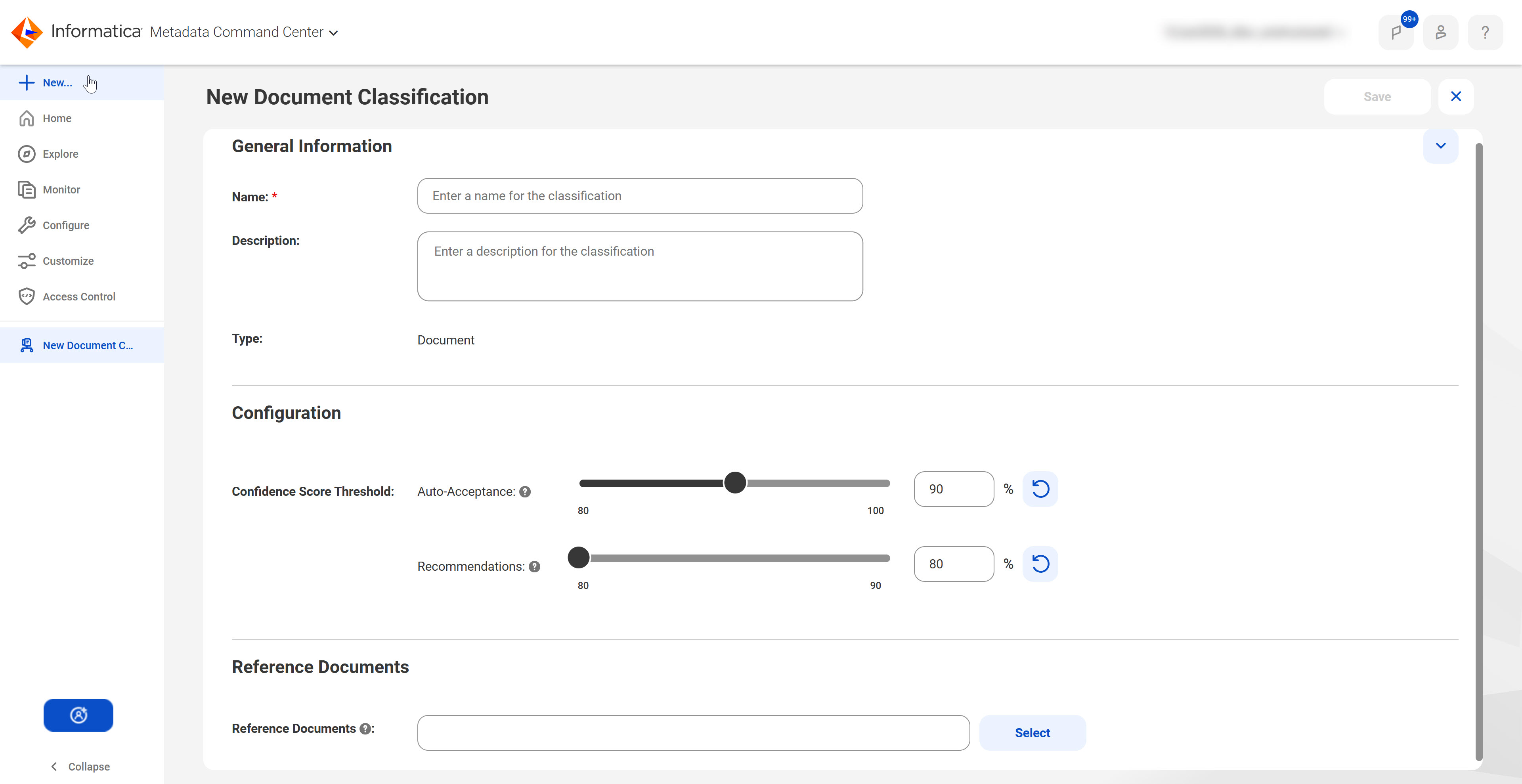
The New Data Classification page appears.
4In the General Information section, enter a name for the document classification. Optionally, enter a description.
5In the Configuration section, specify the following information:
- Confidence score threshold for Auto-Acceptance. Specify a percentage from 80 to 100. Document classification automatically accepts recommended classifications that meet or exceed this threshold.
- Confidence score threshold for Recommendations. Specify a percentage from 80 to the selected auto-acceptance threshold to set a confidence score limit based on which the document classification capability makes recommendations. You can accept or reject the recommended document classifications that fall within this range in Data Governance and Catalog.
6In the Reference Documents section, select at least one reference document from the catalog to train the classification engine.
Note:
For reliable and precise classification inferences, add multiple reference documents. The classification engine uses the reference documents as samples to learn classification patterns and generate accurate inferences.
7Click Save.
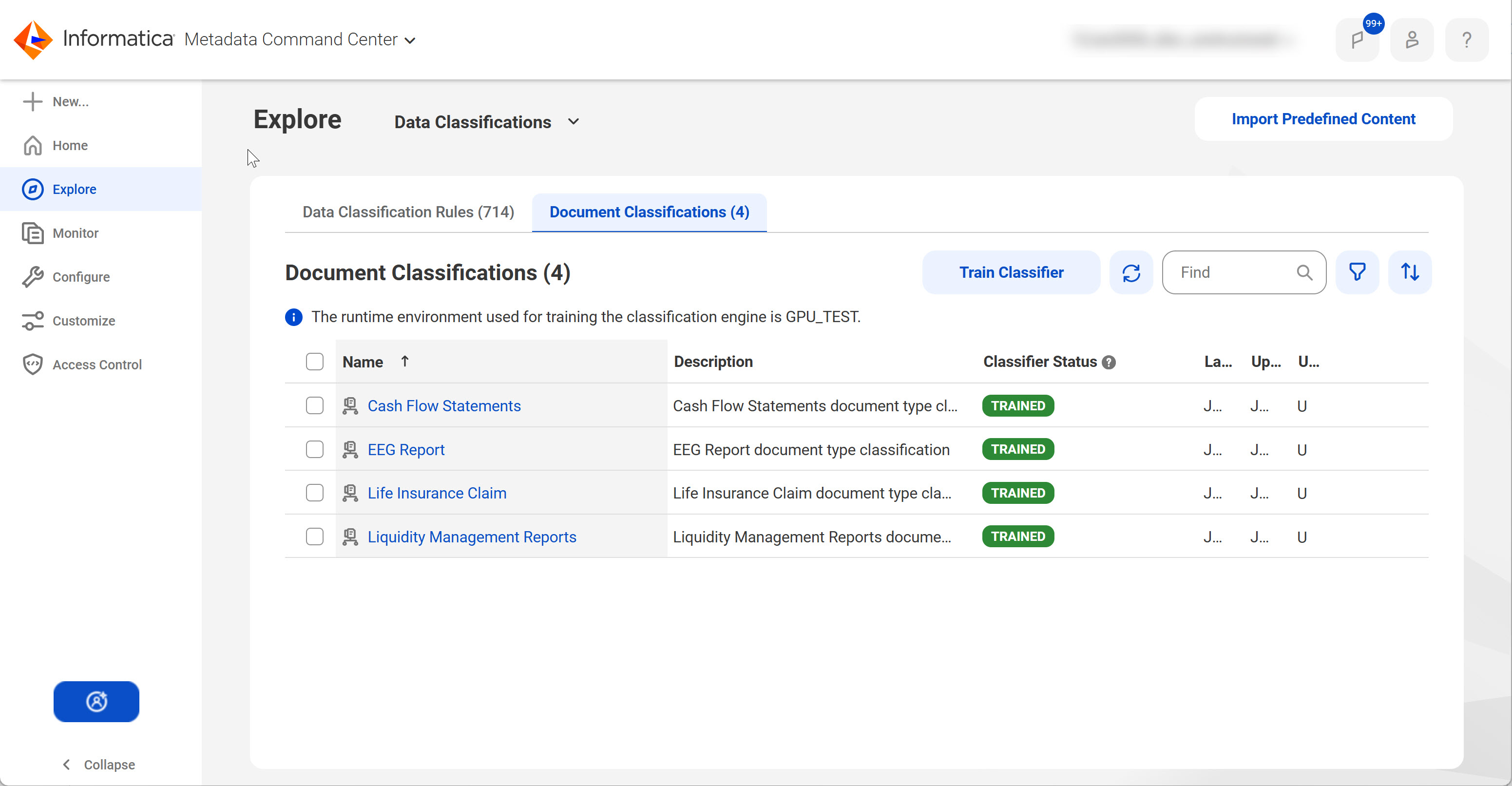
On the Explore page, you can view all the saved document classifications.
After you create document classifications, you can perform the following actions:
•Train the classification engine with the new document classifications to automatically classify PDFs and text files in your catalog. For more information, see Training the classification engine.
•Manually associate document classifications with PDFs, text files and Microsoft Word Documents in Data Governance and Catalog. You can manually associate document classifications with assets even if the classification engine is not trained with the document classifications. For more information about manually associating and curating document classifications for technical assets, see Understanding Technical Assets in the Data Governance and Catalog help.
Training the classification engine
After you create document classifications, train the classification engine to automatically classify PDFs and text files in your catalog.
To train the classification engine, perform the following steps:
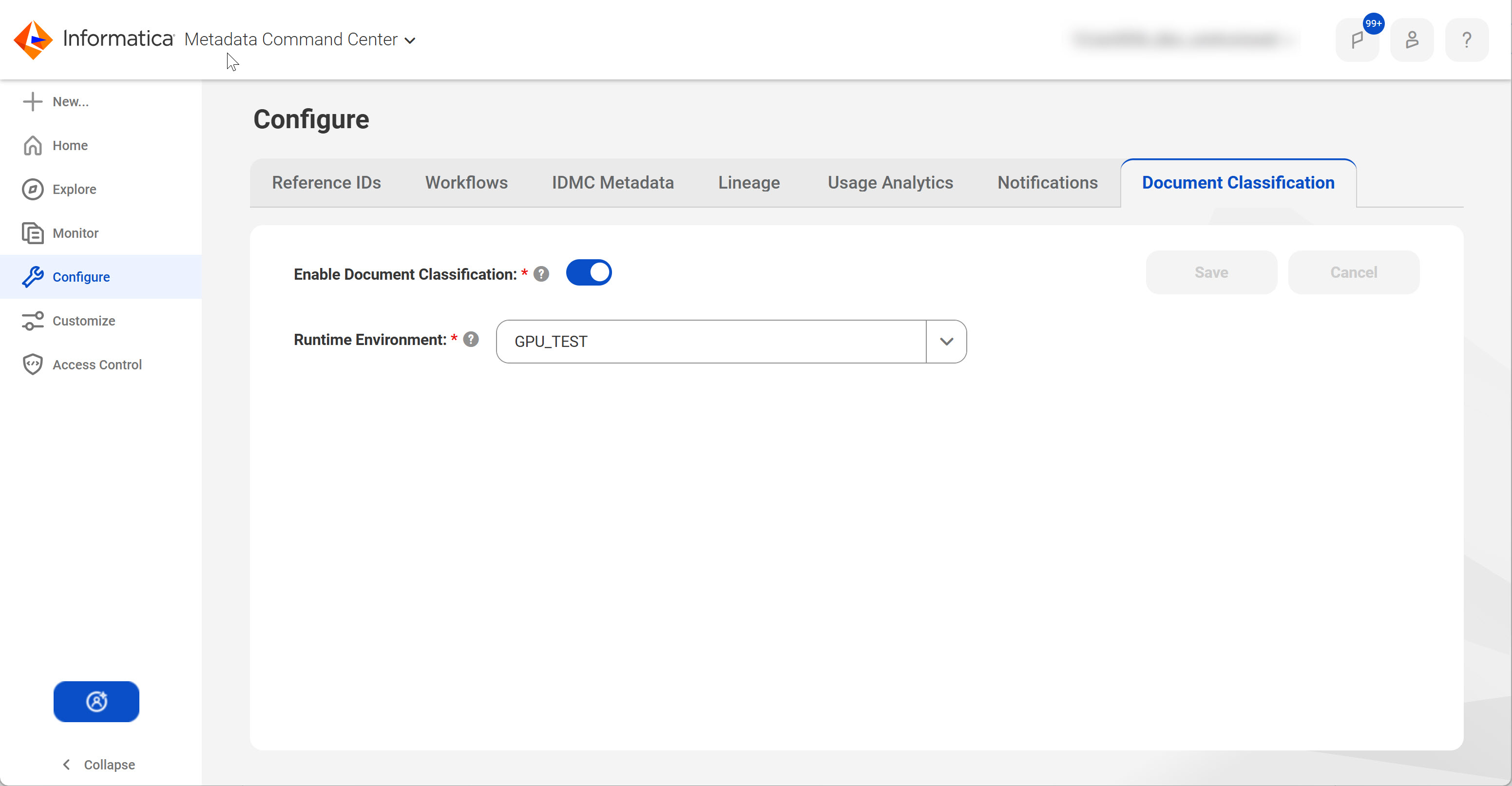
1From the Document Classification tab on the Configure page, enable the document classification capability and select a runtime environment.
You need this runtime environment to train the classification engine with new and updated document classifications that you create.
2From the Document Classification tab on the Explore page for data classifications, click Train Classifier to train the classification engine with all the document classifications simultaneously. The page displays the training status of each document classification.
The classification engine is trained using the reference documents. Once trained, the engine can automatically classify new documents as they're ingested through catalog sources. You can retrain the classifier when document classification definitions are updated or new reference documents are added.
After training the classification engine, you can automatically classify PDFs and text files in your catalog. Enable the document classification capability for the catalog source and add the document classification to the catalog source configuration. You can associate document classifications with catalog sources only after the classification engine is trained with the document classifications and the automation status is ready.
During the catalog source run, the classification engine classifies the data into meaningful categories based on the training from the reference documents. You can view the document classification results in Data Governance and Catalog.