Use Read Record Data service tasks to orchestrate task outcomes based on record data. Configure business entity fields as input for the service task. The value of the field in the record determines task outcomes.
For example, you want to configure task outcomes based on US home address or Canadian billing address details in customer records.
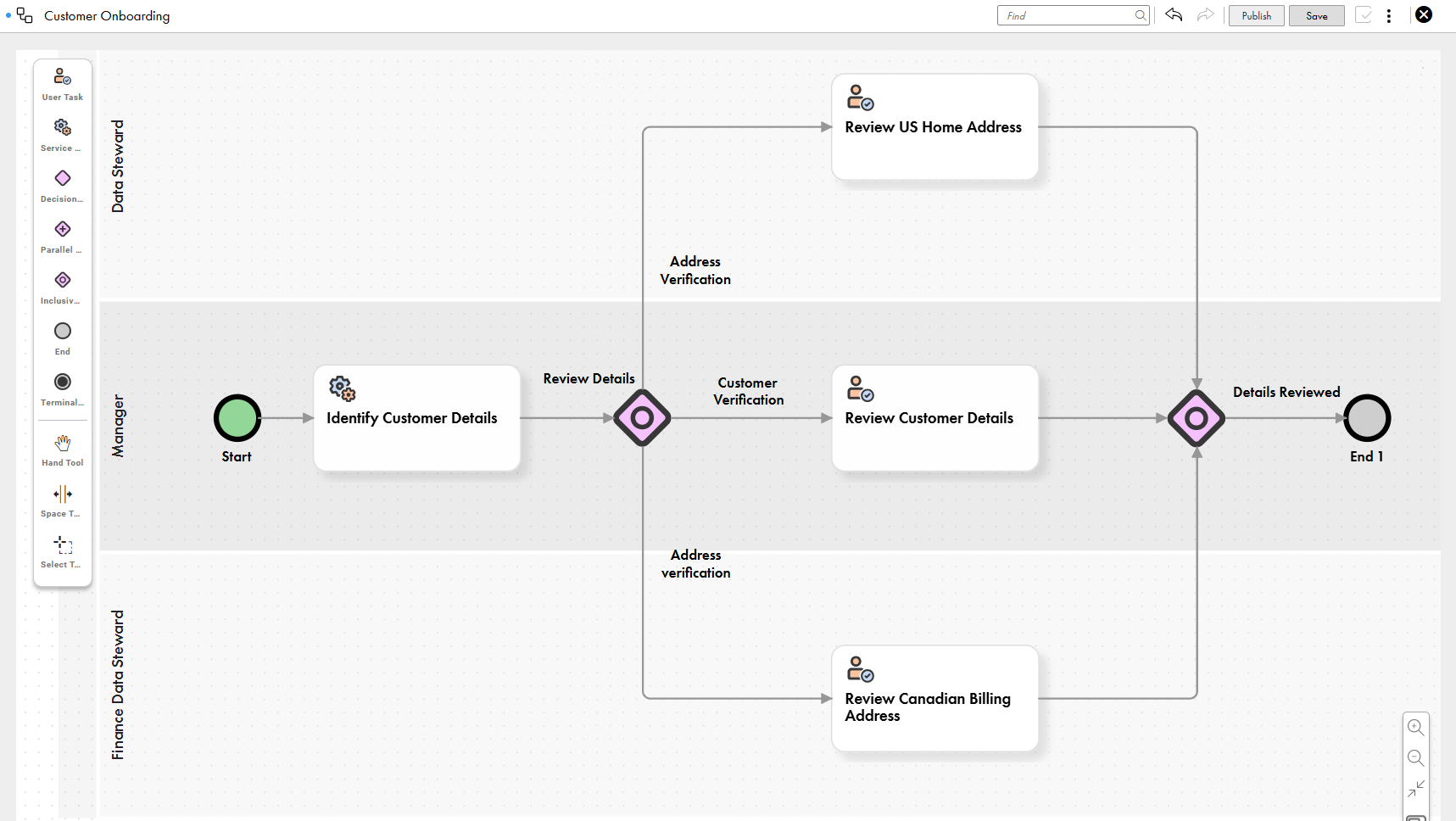
The following image shows a sample customer onboarding workflow with a Read Record Data service task and an inclusive gateway:
The Identify Customer Details service task checks the values of the business entity fields that you configure as its input. The service task returns a value that determines task outcomes, such as reviewing US home addresses, Canadian billing addresses, and reviewing all other customer details.
To configure a Read Record Data service task, drag a service task component to the required swimlane and perform the following steps:
Configure properties for Read Record Data service tasks
To identify the service task in the workflow, configure the basic properties of the Read Record Data service task, such as task name and internal ID.
1Select a service task on the workflow canvas.
2From the list of service task types, select Read Record Data.
3Enter a name for the service task.
4Optionally, enter a custom internal ID and add a description.
Input details for Read Record Data service tasks
After you configure the properties of the service task, configure the business entity fields that you want the service task to check. You can add multiple business entity fields to a Read Record Data service task.
You can configure the following details for a business entity field:
•Key. Unique alphanumeric ID for the business entity field.
•Expression. Expression that specifies the value to evaluate the key. It specifies the business entity field value to be returned by the service task.
•Output Type. Type of output that the expression returns. Use the single value option for a root field and the multiple values option for fields in field groups. If you use the single value option for fields in field groups, the service task returns only the first value in the list. If you use the multiple values option for root fields, the service task returns the value of the root field as a list, which affects the format of the Condition value.
Consider a workflow that evaluates customer details.
The workflow uses the following configuration:
•A business entity field to identify the Address field group that contains multiple address types.
•A key to identify the business entity field in conditions that orchestrate task outcomes for the service task.
•A filter attribute in the expression that specifies the home address type.
•A value attribute in the expression that specifies that the service task returns the countries from the home addresses.
•The multiple values output type that returns all addresses of the home type.
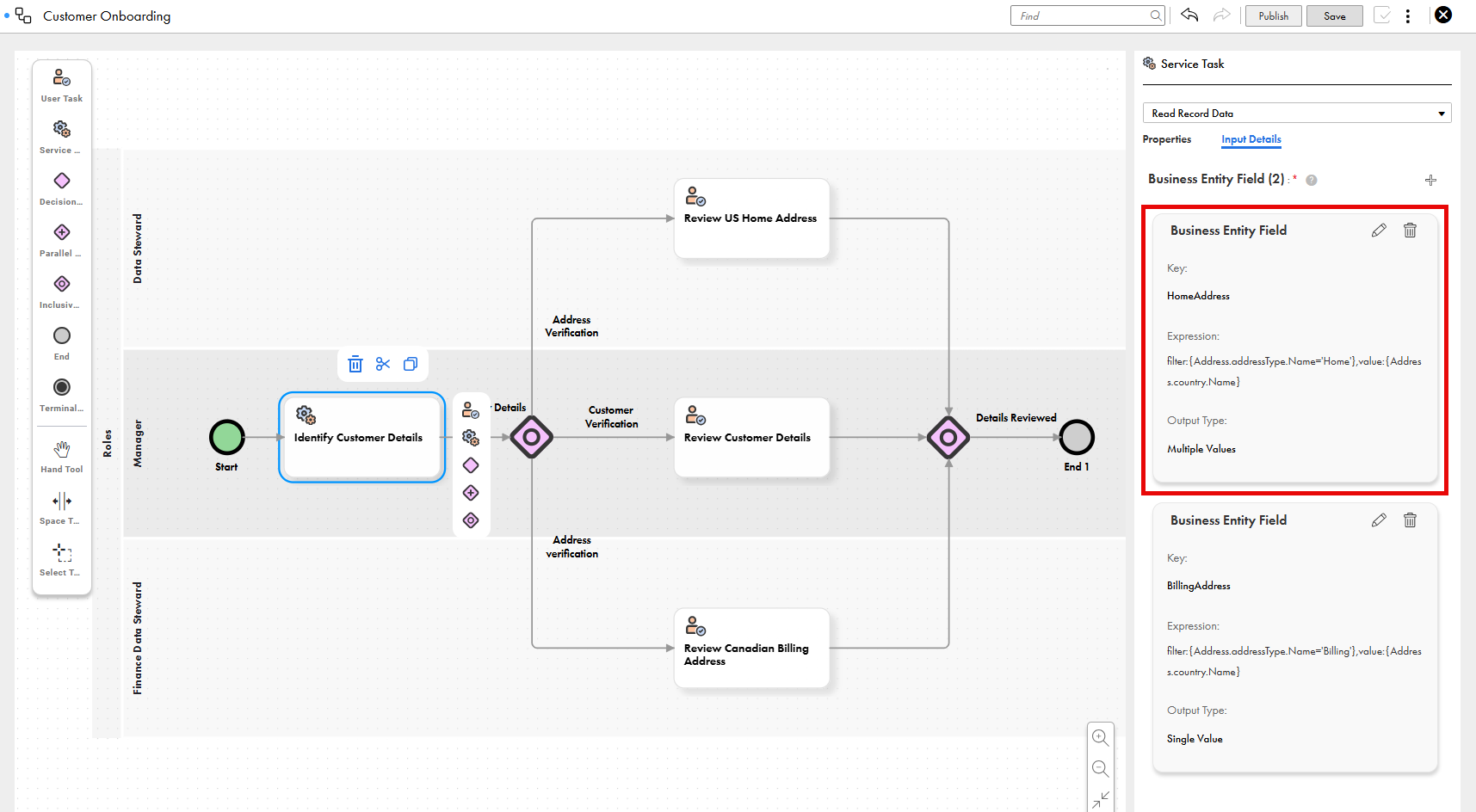
The following image shows the business entity fields configured for the Identify Customer Details service task:
The business entity field that has HomeAddress as its key value uses the Address Type field, which is a picklist in the Address field group. The filter part of the expression filters home addresses and the value part returns countries from the home addresses. The multiple values output type is selected because customers might add multiple home addresses. The service task returns the countries from all the home addresses as a list.
Expression format for root fields
An expression contains a filter attribute and a value attribute. Ensure that the expression for a root field includes the internal ID of the business entity field that you want the service task to check.
Use the following format:
filter:{},value:{<Internal ID of the root field>}
For example, use the following expression for the Age field that has age as its internal ID:
filter:{},value:{age}
Consider the following rules and guidelines for root fields:
•Don't add any filters for root fields.
•Append .Name or .Code to the internal IDs of picklists and dependent picklists.
For example, use the following expression for a root picklist:
filter:{},value:{placeOfBirth.Name}
Note:
Append .Code to the internal IDs of multilingual picklists and multilingual dependent picklists. You can't append .Name for multilingual picklists and multilingual dependent picklists.
For example, use the following expression for a multilingual root picklist field:
filter:{},value:{placeOfBirth.Code}
For example, you can retrieve specific root field values from a customer record, such as those for age or height.
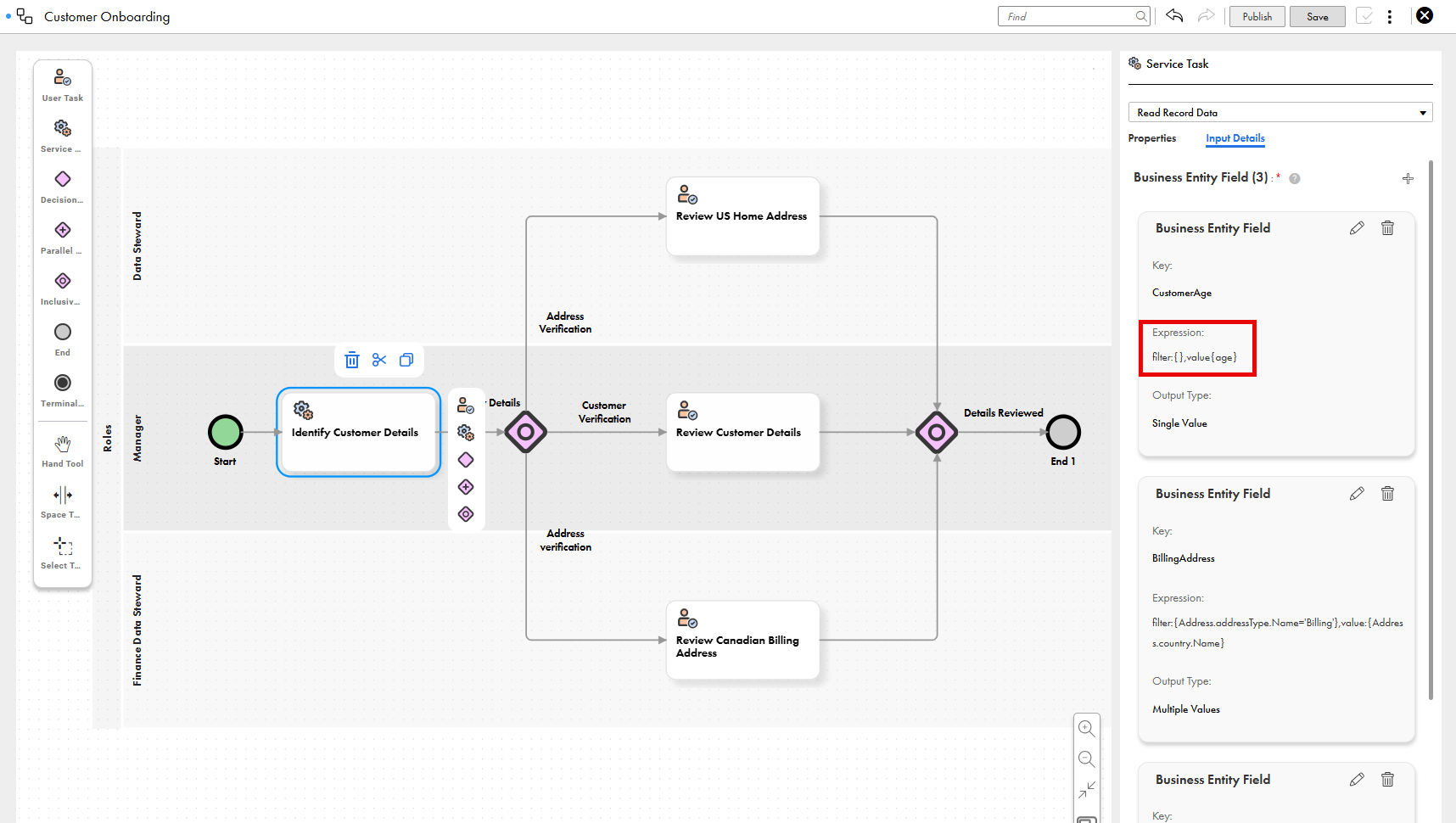
The following image shows a root field expression with an empty filter attribute and the Age field specified in the value attribute:
The value attribute contains the internal ID of the Age field. The filter attribute is empty because the field is a root field. The filter attribute is empty because root fields don't require filters. The service task returns the Age field value.
Expression format for fields in field groups
An expression contains a filter attribute and a value attribute. Ensure that the expression for a field in a field group includes the internal ID of the field group and the nested field that you want the service task to check. You can also configure a business entity field to filter the values in the field group.
Use the following format:
filter:{<Full path to the field>.<Internal ID of the field>='<filter value>'},value:{<Full path to the field>.<Internal ID of the field>}
For example, use the following expression to return countries from home addresses, where the Address Type field is part of the Address field group:
Consider the following rules and guidelines for fields in field groups:
•Use the filter portion of the expression to filter specific values. You can add multiple filters, separated by commas.
•Enclose the filter value in single quotes ('').
•Append .Name or .Code to the internal IDs of picklists and dependent picklists.
Note:
Append .Code to the internal IDs of multilingual picklists and multilingual dependent picklists in field groups. You can't append .Name for multilingual picklists and multilingual dependent picklists.
For example, use the following expression when the Address Type and Country picklists in the Address field group are multilingual:
For example, you can retrieve specific field values from field groups in a customer record, such as those for address type or contact number type.
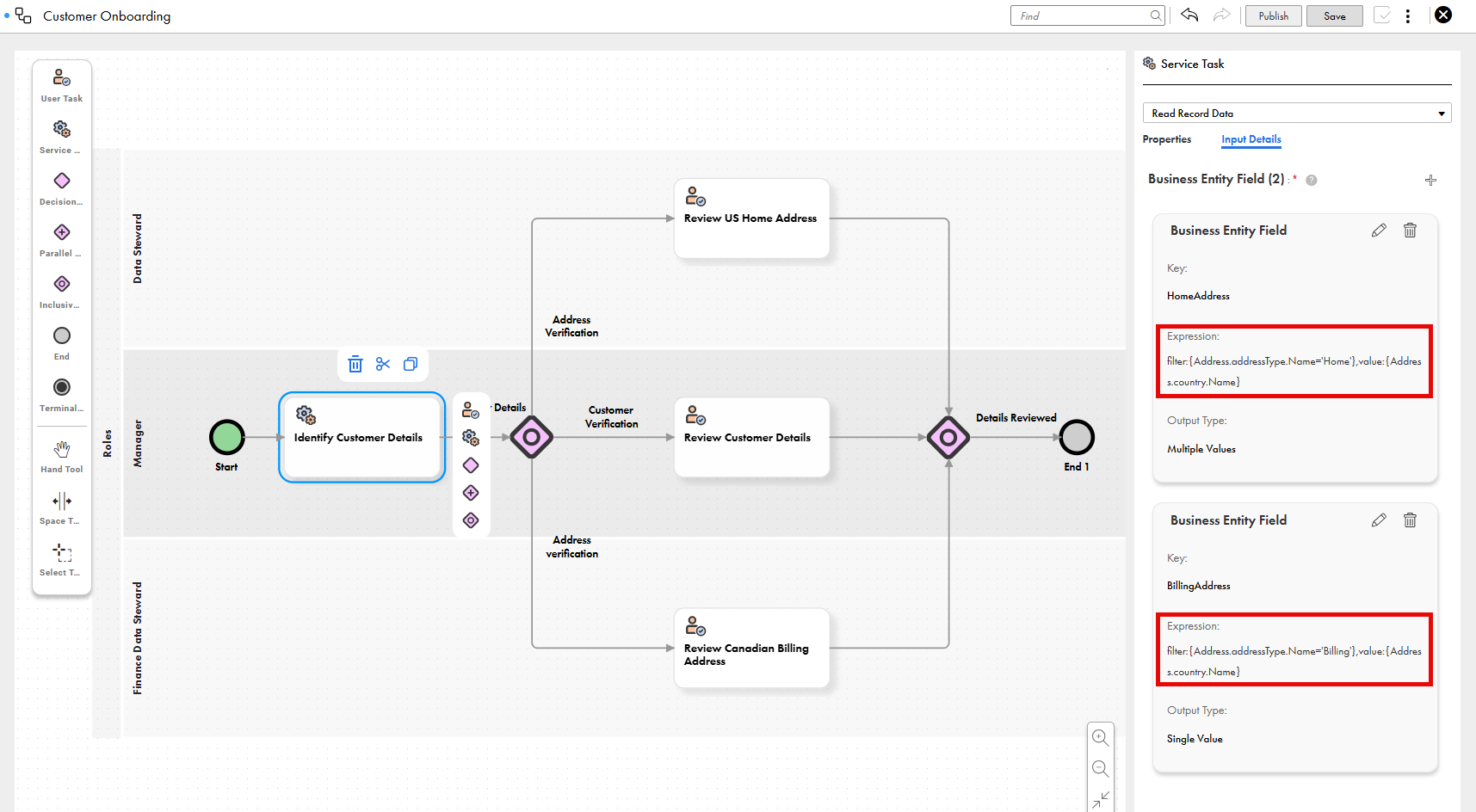
The following image shows the Input Details tab with filter expressions applied to picklists in the Address field group:
The business entity fields configured for the Identify Customer Details service task are part of the Address field group. The filter portion specifies the home or billing address type, and the value portion specifies that the service task returns the values for the Country field.
The business entity field that has HomeAddress as its key returns the countries from all the home addresses. The business entity field that has BillingAddress as its key returns the countries from all the billing addresses.
Configure input details for Read Record Data service tasks
Configure business entity fields to check their values.
1Enter an alphanumeric value as a key.
2Enter an expression that defines the value for the key.
3Optionally, configure more business entity fields to check the values of additional fields.
Conditions for connections for Read Record Data service tasks
To design different paths in workflows, use gateways after service tasks. To determine the outcomes of outgoing connections from the gateways to other components in the workflow, configure conditions. Conditions use business entity field values to determine task outcomes.
Note:
To run the task outcomes for all conditions that are met, use an inclusive gateway after a Read Record Data service task.
A condition uses a simple expression that uses the following components:
•Internal ID of the service task
•Key that you configured for the business entity field
•Condition parameter for the field type
•Expected value for the field
The format of a condition varies based on the field type and whether it's a root field or field in a field group. For root fields, a condition checks whether the value that the service task returns for a business entity field is the same as the expected value. For fields in field groups, a condition checks whether the list of values that the service task returns for a business entity field contains the expected value.
The following table lists the field types and their respective attribute values:
Field Type
Condition Parameter
Text and boolean fields
stringValue
Decimal, double, and integer fields
numericalValue
Date fields
dateValue
Date and time fields
dateTimeValue
List of text or boolean fields
stringValueList
List of decimal, double, or integer fields
numericalValueList
List of date fields
dateValueList
List of date and time fields
dateTimeValueList
Text and Boolean fields
Use conditions to configure task outcomes based on a single value for a text or Boolean field. For root fields with string values, a condition checks whether the value that the business entity field returns is the same as the expected value that you specify.
For fields in field groups that contain lists of string values, configure conditions in a different format.
Consider the following rules and guidelines regarding conditions for root fields with string values:
•Use only the equal to (=) operator.
•Enclose string values within double quotes ("").
•Add true or false as the expected value when you check for Boolean values.
Configure conditions for root fields with string values in the following format:
<internal ID of the service task>.output.result[key="<value of the Key field>"][1].stringValue!=null and <internal ID of the service task>.output.result[key="<value of the Key field>"][1].stringValue="<expected value>"
For example, a workflow to evaluate customer details can include a string value in a root field, such as region. The condition determines the task outcome based on the region.
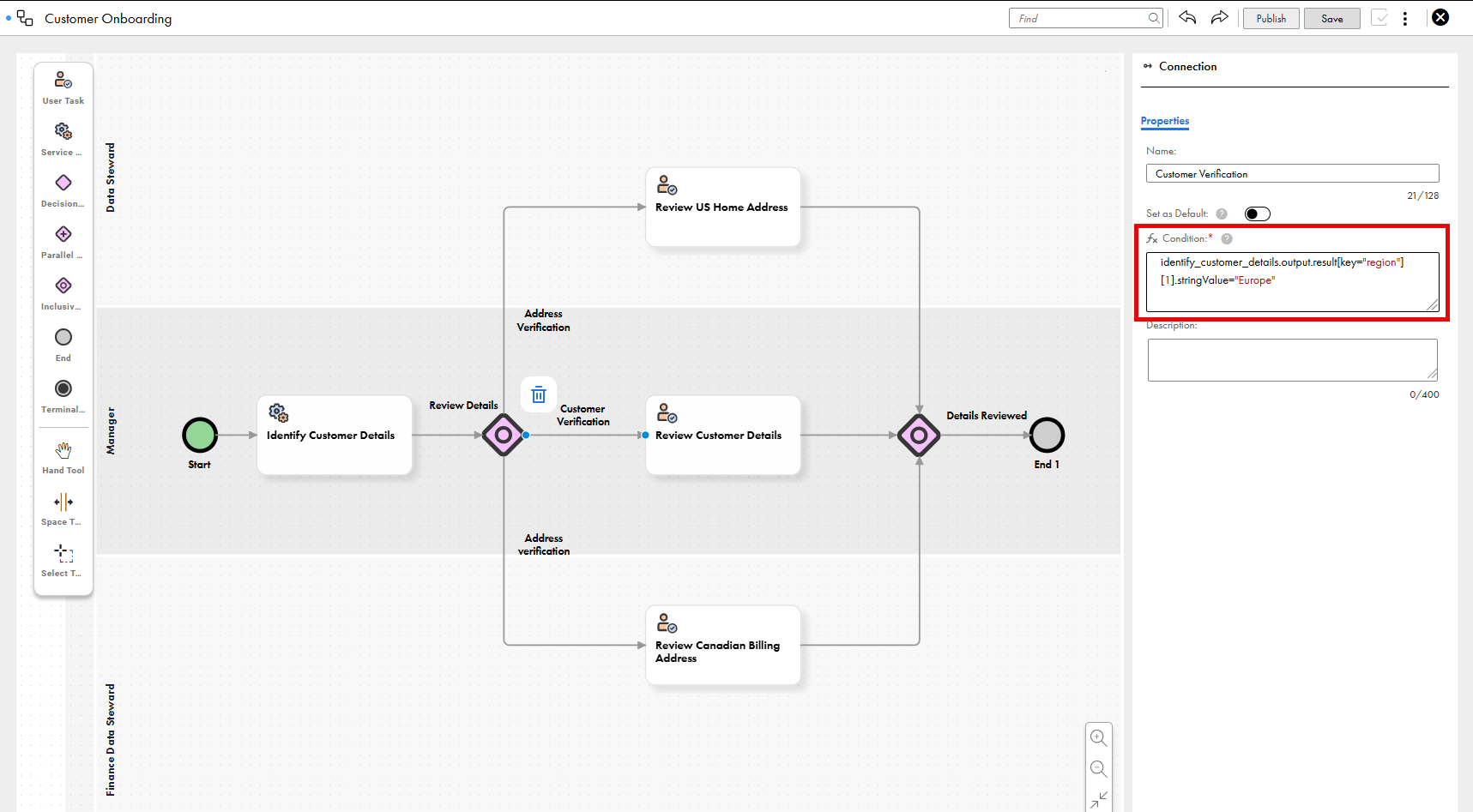
The following condition checks whether the Region field, with the key value region, contains the value Europe:
identify_customer_details.output.result[key="region"][1].stringValue!=null and identify_customer_details.output.result[key="region"][1].stringValue="Europe"
The following image shows the Connection properties panel with the sample condition:
The Review Details inclusive gateway determines the task outcomes based on the output value of the Identify Customer Details service task. The workflow proceeds to the next step in the customer onboarding process if the business entity field contains the expected value, Europe.
Decimal, double, and integer fields
Use conditions to configure task outcomes based on a single value for decimal, double, or integer fields. For root fields with numeric values, a condition checks whether the value that the business entity field returns is the same as the expected value that you specify.
For fields in field groups that contain lists of numeric values, configure conditions in a different format.
You can use the following comparison operators for root fields with numeric values:
•Equal to (=)
•Not equal to (!=)
•Less than (<)
•Less than or equal to (<=)
•Greater than (>)
•Greater than or equal to (>=)
•Between <value 1> and <value 2>
Configure conditions for root fields with numeric values in the following format:
<internal ID of the service task>.output.result[key="<value of the Key field>"][1].numericalValue!=null and <internal ID of the service task>.output.result[key="<value of the Key field>"][1].numericalValue<comparison operator><expected value>
For example, a workflow to evaluate customer details can include a numeric value in a root field, such as age. The condition determines the task outcome based on the age.
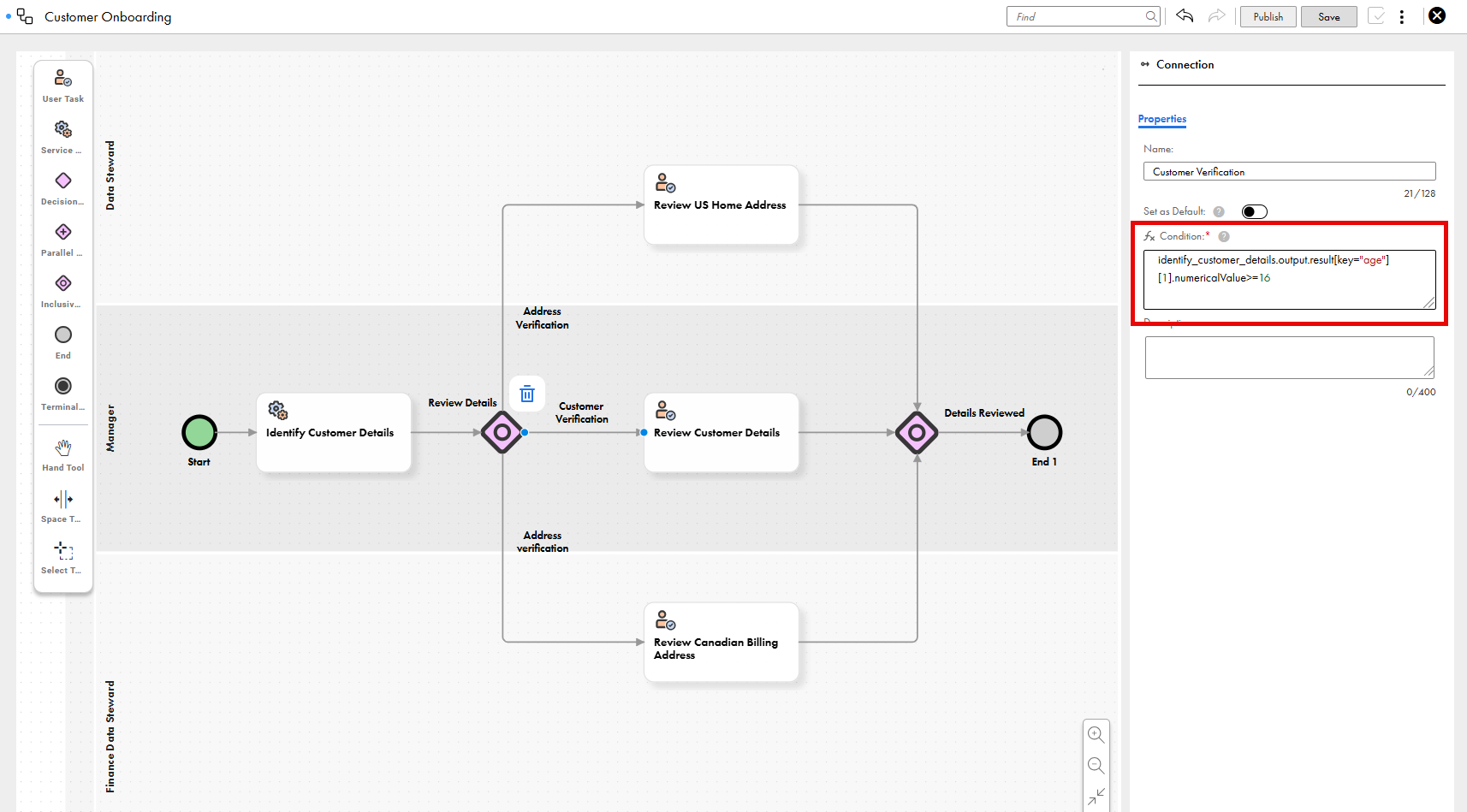
The following condition checks whether the Age field, with the key value age, has a value that's greater than or equal to 16:
identify_customer_details.output.result[key="age"][1].numericalValue!=null and identify_customer_details.output.result[key="age"][1].numericalValue>=16
The following image shows the Connection properties panel with the sample condition:
The Review Details inclusive gateway determines the task outcomes based on the output value of the Identify Customer Details service task. The workflow proceeds to the next step in the customer onboarding process if the business entity field contains the expected value of 16 or above.
Date fields
Use conditions to configure task outcomes based on a single value for date fields. For root fields with date values, a condition checks whether the value that the business entity field returns is the same as the expected value that you specify.
For fields in field groups that contain lists of date values, configure conditions in a different format.
You can use the following comparison operators for root fields with date values:
•Equal to (=)
•Not equal to (!=)
•Less than (<)
•Less than or equal to (<=)
•Greater than (>)
•Greater than or equal to (>=)
•Between <value 1> and <value 2>
Configure conditions for root fields with date values in the following format:
<internal ID of the service task>.output.result[key="<value of the Key field>"][1].dateValue!=null and date(<internal ID of the service task>.output.result[key="<value of the Key field>"][1].dateValue)<comparison operator>date("<expected date>")
Enter dates in the YYYY-MM-DD format and enclose them in double quotes ("").
For example, a workflow to evaluate customer details can include a date value in a root field, such as date of birth. The condition determines the task outcome based on the date of birth.
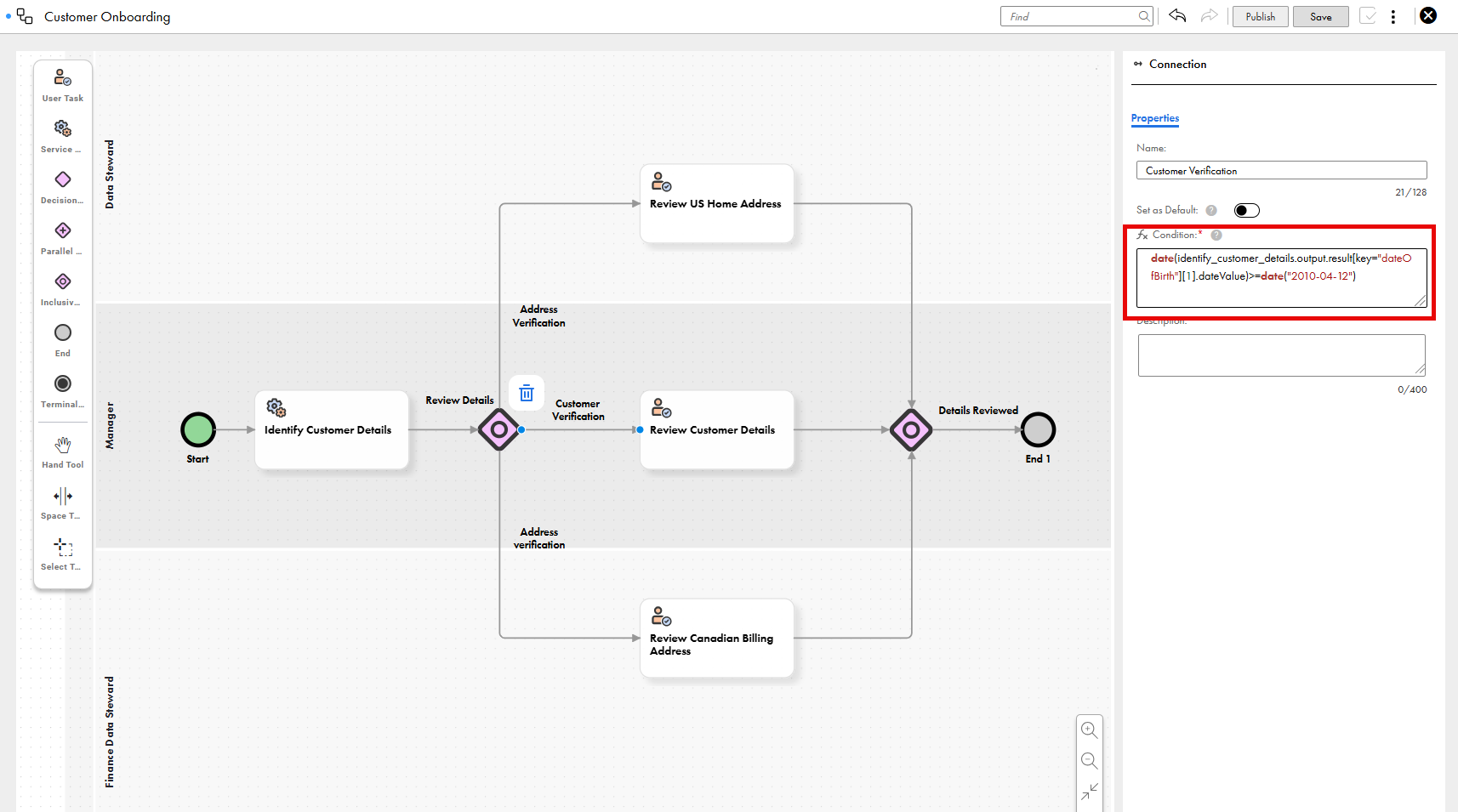
The following condition checks whether the Date of Birth field, with the key value dateOfBirth, contains a value that's on or after April 12, 2010:
identify_customer_details.output.result[key="dateOfBirth"][1].dateValue!=null and date(identify_customer_details.output.result[key="dateOfBirth"][1].dateValue)>=date("2010-04-12")
The following image shows the Connection properties panel with the sample condition:
The Review Details inclusive gateway determines the task outcomes based on the output value of the Identify Customer Details service task. The workflow proceeds to the next step in the customer onboarding process if the business entity field contains the expected value of April 12, 2010 or later.
Date and time fields
Use conditions to configure task outcomes based on a single value for date and time fields. For root fields with date and time values, a condition checks whether the value that the business entity field returns is the same as the expected value that you specify.
For fields in field groups that contain lists of date and time values, configure conditions in a different format.
You can use the following comparison operators for root fields with date and time values:
•Equal to (=)
•Not equal to (!=)
•Less than (<)
•Less than or equal to (<=)
•Greater than (>)
•Greater than or equal to (>=)
•Between <value 1> and <value 2>
Configure conditions for root fields with date and time values in the following format:
<internal ID of the service task>.output.result[key="<value of the Key field>"][1].dateTimeValue!=null and date and time(<internal ID of the service task>.output.result[key="<value of the Key field>"][1].dateTimeValue)<comparison operator>date and time("<expected date and time>")
For example, a workflow to evaluate customer details can include a date and time value in a root field, such as date and time of account registration. The condition determines the task outcome based on the date and time of account registration.
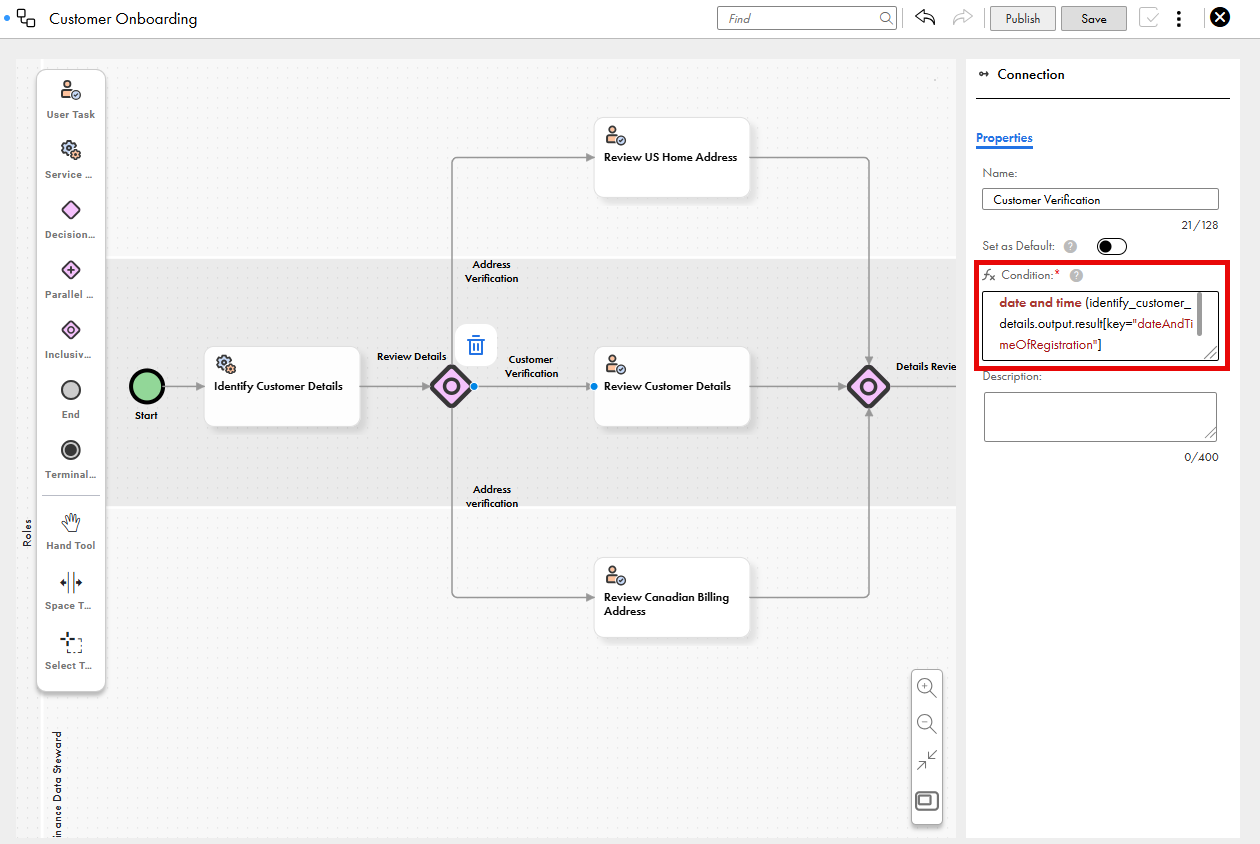
The following condition checks whether the Date and Time of Registration field, with the key value dateAndTimeOfRegistration, contains a value that is on or after April 12, 2010 at 10:30:00 AM IST:
identify_customer_details.output.result[key="dateAndTimeOfRegistration"][1].dateTimeValue!=null and date and time(identify_customer_details.output.result[key="dateAndTimeOfRegistration"][1].dateTimeValue)>=date and time("2010-04-12T05:00:00+00:00")
You can enter date and time values in different ways. In the sample condition, the time is converted into UTC. 10:30AM in IST is 5:00 AM in UTC.
The following image shows the Connection properties panel with the sample condition:
The Review Details inclusive gateway determines the task outcomes based on the output value of the Identify Customer Details service task. The workflow proceeds to the next step in the customer onboarding process if the business entity field contains the expected value, 5:00 AM UTC on April 12, 2010.
Date and time format for root fields
Enter date values in the YYYY-MM-DD format, and time in one of the following formats:
•Convert the date and time value to UTC. Specify the expected date and time value with the UTC offset.
For example, the following condition checks whether the Date and Time of Registration field, with the key value dateAndTimeOfRegistration, contains a value equal to September 1, 2026 at 5:00:00 AM UTC:
identify_customer_details.output.result[key="dateAndTimeOfRegistration"][1].dateTimeValue!=null and date and time(identify_customer_details.output.result[key="dateAndTimeOfRegistration"][1].dateTimeValue)=date and time("2026-09-01T05:00:00+00:00")
If the time isn't in UTC time standard, convert the time to UTC time standard and add it to the condition.
•Use a timezone offset. Specify the expected date and time value with your timezone offset.
For example, the following condition checks whether the Date and Time of Registration field, with the key value dateAndTimeOfRegistration, contains a value equal to September 1, 2026 at 10:30:00 AM in the UTC+05:30 timezone:
identify_customer_details.output.result[key="dateAndTimeOfRegistration"][1].dateTimeValue!=null and date and time(date and time(identify_customer_details.output.result[key="dateAndTimeOfRegistration"][1].dateTimeValue), "Z") = date and time(@"2026-09-01T10:30:00+05:30", "Z")
List of text or Boolean fields
Use conditions to check whether a list of text or Boolean values that a business entity field returns contains a specific value, and configure a task outcome based on the result.
For root fields that contain string values, configure conditions in a different format.
Configure conditions for fields that contain a list of string values in a field group in the following format:
<internal ID of the service task>.output.result[key="<value of the Key field>"][1].stringValueList!=null and list contains(<internal ID of the service task>.output.result[key="<value of the Key field>"].stringValueList,"<expected value>")
Enclose the expected value within double quotes ("").
To check for Boolean values, add true or false as the expected value.
For example, a workflow to evaluate customer details includes string values in field groups, such as countries from multiple home addresses. The condition determines the task outcome based on the countries.
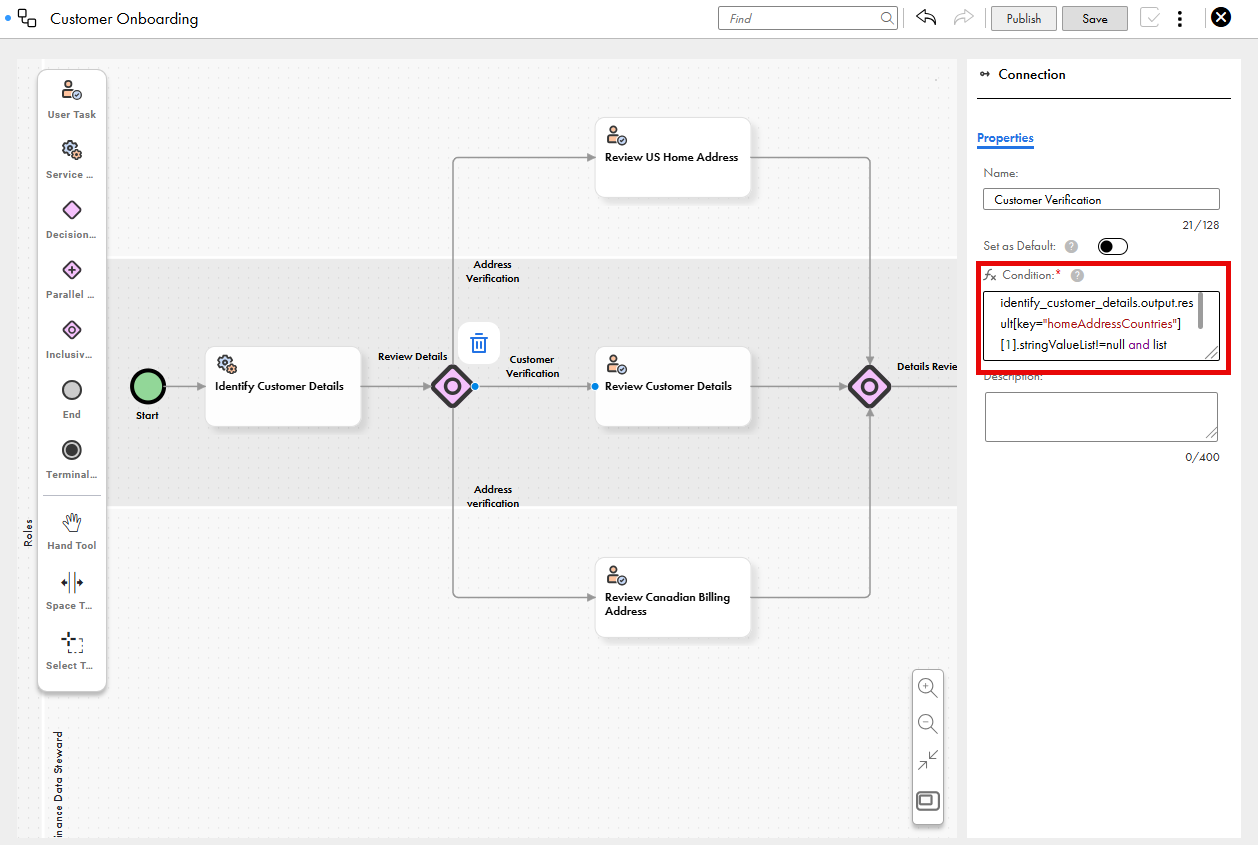
The following condition checks whether the list of home address countries, with the key value homeAddressCountries, contains the value United States:
identify_customer_details.output.result[key="homeAddressCountries"][1].stringValueList!=null and list contains(identify_customer_details.output.result[key="homeAddressCountries"].stringValueList,"United States")
The following image shows the Connection properties panel with the sample condition:
The Review Details inclusive gateway determines the task outcomes based on the output value of the Identify Customer Details service task. The workflow proceeds to the next step in the customer onboarding process if the business entity field contains the expected value, United States.
List of decimal, double, or integer fields
Use conditions to check whether a list of decimal, double, or integer values that a business entity field returns contains a specific value, and configure a task outcome based on the result.
For root fields that contain numeric values, configure conditions in a different format.
Configure conditions for a list of fields that contain numeric values in a field group in the following format:
<internal ID of the service task>.output.result[key="<value of the Key field>"][1].numericalValueList!=null and list contains(<internal ID of the service task>.output.result[key="<value of the Key field>"].numericalValueList,<expected value>)
For example, a workflow to evaluate customer details includes numerical values in field groups, such as credit scores from multiple credit bureaus. The condition determines the task outcome based on the credit scores.
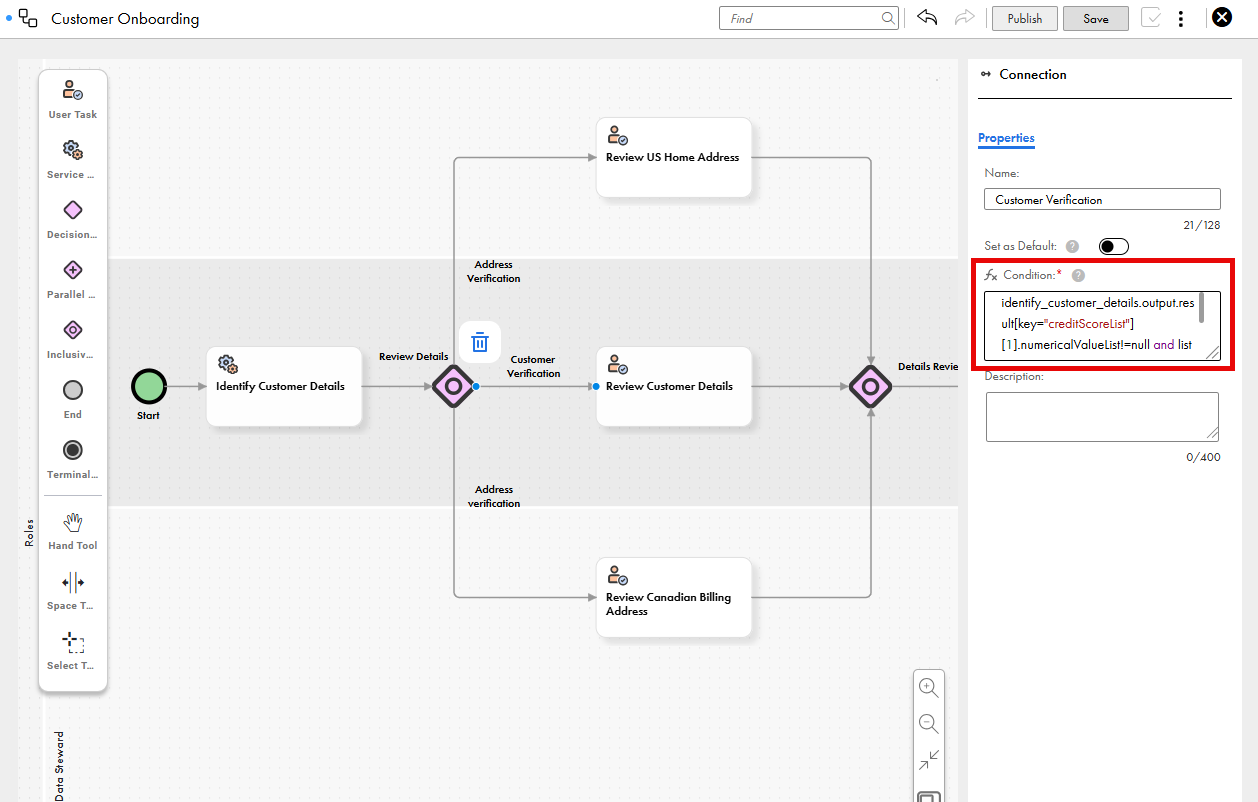
The following condition checks whether the list of credit scores, with the key value creditScoreList, contains a specific value:
identify_customer_details.output.result[key="creditScoreList"] [1].numericalValueList!=null and list contains(identify_customer_details.output.result[key="creditScoreList"].numericalValueList,700)
The following image shows the Connection properties panel with the sample condition:
The Review Details inclusive gateway determines the task outcomes based on the output value of the Identify Customer Details service task. The workflow proceeds to the next step in the customer onboarding process if the business entity field contains the expected value, 700.
List of date fields
Use conditions to check whether a list of date values that a business entity field returns contains a specific value, and configure a task outcome based on the result.
For root fields that contain date values, configure conditions in a different format.
Configure conditions for a list of fields that contain date values in a field group in the following format:
<internal ID of the service task>.output.result[key="<value of the Key field>"][1].dateValueList!=null and list contains(<internal ID of the service task>.output.result[key="<value of the Key field>"].dateValueList,"<expected date>")
Enter dates in the YYYY-MM-DD format and enclose them in double quotes ("").
For example, a workflow to evaluate customer details includes date values in field groups, such as expiry dates from multiple identification documents. The condition determines the task outcome based on the expiry dates.
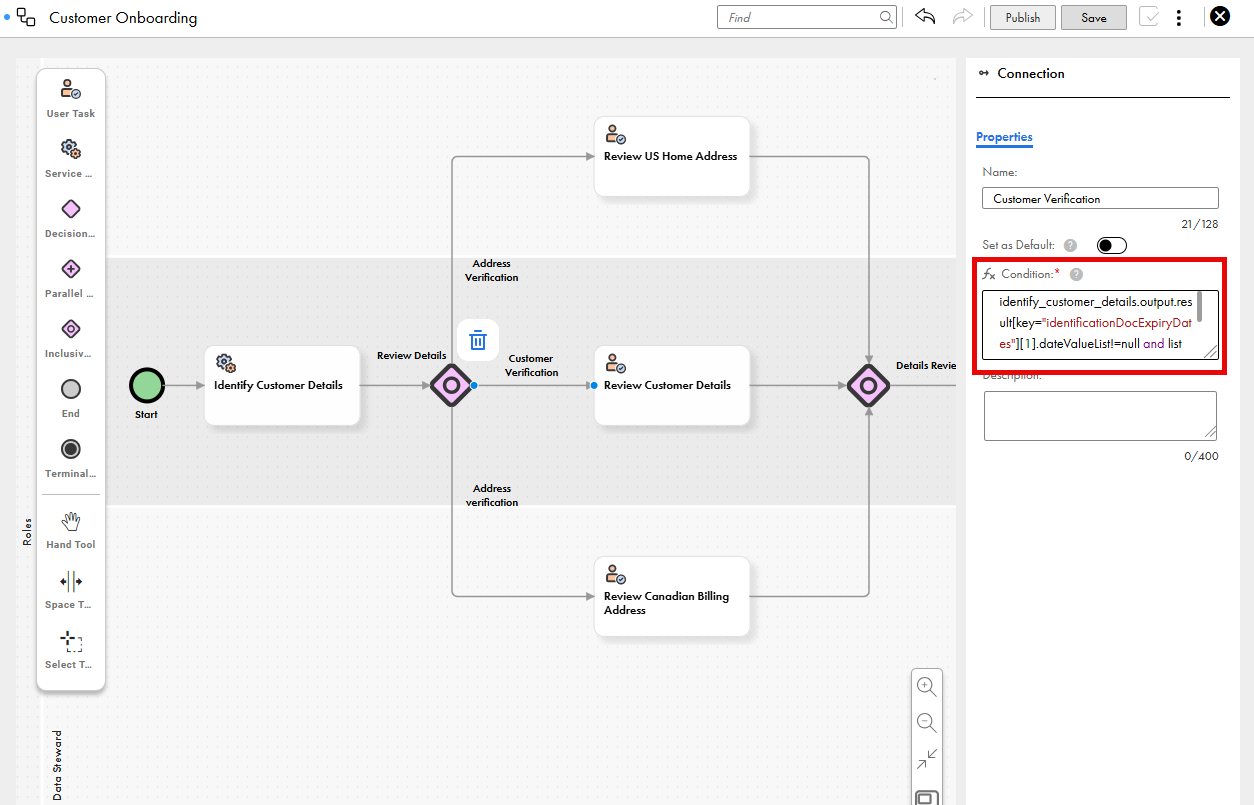
The following condition checks whether the list of identification document expiry dates, with the key value identificationDocExpiryDates, contains a specific date:
identify_customer_details.output.result[key="identificationDocExpiryDates"][1].dateValueList!=null and list contains(identify_customer_details.output.result[key="identificationDocExpiryDates"].dateValueList,"2025-04-12")
The following image shows the Connection properties panel with the sample condition:
The Review Details inclusive gateway determines the task outcomes based on the output value of the Identify Customer Details service task. The workflow proceeds to the next step in the customer onboarding process if the business entity field contains the expected value, April 12, 2025.
List of date and time fields
Use conditions to check whether a list of date and time values that a business entity field returns contains a specific value, and configure a task outcome based on the result.
For root fields that contain date and time values, configure conditions in a different format.
Configure conditions for a list of fields that contain date and time values in a field group in the following format:
<internal ID of the service task>.output.result[key="<value of the Key field>"][1].dateTimeValueList!=null and list contains(<internal ID of the service task>.output.result[key="<value of the Key field>"].dateTimeValueList,"<expected date and time>")
Enter date and time in UTC, with the UTC offset. For example, September 1, 2026 at 5:00:00 AM UTC becomes 2026-09-01T05:00:00+00:00.
For example, a workflow to evaluate customer details includes date and time values in field groups, such as timestamps from multiple verification appointments. The condition determines the task outcome based on the timestamps.
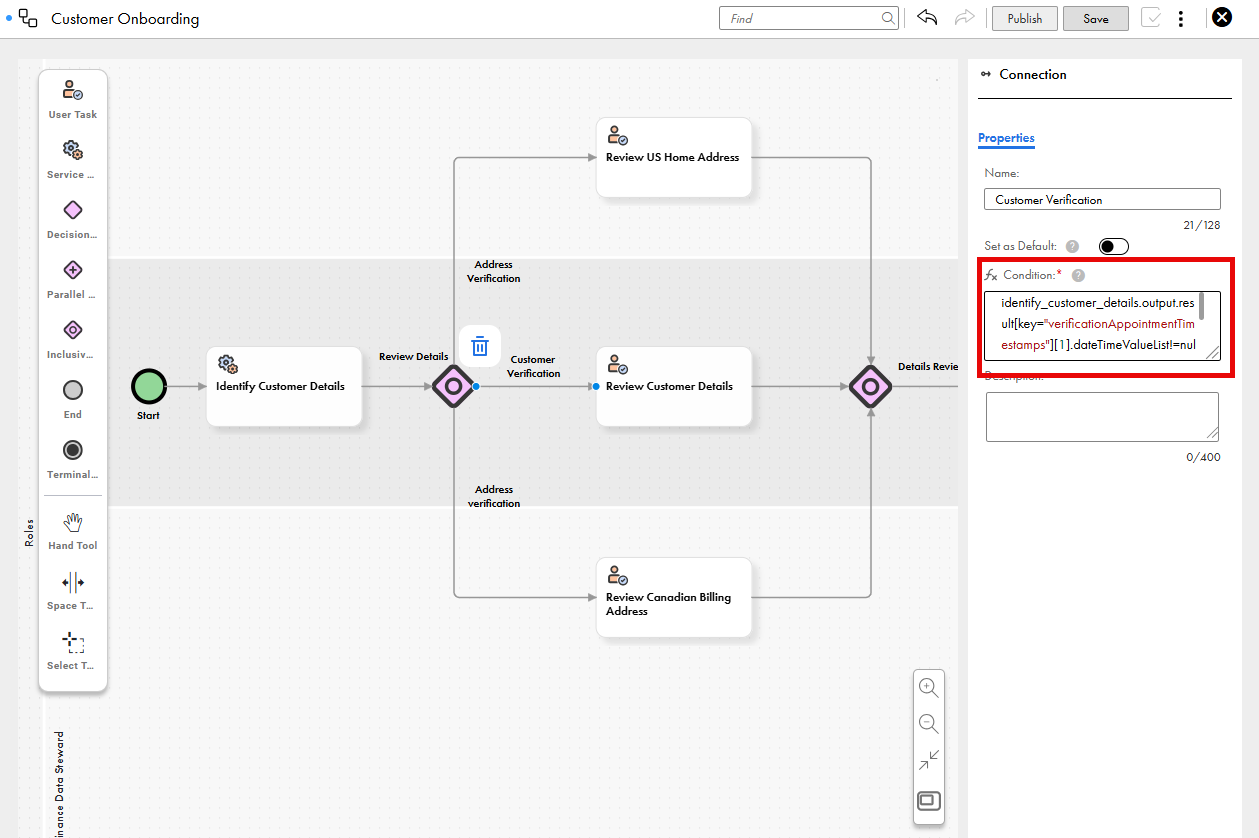
The following condition checks whether the list of verification appointment timestamps, with the key value verificationAppointmentTimestamps, contains a specific date and time:
identify_customer_details.output.result[key="verificationAppointmentTimestamps"][1].dateTimeValueList!=null and list contains(identify_customer_details.output.result[key="verificationAppointmentTimestamps"].dateTimeValueList,"2025-04-12T05:00:00+00:00")
The following image shows the Connection properties panel with the sample condition:
The Review Details inclusive gateway determines the task outcomes based on the output value of the Identify Customer Details service task. The workflow proceeds to the next step in the customer onboarding process if the business entity field contains the expected value, 5:00 AM UTC on April 12, 2025.
Configure conditions for Read Record Data service tasks
To determine the path that a workflow takes after a Read Record Data service task runs, configure conditions on outgoing connections from decision and inclusive gateways.
1On the workflow canvas, select an outgoing connection from a service task, and enter a name for it.
2Enter a condition that uses the internal ID of the service task, the key that you configured for the business entity field, and an expected value for the field.
3Set a connection as the default connection.
If you don't set a default connection and no conditions are met, the workflow fails.