You can create custom user roles and configure their privileges in your organization to control access to all reference data assets, individual assets, records, attributes, and workflows in Reference 360. For example, you can allow a custom user role to view code lists but not edit or delete them.
Unlike system-defined roles, which have predefined access privileges that you can't change, custom user roles aren't predefined. You can create custom user roles based on specific requirements of your organization. You can also control specific tasks that a custom user role can perform. For example, you can authorize a custom user role to import code values into Reference 360.
In Administrator, you can create a custom user role and assign permissions, and then fine-tune the permissions on the Security page of Business 360 Console. The authorizations that you configure in Administrator work in conjunction with the authorizations that you configure on the Security page.
Preview Notice:
Effective in the October 2026 release, the ability to manage privileges for custom user roles is available for preview. Preview functionality is supported for evaluation purposes but is unwarranted and is not supported in production environments or any environment that you plan to push to production. Informatica intends to include the preview functionality in an upcoming release for production use, but might choose not to in accordance with changing market or technical circumstances. For more information, contact Informatica Global Customer Support.
Configure privileges for custom roles to access the Security page
As an organization administrator, you can create custom roles to access the Security page in Business 360 Console. Users with these roles can configure privileges for other custom user roles to control access to reference data assets, attributes, code values, and workflows in Reference 360. You can also configure privileges for the custom user roles directly.
1In Administrator, click User Roles.
2Click the custom role for which you want to configure privileges.
3In the Services field, select MDM Configuration.
4On the Features tab, enable the Configuration and Authoring and Manage Authorization configurations features.
5Click Save.
Prerequisites
Before you configure privileges for custom user roles in Business 360 Console, assign relevant privileges for the custom user roles in Administrator.
The following table lists the privileges that you can configure for the custom user roles in Administrator:
Service
Assets/Features
Set to Enabled
Reference 360
Features
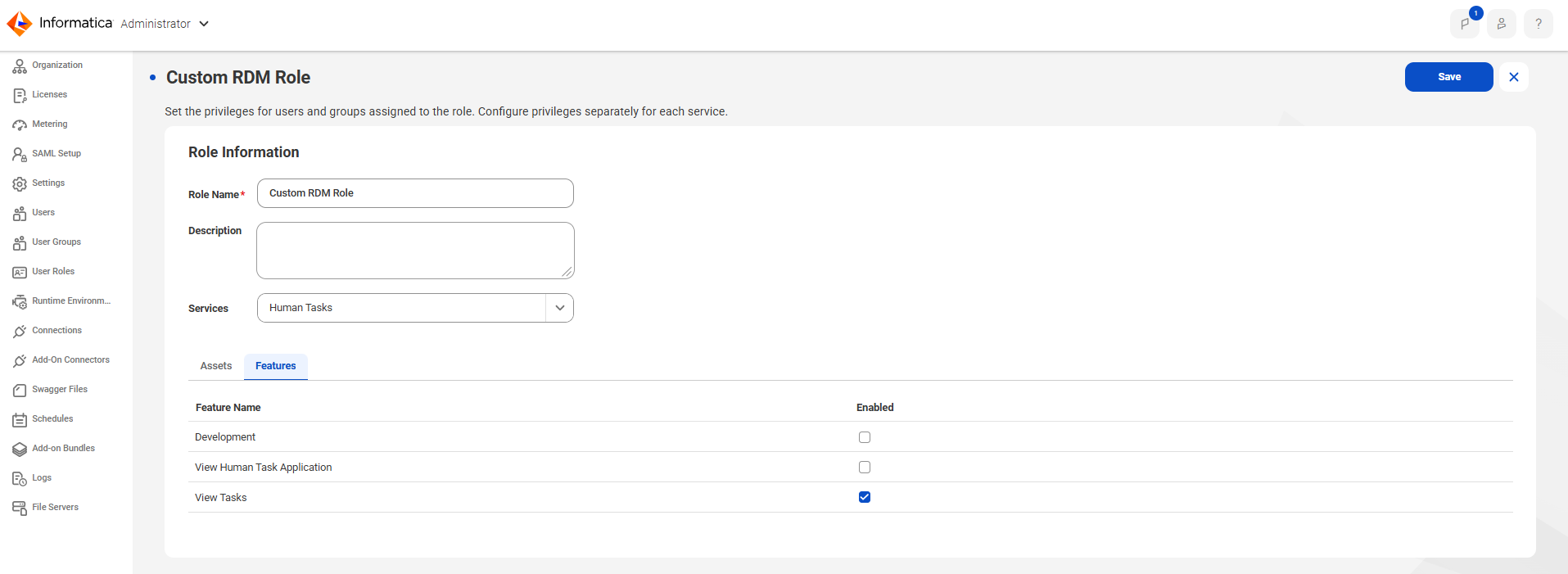
Reference Data Management. Allows you to assign privileges for all the reference data assets available in Reference 360 on the Security page of Business 360 Console.
Human Tasks
Features
View Tasks. Indicates whether the user can access the assigned tasks in the workflow inbox of Reference 360. A user must have this privilege to submit drafts of reference data assets for approval.
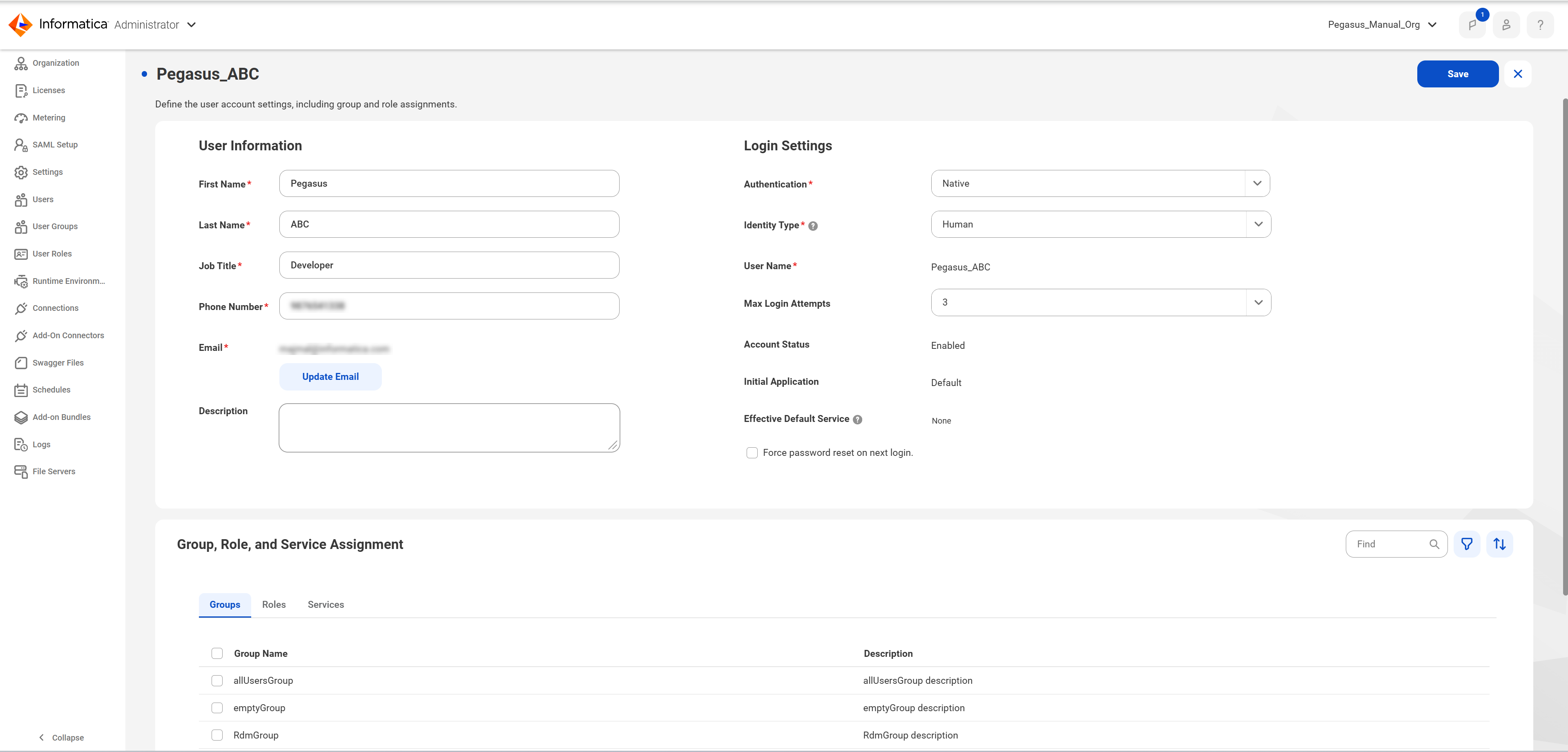
The following image shows the role details page in Administrator:
Rules and guidelines for managing privileges for custom user roles
Consider the following rules and guidelines when you manage privileges for custom user roles in your organization:
•You can delete custom user roles, but you can't delete system-defined roles.
•After you configure privileges for custom user roles on the Security page in Business 360 Console, don't rename the custom user roles in Administrator. If you rename custom user roles, Business 360 Console removes all the configured privileges.
•Custom user role names are case-sensitive.
•If a user is assigned a custom user role along with a predefined user role in Reference 360, the predefined role overrides the custom user role.
•To display a custom user role in Business 360 Console, provide a name that is different from the names of the predefined user roles in Reference 360 for the custom user role. If the names match, the custom user role doesn't appear on the Security page.
•When you change privileges for all or for individual reference data assets, users with custom user roles must wait at least 10 minutes before they use the search box in the Reference 360 header to search for assets. Reference 360 applies privilege changes to keyword search after a short delay. After at least 10 minutes, the asset options available for search, the search results, and the tabs in the search results reflect the updated privileges. If users search for assets immediately after the changes, the search returns inaccurate results.
•When you bulk edit privileges for code lists and assign a dependent privilege without its required privilege, Reference 360 displays an error icon next to the required privilege without a validation error message.
•Users with a custom user role can delete code list attributes configured with rule associations even if the role doesn't have the delete privilege for the Data Quality metadata.
•Users with a custom user role can't view the Value Mappings tab of a crosswalk if the source or target code list contains localized attributes.
•Users with a custom user role can view the display attributes of a referenced or dependent code list even if the role doesn't have the read privilege for the attributes on the Metadata tab of the code list.
•A custom user role that has the create privilege only on the Name and Code fields of a code list can't create code values when other fields have default values or when the Status or Effective Date field has a value.
•When users with a custom user role open the side-by-side view of a code list or hierarchy, Reference 360 displays the code values that existed at a specific point in time, even if the role doesn't have the privilege to view the history of records.
•Users with a custom user role can view and select rule specifications for an advanced rule association of a code list attribute even if the role doesn't have the read privilege for the Rule Specification asset in Administrator.
•Users with a custom user role can modify the Required or Default Value setting of a code list attribute even if the role doesn't have the update privilege for the attributes on the Metadata tab of the code list.
•A custom user role that has only the read privilege for the attributes on the Metadata tab of a code list can update the display attribute of the code list.
•Users with a custom user role can't update the default value of an attribute configured with an advanced rule association, even if the role has create and update privileges for the attribute on the Metadata tab of the code list.
•When you create a reference data asset, Reference 360 doesn't list custom user roles in the Approved by field. The field lists only the predefined roles.
•When you import code values into a code list that has localized attributes, the Map Fields page of the Import Values wizard doesn't list the localized fields.
•Users with a custom role can modify the details of code list attributes even if the role doesn't have the update privilege for attributes on the Metadata tab of the code list.
•Users with a custom user role can lock a code list even if the role doesn't have create, update, and delete privileges for code values on the Records tab of the code list. The users can also import code values into the code list even if the File Import option is not enabled for the role.
•In an organization that provides access control of reference data assets for custom user roles, if a custom user role doesn’t have privileges to access workflows, the Workflow tab and the My Tasks page show a message that a Reference Data Management license is required instead of a message that the user role doesn’t have the required workflow privileges. To access workflows, contact your administrator to assign the custom user role with the required workflow permission, such as Workflow Requester or Workflow Approver.
•In an organization that provides access control of reference data assets for custom user roles, when you move a hierarchy value, Reference 360 verifies the privileges for cut and paste of the value separately. To cut a value, you need the read and delete privileges on the parent relationship of the value, but you don’t need the create privilege. To paste a value, you need the read and create privileges on the child relationship of the target value, but you don’t need the delete privilege.
You can drag a hierarchy value if you have the delete privilege on the parent relationship of the value. You can drop the value only on target values where you have the create privilege on the child relationship.
•When you assign the read privilege for code values of a code list, assign the privilege to at least one attribute of the code list. You can’t save the privileges for a custom user role that has the read privilege for code values but not for any attribute.
•You can restrict the read privilege for any attribute of a code list, including the Name and Code attributes. Users with the custom user role view only the attributes for which the role has the read privilege. For example, if a custom user role has the read privilege for the Code attribute but not the Name attribute, users with the role view only the code of each code value.
•Restricting privileges for a required attribute doesn’t make the attribute optional. Required attributes, such as Name and Code, remain required when users add code values. To add code values to a code list, the custom user role needs the read and create privileges for all required attributes of the code list.
•To view a hierarchy, assign to the custom user role the read privilege on the relationship at the first level of the hierarchy. The role doesn’t need the read privilege on every relationship in the hierarchy. If the custom user role has the read privilege on some relationships, users with the role view only the code values in those relationships. To view code values in a hierarchy, the custom user role also needs the read privilege on the code values and on at least one attribute of each code list in the hierarchy. The hierarchy displays only the attributes for which the custom user role has the read privilege for predefined and custom code lists.
Configure privileges for system reference data
You can configure privileges for custom user roles to access system reference data. These privileges determine whether a custom user role can create, read, update, and delete values for system reference data.
1In Business 360 Console, on the Security page, click the custom user role for which you want to configure privileges.
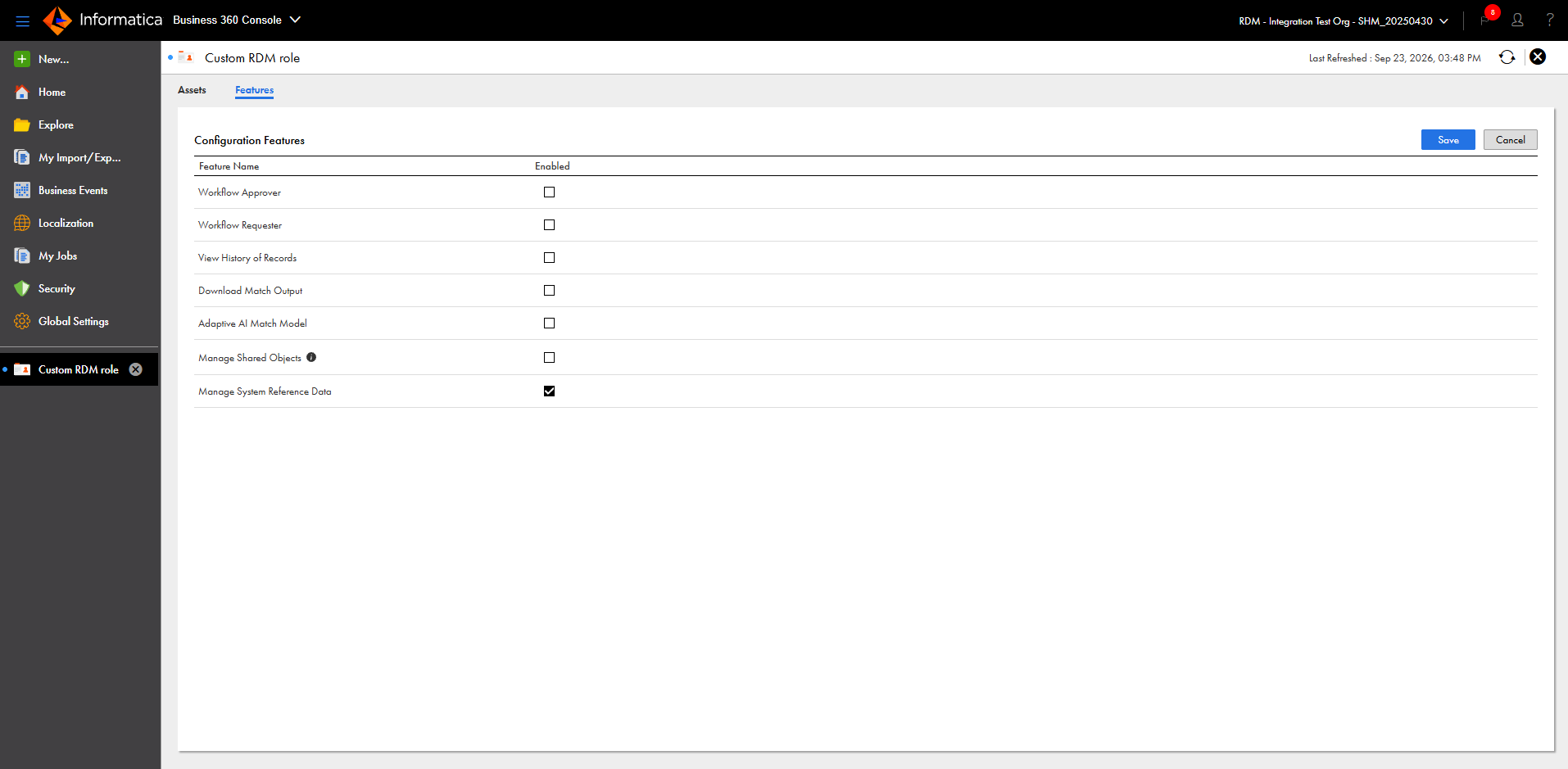
2On the Features tab, select Manage System Reference Data.
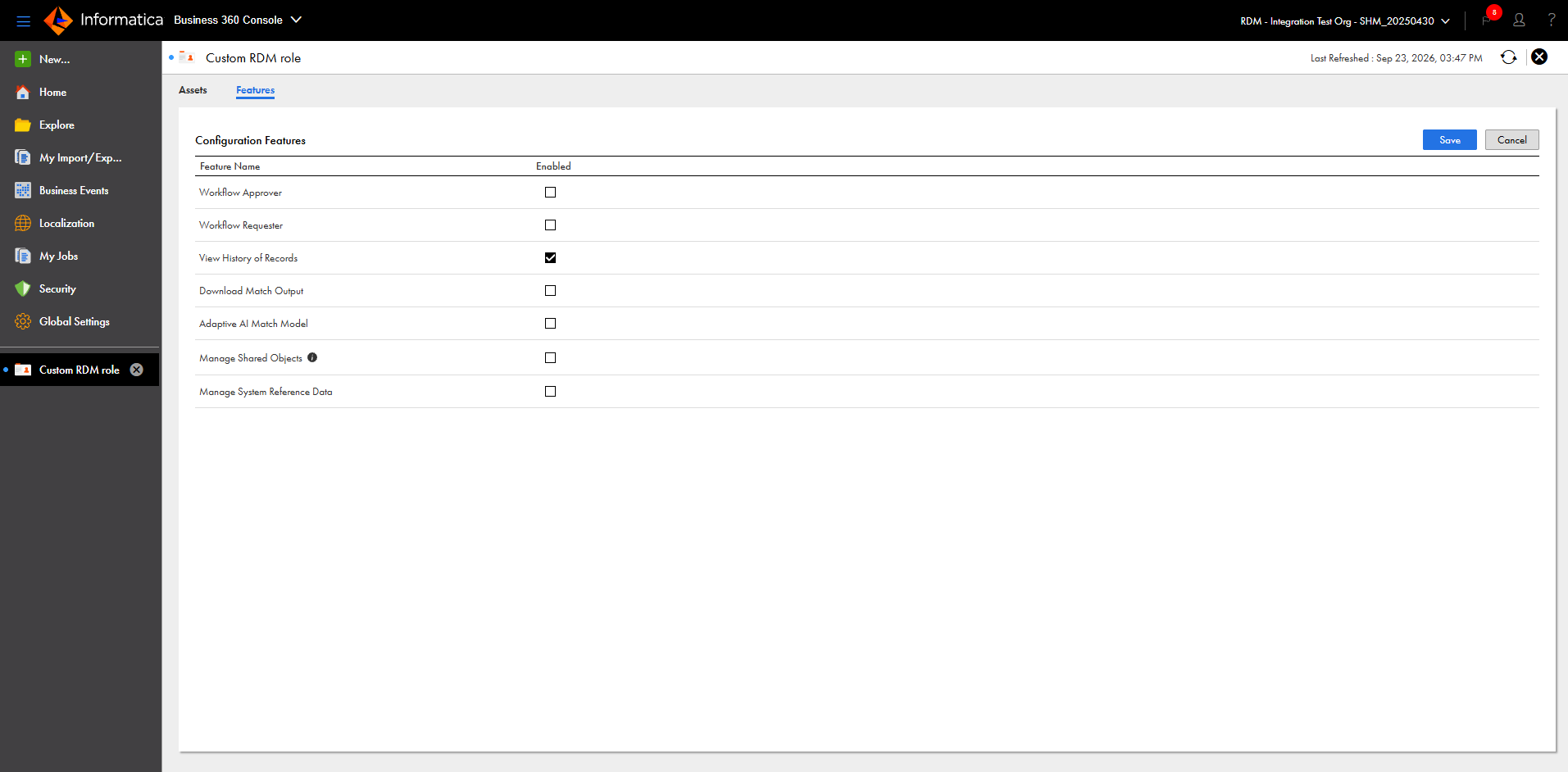
The following image shows the Features tab:
3Click Save.
Configure privileges to access reference data assets
You can configure privileges for custom user roles to access reference data assets. These privileges control whether a custom user role can create, read, update, and delete reference data sets, code lists, crosswalks, and hierarchies.
1In Business 360 Console, on the Security page, click the custom user role for which you want to configure privileges.
The user role details page lists all the assets in the organization.
2On the Assets tab, select Reference 360 - Assets from the Show list.
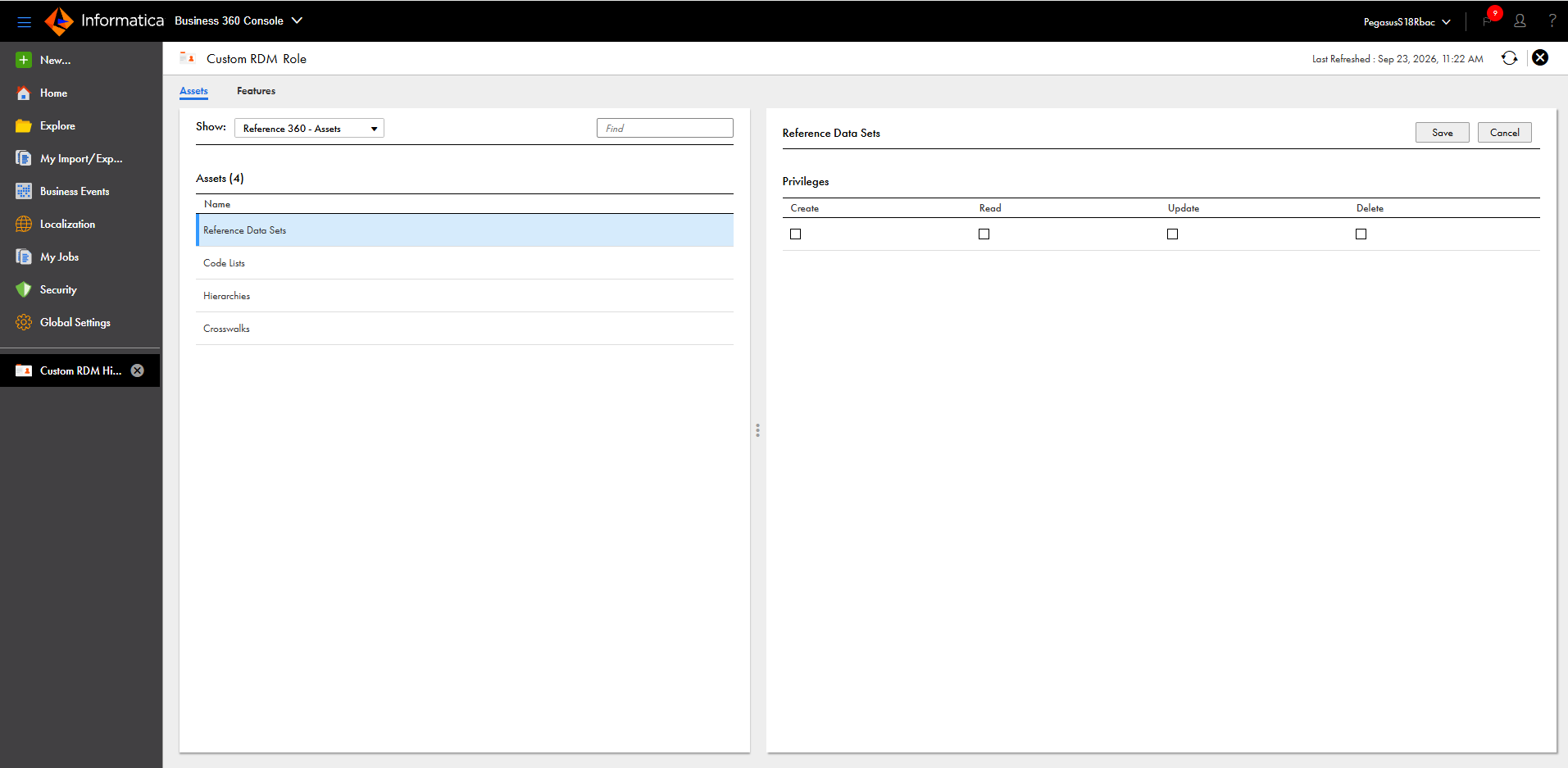
The left pane displays all the reference data assets.
The following image shows the list of reference data assets:
3Select the asset for which you want to configure privileges.
The right pane displays the privileges for the selected asset.
4Select the permissions in the Privileges section.
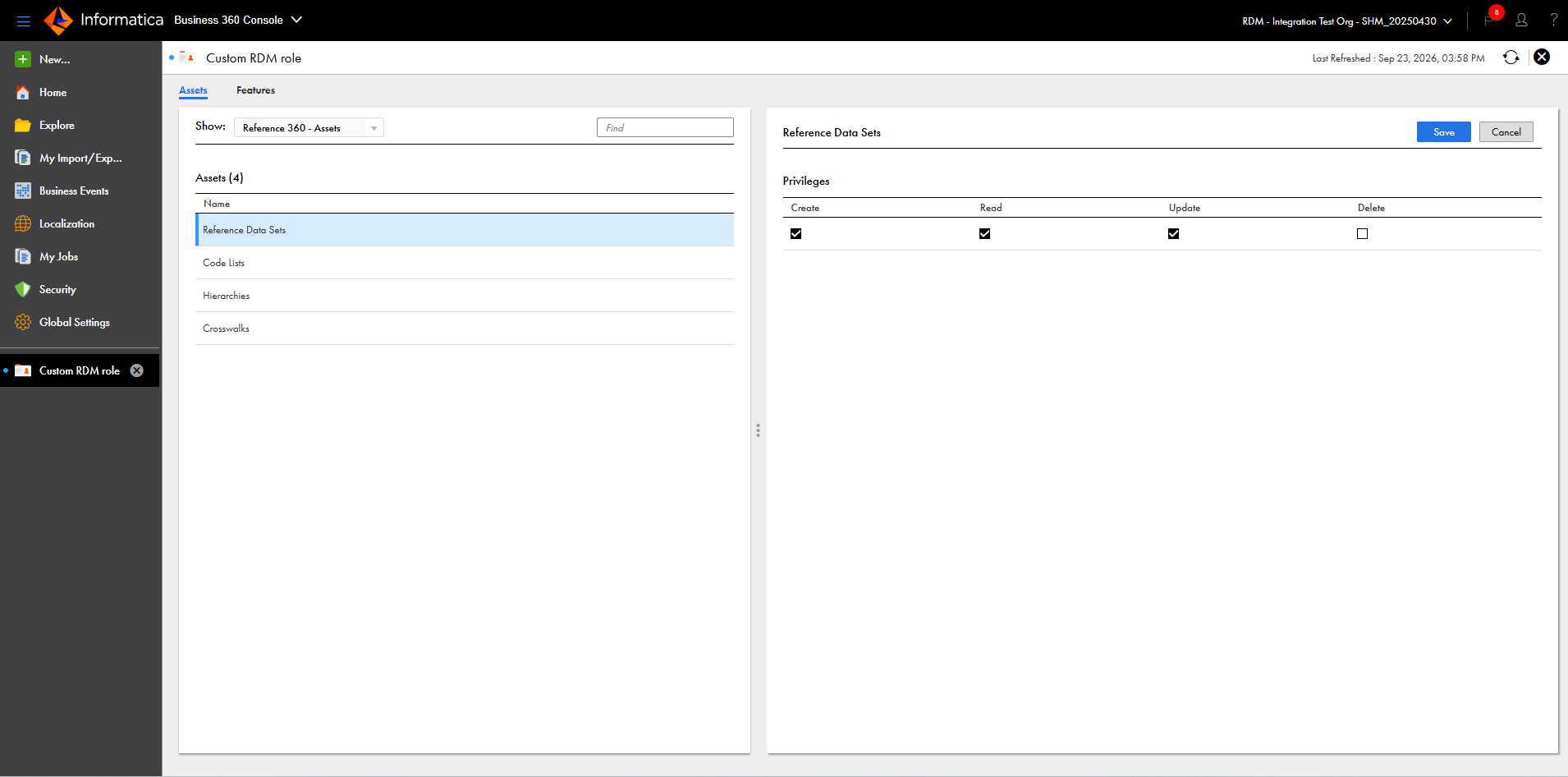
Assign privileges to specify whether custom user roles can create, read, update, and delete reference data sets. The privileges that you assign determine whether a custom user role has complete access, partial access, or no access to the reference data sets.
The following image shows the privileges that you can assign to reference data sets:
The following table describes the actions that the custom user role can perform based on the privileges assigned to reference data sets:
Privilege
Action
Create
Create reference data sets.
Assign the read privilege for reference data sets before you assign the create privilege for reference data sets.
Read
View reference data sets and their properties.
Update
Edit the properties of reference data sets.
Assign the read privilege for reference data sets before you assign the update privilege for reference data sets.
Delete
Delete reference data sets.
Assign the read and update privileges for reference data sets before you assign the delete privilege for reference data sets.
Configure privileges for code lists
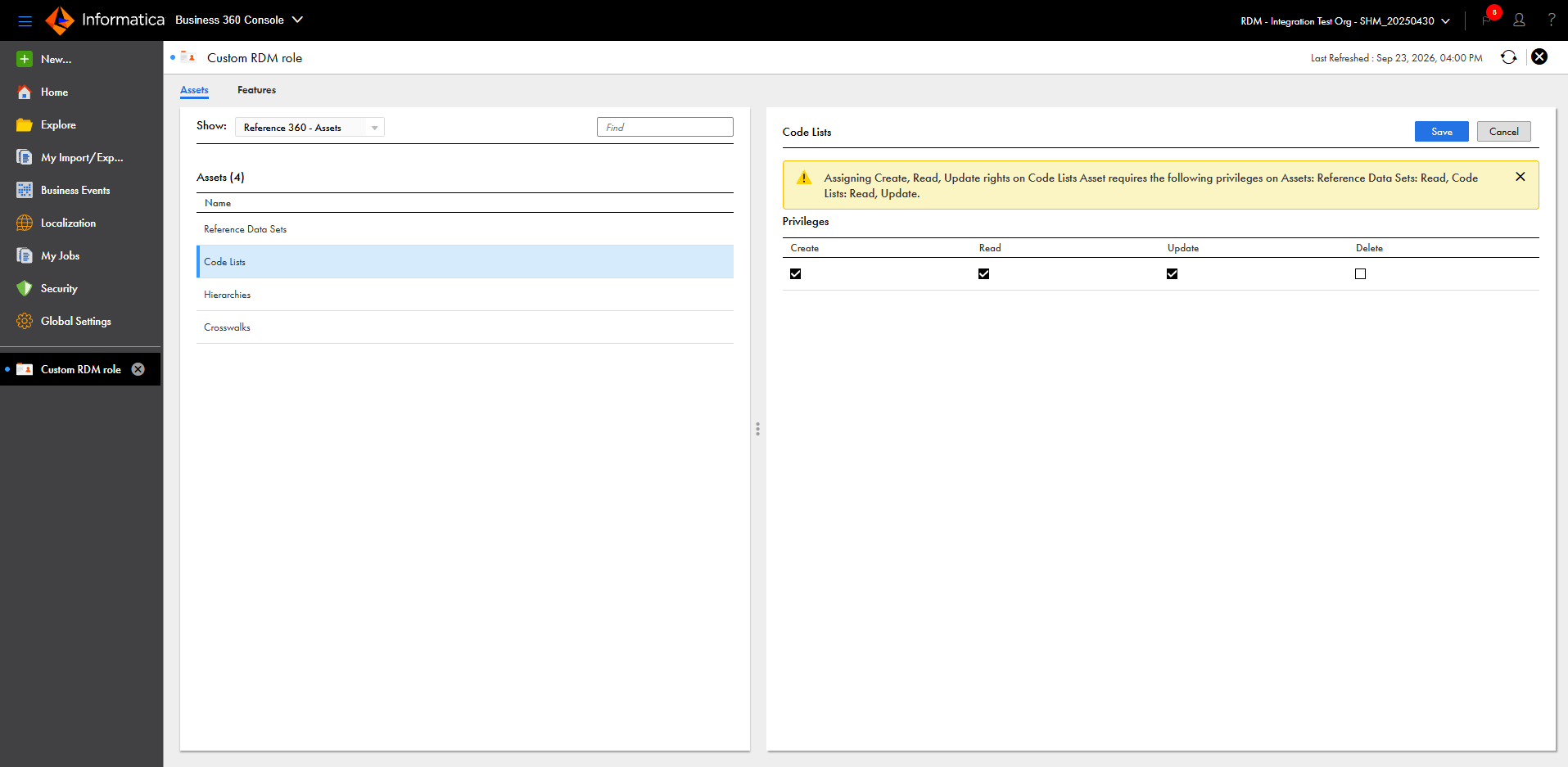
Assign privileges to specify whether custom user roles can create, read, update, and delete code lists. The privileges that you assign determine whether a custom user role has complete access, partial access, or no access to the code lists.
The following image shows the privileges that you can assign to code lists:
The following table describes the actions that the custom user role can perform based on the privileges assigned to code lists:
Privilege
Action
Create
Create code lists.
Assign the read privilege for reference data sets and code lists before you assign the create privilege for code lists.
Read
View code lists and their properties.
Assign the read privilege for reference data sets before you assign read privilege for code lists.
Update
Edit the properties of code lists.
Assign the read privilege for reference data sets and code lists before you assign the update privilege for code lists.
Delete
Delete code lists.
Before you assign the delete privilege for code lists, assign the following privileges:
- The read privilege for reference data sets.
- The read and update privileges for code lists.
Configure privileges for crosswalks
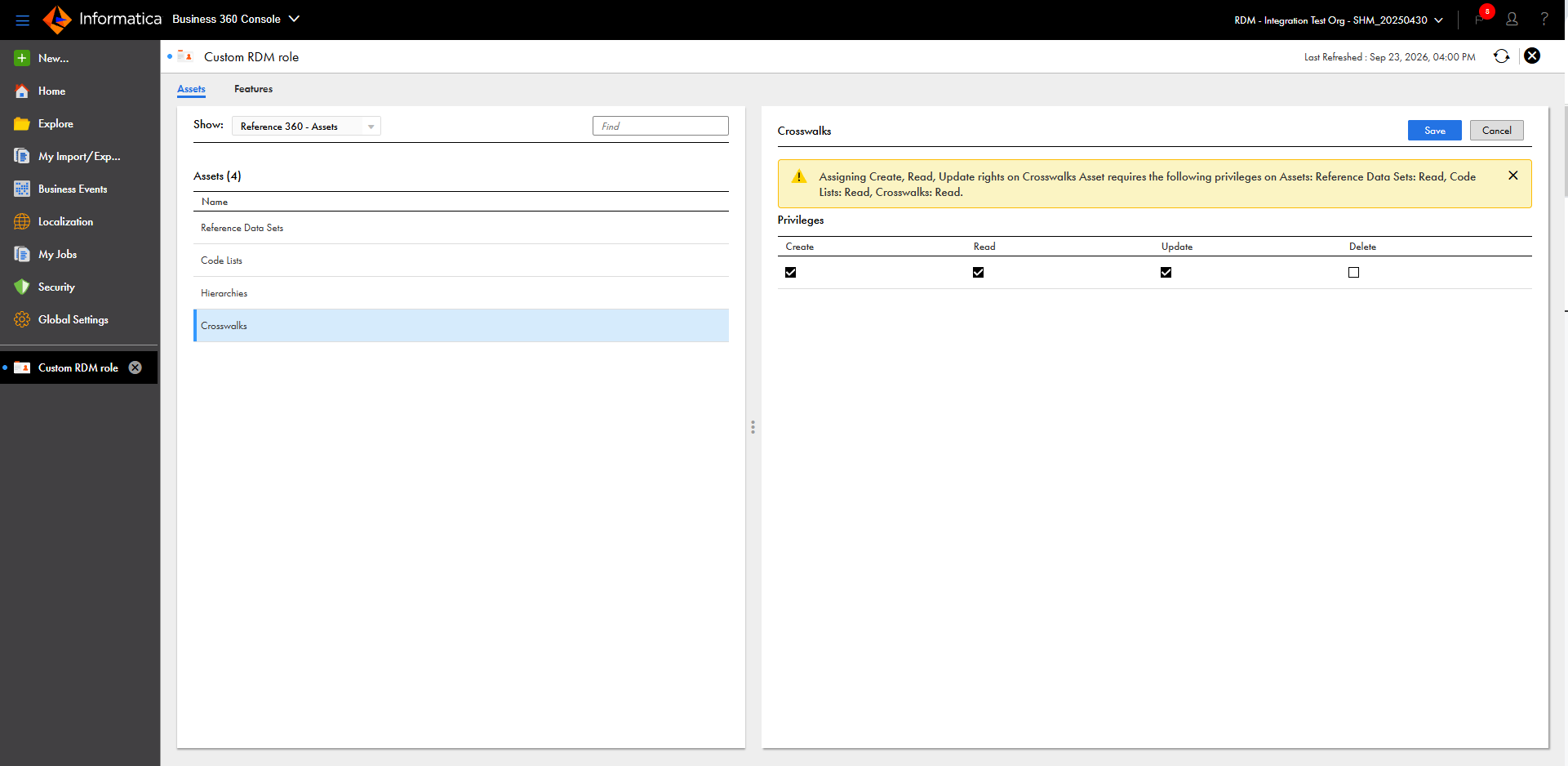
Assign privileges to specify whether custom user roles can create, read, update, and delete crosswalks. The privileges that you assign determine whether a custom user role has complete access, partial access, or no access to the crosswalks.
The following image shows the privileges that you can assign to crosswalks:
The following table describes the actions that the custom user role can perform based on the privileges assigned to crosswalks:
Privilege
Action
Create
Create crosswalks.
Assign the read privilege for reference data sets, code lists, and crosswalks before you assign the create privilege for crosswalks.
Read
View crosswalks and their properties.
Assign the read privilege for reference data sets and code lists before you assign the read privilege for crosswalks.
Update
Edit the properties of crosswalks.
Assign the read privilege for reference data sets, code lists, and crosswalks before you assign the update privilege for crosswalks.
Delete
Delete crosswalks.
Before you assign the delete privilege for crosswalks, assign the following privileges:
- The read privilege for reference data sets, code lists, and crosswalks.
- The read and update privileges for crosswalks.
Configure privileges for hierarchies
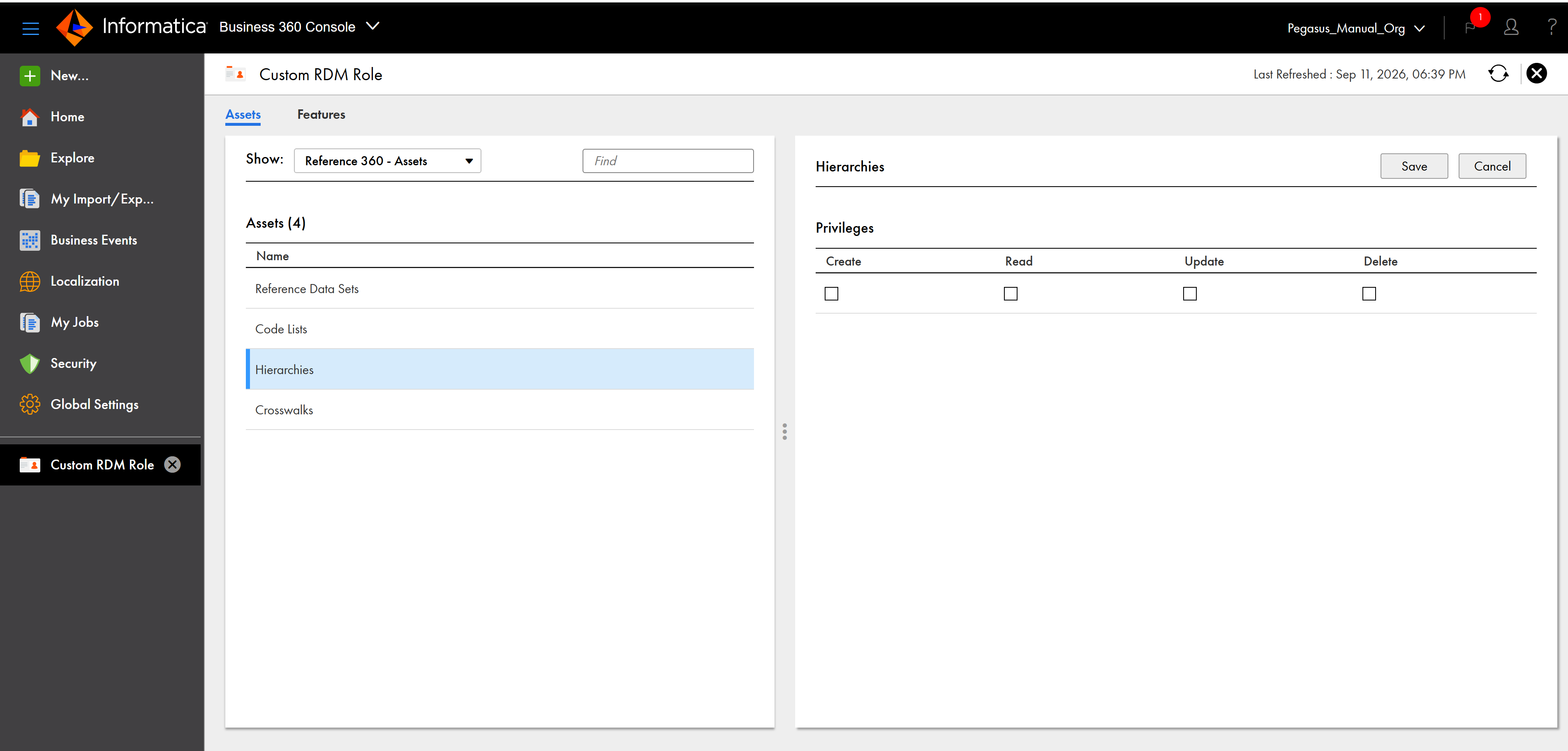
Assign privileges to specify whether custom user roles can create, read, update, and delete hierarchies. The privileges that you assign determine whether a custom user role has complete access, partial access, or no access to the hierarchies.
The following image shows the privileges that you can assign for hierarchies:
The following table describes the actions that the custom user role can perform based on the privileges assigned for hierarchies:
Privilege
Action
Create
Create hierarchies.
Before you assign the read privilege for hierarchies, assign the following privileges:
- The read privilege for reference data sets and code lists.
- The read and update privileges for hierarchies.
Read
View hierarchies and their properties.
Before you assign the read privilege for hierarchies, ensure the custom user role has the read privilege for reference data sets.
Update
Edit hierarchies and their properties.
Before you assign the update privilege for hierarchies, ensure the custom user role has the read privilege for reference data sets, code lists, and hierarchies.
Delete
Delete hierarchies.
Before you assign the delete privilege for hierarchies, assign the following privileges:
- The read privilege to reference data sets and code lists.
- The read and update privileges for hierarchies.
Configure privileges to access a code list
You can configure privileges for custom user roles to control access to the metadata and data of a code list. These privileges determine whether a custom user role can create, read, update, and delete code list attributes, basic and advanced rule associations for those attributes, and code values. You can also control which specfic attributes the custom user role can access.
1In Business 360 Console, on the Security page, click the custom user role for which you want to configure privileges.
The user role details page lists all the assets in the organization.
2On the Assets tab, select Reference 360 - Code Lists from the Show list.
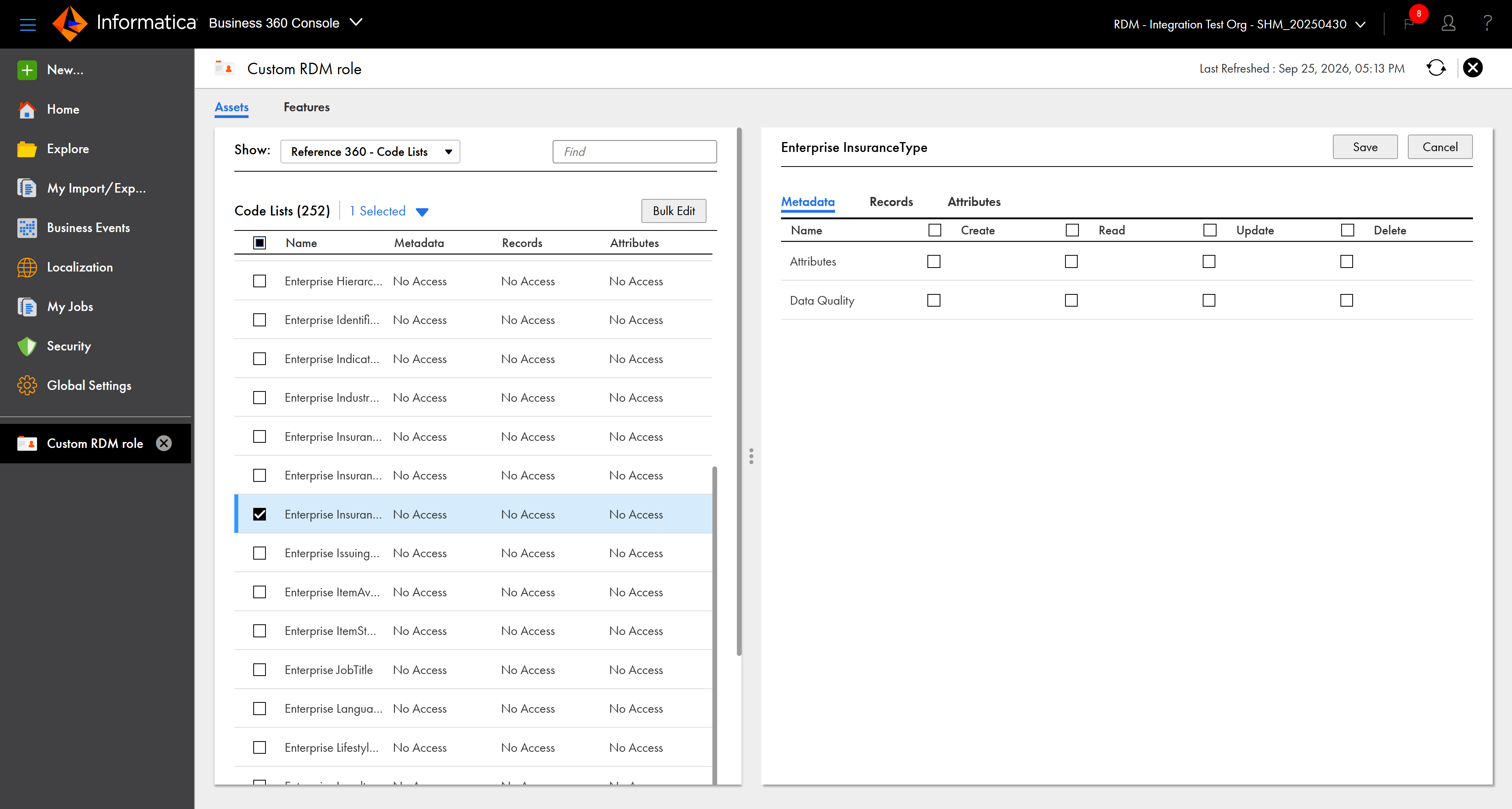
The left pane displays the list of code lists.
The following image shows the list of code lists available in the organization:
3Select the code list for which you want to configure metadata and data privileges.
4Select the permissions on the following tabs:
- Metadata. Specifies whether the custom user role can create, read, update, and delete attributes in the code list, and basic and advanced rule associations for the code list attributes. For more information about configuring metadata privileges, see Configure metadata privileges for a code list.
- Records. Specifies whether the custom user role can create, read, update, and delete code values in the code list. You can also specify whether the custom user role can import code values to the code list. For more information about configuring record privileges, see Configure record privileges for a code list.
- Attributes. Specifies whether the custom user role can create, read, update, and delete values for specific attributes in the code list. For more information about configuring attribute privileges, see Configure attribute privileges for a code list.
Configure metadata privileges for a code list
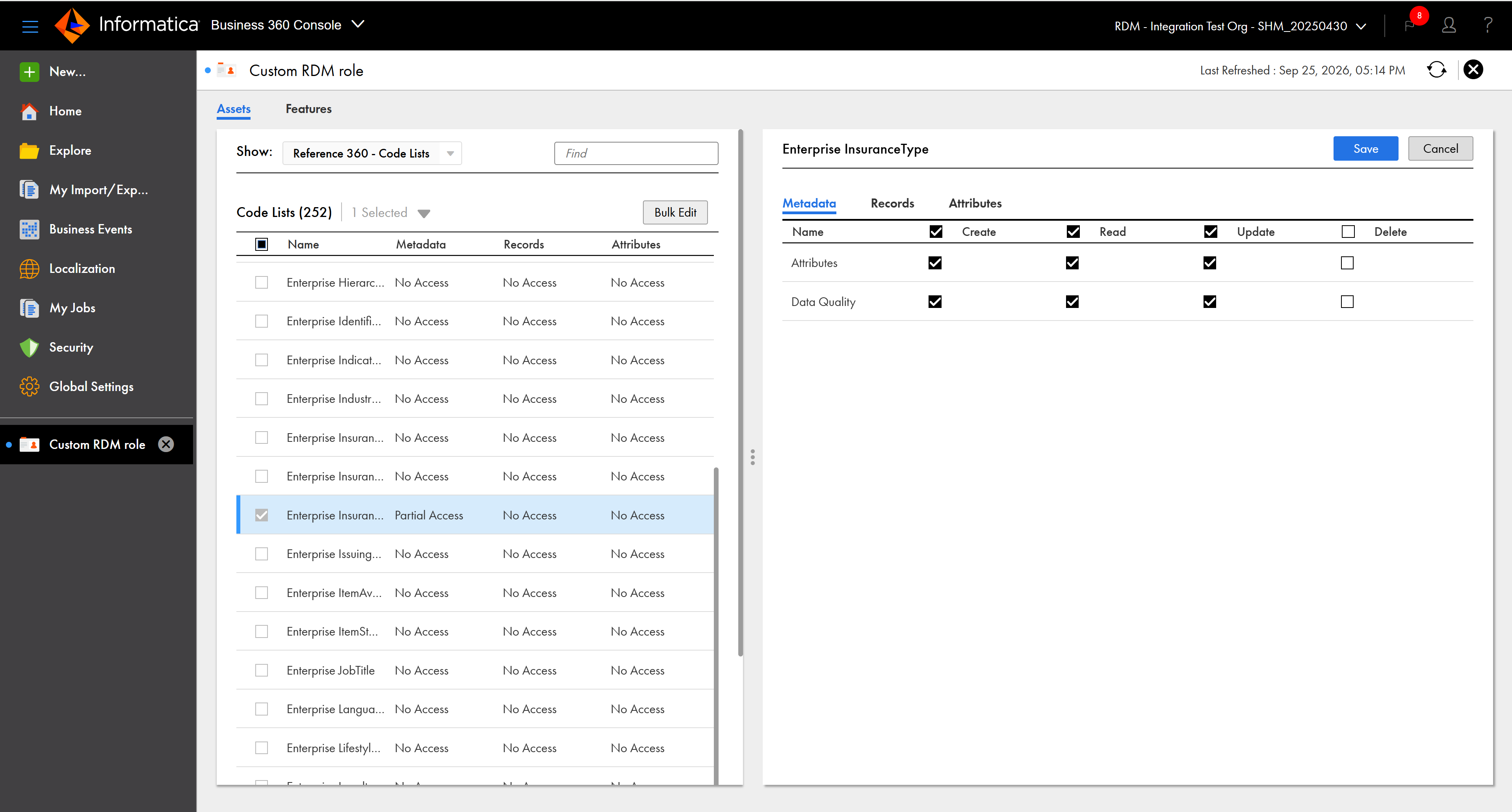
The metadata privileges specify whether custom user roles can create, read, update, and delete attributes and configure basic and advanced rule associations for them.
The following image shows the metadata privileges for a custom user role:
You can assign one or more privileges for the following metadata:
Assign read privilege to reference data sets and code lists before you assign other privileges. Without the read privilege, other privileges might not behave as expected.
Attribute privileges
You can configure attribute privileges for custom user roles on the Metadata tab of a code list. The privileges determine whether a custom user role can create, read, update, and delete attributes in the code list. Based on the assigned privileges, the custom user role has complete access, partial access, or no access to the attributes of the code list.
The following table describes the actions that the custom user role can perform based on the assigned attribute privileges:
Privilege
Action
Create
Create custom attributes.
Before you assign the create privilege for attributes, assign the following privileges:
- The read privilege for reference data sets.
- The read privilege for code lists.
- The read privilege for attributes.
Read
View predefined and custom attributes.
Before you assign the read privilege for attributes in the code list, assign the read privilege for reference data sets and code lists.
Update
Edit the details of the predefined and custom attributes.
Before you assign the update privilege for attributes in the code list, assign the following privileges:
- The read privilege for reference data sets.
- The read privilege for code lists.
- The read privilege for attributes.
Delete
Delete custom attributes.
Before you assign the delete privilege for attributes in the code list, assign the following privileges:
- The read privilege for reference data sets.
- The read privilege for code lists.
- The read and update privileges for attributes.
You can delete code list attributes configured with rule associations even if you don't have the delete privilege for the Data Quality metadata.
Data Quality privileges
You can configure data quality privileges for custom user roles on the Metadata tab of a code list. The privileges determine whether a custom user role can create, read, update, and delete basic and advanced rule associations for attributes. Based on the assigned privileges, the custom user role has complete, partial, or no access to the rule associations.
Prerequisites
Before you configure the data quality privileges, complete the following prerequisites:
•Assign data quality privileges for the custom user role in Administrator. For more information about data quality privileges, see Prerequisites in the Business 360 Console help.
•Assign at least read privilege to the attributes on the Metadata tab of a code list. Without the read privilege, the custom user role can't view the Basic Rules tab and the Advanced Rules tab for the selected attribute.
The following table describes the actions that the custom user role can perform based on the assigned data quality privileges:
Privilege
Action
Create
Add basic and advanced rule associations.
Before you assign the create privilege for rule associations, assign the following privileges:
- The read privilege for reference data sets.
- The read privilege for code lists.
- The read and update privileges for attributes.
- The read privilege for rule associations.
Read
View basic and advanced rule associations on the Basic Rules and Advanced Rules tabs for the selected attribute.
Before you assign the read privilege for rule associations, assign the read privilege for reference data sets, code lists, and attributes.
Update
Edit basic and advanced rule associations, and change the order of execution of basic rule associations for the selected attribute.
Before you assign the update privilege for rule associations, assign the following privileges:
- The read privilege for reference data sets.
- The read privilege for code lists.
- The read and update privileges for attributes.
- The read privilege for rule associations.
Delete
Delete basic rule associations.
Before you assign the delete privilege for rule associations, assign the following privileges:
- The read privilege for reference data sets.
- The read privilege for code lists.
- The read and update privileges for attributes.
- The read and update privileges for rule associations.
Note:
You can disable the advanced rule associations, but you can't delete them. To delete the advanced rule associations, set the delete privilege for Data Quality in the Administrator.
Configure record privileges for a code list
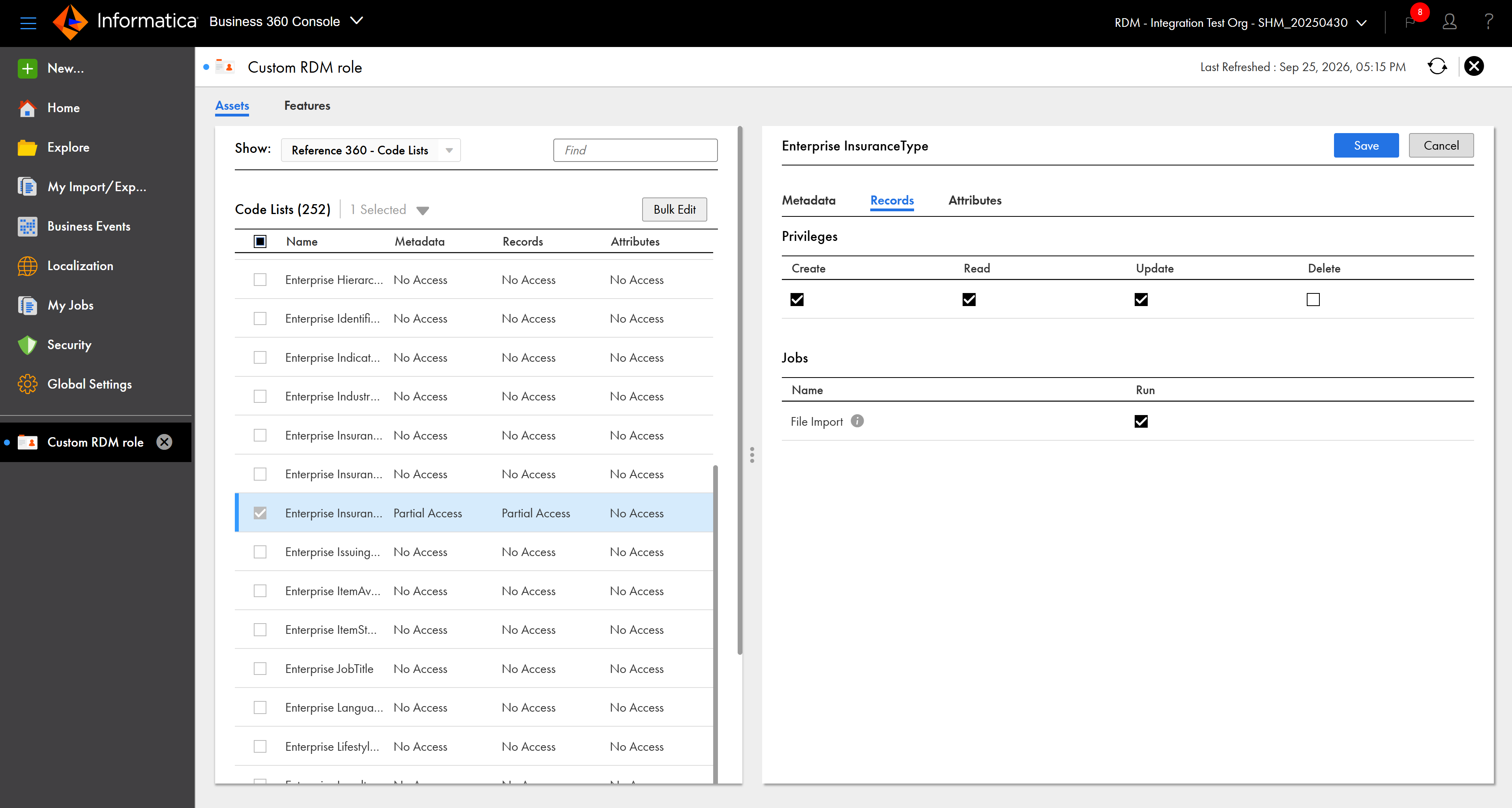
The record privileges specify whether custom user roles can create, read, update, and delete code values in the code list. The privileges also determine whether a custom user role can import code values into the code list.
The following image shows the record privileges for a custom user role:
Privileges
You can configure privileges to specify whether custom user roles can create, read, update, and delete code values in the code list.
The following table describes the actions that a custom user role can perform based on the assigned privileges:
Privilege
Action
Create
Create code values in the code list.
Before you assign the create privilege for code values, assign the following privileges:
- The read privilege for reference data sets.
- The read privilege for code lists.
- The read privilege for code values.
- The workflow requester privilege.
- The Business360ProcessExecutor role in Administrator.
Read
View the details of code values in the code list.
Before you assign the read privilege for code values in the code list, assign the read privilege for reference data sets and code lists.
Update
Edit the details of code values in the code list.
Before you assign the update privilege for code values, assign the following privileges:
- The read privilege for reference data sets.
- The read privilege for code lists.
- The read privilege for code values.
- The workflow requester privilege.
- The Business360ProcessExecutor role in Administrator.
Delete
Delete code values in the code list.
Before you assign the delete privilege for code values, assign the following privileges:
- The read privilege for reference data sets.
- The read privilege for code lists.
- The read and update privileges for code values.
- The workflow requester privilege.
- The Business360ProcessExecutor role in Administrator.
Jobs
You can configure privileges to specify whether custom user roles can import code values into the code list.
To authorize a custom user role to import code values into the code list, complete the following prerequisites in Business 360 Console:
•Assign the read privilege for code lists.
•Assign the read and update privileges to code values of the code list.
•Select Run for the File Import job in the Jobs section.
Note:
To access the My Jobs page, assign the Business360ProcessExecutor role in Administrator.
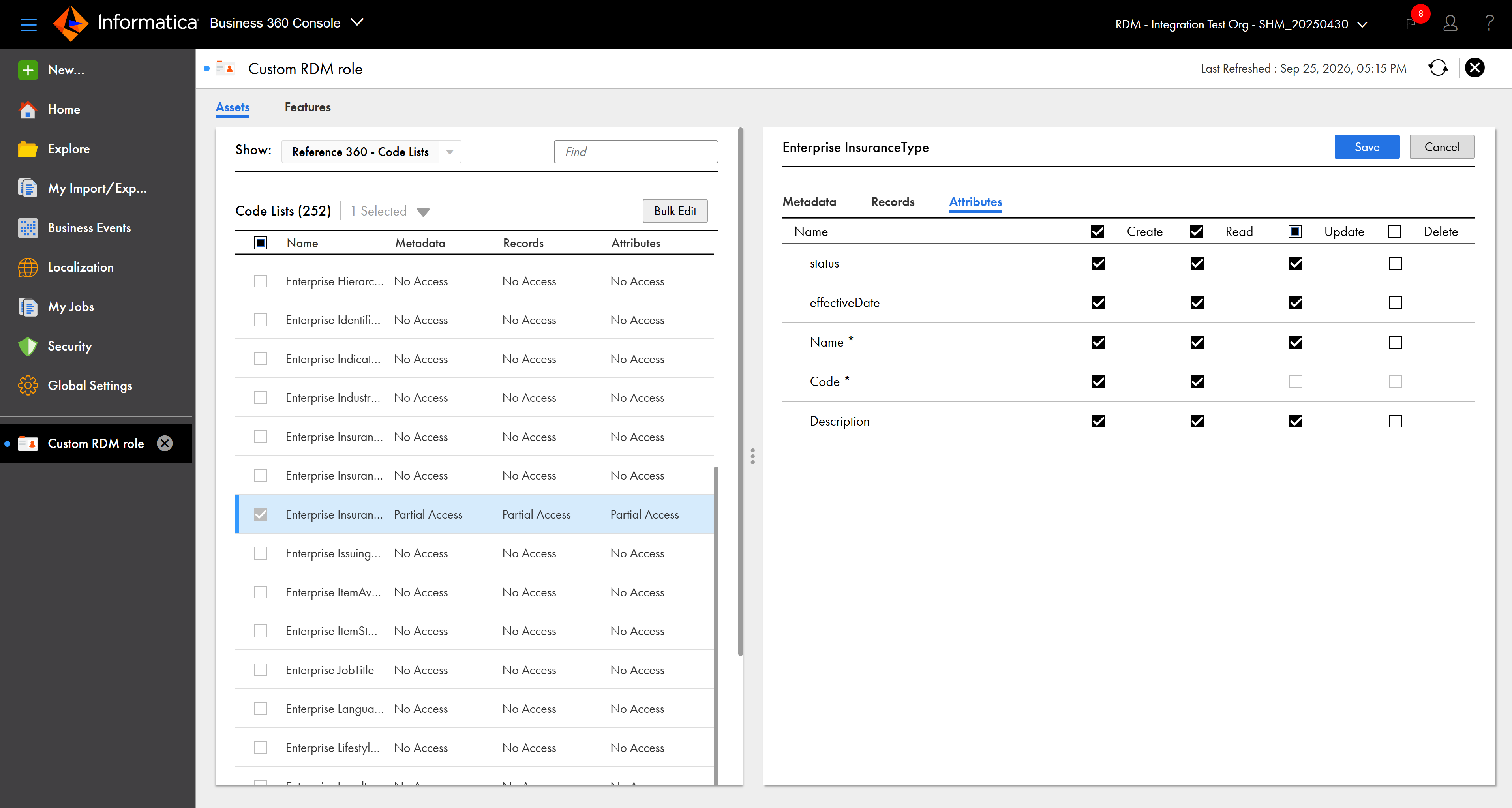
Configure attribute privileges for a code list
The attribute privileges specify whether custom user roles can create, read, update, and delete values for each attribute of the code list. Based on the assigned privileges, the custom user role has complete access, partial access, or no access to the attributes of the code list.
The following image shows the attribute privileges for a custom user role:
The following table describes the actions that a custom user role can perform based on the assigned privileges:
Privilege
Action
Create
Add values to the attributes in the code list.
Before you assign the create privilege for the attributes in the code list, assign the following privileges:
- The read privilege for reference data sets.
- The read privilege for code lists.
- The read privilege to the code lists at the record and attribute levels.
Read
View values of the attributes in the code list.
Before you assign the read privilege for the attributes in the code list, assign the following privileges:
- The read privilege for reference data sets.
- The read privilege for code lists.
- The read privilege to the code lists at the record and attribute levels.
Update
Edit values of the attributes in the code list.
Before you assign the update privilege for the attributes in the code list, assign the following privileges:
- The read privilege for reference data sets.
- The read privilege for code lists.
- The read and update privileges to the code lists at the record and attribute levels.
- The workflow requester privilege.
Delete
Delete values of the attributes in the code list.
Before you assign the update privilege for the attributes in the code list, assign the following privileges:
- The read privilege for reference data sets.
- The read privilege for code lists.
- The read, update, and delete privileges to the code lists at the record and attribute levels.
- The workflow requester privilege.
Configure privileges for multiple code lists
You can configure privileges for custom user roles to control access to the metadata and data of multiple code lists instead of configuring privileges for each code list individually.
Before you configure privileges to control access to the metadata and data of multiple code lists, assign read privilege to reference data sets and code lists. For more information about configuring privileges to reference data sets and code lists, see Configure privileges for reference data sets and Configure privileges for code lists.
1In Business 360 Console, on the Security page, click the custom user role for which you want to configure privileges.
The user role details page lists all the assets in the organization.
2On the Assets tab, select Reference 360 - Code Lists from the Show list.
The left pane displays the list of code lists.
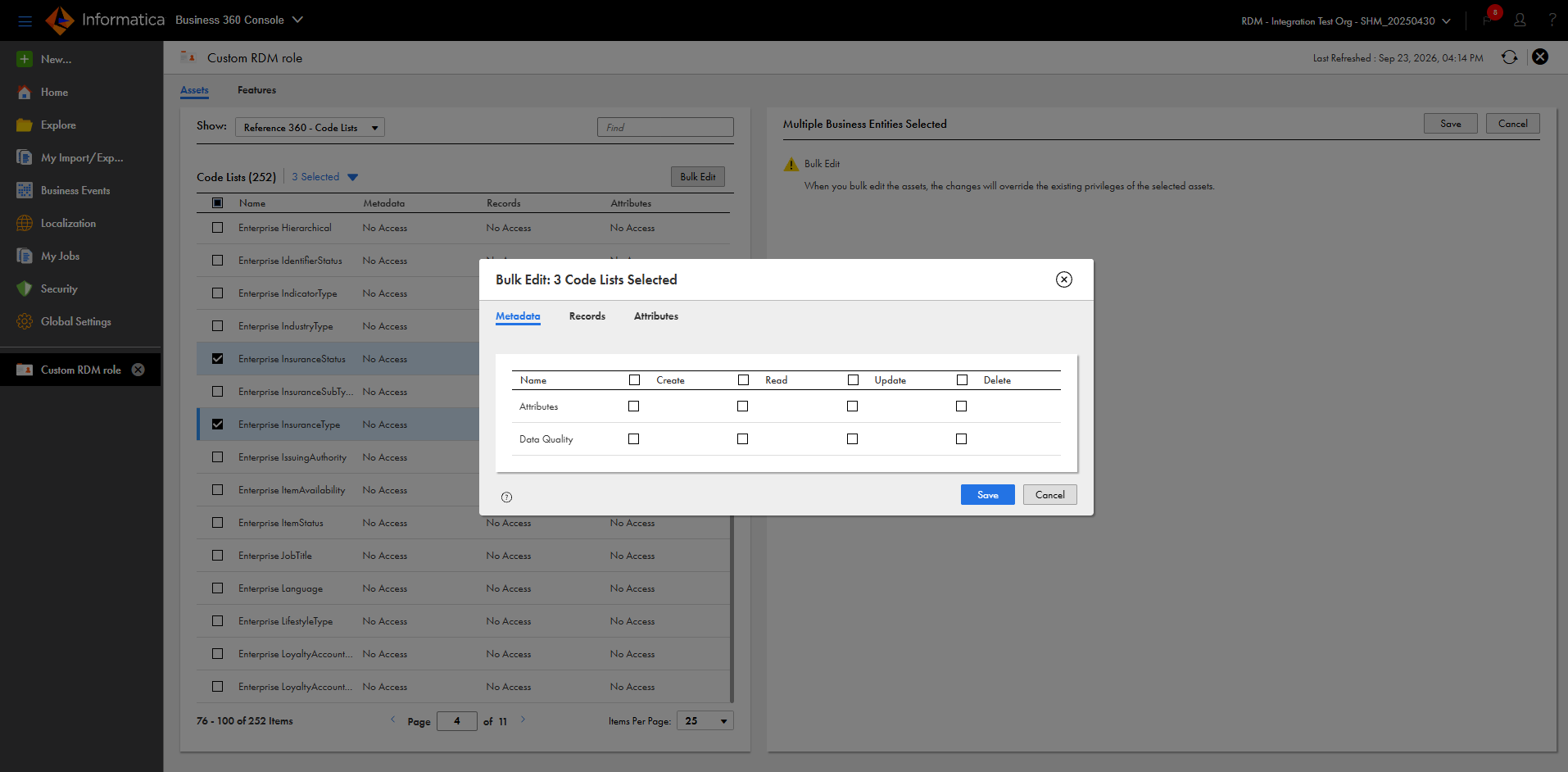
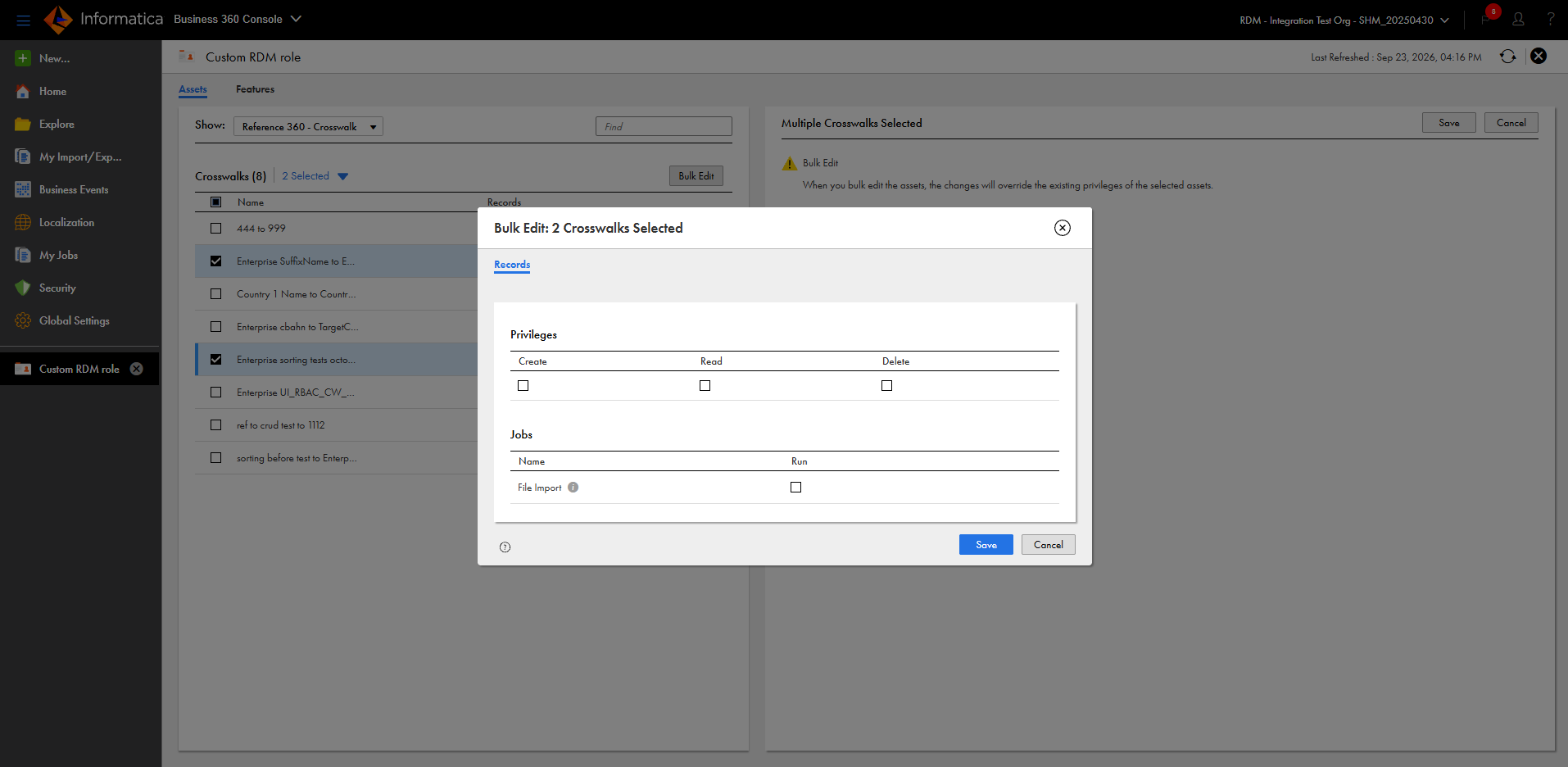
3Select the code lists for which you want to configure privileges, and click Bulk Edit.
The Bulk Edit dialog box appears.
The following image shows the Bulk Edit dialog box with the privileges that you can assign for the selected code lists:
4In the Bulk Edit dialog box, assign the required privileges for the selected code lists.
You can't assign privileges to specific attributes of the selected code lists.
5Click Save.
The selected privileges override the privileges of the code lists.
Configure privileges to access a crosswalk
You can configure privileges for custom user roles to access a crosswalk. These privileges control whether the custom user role can create, read, and delete value mappings in the crosswalk. They also control whether the custom user role can import value mappings into the crosswalk.
1In Business 360 Console, on the Security page, click the custom user role for which you want to configure privileges.
The user role details page lists all the assets in the organization.
2On the Assets tab, select Reference 360 - Crosswalk from the Show list.
The left pane displays the list of crosswalks.
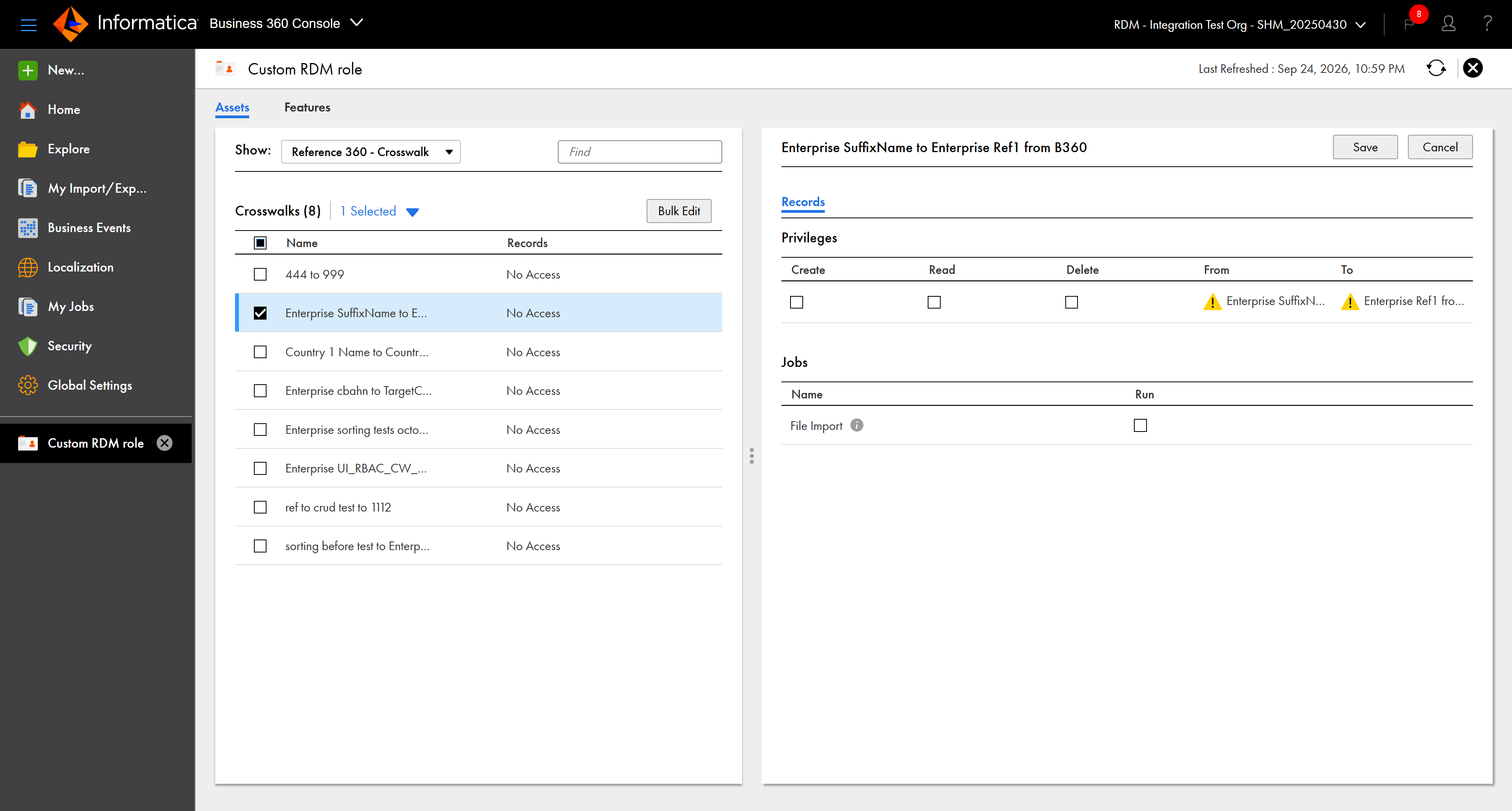
The following image shows the list of crosswalks available in the organization:
3Select the crosswalk for which you want to configure data privileges.
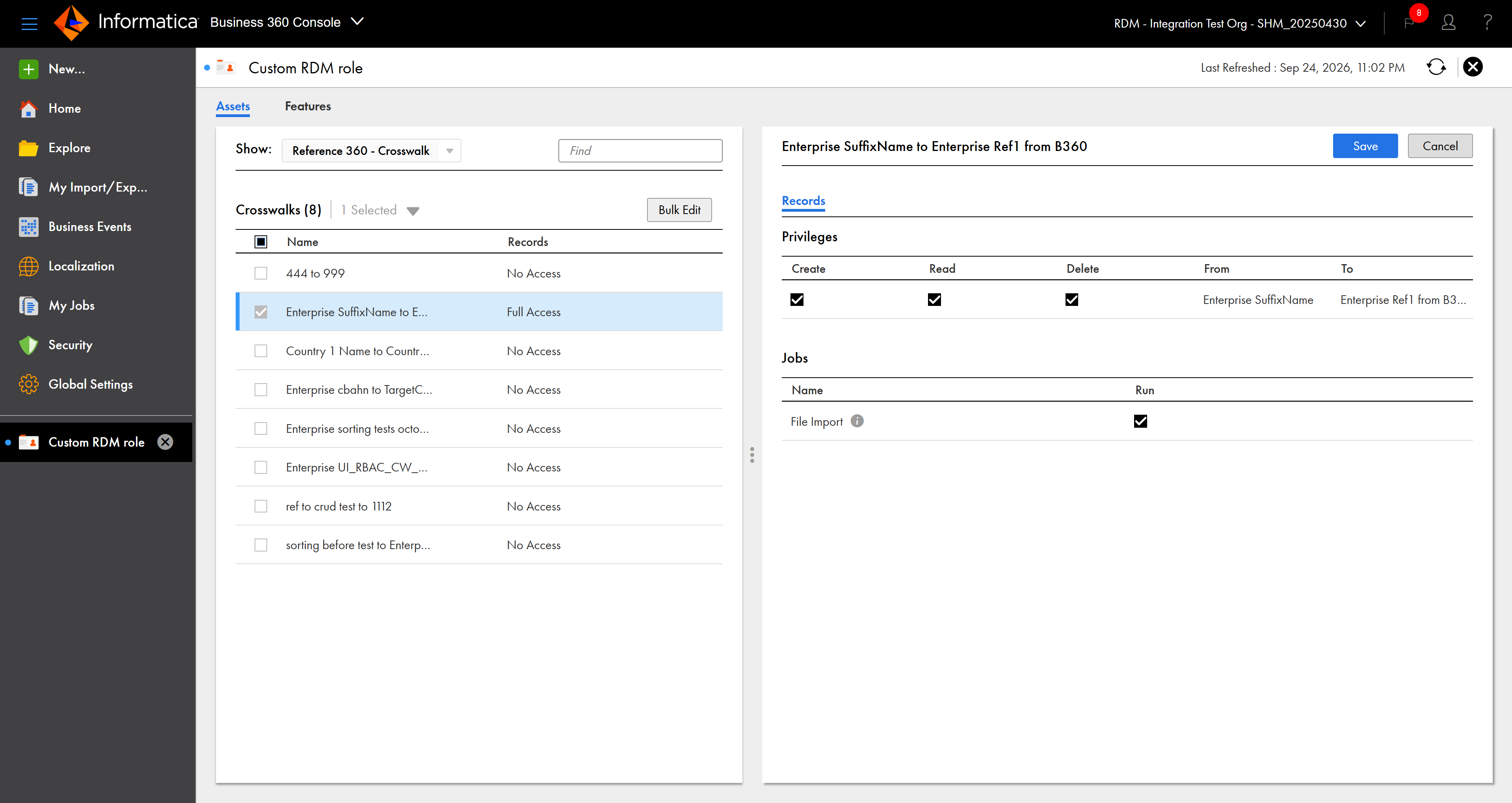
4Select the required permissions on the Records tab:
Note:
Assign the read privilege to the code lists at the record and attribute levels before you assign other privileges. Without the read privilege, other privileges might not behave as expected. If you don't assign read privileges for the code lists, a warning icon appears before the names of the source and target code lists of the crosswalk.
- Privileges. Specifies whether the custom user role can create, read, and delete value mappings in the crosswalk.
- Jobs. Specifies whether the custom user role can import value mappings into the crosswalk.
Note:
To import value mappings into the crosswalk, ensure that you assign the required record-level privileges for the code lists.
The record privileges specify whether custom user roles can create, read, and delete value mappings in a crosswalk. The privileges also determine whether a custom user role can import value mappings into the crosswalk.
The following image shows the record privileges for a custom user role:
Privileges
You can configure privileges to specify whether custom user roles can create, read, and delete value mappings in the crosswalk.
The following table describes the actions that a custom user role can perform based on the assigned privileges:
Privilege
Action
Create
Create value mappings in the crosswalk.
Before you assign the create privilege for value mappings in the crosswalk, assign the following privileges:
- The read privilege for reference data sets.
- The read privilege for code lists.
- The read privilege for crosswalks.
- The read privilege for code values of source and target code lists.
- The workflow requester privilege.
- The Business360ProcessExecutor role in Administrator.
Note:
To create multiple value mappings in the crosswalk, also assign the read privilege on the Code field of the target code list.
Read
View value mappings in the crosswalk.
Before you assign the read privilege for value mappings in the crosswalk, assign the following privileges:
- The read privilege for reference data sets.
- The read privilege for code lists.
- The read privilege for crosswalks.
- The read privilege for code values of source and target code lists.
Delete
Delete value mappings in the crosswalk.
Before you assign the delete privilege for value mappings in the crosswalk, assign the following privileges:
- The read privilege for reference data sets.
- The read privilege for code lists.
- The read privilege for crosswalks.
- The read and update privileges for code values of source and target code lists.
- The read and update privileges for value mappings.
- The workflow requester privilege.
- The Business360ProcessExecutor role in Administrator.
Jobs
You can configure privileges to specify whether custom user roles can import value mappings into the crosswalk.
To authorize a custom user role to import value mappings into the crosswalk, complete the following prerequisites in Business 360 Console:
•Assign the read privilege for crosswalks.
•Assign the read and update privileges for code values of source and target code lists.
•Assign the read and update privileges for the value mappings in the crosswalk.
•Select Run for the File Import job in the Jobs section.
Note:
To access the My Jobs page, assign the Business360ProcessExecutor role in Administrator.
Configure privileges for multiple crosswalks
You can configure privileges for custom user roles to control access to multiple crosswalks instead of configuring privileges for each crosswalk individually.
The selected privileges override the privileges of the crosswalks.
Configure privileges to access a hierarchy
You can configure privileges for custom user roles to control access to a hierarchy. These privileges control the permissions to create, read, update, and delete hierarchies based on the hierarchy model, the first-level nodes, and the relationships within the hierarchies. You can also configure privileges to import hierarchy data.
1In Business 360 Console, on the Security page, click the custom user role for which you want to configure privileges.
The user role details page lists all the assets in the organization.
2On the Assets tab, select Reference 360 - Hierarchy from the Show list.
The left pane displays the list of hierarchy models.
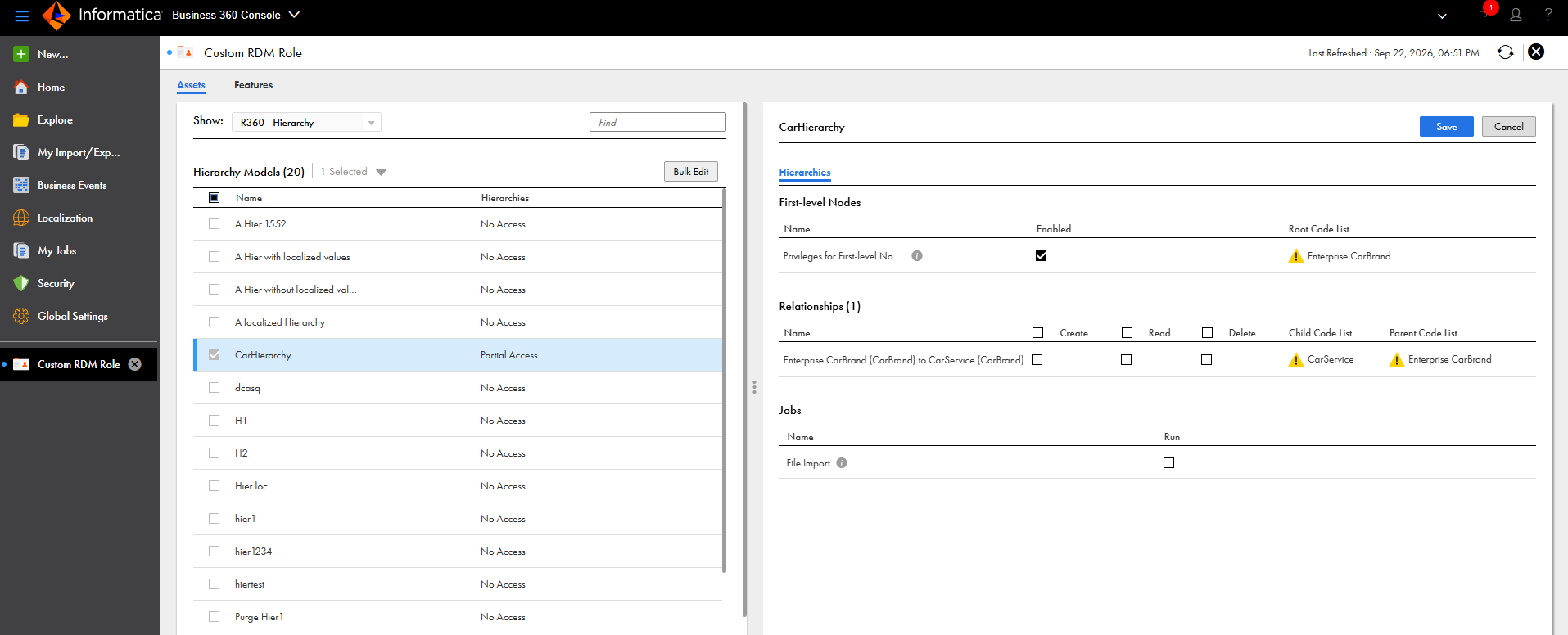
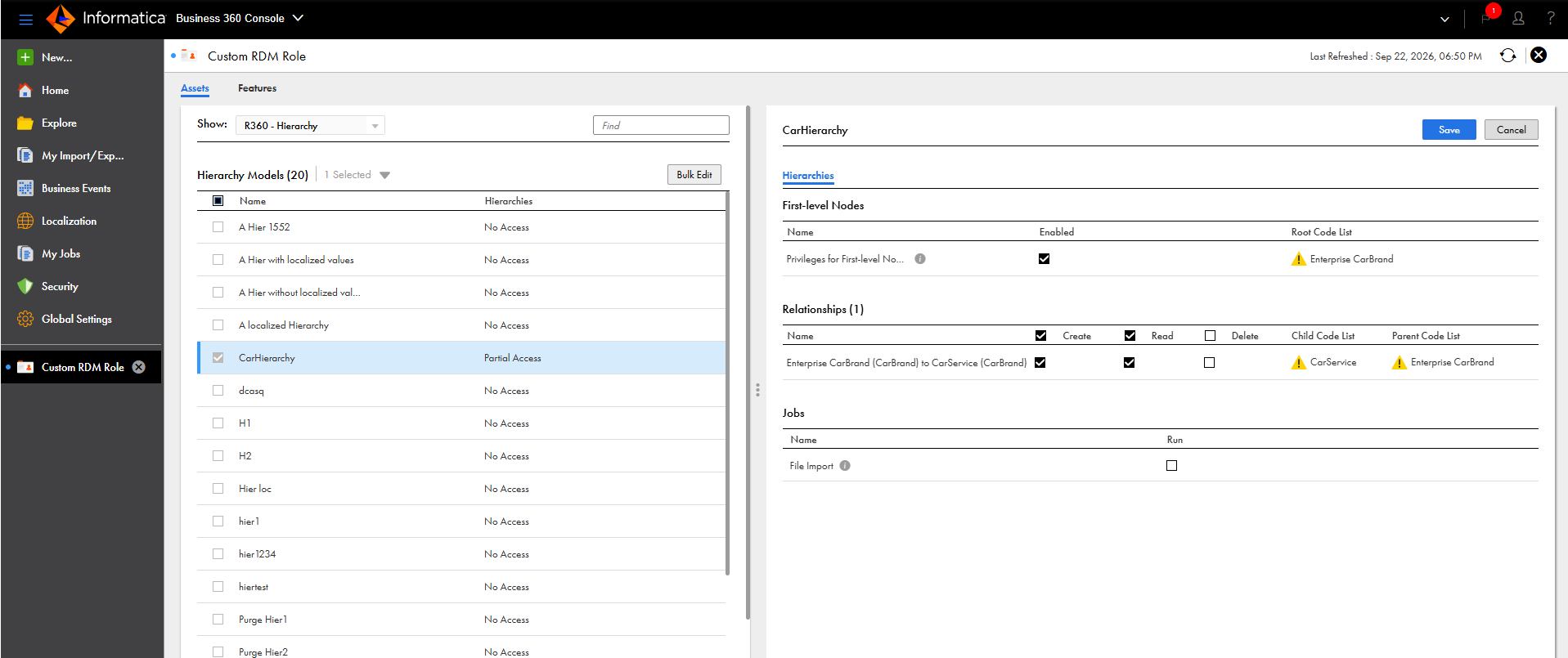
The following image shows the list of hierarchies available in the organization:
3Select the hierarchy models for which you want to configure data privileges.
The right pane displays the privileges for the selected hierarchy model.
4Select the required permissions in the following sections:
- First-level Nodes. Specifies whether a user with custom user role can add root records to a hierarchy. For more information about configuring first-level node privileges, seeConfigure first-level nodes privileges for a hierarchy.
- Relationships. Specifies whether a user with custom user role can add and manage the child records for each relationship in the hierarchy. For more information about configuring relationship privileges, see Configure relationship privileges for a hierarchy
- Jobs. Specifes whether a user with custom user role can import hierarchy data into Reference 360. For more information about file import jobs, see Configure privileges for file import for a hierarchy.
Note:
Ensure that you assign at least the read privilege for the hierarchies before you assign other privileges. Without the read privilege, the user with the custom user role cannot view the hierarchies in the business application.
Configure first-level nodes privileges
The privilege specifies whether a user with custom user role has privileges to create, update, and delete for the first-level nodes of the hierarchy.
Select Privileges for First-level Nodes to enable privileges for the user to create, update, and delete for the first-level nodes of the hierarchy.
Note:
If you don't assign the read privilege for hierarchies , a warning icon appears. For more information about configuring privileges to access reference data assets, see Configure privileges to access reference data assets.
The following image shows the warning icon for the code lists to which the user does not have the read privilege:
Configure relationship privileges
The relationships table lists all the relationships associated with the hierarchy model selected in the left pane and the corresponding privileges for each relationship. These privileges specify the code lists and the relationship type based on which the user with custom user role can add and manage child records for hierarchies.
The following table describes the relationship privileges that you can enable:
Privilege
Set to Enabled
Create
Add child nodes to a hierarchy based on the relationship type.
Read
View child nodes of a hierarchy based on the relationship type.
Delete
Delete child nodes of a hierarchy based on the relationship type.
Note:
If you use a searchable hierarchy as a hierarchy filter, ensure that you provide read access to all the relationships within the hierarchy. If you only provide read access to some relationships, the hierarchy doesn't appear in the filter criteria.
If you do not assign the read privilege for each code list associated with a relationship, a warning icon appears.
The following image shows the warning icon for the code lists to which the user does not have the read privilege:
Configure privileges for file import
You can configure privileges to specify whether a user with custom user role can import hierarchy data into Reference 360.
To authorize a user to import hierarchy data, complete the following prerequisites in Business 360 Console:
•Assign the read privilege for hierarchies and for each code list associated with a relationship.
•Assign the read privilege for the code values of the code lists associated with a relationship.
•Enable the privilege for the first-level nodes of the hierarchy.
•Assign the create and read privileges for the relationships that you want to import.
•Select Run for the File Import job in the Jobs section.
Note:
To access the My Jobs page, assign the Business360ProcessExecutor role in Administrator.
Configure privileges for multiple hierarchies
You can configure privileges for custom user roles to control access to multiple hierarchies instead of configuring privileges for each hierarchy individually.
Before you configure privileges to control access to the metadata and data of multiple hierarchies, assign read privilege to reference data sets and code lists. For more information about configuring privileges to reference data sets and code lists, see Configure privileges for reference data sets and Configure privileges for code lists.
1In Business 360 Console, on the Security page, click the custom user role for which you want to configure privileges.
The user role details page lists all the assets in the organization.
2On the Assets tab, select Reference 360 - Hierarchy from the Show list.
The left pane displays the list of hierarchy models.
3Select the hierarchy models for which you want to configure privileges, and click Bulk Edit.
The Bulk Edit dialog box appears.
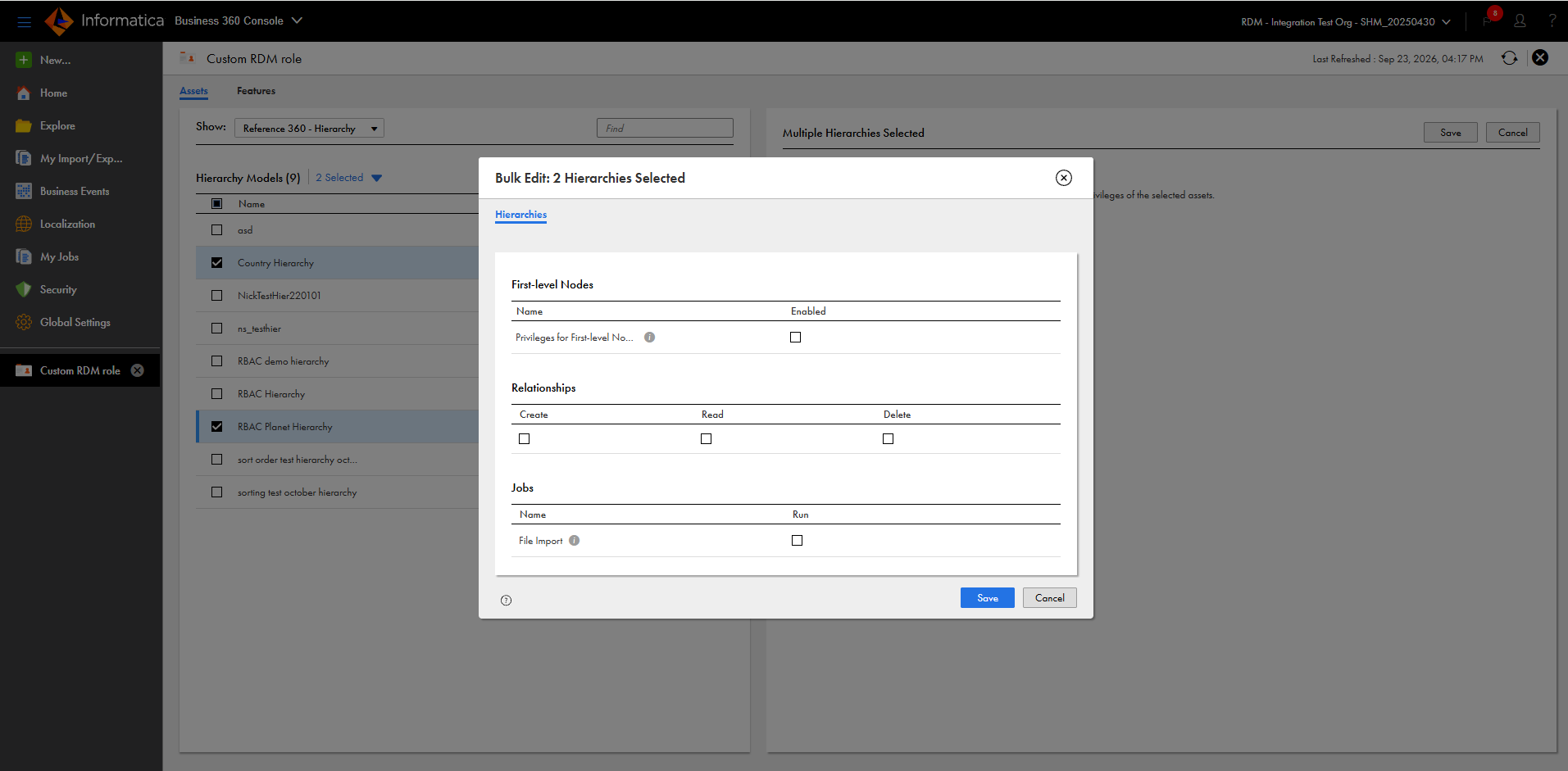
The following image shows the Bulk Edit dialog box with the privileges that you can assign for the selected hierarchy models:
4In the Bulk Edit dialog box, assign the required privileges for the selected hierarchy models.
When you assign privileges for multiple hierarchies, you can assign the privileges for all the relationships associated with the hierarchy models and not for individual relationships. To assign privilege for each relationship within the hierarchy model, modify privileges for an individual hierarchy model without using the Bulk Edit option.
5Click Save.
The selected privileges override the privileges of the hierarchies.
Configure privileges to view the history of records
You can configure privileges for custom user roles to view the history of reference data sets, code lists, crosswalks, hierarchies, code values in a code list, and value mappings in a crosswalk.
Before you configure privileges to view the history of records, complete the following prerequisites:
•Assign the read privilege for reference data sets, code lists, crosswalks, and hierarchies.
•Assign the read privilege for code values in a code list.
•Assign the read privilege for value mappings in a crosswalk.
•Assign the read privilege for relationships in a hierarchy.
1In Business 360 Console, on the Security page, click the custom user role for which you want to configure privileges.
2On the Features tab, select View History of Records.
The following image shows the Features tab:
3Click Save.
After you configure privileges to view the history of records, the custom user roles can also view the code values that existed at a specific point in time in a code list and a hierarchy. Without this privilege, the custom user roles can still view these code values in the side-by-side view of the code list or hierarchy.
Configure workflow privileges for custom user roles
You can configure workflow privileges for custom user roles to control who can request asset changes and who can approve them.
Requesters perform tasks that trigger workflows in Reference 360, such as creating a draft or sending changes for approval. Approvers review and approve changes to assets.
To view the Workflow tab, a user must have a predefined user role other than Reference 360 User, or a custom user role with the workflow privileges that you assign to it.
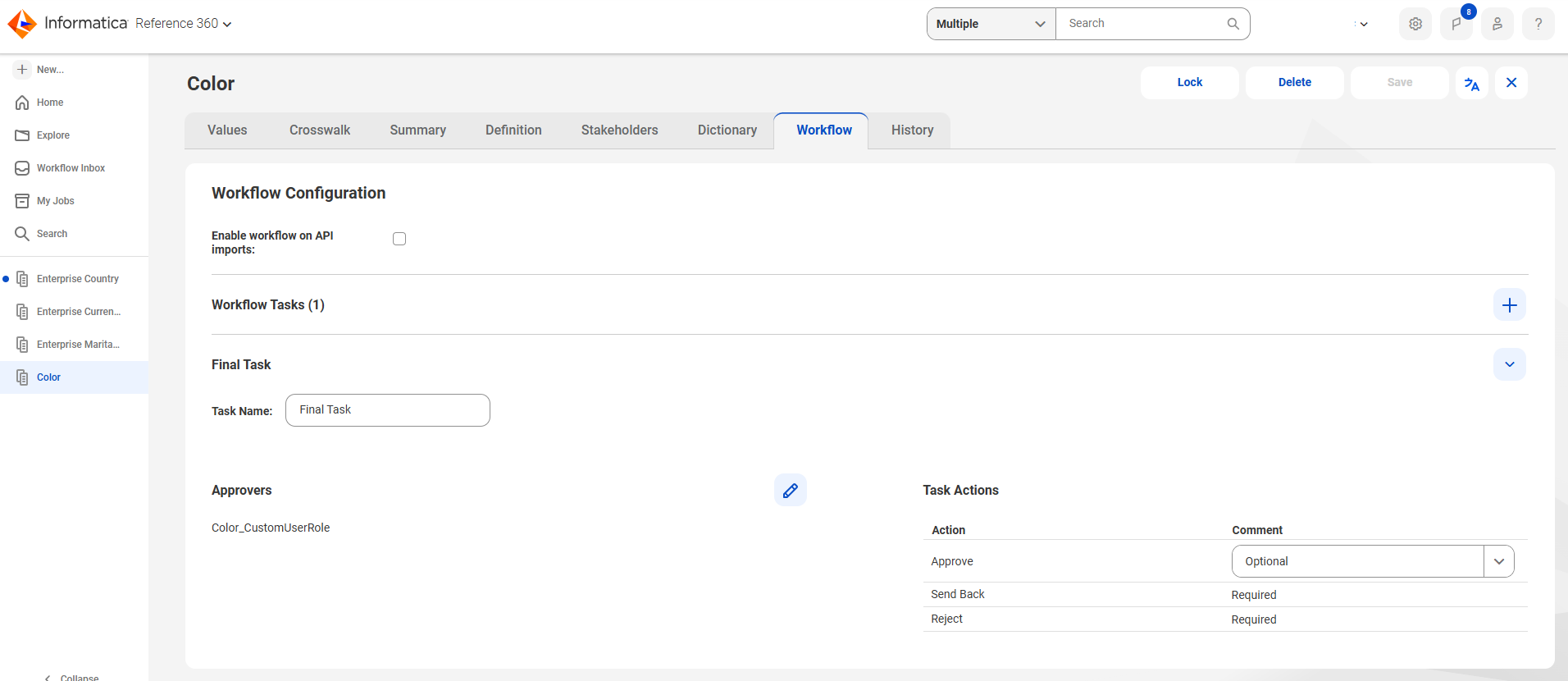
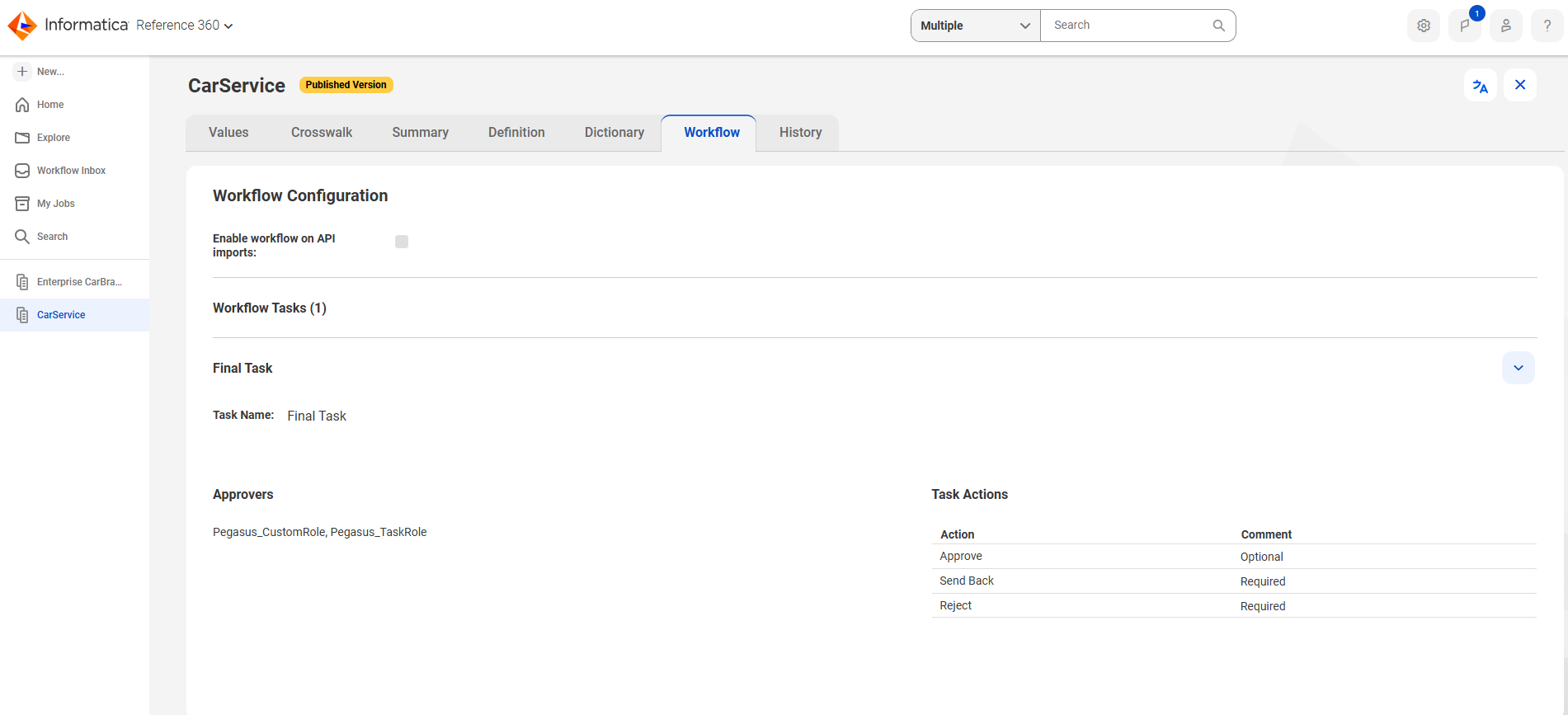
The following image shows the Workflow tab:
To configure workflow privileges, use Administrator and Business 360 Console.
Rules and guidelines for configuring workflow privileges for custom user roles
Consider the following rules and guidelines when you configure workflow privileges for custom user roles in your organization.
•You can select a user with any predefined user role other than the Reference 360 User role as a workflow approver. If your organization uses custom user roles, select users who have at least one custom role with the Workflow Approver privilege.
•Before you create reference data assets, assign the required predefined user role to at least one user in your organization. If no user has the required role when you create an asset, Reference 360 creates the workflow configuration without an approver and displays an error until you add one.
The following table lists the role that each asset type requires:
Asset Type
Predefined User Role
Code list
Business Steward
Crosswalk
Business Steward
Hierarchy
Planner
•A workflow is complete when an approval task has at least one eligible approver.
•When the workflow is incomplete, Reference 360 blocks the following actions:
- Locking of assets, editing, adding, deleting, and cloning of attribute values.
- Editing data on the Values, Hierarchy, and Crosswalk tab.
- Importing a draft version of code lists or crosswalks through REST APIs.
•Approvers of a workflow that's in progress remain valid even if their privileges change. Changes that you make to approvers apply only to workflows that start after you make the changes.
Workflow Requester privilege
When you assign the Workflow Requester privilege to a custom user role, users can trigger workflows in Reference 360.
Users with read privilege for an assets and whose only roles are custom user roles with workflow privileges have read-only access to the Workflow tab. They can't add approvers or modify task levels.
After you assign the Workflow Requester privilege to a custom user role, users with the custom user role and the appropriate asset-level and record privileges can create a draft, update attribute values, send changes for approval, and withdraw approval requests.
Configure Workflow Requester privilege
You can configure Workflow Requester privileges for custom user roles to trigger workflows.
1In Administrator, click Users.
The list of available users appears.
2Select the user to assign user roles.
The user details page appears.
The following image displays the user details page:
3For the user to view the workflow inbox, assign a custom user role and the Business360ProcessExecutor role.
4Click Save.
5Click User Roles.
The user roles page with the list of predefined and custom user roles appears.
7Select Human Tasks in the Services list, and enable the View Tasks feature on the Features tab.
Users with the custom user role can see and use the Submit and Discard Draft buttons when they view an asset. Users can submit a draft of the asset for approval or discard the draft.
For more information about the View Tasks privilege, see Prerequisites.
8Click Save.
9In Business 360 Console, click Security, and then click the custom user role you selected in 3.
The user role details page appears.
10Select the asset and assign the required privilege for the asset.
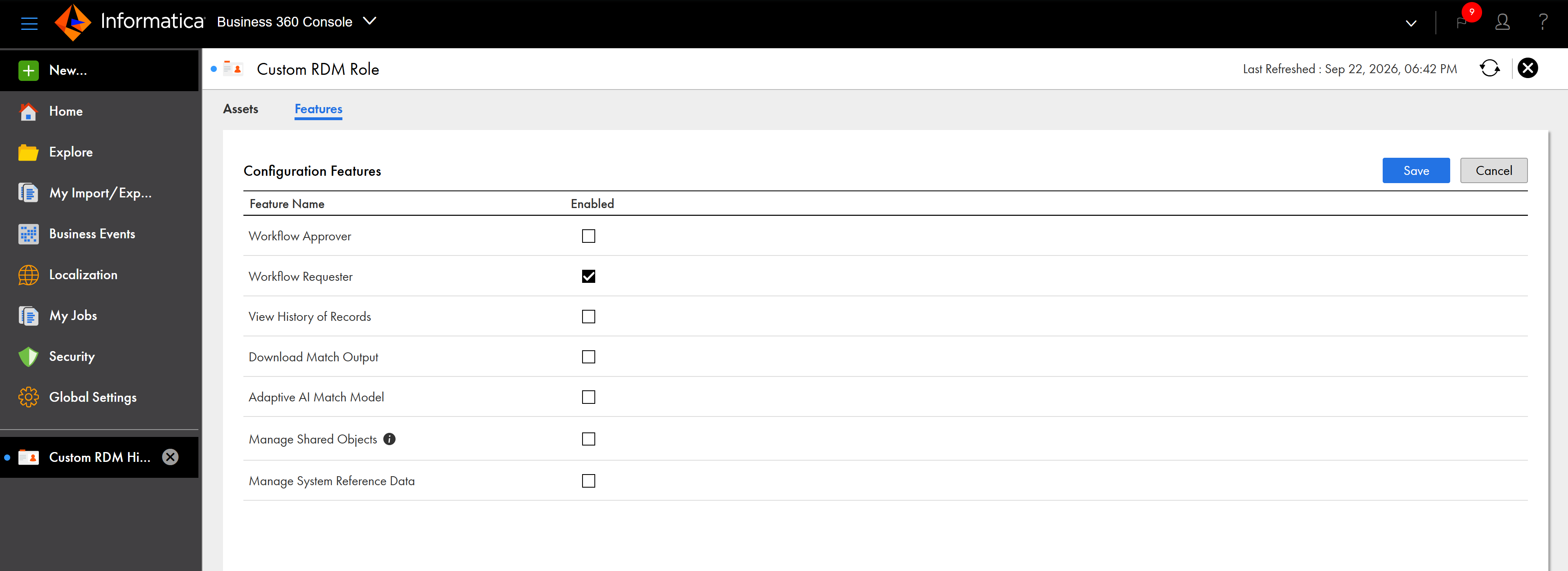
The following image shows the Features tab on the user role details page:
Workflow Approver privilege
When you assign the Workflow Approver privilege to a custom user role, users can review and approve changes to assets.
Custom user roles with the Workflow Approver privilege appear in the Approvers list when you change workflow configuration for the assets.
The following image shows the Workflow tab and the list of approvers:
When you create an asset, Reference 360 adds default approvers to the approval task. These approvers are users with Business Steward role for code lists and crosswalks or Planner role for hierarchies. A workflow is complete when an approval task has at least one eligible approver.
You can select a user with any predefined user role other than the Reference 360 User role as a workflow approver. If your organization uses custom user roles, select users who have at least one custom role with the Workflow Approver privilege.
After you assign the Workflow Approver privilege to a custom user role, users with the custom user role can review and approve or reject changes proposed by other users. For more information about reviewing data by approvers, see Reviewing tasks.
To enable the Claim, Approve, Reject, Send Back, and Release buttons in the Reference 360 workflow inbox, after you assign the View Tasks and Workflow Approver privileges for the custom user role, enable the following privileges for the assets:
Asset
Privilege
Code list
- Asset-level read privilege for code lists.
- Record-level read privilege for the code list.
Crosswalk
- Asset-level read privilege for crosswalks.
- Record-level read privilege for crosswalks.
- Record-level read privilege for the source and target code lists of the crosswalk.
- Record-level read privilege for the value mappings in the crosswalk.
Hierarchies
- Asset-level read privilege for hierarchies.
- Record-level read privilege for the root code list.
- Enable privileges for first-level nodes of the hierarchy.
For more information about the View Tasks privilege, see Prerequisites.
Configure privileges for the workflow inbox
You can configure Workflow Approver privileges for custom user roles. You can also configure specific privileges for approvers to approve, reject, or send tasks back to the requester in the workflow inbox.
1In Administrator, click Users.
The list of available users appears.
2Select the user to assign user roles.
The user details page appears.
The following image displays the user details page:
3For the user to view the workflow inbox, assign the custom user role and the Business360ProcessExecutor role.
4Click Save.
5Click User Roles.
The user roles page with the list of predefined and custom user roles appears.
7Select Human Tasks in the Services list, and enable the View Tasks feature on the Features tab.
8Click Save.
9In Business 360 Console, click Security, and then click the custom user role for the user that you selected in 3.
The user role details page appears.
10Select the assets for which you want to assign the Workflow Approver privilege.
11On the Features tab, select Workflow Approver.
Note:
After you edit the Workflow Approver privilege for the assets, the privilege changes can take at least 10 minutes to take effect. To load the latest Workflow Approver privilege, refresh the Reference 360 application before you configure workflows.
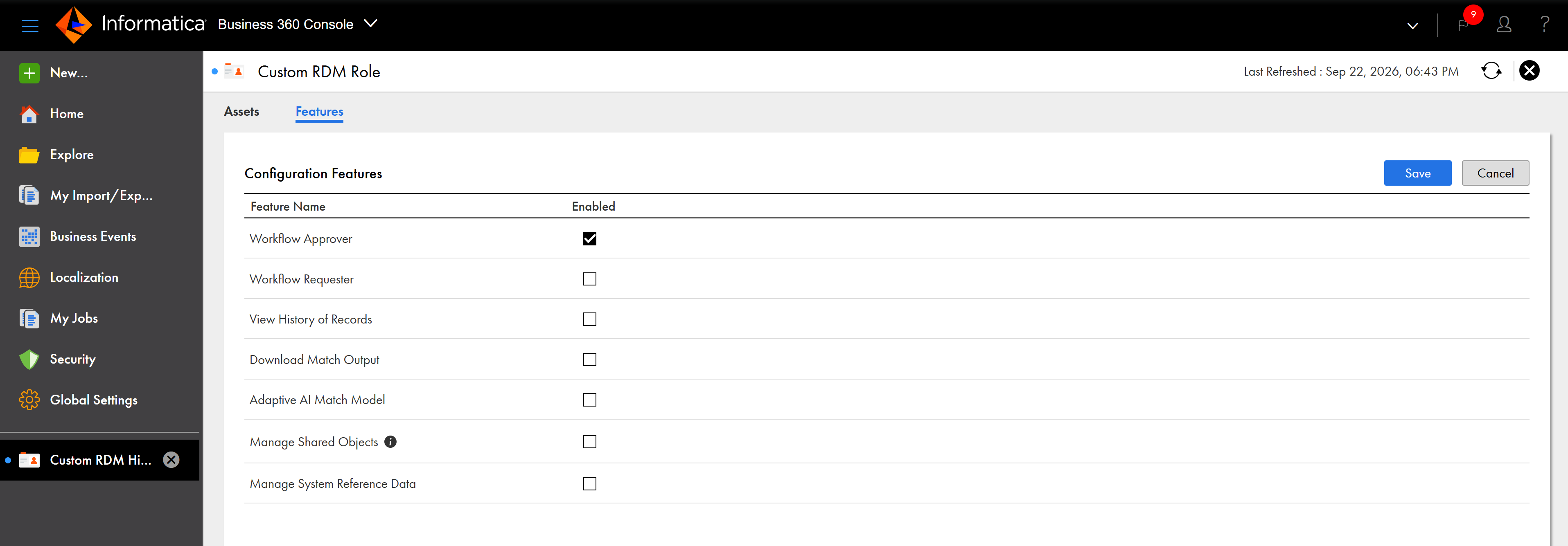
The following image shows the Features tab on the user role details page:
Revoke workflow privileges
You can revoke workflow privileges for custom user roles in Business 360 Console.
Before you revoke the Workflow Requester or Workflow Approver privilege for a custom user role, ensure that the user has no assigned tasks. You can check if any tasks are assigned to the user in the workflow inbox.
Configure privileges to manage multilingual assets
Custom user roles have read-only access to the Localization Languages code list that stores the languages available for localized data.
When a custom user role has the read privilege for a reference data set and code list, Reference 360 automatically assigns the read privilege for the Localization Languages code list.
To enable a custom user role manage multilingual attributes, assign the read privilege for a reference data set that has multilingual attributes. You can then assign the read privilege for the code list of the reference data set.