Step 4. Analyze the results
After you create and save a project, you can analyze the conversion results. View results from the PC to Cloud Conversion home page.
You can analyze results in the following ways:
- •View an overview of results for all projects.
- •View results for a specific project.
- •Download a summary report for a specific project.
- •View and analyze the errors for individual assets.
Viewing results for all projects within a workspace
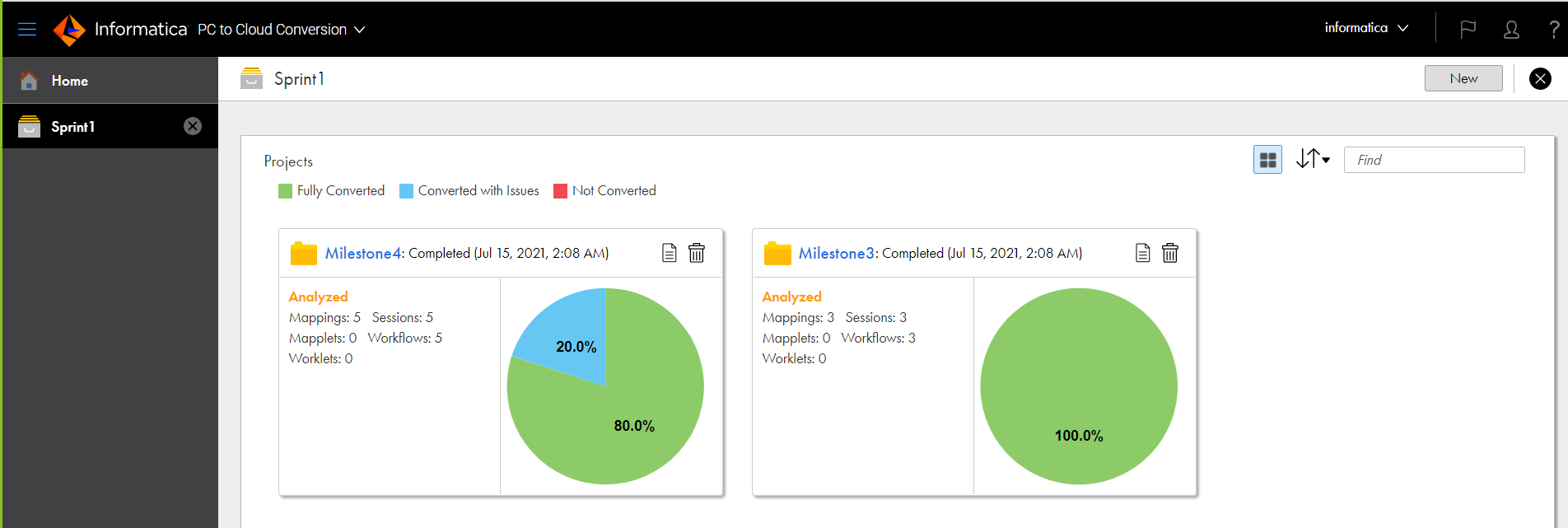
PC to Cloud Conversion displays a summary of the results for each project on the home page. By default, PC to Cloud Conversion displays a panel for each project. You can also display the projects in a list view.
In the default project view, each project panel displays the percentage of PowerCenter objects in the project that are fully converted, converted with issues, and not converted.
The following image shows the PC to Cloud Conversion projects within a workspace:
You can perform the following actions from the projects panel:
- Switch between the panel and list views.
- To switch between the default panel view and the list view, click the Card View icon.
- Search for a project.
- To search for a project, enter all or part of the project name in the Find field.
- View source files.
- To view a list of the PowerCenter XML files in a project, click the View Source Files icon in the project panel.
- Delete a project.
- To delete a project, click the Delete icon in the project panel or right-click the panel and select Delete.
- Stop a scan.
- To stop a scan that is running, right-click the project panel and select Cancel Process.
- View details for a specific project.
- To view details for a specific project, click the project name.
Viewing results for a specific project
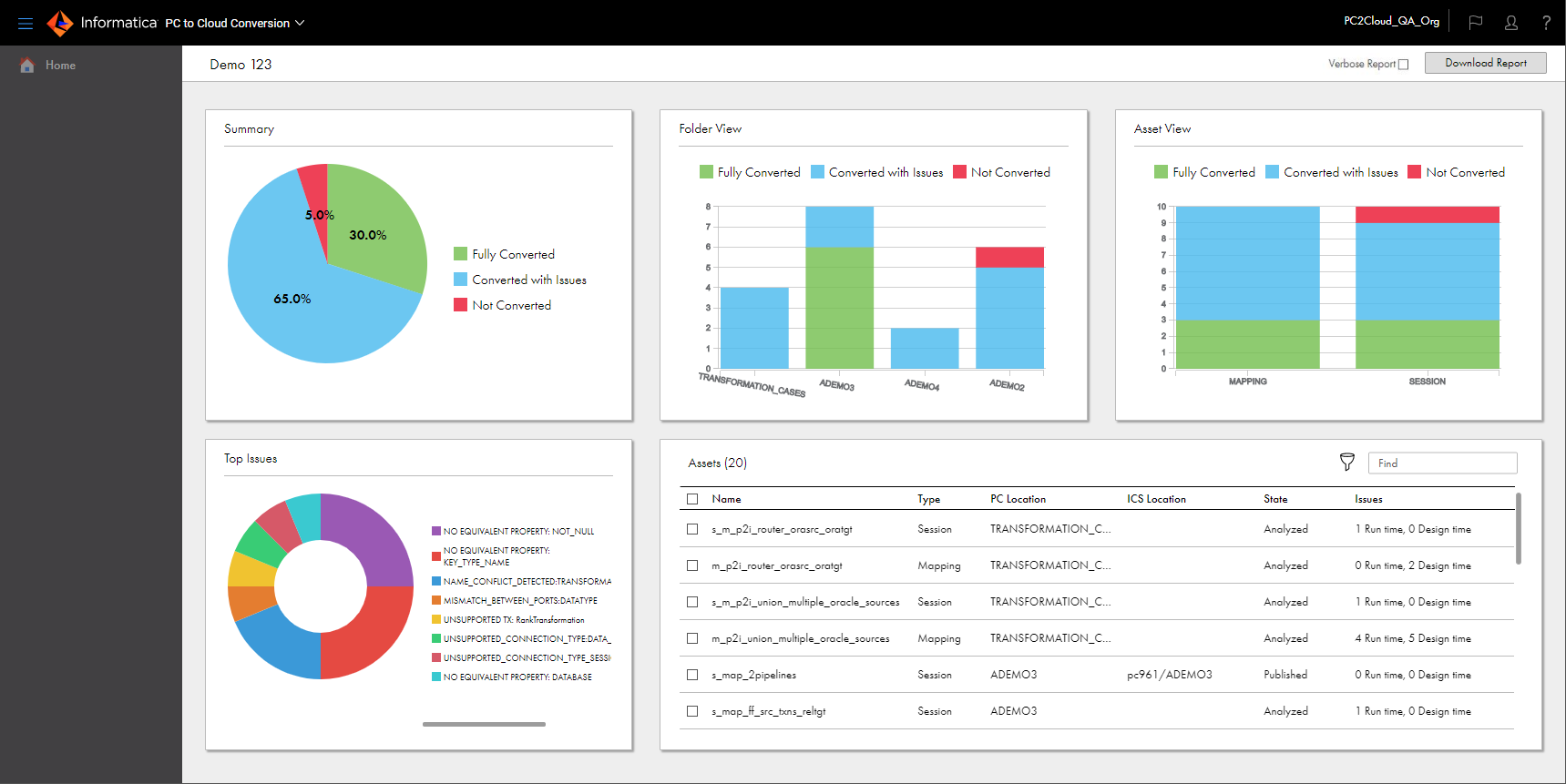
To view results for a specific project, click the project name on the PC to Cloud Conversion home page. PC to Cloud Conversion displays the project results on the project details page.
The following image shows the project details page:
The project details page displays the following information:
- •Asset conversion percentages for the entire project.
- •Asset conversion percentages for each folder.
- •Asset conversion percentages for each mapping, mapplet, and session.
- •The top 10 most common types of errors for assets in the project.
- •A list of assets in the project. By default, all assets are listed.
You can perform the following actions from the project details page:
- Download the project summary report.
- To download the project summary report, click Download Report in the upper right corner. The project summary report is an .xlsx file that lists conversion issues for each PowerCenter object in the project and workflow statistics for each workflow in the project.
- View detailed conversion summary report
- To view the detailed conversion summary report, select the Verbose Report check box and then click Download Report. Verbose report captures the detailed design and run-time impacted areas in the project summary. The verbose report also includes the no conversion impacted areas.
- By default, the Verbose Report check box is disabled and the basic information appears in the downloaded project summary report.
- Filter assets.
To filter the list of assets, click the appropriate area in the percentage charts. For example, to view only mappings that were converted with issues, in the Asset View panel, click the Converted with Issues area in the Mapping column.
You can also click the Filter icon, select the filter field in the Add Field menu, and then select the filter criteria. You can use multiple filter fields. For example, to display only mappings in the CUST_MAP folder, filter by PC Location = CUST_MAP and Type = Mapping.
- Search for an asset.
- To search for an asset, enter all or part of the asset name in the Find field.
- View asset errors.
- To view errors for a specific asset, open the Actions menu in the row that contains the asset, and click View Errors.
- Publish assets.
To make an asset available in Data Integration, open the Actions menu in the row that contains the asset, and click Publish.
To publish multiple assets, select the checkbox in the row that contains each asset, right-click a selected asset, and select Publish from the pop-up menu.
Project summary reports
You can download a project summary report from the project details page. The project summary report is an .xlsx file that lists conversion issues for each PowerCenter object in the project and workflow statistics for each workflow in the project. Use the project summary report to estimate the effort involved in converting the PowerCenter objects to equivalent assets in Data Integration.
To download the project summary report, click Download Report in the upper right corner of the project details page. The report contains two worksheets: the Conversion Summary worksheet and the PC Workflow Analysis worksheet.
Conversion Summary worksheet
The Conversion Summary worksheet lists the conversion issues for each PowerCenter object in the project.
The following table describes the columns in the Conversion Summary worksheet:
Column | Description |
|---|
Asset Name | Asset name in Data Integration. |
Asset Type | Asset type, either mapping, mapplet, session, or workflow. |
Asset Status | Asset status, either analyzed or published. |
PC Location | Name of the PowerCenter project or folder that contains the object. |
Impact | Conversion issue impact. Can be one of the following types: - - NO_IMPACT. The PowerCenter object can be converted without errors.
- - DESIGN_TIME. The PowerCenter object and the corresponding converted asset have differences that do not affect task results. Generally, you can validate and run a converted mapping or session that has only design time errors without editing the mapping or mapping task.
- - RUN_TIME. The object can be converted to a Data Integration asset, but the associated mapping or task is not valid. You must fix the run time errors before you can run the mapping or task.
- - CANNOT_CONVERT. The PowerCenter object cannot be converted to an equivalent Data Integration asset.
For more information about design time, run time, and conversion errors see, Error analysis and resolution. |
Issue Category | Category for the conversion issue. Issue categories can include equivalent property errors, port name conflicts, mismatched port types, and unsupported transformations or connections. When there are no conversion issues, this column displays "CONV_SUCCESS." |
Issue Object Type | Type of PowerCenter object that caused the conversion issue such as mapping, session, source, or transformation. |
Issue Object Name | Name of the PowerCenter object that caused the conversion issue. |
Error | Detailed error message for the conversion issue. When there are no conversion issues, this column displays, "Conversion successful." |
PC Workflow Analysis worksheet
The PC Workflow Analysis worksheet displays information about the numbers of tasks, sessions, worklets, and links in each workflow in the project. It also indicates whether each workflow uses parameters or is configured for concurrent execution.
The following table describes the columns in the PC Workflow Analysis worksheet:
Column | Description |
|---|
File Name | Name of the PowerCenter export XML file that the worklfow was imported from. |
Email Tasks | Number of Email tasks in the workflow. If the workflow includes worklets, the value in this column displays the number of Email tasks in the workflow and worklets. |
Event Wait Tasks | Number of Event-Wait tasks in the workflow. If the workflow includes worklets, the value in this column displays the number of Event-Wait tasks in the workflow and worklets. |
Event Raise Tasks | Number of Event-Raise tasks in the workflow. If the workflow includes worklets, the value in this column displays the number of Event-Raise tasks in the workflow and worklets. |
Control Tasks | Number of Control tasks in the workflow. If the workflow includes worklets, the value in this column displays the number of Control tasks in the workflow and worklets. |
Sessions | Number of Session tasks in the workflow. If the workflow includes worklets, the value in this column displays the number of Session tasks in the workflow and worklets. |
Worklets | Number of worklets in the workflow. |
Command Tasks | Number of Command tasks in the workflow. If the workflow includes worklets, the value in this column displays the number of Command tasks in the workflow and worklets. |
Parameters | Indicates whether the workflow uses a parameter file. |
Concurrent Execution | Indicates whether the workflow is configured to run multiple instances concurrently. |
Total Links | The total number of links in the worklfow. If the workflow includes worklets, the value in this column displays the total number of links in the workflow and worklets. |
Conditional Links | The number of conditional links in the workflow. For example, if the workflow contains a Decision task, the workflow might contain a conditional link to follow when the decision evaluates to true and another conditional link to follow when the decision evaluates to false. If the workflow includes worklets, the value in this column displays the number of conditional links in the workflow and worklets. |
Link Conditions | The link condition for each conditional link in the workflow. If the workflow includes worklets, the values in this column display the link conditions for each conditional link in the workflow and worklets. |
Viewing asset errors
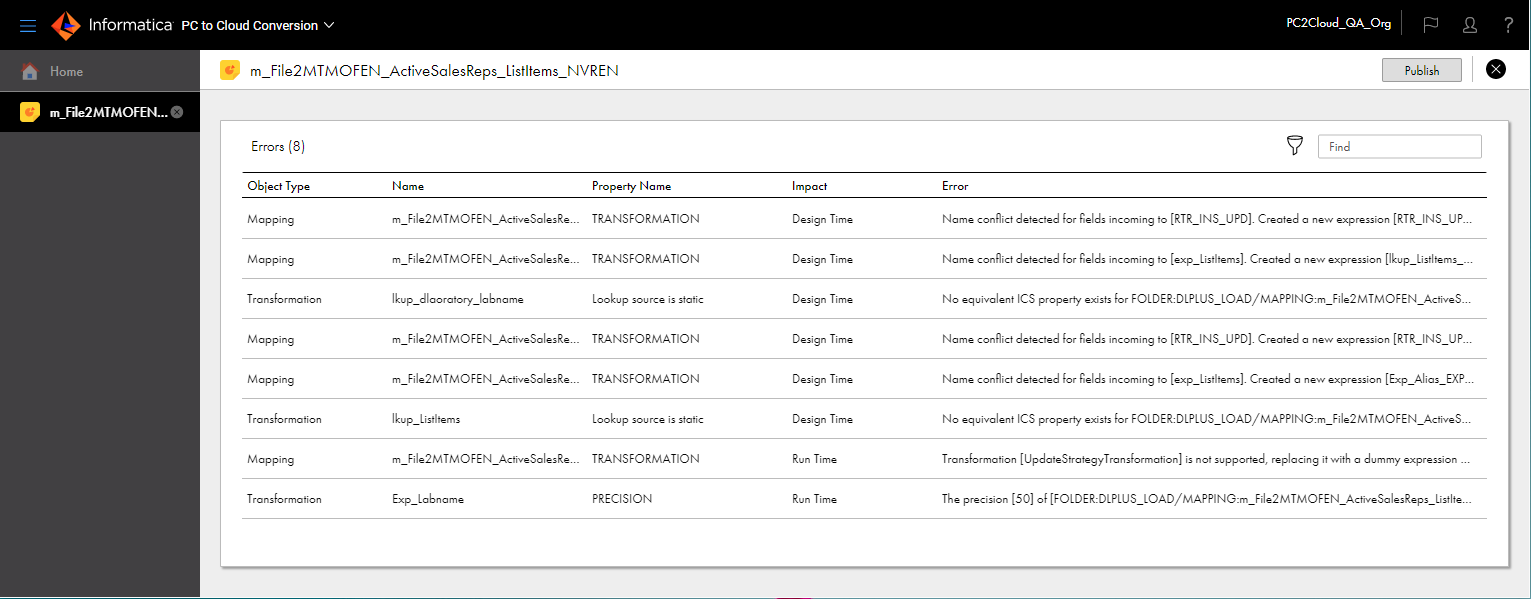
You can view errors for each asset in a project that was converted with issues or was not converted. To view asset errors, open the project, open the Actions menu in the row that contains the asset, and click View Errors. The errors page shows the errors that are associated with each object in the asset.
The following image shows the errors page for a mapping:
You can perform the following actions from the errors page:
- Filter errors
To filter the list of errors, click the Filter icon, select the filter field in the Add Field menu, and then enter the filter criteria.
For example, to show only run time errors, click the Filter icon, select Impact in the Add Field menu, and select Run Time.
You can use multiple filter fields.
- Search for errors
To search for errors, enter the search string in the Find field. You can search for an object type, object name, property name, or type of impact.
For example, to search for target errors, enter "targ" in the Find field.
- View an entire error message
- To view an entire error message, hover over the error.
Error analysis and resolution
When you analyze project results, PC to Cloud Conversion displays error messages for the assets that were converted with issues or not converted. PC to Cloud Conversion classifies asset errors as either design time errors, run time errors, or conversion errors.
Design time errors generally do not affect task results and do not prevent you from publishing an asset. Run time errors can affect task results or prevent you from running a task. Conversion errors occur when PC to Cloud Conversion is unable to convert a PowerCenter object.
You resolve errors differently based on the error type.
Design time errors
Design time errors occur when a PowerCenter object and the corresponding converted asset have differences that do not affect task results. Generally, you can validate and run a converted mapping or session that has only design time errors without editing the mapping or mapping task.
The following types of errors are common design time errors:
- Equivalent property errors
PC to Cloud Conversion displays a "No equivalent ICS property…" design time error when a source, target, or transformation property in PowerCenter has no equivalent property in Data Integration, and the property does not affect task results.
For example, PowerCenter transformations have a Description property that you can set for each port in the transformation. However, Data Integration transformations do not have field descriptions. If a PowerCenter mapping contains a transformation with port descriptions, PC to Cloud Conversion displays an equivalent property error for the transformation.
- Naming conflicts
PC to Cloud Conversion displays a "Name conflict detected…" error when ports in different data flows in a mapping have the same name, and the mapping links the ports to the same downstream transformation or target. When a naming conflict occurs, PC to Cloud Conversion creates a placeholder Expression transformation in the mapping to resolve the conflicts and filter unnecessary incoming fields in the downstream transformation.
Naming conflicts also occur when a mapping contains a Router transformation. PC to Cloud Conversion creates a placeholder Expression transformation immediately downstream of each Router transformation output group. The Expression transformation renames the output ports to the expected field names in the downstream transformation.
Run time errors
Run time errors can affect task results and prevent you from validating a mapping or running a mapping task. Generally, you cannot run a converted mapping with run time errors until you edit the mapping.
The following types of errors are common run time errors:
- Unsupported transformation errors
- PC to Cloud Conversion displays a "Transformation [<name>] is not supported…" error when a mapping contains an unsupported transformation. When a PowerCenter mapping uses an unsupported transformation, PC to Cloud Conversion replaces the transformation with a placeholder Expression transformation. After you publish the mapping, replace the Expression transformation with other transformations to preserve the mapping logic.
- Precision, scale, and datatype errors
PC to Cloud Conversion displays a precision, scale, or datatype error when one field in a transformation is directly connected to a field in another transformation with a different precision, scale, or datatype.
When you publish the mapping, you might have to adjust the precision, scale, or datatype of one of the fields to avoid precision loss, unwanted data expansion, or unwanted datatype conversion.
- Equivalent property errors
PC to Cloud Conversion displays a "No equivalent ICS property…" run time error when a source, target, or transformation property in PowerCenter has no equivalent property in Data Integration, and the property can affect task results.
For example, your project contains a PowerCenter mapping with a Source Qualifier transformation that specifies the number of sorted ports. After you publish the mapping, edit the mapping to replace the missing mapping logic.
Conversion errors
PC to Cloud Conversion displays a "cannot convert" error when a PowerCenter object cannot be converted. You cannot publish a mapping, mapplet, or session with conversion errors.
For example, a conversion error can occur when the project contains a session that uses an unsupported connection type. PC to Cloud Conversion cannot convert the session to a mapping task.