Application Integration service tasks use Application Integration processes to automate tasks that MDM SaaS performs efficiently and in a scalable manner.
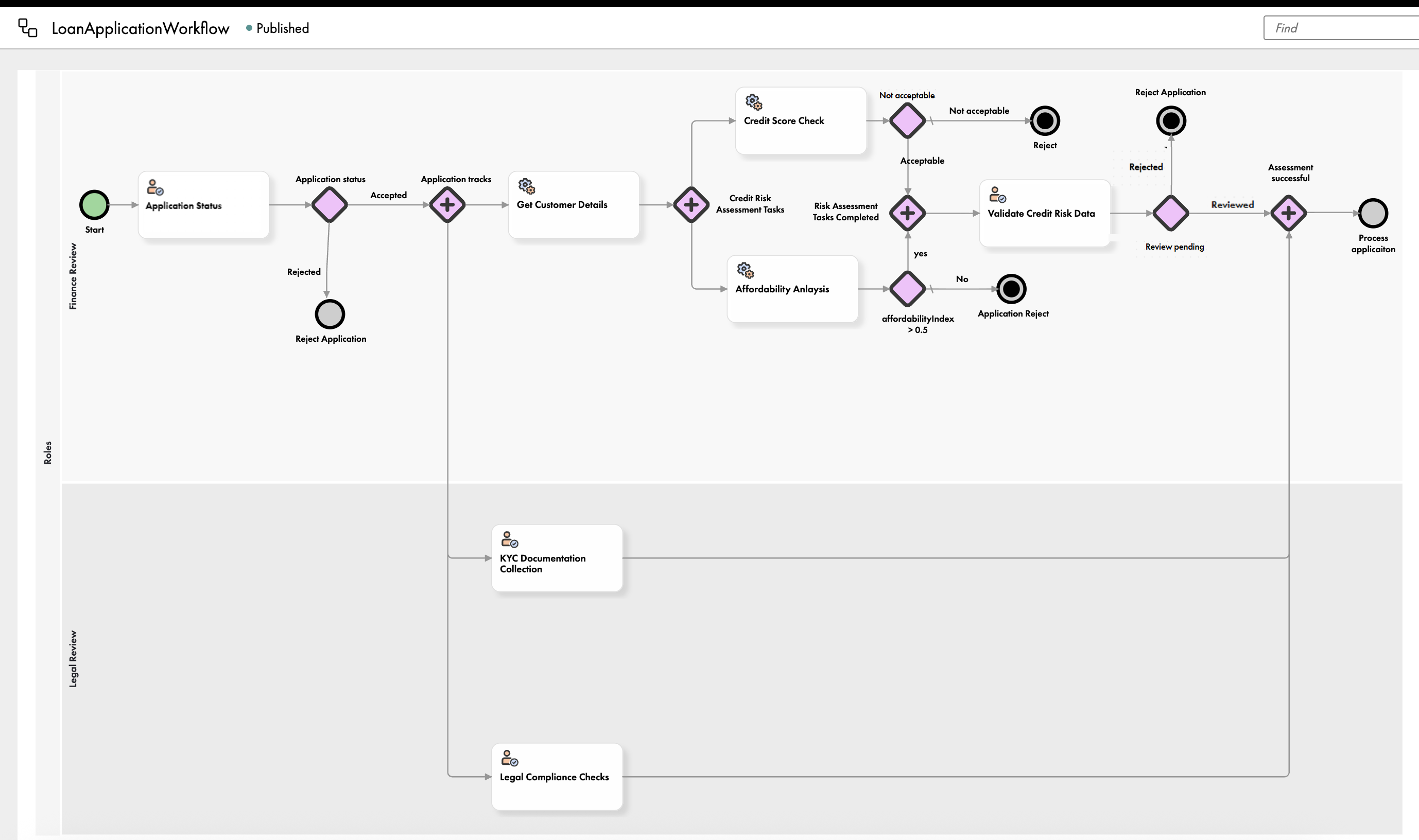
Consider the following workflow for a loan application process:
The workflow consists of multiple tasks that run concurrently, such as credit score and affordability check, KYC document collection, and legal compliance checks. Manually determining customer details and checking credit score and affordability can be repetitive and time-consuming. The tasks can be automated using the service tasks, and the data is verified manually. The service tasks help streamline the loan application process.
To configure an Application Integration service task, drag a service task component to the required swimlane and perform the following steps:
Select an Application Integration process that contains at least a Service step. Also, add an array of tasks to the input payload from MDM SaaS to the process and the output payload from the process to MDM SaaS. For more information about the prerequisites of processes, see Prerequisites of processes for service tasks.
Prerequisites of processes for service tasks
When you create a process in Application Integration and use it in service tasks, ensure that the process meets the following requirements:
•The process contains at least one Service step to orchestrate the service task.
•The input payload from MDM SaaS to the process contains an array of tasks . Each task in the array includes the taskId parameter.
•The output payload from the process to MDM SaaS contains an array of tasks . The output payload includes the taskId parameter for each executed task in the array.
•The process responds within 60 seconds.
Note:
A process might be used in service tasks across multiple workflows. The arrays of tasks in the input and output payloads supports simultaneous execution of multiple service tasks that use the same process.
Input payload format
The input payload from MDM SaaS to the process must contain an array of tasks to support the execution of multiple service tasks that use the same process at a time. Each task in the array must include the taskId parameter.
A process might be used in service tasks across multiple workflows. The array of tasks in the input payload supports the execution of multiple service tasks that use the same process at the same time.
The following JSON snippet shows the input payload that MDM SaaS sends to a process:
Task IDs 124 and 134 represent two instances of a service task or two service tasks that use the same processes. The process accepts customer IDs as input.
Output payload format
The output payload from the process to MDM SaaS must contain an array of tasks to support the execution of multiple service that use the same process tasks at a time. The output payload must contain the taskId parameter for each executed task in the array.
A process might be used in service tasks across multiple workflows. The array of tasks in the output payload supports the execution of multiple service tasks that use the same process at the same time.
The following JSON snippet shows the output payload that a process sends to MDM SaaS:
Task IDs 124 and 134 represent two instances of a service task or two service tasks that use the same processes. The process retrieves credit score details for the customer IDs that were shared in the input payload.
Configure properties for Application Integration service tasks
Application Integration processes used in service tasks must meet certain requirements. If processes don't meet the requirements, the service tasks and the respective workflows fail.
2From the list of service task types, select CAI Service Tasks.
3Enter a name for the service task.
4Optionally, enter a custom internal ID and add a description.
5To configure a process, click Select, and then select a process that contains at least one Service step.
A list of the available published processes appears.
Input details for Application Integration service tasks
After you select a process, define the fields to use as inputs for the process. Add multiple input fields to an Application Integration service task if the process you select contains multiple input fields. Each set of input details consists of a key, which is an ID that matches an input field of the selected process, and an expression that defines the expected value for the key.
Consider the example of the workflow for loan approval:
The Credit Score Check service task uses the customer ID as the input key. The expression specifies that the Get Customer Details service task provides the customer ID.
For more information about expressions, see Expressions.
Note:
If the selected Application Integration process doesn't need any input values, you don't have to configure input details. For example, when you configure a service task for a bank admin to send promotion emails about loans to all their customers, you don't have to configure any input details for the service task.
Configure input details for Application Integration service tasks
Use input fields of the selected Application Integration process as keys and expressions as their values.
1Select a service task on the workflow canvas.
2On the Input Details tab, enter a key that matches the input field of the selected Application Integration process.
3Enter an expression that returns a value for the key.
4Configure additional input details as key-value pairs.
Conditions for connections for Application Integration service tasks
To design different paths in workflows, use gateways after service tasks. To determine the outcomes of outgoing connections from gateways to other components in the workflow, configure conditions.
Conditions are simple expressions that use the internal IDs of service tasks and output fields of Application Integration processes to determine the outcomes of connections.
For more information about expressions, see Expressions.
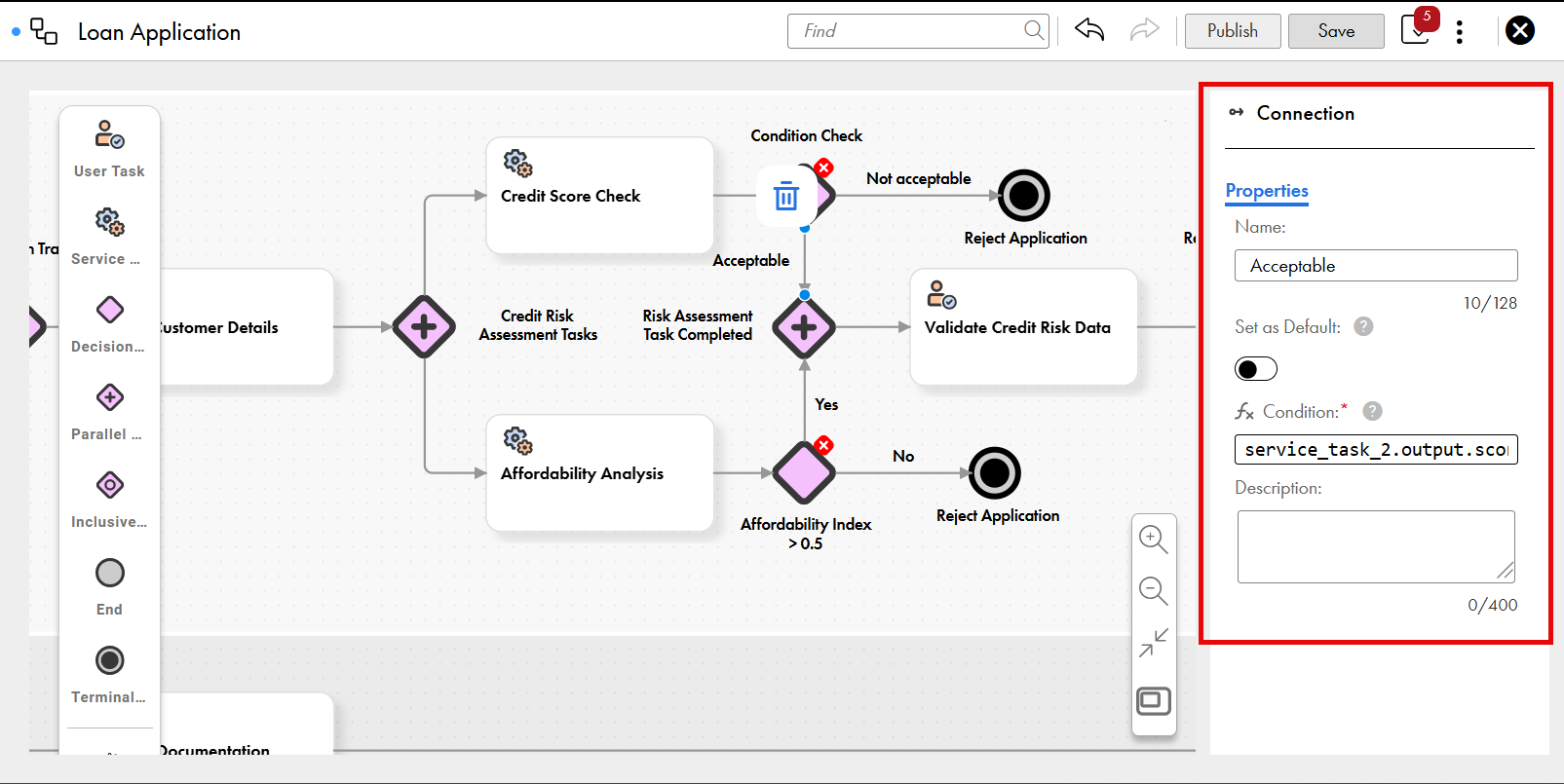
Consider the example of the workflow for the loan approval process:
The Condition Check decision gateway determines the task outcome based on the output value of the Credit Score Check service task. If the output value is acceptable, then the loan approval process continues to the next step. If the value isn't acceptable, then the loan application is rejected.
The following sample condition goes to the next step if the Experian credit score is greater than 600:
service_task_2.output.score.creditScore>600 and service_task_2.output.score.bureau="Experian"
Note:
If you want to set a connection as the default connection when conditions in other outgoing connections aren't met, then you don't have to configure a condition for the connection.
Configure conditions for Application Integration service tasks
To design different paths in workflows, configure conditions for gateways after service tasks.
1On the workflow canvas, select an outgoing connection from a service task, and enter a name for it.
2Enter a condition that uses the internal ID of the service task and the output field of the process.
3Optionally, to set a connection as the default connection when conditions in other outgoing connections aren't met, turn on the Set as Default toggle.