A workflow can include multiple components that outline the steps needed to complete a business process.
Use the following components to design workflows:
•Swimlane. Partitions a set of steps in a workflow and visually distinguish task responsibilities between different user roles.
•Start. Starts a workflow.
•User Task. A human action required for approvals. For example, you might want to add a user task step to a loan approval process.
•Service Task. Automates repetitive tasks that don't need human intervention, such as checking whether users have certain privileges or sending notification emails.
•Decision Gateway. A control point in a workflow that routes the workflow in one direction based on your decision in a user or service task. For example, approve the request if it meets the requirements, reject if not, or return if more information is required.
•Inclusive Gateway. A control point in a workflow that routes the workflow in one or more directions based on your decision in a user or service task.
•Parallel Gateway. A gateway pair that enables multiple tasks to run concurrently. A parallel gateway pair consists of a divergent and convergent gateway. A divergent gateway splits an incoming path into several concurrent outgoing paths, whereas a convergent gateway joins all the incoming paths into a single outgoing path.
•Connections. Connects components in a workflow.
•End. Marks the completion of a workflow.
•Terminal End. Explicitly ends a workflow. Use in parallel gateways to terminate all active tasks and end the workflow.
For more information about decision gateways, inclusive gateways, and parallel gateways, see Gateway components.
You can use the following tools when you design workflows:
•Hand Tool. Moves the workflow around the canvas when zoomed in. This tool is useful in large workflows where components are not all visible at once.
•Space Tool. Adjusts spacing between components and creates or removes space both horizontally and vertically in a workflow. This tool is helpful to maintain a clean and organized layout when you add new components or rearrange existing ones.
•Select Tool. Selects one or more components in a workflow.
Gateway components
You can add gateway components to workflows to configure task outcomes or enable multiple tasks to run concurrently.
You can add the following gateways to workflows:
•Decision gateways. Add decision gateways after tasks to execute only one task outcome.
•Inclusive gateways. Add inclusive gateways after tasks to execute one or more task outcomes.
•Parallel gateways. Add parallel gateways before tasks to run multiple tasks concurrently.
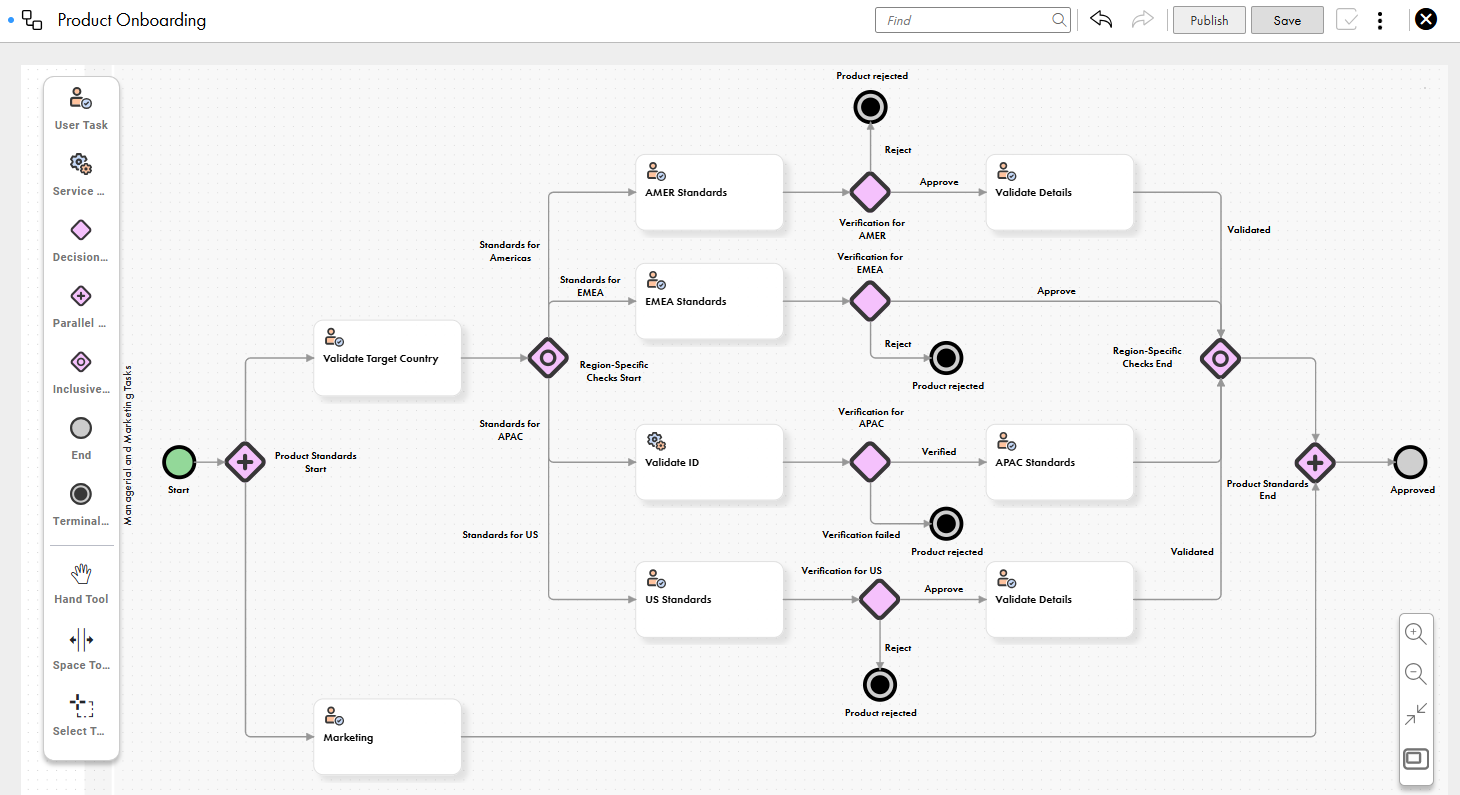
Consider the following workflow for a product onboarding process:
The workflow includes multiple tasks to evaluate product details based on regional standards. A separate task outome is added for the US because the product standards differ from those of the other countries in the AMER region.
The gateways in the workflow enable the following tasks:
•The Product Standards parallel gateway enables the tasks to verify regional and marketing standards to run in parallel and avoid delays.
•The Region-Specific Checks inclusive gateway enables the execution of one or more task outcomes based on the target country. For example, a product with target country US is checked based on the standards for both the Americas and the US.
•The decision gateways for specific regions, such as the Verification for AMER, Verification for EMEA, Verification for APAC, and Verification for US decision gateways, enable the execution of one task outcome based on the the output from the preceding tasks.