Configure the events that start the workflow, the user roles that can participate in the workflow, and the options available in each task associated with the workflow.
You can configure workflow events tailored to your organization's specific requirements, enabling different approval processes. For example, a highly sensitive glossary or related to GDPR demands a stringent multi-step approval, whereas finance and HR processes follow their own distinct approval workflows.
Perform the following tasks to configure a workflow event:
1Configure general properties of the event and the event types that start the workflow.
2Add asset types and define conditions based on asset hierarchies, relationships, asset groups, attributes, and stakeholder roles.
3Choose a published workflow that best fits your workflow event.
4Configure the workflow components.
5Save and enable the workflow event to make it available for use.
Configuring event properties
Configure general properties of the event and the event types that start the workflow.
1In Metadata Command Center, go to the Configure page.
2Click the Workflows tab.
3To configure a new workflow event, click the Add icon.
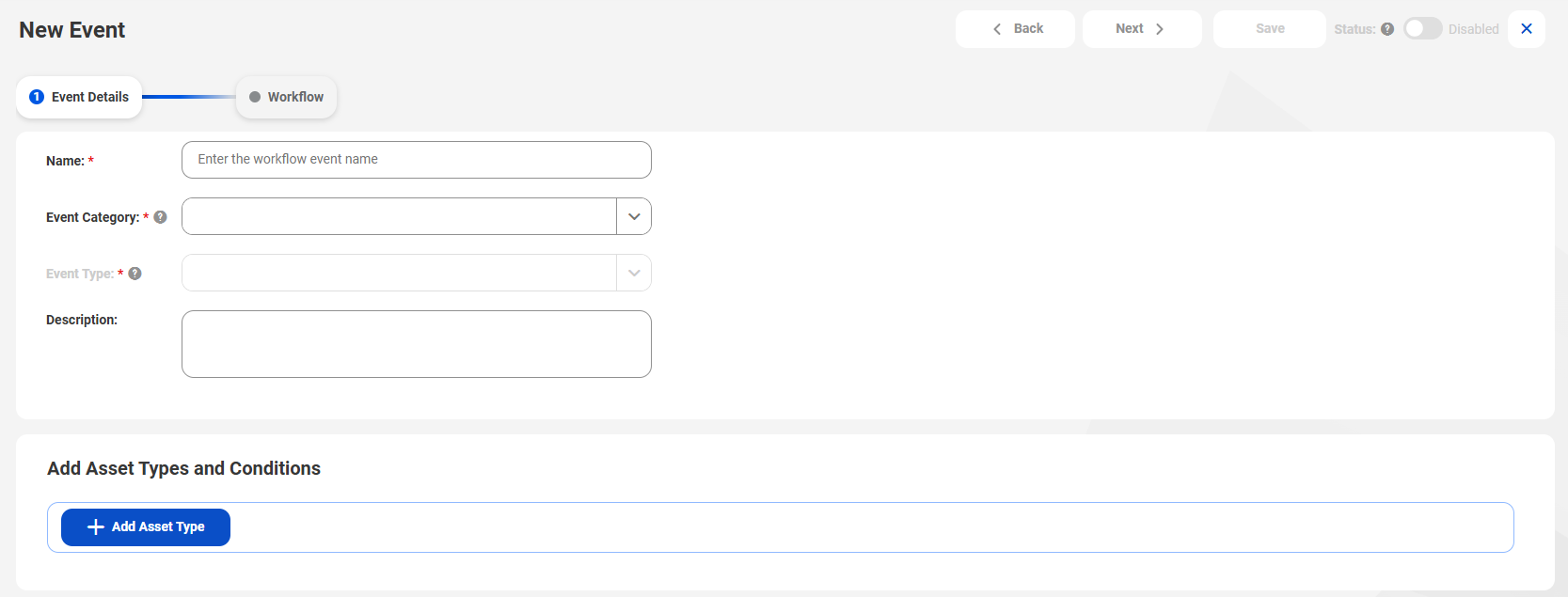
The New Event page appears.
4In the Event Details tab of the New Event page, enter the basic properties of the workflow event.
The following table describes the properties that you can enter:
Property
Description
Name
Provide a name for the event that starts the workflow. The event name is a descriptor that identifies the activity for which the workflow should start.
For example, to start a workflow each time a user creates an AI Model asset, you can enter the event name as Create AI Model.
Event Category
Select the category of event for which you want to select the event type.
Choose from the following options:
- Asset Management. Select if you want to configure your workflow for Approval Request for Create or Approval Request for Change event types.
- Data Quality. Select if you want to configure your workflow for the Data Quality Failure event type.
Event Type
Select the type of event for which you want to configure the workflow.
Choose from the following options:
- Approval Request for Create. Select if you want to start a workflow each time a user creates a business asset or a data access asset.
- Approval Request for Change. Select if you want to start a workflow each time the user performs the following tasks:
- Modifies the description or other editable properties on the Overview tab of a business asset.
- Modifies the description of a technical asset.
- Modifies editable properties on the Overview, Conditions, Rules, Techniques, and De-identification Rank tabs of a data access asset.
Note:
For data access asset types, configure distinct workflow events for asset change and asset creation so that Data Governance and Catalog identifies changes to the Conditions, Rules, Techniques, and De-identification Rank tabs for workflow.
- Data Quality Failure. Select if you want to remediate a poor data quality score in a rule occurrence with a workflow.
Description
Enter a description for the workflow event.
Adding asset types and conditions
You can add asset types and conditions for workflows based on hierarchies, relationships, attributes, stakeholder roles, and asset groups. Data Governance and Catalog evaluates workflow events by prioritizing the first matching condition and then starts the appropriate workflow.
1In the Add Asset Types and Conditions tab, click Add Asset Type.
2Click Asset Type to select the asset type to which the workflow applies.
3In the Select Asset Type dialog box, select the asset types to which the workflow applies and click OK.
For Approval Request for Create event types, you can choose business and data access assets asset types. For Approval Request for Change event types, you can choose business, technical, and data access assets asset types.
4Optional. Add conditions based on hierarchies, relationships, asset groups, attributes, and stakeholder roles to assets.
Note:
Predicates appear based on selected asset types.
You can add conditions based on the following criteria:
You can add conditions based on hierarchies. For example, you can add a condition for business term and metric assets that belongs to a specific domain.
1Click Add Predicate and select Hierarchy.
2Add one of the following conditions based on your requirements:
- To add a condition that applies to immediate child assets of the selected asset, choose Is Any Of > Add Asset. In the Select Asset window, select one or more assets and click Select.
- To add a condition that applies to all assets in the top level, choose Is Null.
- To add a condition that applies to all child assets with any parent asset, choose Is Any.
- To add a condition that applies to all descendants of the selected asset, choose Contains > Add Asset. In the Select Asset window, select one or more assets and click Select.
3Optional. Add more predicates to the condition.
4Optional. To add another asset type, click Add Asset Type.
Adding conditions based on relationships
You can add conditions based on relationships. For example, you can add a condition for business term assets that are related to a specific data element classification asset. If you modify an asset’s relationship, it does not start a workflow. However, if you modify the asset properties on the Overview tab, a workflow will start based on the asset's existing relationships.
1Click Add Predicate and select Relationship.
2Click Add Relationship.
3In the Select Assets and Assign Relationships window, select assets and click Next.
4In the Assign Relationships tab, select the applicable relationships and click Select.
5Optional. To select more assets or to change the previously selected assets, click Add Asset.
6Optional. To select more relationships or to change the previously selected relationships, click Add Relationship.
7Optional. Add more predicates to the condition.
8Optional. To add another asset type, click Add Asset Type.
Adding conditions based on asset groups
You can add conditions based on asset groups. For example, you can add a condition for data set assets that belong to a specific asset group.
1Click Add Predicate and select Asset Group.
2Add one of the following conditions based on your requirements:
- To add a condition that applies to specific asset groups, choose Is Any Of > Add Asset Group. In the Select Asset Groups window, select one or more asset groups and click OK.
- To add a condition that applies to assets that are not associated with asset groups, choose Is Null.
3Optional. To select more asset groups or to change the previously selected asset groups, click Add Asset Group.
4Optional. Add more predicates to the condition.
5Optional. To add another asset type, click Add Asset Type.
Adding conditions based on attributes
You can add conditions based on attributes. For example, you can add a condition for policy assets that have a specific policy type.
1Click Add Predicate and select Attribute.
2Click Add Attribute.
3In the Select Attributes window, select an attribute and click OK.
Note:
The Select Attributes window displays the attributes of type Boolean, single-select, and multi-select list that are available when you create business and data access assets in Data Governance and Catalog.
4Optional. To change the previously selected attribute, click Add Attribute.
5Add one of the following conditions based on your requirements:
- To add a condition that applies to an attribute value, choose Is > Add Attribute Value. In the Select Attribute Values window, select an attribute value and click OK.
- To add a condition that applies to attributes that are not associated with attribute values, choose Is Null.
6Optional. To change the previously selected attribute value, click Add Attribute Value.
7Optional. Add more predicates to the condition.
8Optional. To add another asset type, click Add Asset Type.
Adding conditions based on stakeholder roles
You can add conditions based on stakeholder roles to evaluate the user who creates or edits assets. Depending on the user's stakeholder role, you can use different workflows. For example, you can add a condition where assets created by Data Stewards require only a single-step approval from Data Owners.
1Click Add Predicate and select Stakeholder Role.
2To add a condition that applies to specific stakeholder roles, choose Is Any Of > Add Stakeholder Role.
3In the Select Stakeholder Roles window, select one or more stakeholder roles and click OK.
4Optional. To select more stakeholder roles or to change the previously selected stakeholder roles, click Add Stakeholder Role.
5Optional. Add more predicates to the condition.
6Optional. To add another asset type, click Add Asset Type.
Choosing a published workflow
Choose a published workflow that best fits your workflow event.
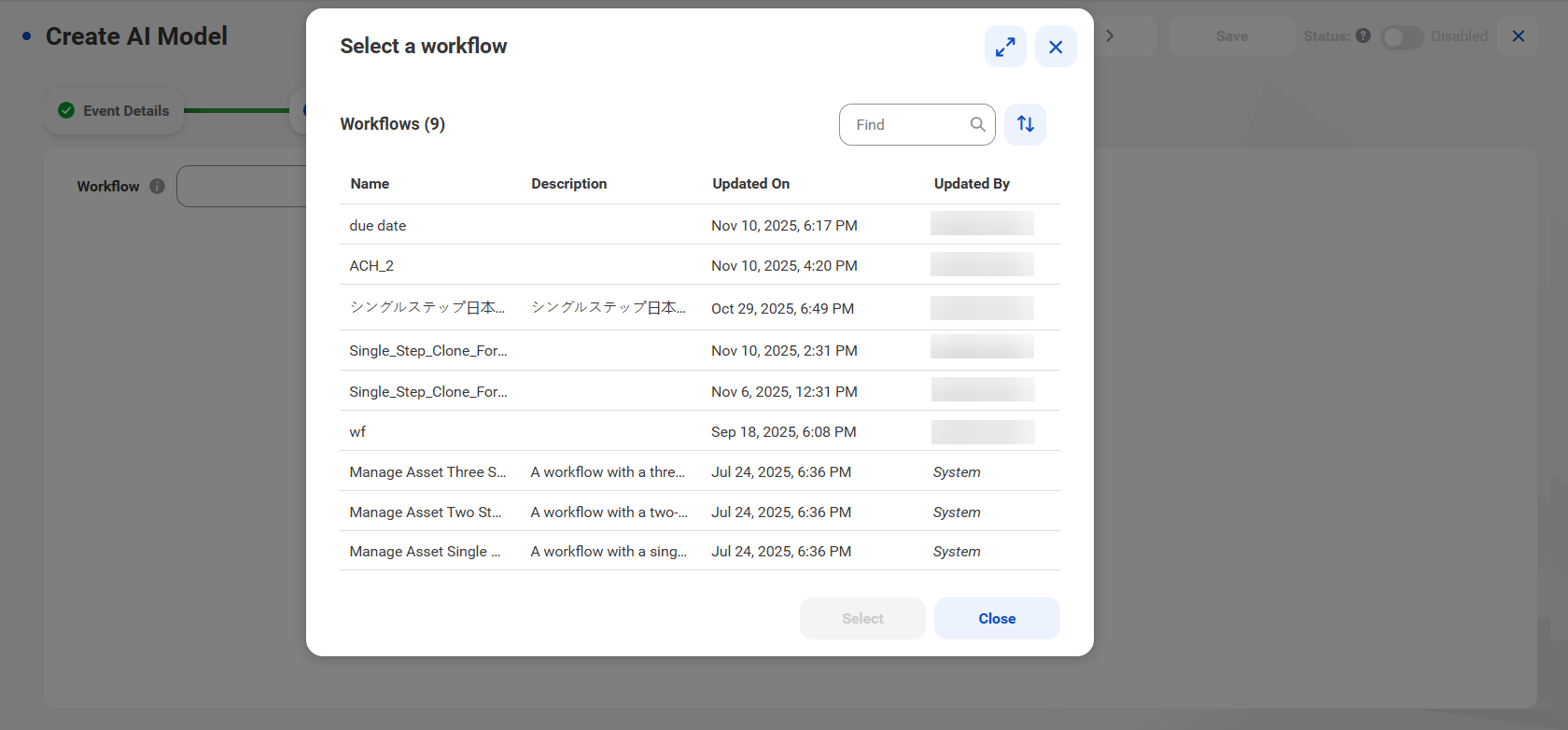
1On the Workflow tab, to select a published workflow, click Browse.
The Select a workflow dialog box appears.
2Choose a published workflow that meets your requirement and click Select.
The selected workflow appears on the Workflow tab. You can view and modify the properties of components in each step of the workflow.
Note:
Modifying the component properties of a workflow in a workflow event doesn't impact the workflow.
Configuring workflow components
Configure the user roles that can participate in the workflow and the options available in each task associated with the workflow.
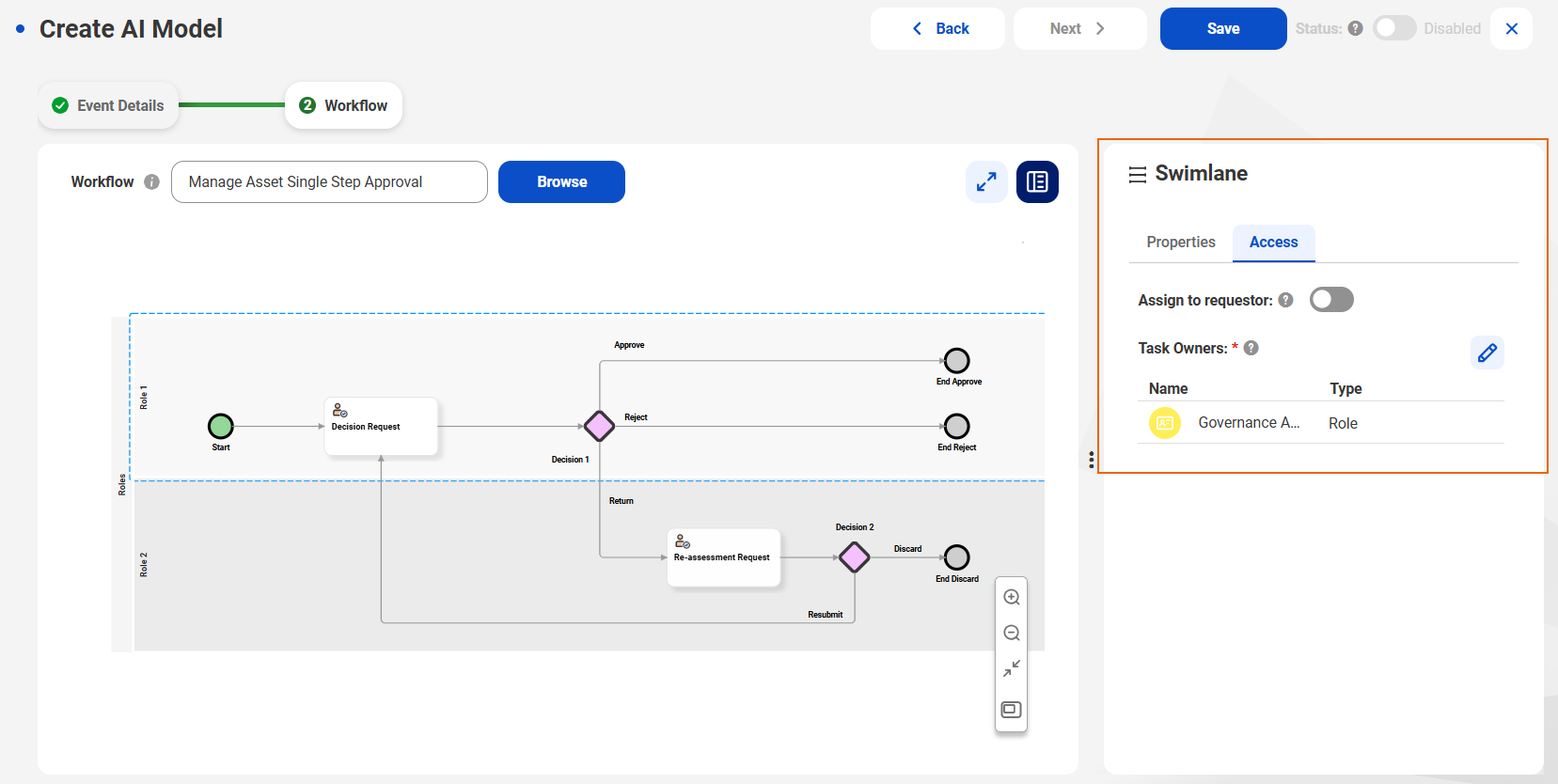
1To configure the properties of a swimlane, select the swimlane.
The following table describes the properties of a swimlane on the Properties tab:
Property
Description
Name
Name of the swimlane in the workflow.
By default, the value specified in the workflow appears here.
Description
Description of the swimlane in the workflow.
By default, the value specified in the workflow appears here.
aClick the Access tab.
The following table describes the access properties of a swimlane on the Access tab:
Property
Description
Assign to requestor
A requestor is a user who creates the ticket. If you assign requestor to a swimlane, when the workflow runs, Data Governance and Catalog identifies the user who created the ticket and assigns the user tasks within the swimlane to the user. The user must have at least the minimum required privileges to view and perform the user tasks.
When you select Assign to requestor, consider the following:
- If you select Assign to requestor for a swimlane, the requestor doesn't need to claim the task in Data Governance and Catalog if the approver returns it. The task is assigned directly to the requestor.
- You can’t reassign a task that is assigned to the requestor, even if you have the privileges to assign or reassign tasks.
- When you design a workflow for the Data Quality Failure event type, ensure that you don't select the Assign to requestor for a swimlane.
Assigning the swimlane to the requestor will remove any previously assigned task owners.
Task Owners
Add task owners to the swimlane. The system assigns user tasks within the swimlane to these task owners. This option doesn't appear if you select Assign to requestor.
bClick Add to assign task owners.
The Assign Task Owners window appears.
cSelect a role from the Roles tab and click OK.
When you select a role, only users configured for the selected role can perform the tasks within the swimlane. Roles that have the Participate in Change Approvals privileges and permissions appear in this list.
The Access tab of the swimlane appears.
2Configure the properties of each swimlane in the workflow.
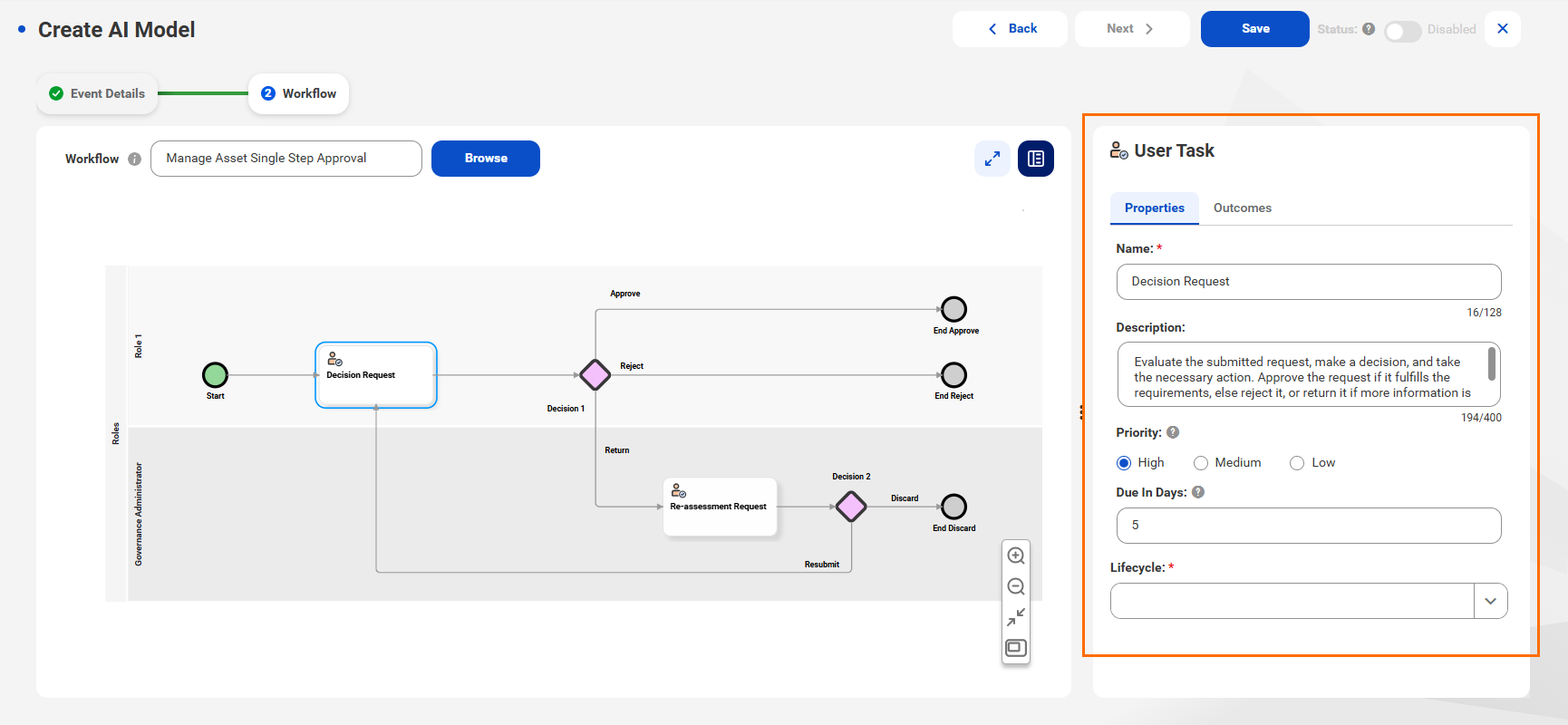
3To configure the properties of a user task, select the task.
The following table describes the user task properties:
Property
Description
Name
User task name in the workflow.
By default, the value specified in the workflow appears here.
Description
Description of the user task in the workflow.
By default, the value specified in the workflow appears here.
Task Priority
Priority of the user task.
By default, the value specified in the workflow appears here.
Due In Days
Number of days in which the task is due. If the user doesn't complete the task within the period, the task remains in an overdue state.
You must specify a value for each user task. Maximum value is 14.
By default, the value specified in the workflow appears here.
Lifecycle
Lifecycle that applies to the asset when the workflow user performs the task. The asset moves to the corresponding lifecycle when the task is performed.
Select one of the following options:
- No Change
- Discard Draft
- Draft
- In Review
- Published
For more information about lifecycles, see Lifecycle.
The Properties tab of a user task appears.
4On the Outcomes tab of a user task, you can edit the task outcome names. By default, the value specified in the workflow appears here. To edit the task outcome name, click Edit.
5Configure the properties of each user task in the workflow.
6To modify the name and description of parallel and decision gateways, select the required gateways.
By default, the values specified in the workflow appear here.
7Configure the properties of each parallel and decision gateways in the workflow.
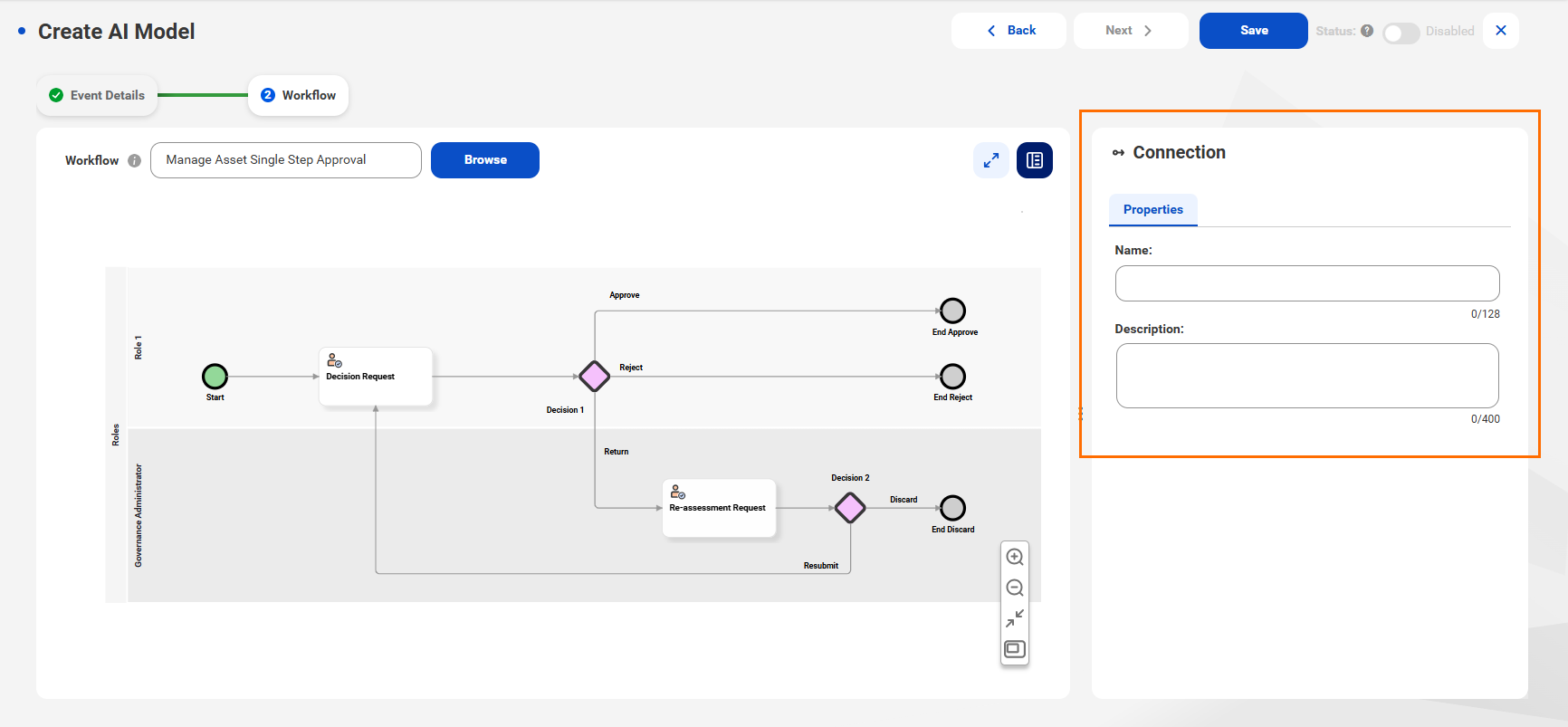
8To modify the name and description of a connection, select the connection.
By default, the values specified in the workflow appear here.
The Properties tab of a connection appears.
9Configure the properties of each connection in the workflow as required.
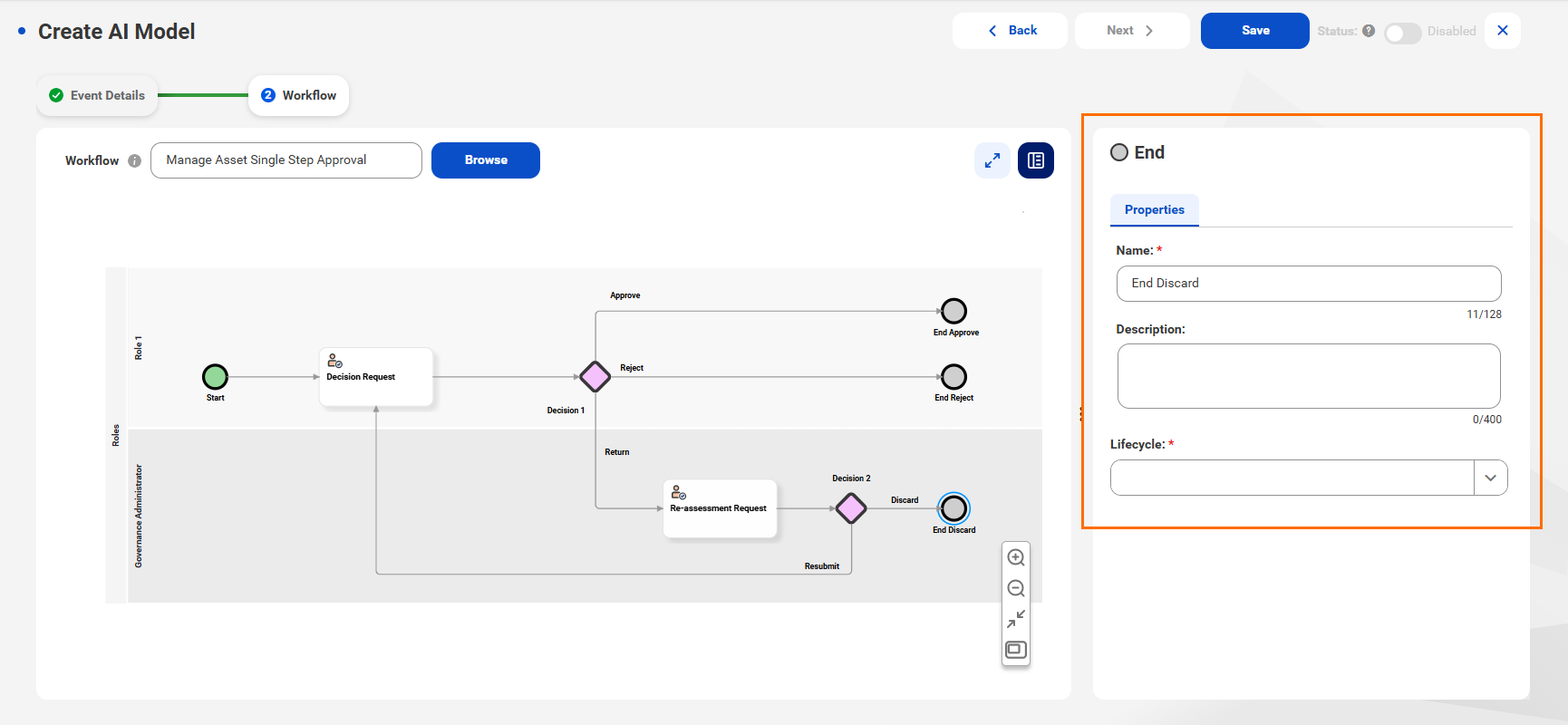
10To configure the properties of an End component, select the component.
The following table describes the properties of an End component:
Property
Description
Name
Name of the End component in the workflow.
By default, the value specified in the workflow appears here.
Description
Description of the End component in the workflow.
By default, the value specified in the workflow appears here.
Lifecycle
Lifecycle that applies to the asset when the workflow user performs the task. The asset moves to the corresponding lifecycle when the task is performed.
11Configure the properties of each End component in the workflow.
Configuring lifecycles
Configure lifecycles for applicable steps in a workflow. Select the lifecycle that applies to an asset when a workflow user performs a task.
For example, if a workflow requires approval to create an asset, you can configure the component to change the value of the Lifecycle field from "Draft" to "Published" when an approver approves the asset.
Select one of the following options:
No Change
No change to the Lifecycle field of the asset and the associated ticket remains in the "Open" status. This action is useful in multi-level workflows when multiple approvers need to approve the changes of an asset but don't want the asset lifecycle to change to Published until the last component action.
Discard Draft
Discards the draft version of an asset. If an asset was not previously published, the Discard Draft action permanently deletes the Draft version of the asset and also deletes the associated ticket. If the asset was previously published, the Discard Draft action deletes the Draft version of the asset and resolves the associated ticket. The previously published copy of the asset remains in Data Governance and Catalog in the Published status.
Note:
Informatica recommends that you select Discard Draft when the component action doesn't require a draft copy of the asset.
Draft
Changes the status of the asset to "Draft" and the asset becomes editable for the next component owner. The next component owner then has to perform the actions configured for the component.
The associated tickets of the Draft asset will always be in the "Open" status. If the conclusive action of a workflow is Draft for any asset, the associated tickets will be open forever and they can't be reused. In such situations, the requestor or users with the Super Admin privilege can cancel the open ticket to start the workflow activity again for the same asset.
In Review
Changes the status of the asset to "In Review". The asset will be locked for editing for all stakeholders and its associated tickets will be in the "Open" status.
Note:
When you start the workflow, the lifecycle status of the asset changes to "In Review".
Publish
Changes the status of the asset to "Published". If you select the lifecycle as Publish, the asset lifecycle status changes to "Published" and the associated ticket moves to the "Resolved" status.
Note:
Informatica recommends that you map the lifecycle of the last component in a path to Publish. This is to ensure that the asset can only be published after all stakeholders for each component in that path have responded.
Note:
•For Reject and Discard actions, select the lifecycle as "Discard Draft".
•Configure at least one lifecycle as "Publish".
•If you select the lifecycle as Publish for a user task that starts at the beginning of the workflow, the asset lifecycle status changes to "Published" and the associated ticket moves to the "Resolved" status.
•When you use a Parallel Gateway component in your workflow, ensure that you map the same lifecycle to all the components in the paths between the divergent and convergent gateways in the Parallel Gateway workflow component.
Saving and enabling a workflow event
You can save and enable the workflow event to make it available for use.
1To save a workflow event, click Save.
2To enable the workflow event, set the Status of the event to Enabled.
The following image shows the enable option that appears when you configure a workflow event:
You can also enable workflow events from the Workflow Events page. For more information about enabling or disabling workflow events, see Enabling or disabling a workflow event.
Once enabled, you can't edit the workflow event. To edit a workflow event, disable the event and then edit it. The event must have no active tickets.