Define Business Events > Defining business events based on native workflows > Create a workflow
  

Create a workflow

If you're assigned the Workflow privilege in Administrator, then you can create, read, and update native workflows.
    1In Business 360 Console, click New.
    2In the New Asset dialog box, click Business Process > Workflow.
    3Click Create.
    4In the Workflow dialog box, specify the properties of the workflow, and click OK.
    You can specify the name, description, location where you want to save the workflow, and related asset, such as the business entity or hierarchy, for which you want to trigger the workflow.

Designing a workflow

After you create a workflow and define its properties, use the components in the workflow designer to design a workflow.
    1On the workflow canvas, select a swimlane and perform the following steps:
    1. aOn the Properties tab, enter a name and an optional description.
    2. bOn the Access tab, select user roles to assign as task owners to the user tasks in the swimlane.
    3. You can assign user roles as task owners to each swimlane. Only task owners can work on tasks in the swimlane. For example, if you assign the Customer 360 Manager and Customer 360 Data Steward user roles as task owners to a swimlane, only users with either of the roles can work on the tasks in the swimlane.
    4. cOptionally, to assign the requestor user role as the task owner for the swimlane, turn on the Assign to requestor toggle.
    5. The requestor user role is associated with the user who initiates the workflow. For example, suppose that a Customer 360 user, Max, creates a person record and the action triggers an approval workflow. For this instance of the workflow, Max is assigned the requestor user role. Similarly, suppose that another user, Oscar, edits an existing person record. This action triggers the same workflow, and Oscar is assigned the requestor user role for this instance of the workflow.
      To enable reviewers to send records back to requestors for any changes or clarifications, turn on the toggle.
      Note:
      When you assign the requestor user role as the task owner to a swimlane, you can't add any other user roles to the swimlane.
    By default, the canvas has three swimlanes. You can add and delete swimlanes.
    Note:
    You must remove any empty swimlanes from a workflow before you can publish the workflow.
    2Drag the Start component from the palette to a swimlane on the canvas.
    You can delete, cut, copy, and paste components. You can also undo, redo, and search for components in a workflow.
    3Select the Start component, and enter a name and an optional description.
    4Drag one of the following components to the swimlane:
    Component
    Purpose
    User Task
    Manages the actions a human can take when they approve the task.
    Service Task
    Automates repetitive tasks that don't need human intervention, such as checking whether users have certain privileges.
    For more information about service tasks and how to add them to workflows, see Service tasks.
    An internal ID that you can use as an identifier for the task is automatically generated.
    5If you add a user task, configure the properties of the user task.
    The following image displays the Properties tab of a user task:
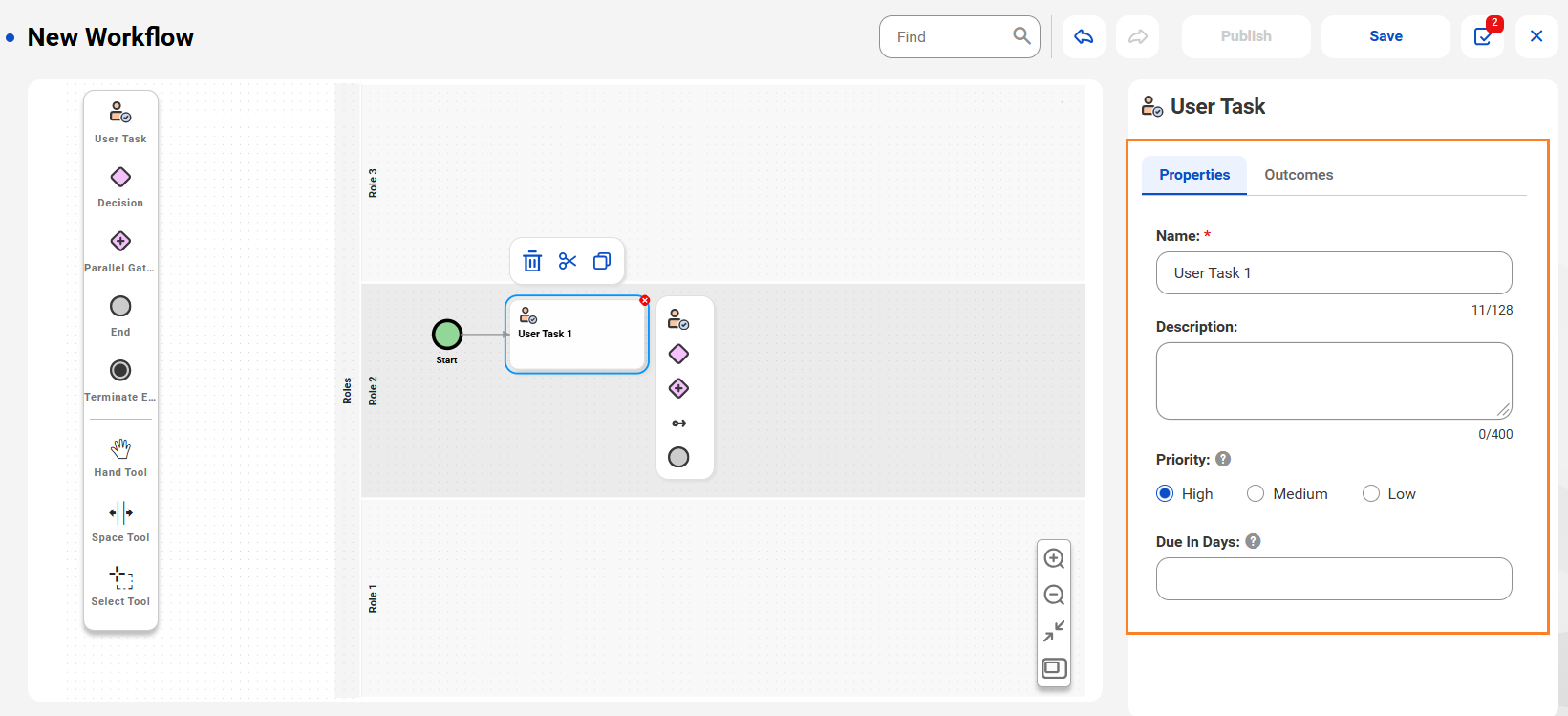
    The New Workflow page includes a canvas with start and user task components. Here, the Properties tab of User Task 1 is highlighted, showing the properties Name, Description, Priority, and Due In Days.
    The following table describes the properties that you can enter for a user task:
    Property
    Description
    Name
    Name of the user task.
    Description
    A short description that explains the user task.
    Priority
    Level of importance or urgency assigned to the task.
    Select one of the following values:
    • - High
    • - Medium
    • - Low
    The task inbox in business applications shows a visual summary of the total number of tasks categorized by their priorities.
    Due In Days
    Number of days in which the task is due. If the user doesn't complete the task within the period, the task remains in an overdue status.
    Maximum value is 14.
    View and Edit Page
    Custom page for the reviewers to review data. The page can be configured to contain only details relevant to the task.
    6Assign user roles as task owners to the user task.
    Note:
    You can only assign the user roles that you assigned as task owners to the swimlane as task owners of user tasks. For more information about assigning task owners to user tasks, see
    Assigning task owners to a user task
    .
    7To add a task outcome for a user task, perform the following steps:
    1. aClick the Outcomes tab.
    2. bEnter a name.
    3. cClick Save.
    4. dClick Add to add more task outcomes.
    You can create a list of possible decisions that a task owner can take on the task. Outcomes defined in each user task appear as actions for the tasks in the task inbox in business applications.
    For example, you can add Approve, Reject, and Return as possible outcomes for a task. Task owners who need to approve a request can evaluate the request raised, make a decision, and take necessary action. They can approve the request if it meets the requirements, reject if not, or return if more information is required. If a request is returned, then another user task can be added to re-evaluate the request and to resubmit the request if it meets the requirements, or discard if not.
    Note:
    User tasks in a workflow must have at least one task outcome. You can't use workflows that include user tasks without outcomes.
    8If you add a service task, perform the following steps:
    1. aAdd a Service Task component.
    2. bConfigure the properties of the service task.
    3. cConfigure the input values for the service task.
    For more information about service tasks and how to configure them, see Service tasks.
    9To allow a workflow to take different paths, add a Decision Gateway or Inclusive Gateway component.
    10If you add a Decision Gateway, perform the following steps:
    1. aSelect the Decision Gateway component, and enter a name and an optional description.
    2. bSelect an outgoing connection from the Decision Gateway component.
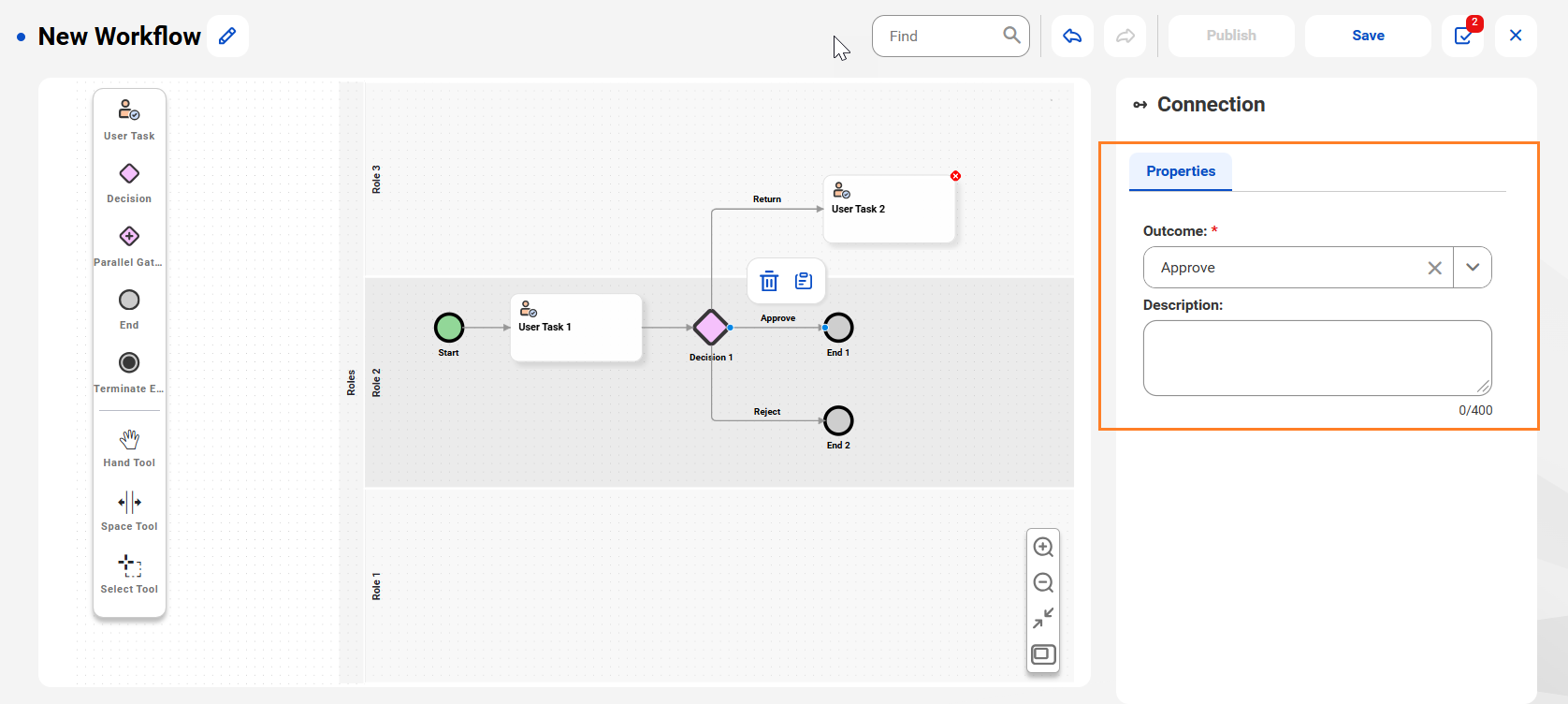
    3. The Properties tab of an outgoing connection from a Decision Gateway component appears.
      The Properties tab of an outgoing connection from the Decision Gateway 1 component with Approve selected as the Outcome.
    4. cSelect an outcome.
    5. The task outcomes defined in the user task appear in the Outcome list.
    6. dSpecify an optional description.
    Note:
    For outgoing connections from gateways for service tasks, define conditions instead of outcomes.
    For more information about configuring connections for each type of service task, see .
    11If you add an Inclusive Gateway component, configure conditions for the outgoing connections from the component.
    For more information about configuring conditions for outgoing connections, see Configure conditions for a user task.
    12To run multiple tasks concurrently, add the Parallel Gateway component, and enter names and optional descriptions for the start and end components of the parallel gateway.
    13Select the outgoing connections from the Parallel Gateway start component and add tasks.
    The Properties tab of a Parallel Gateway start component appears.
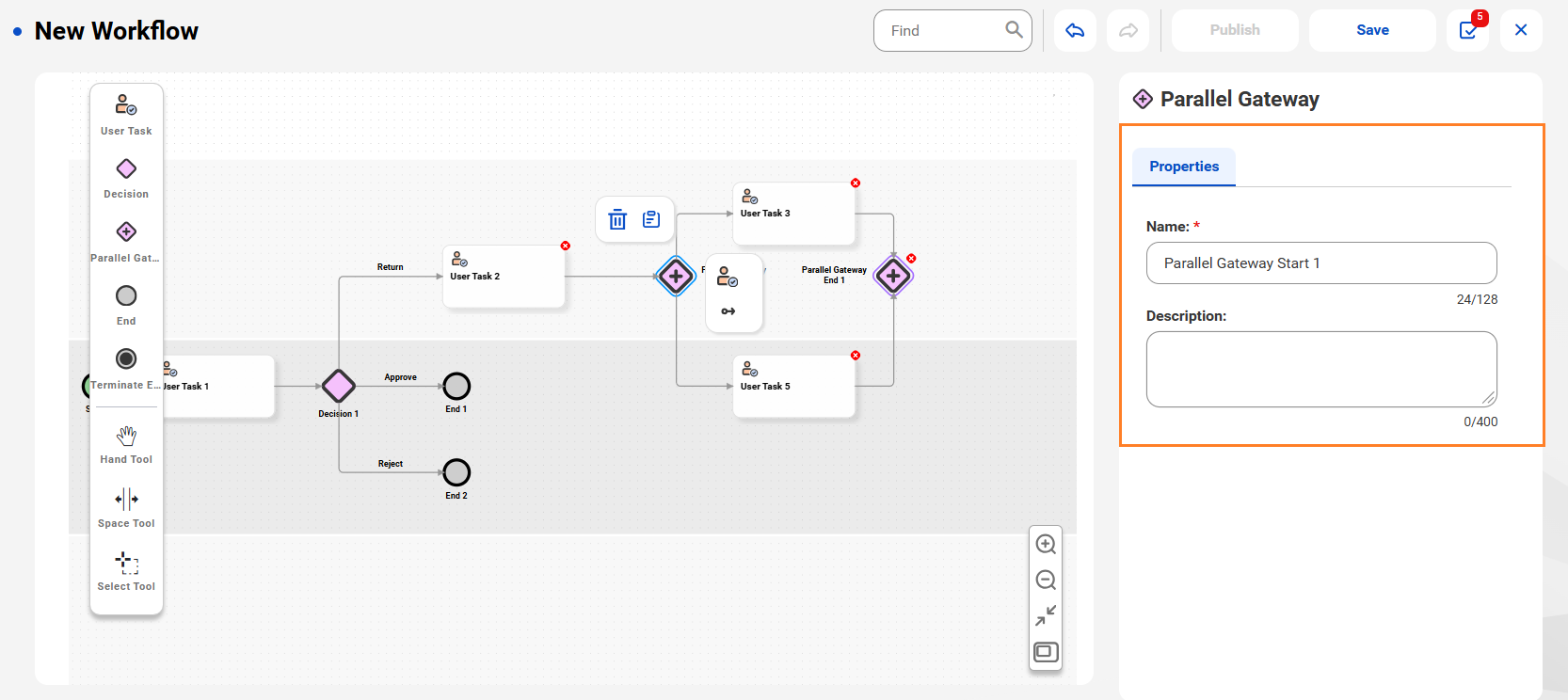
    The Properties tab of a Parallel Gateway Start component with Parallel Gateway Start 1 as the Name.
    Optionally, between the divergent and convergent gateway pair that comprise a parallel gateway component, you can add another parallel gateway, decision gateway, or inclusive gateway component.
    You can add a maximum of three consecutive levels of parallel gateway components, or three decision gateway or inclusive gateway components.
    For example, in a loan approval process, after the initial application review, a parallel gateway splits the workflow into independent concurrent tasks. These tasks include credit risk assessment, KYC documentation collection, and legal compliance checks. Within these tasks, you can add an additional parallel gateway for credit risk assessment to concurrently analyze different risk factors. You can also add a decision gateway to the credit risk assessment task to branch the process further based on whether additional documentation is required.
    14Optionally, to explicitly end the workflow, add a Terminal End component to the parallel gateway.
    The Terminal End component terminates all active tasks and ends the workflow.
    15Add more user tasks, service tasks, decision gateways, inclusive gateways, and parallel gateways based on your business requirement.
    16To mark the completion of the workflow, add the End component, and enter a name, an optional description, the workflow result, and expressions to assign a change owner and default change owner.
    For more information about change owners and default change owners, see Assigning change owners to a workflow.
    17Validate and then save and publish the workflow.

Assigning task owners to a user task

You can assign the user roles assigned as task owners to a swimlane as task owners for a user task or enter an expression to dynamically assign task owners to a user task.
    1Select a user task and click the Access tab.
    2To add specific user roles from the list of task owners assigned to the swimlane, click Add.
    3To add users, user groups, and roles dynamically, click the toggle button for expressions and enter an expression.
    For more information about how to assign task owners using expressions, see Dynamic task owner assignment.

Dynamic task owner assignment

You can assign user roles as task owners to a user task. You can enter an expression to dynamically assign task owners to a user task.
Add expressions in the following format to dynamically assign tasks:
{
"roles":["roleID1","roleID2","roleID3"]
}

Configuring conditions for a user task

To run two or more task outcomes for user tasks, use inclusive gateways after the user tasks. To determine the outcomes of outgoing connections from inclusive gateways to other components in the workflow, configure conditions.
A condition is a simple expression that uses the internal ID and the output of the user task.
For more information about expressions, see Expressions.
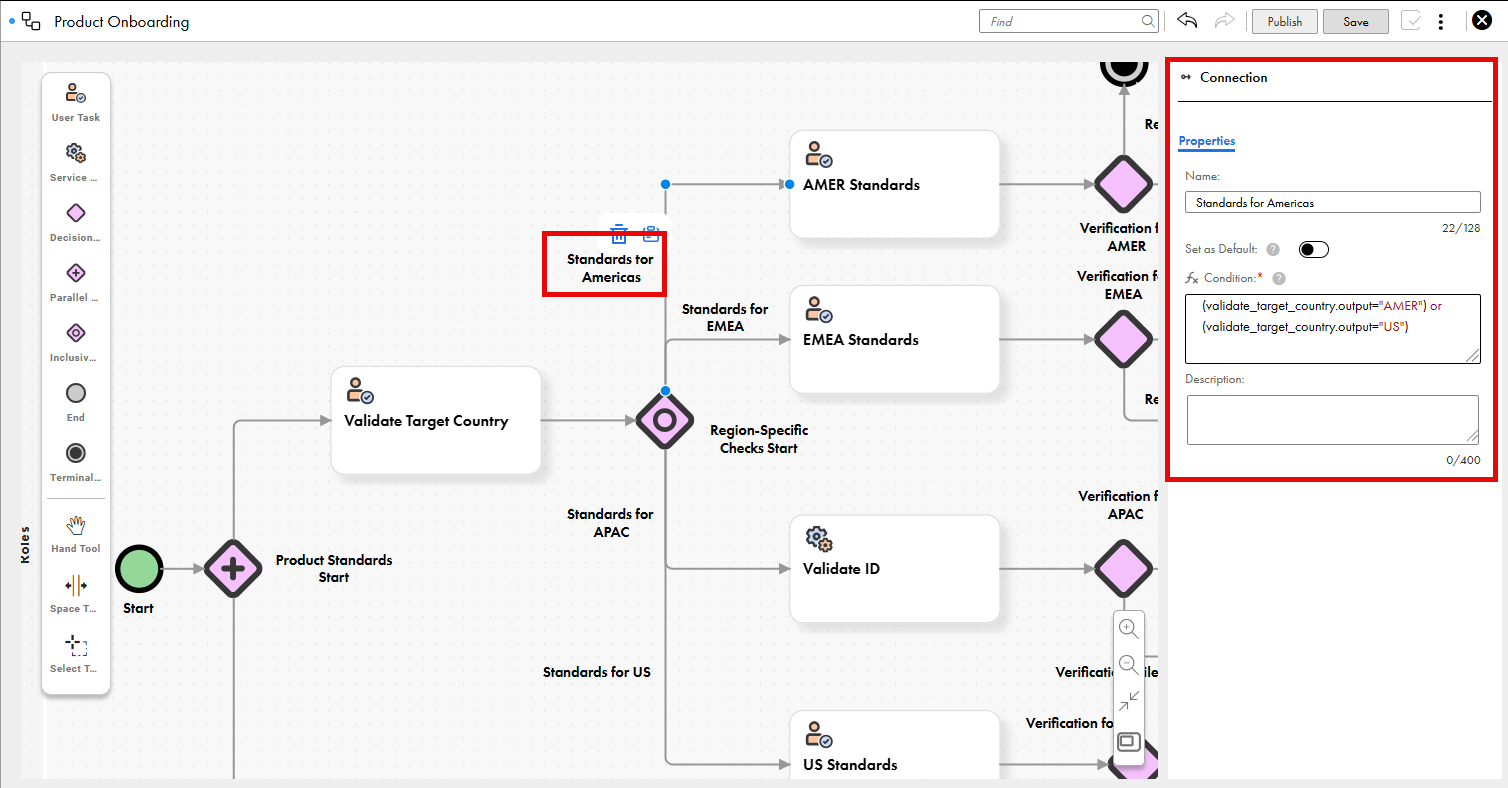
Consider the following portion of a workflow for a product onboarding process:A portion of a workflow for product onboarding, with user tasks, service tasks, a parallel gateway, inclusive gateway, and decision gateways for checking product details, leading to either product onboarding or rejection. The properties of the selected connection is highlighted. The properties include name, a toggle to set the connection as the default connection, condition, and description. The Condition field contains the value for the scenario when theoutput of the user task is either AMER or US.
The US has more product standards than those required for other countries in the Americas region, so a separate task outcome is added for the US. A product with US as the target country must pass the standards for the AMER region and the US.
The Region-Specific Checks inclusive gateway determines the task outcomes based on the output value. Suppose that the possible outcomes of the Validate Target Country user task are AMER, EMEA, APAC, and US. If the outcome of the Validate Target Country user task is US, the gateway runs the task outcomes for both the AMER region and the US.
The following sample conditions are added to the connections from the Region-Specific Checks inclusive gateway to the tasks or task outcomes to be run:
Similarly, the following sample conditions can be added to the other connections from the Region-Specific Checks inclusive gateway to the remaining tasks or task outcomes:
Note:
If you want to set a connection as the default connection when conditions in other outgoing connections aren't met, then you don't have to configure a condition for the connection.

Configure conditions for a user task

To run two or more task outcomes for user tasks, configure conditions for the inclusive gateways after user tasks.
    1Select an outgoing connection from a user task and enter a name for it.
    2Enter a condition that uses the internal ID and outcome of the user task.
    To configure a condition for a task outcome that's run for one or more user task outcomes, enter a condition that uses all the relevant user task outcomes.
    3Optionally, to set a connection as the default connection when conditions in other outgoing connections aren't met, turn on the Set as Default toggle.

Assigning change owners to a workflow

You can dynamically assign an owner to every change that passes through the workflow. You can then view the change owner listed against the changes in the history page for records.
You can also assign a default change owner when the change owner value doesn't resolve to a valid user. The default change owner is assigned if the user task specified in the Change Owner field is bypassed because of decision or inclusive gateways.
Note:
The default change owner must be configured for a user task that isn't bypassed by gateways.
To assign a change owner and a default change owner, configure expressions in the end component. Each expression specifies the internal ID of the user task whose reviewer is to be assigned as the change owner.
For more information about expressions, see Expressions.
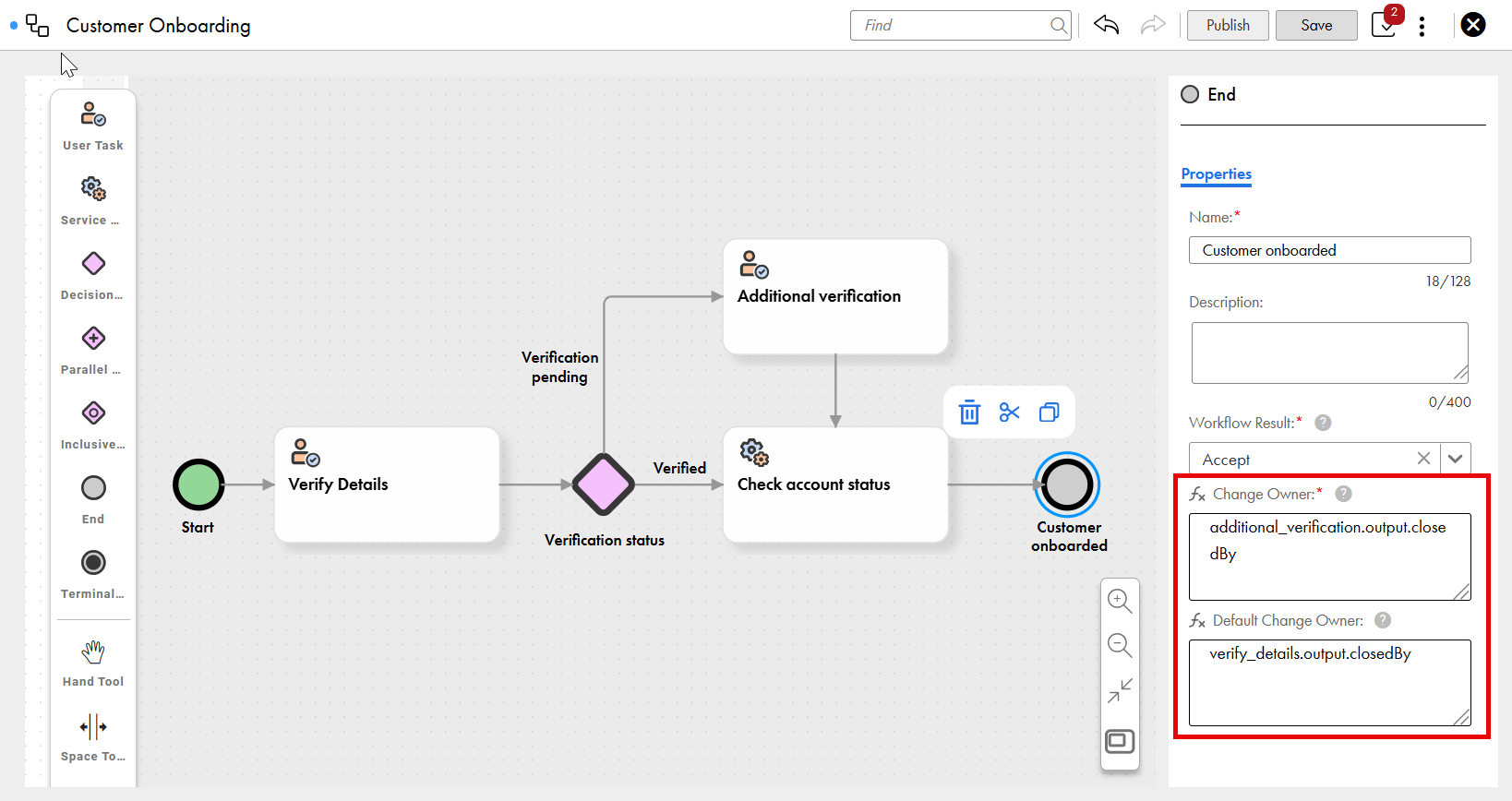
For example, consider a workflow for a customer onboarding process:Workflow for customer onboarding, with user tasks, a service task, and a decision gateway for verifying details, leading to customer onboarding.
The additional_verification.output.closedBy expression assigns the user who completes the Additional verification user task as the change owner. Similarly, the verify_details.output.closedBy expression assigns the user who completes the Verify Details user task as the default change owner.
The user who completes the Additional verification user task is assigned as the change owner. However, if the Verify Details user task has Verified as its outcome, then the Additional verification user task is bypassed by the Verification status decision gateway. In this case, the user who completes the Verify Details user task is assigned as the change owner.

Validating and publishing a workflow

When you design a workflow, the Validations panel displays validation errors that the workflow components return. After fixing the validation errors, you can publish the workflow. Saving a workflow changes its status to Draft. Workflows containing validation errors can be saved but cannot be published.
    1Click the Validations icon in the toolbar.
    The Validations panel appears with errors grouped by components.
    2Click an error.
    The cursor moves to the erroneous component. Take the required corrective action to resolve the error. The Validations panel refreshes each time you correct an error.
    3Click Save to save the workflow, and then click Publish.
You can use the published workflow in business events.

Editing a workflow

You can edit workflows that are in Draft or Published status.
    1On the Explore page, click Edit from the Action menu for the workflow that you want to edit.
    2Edit the workflow.
    3To save the workflow as a draft, click Save.
    4To check if the workflow has errors, click the Validations icon in the toolbar.
    5To publish the workflow, click Publish.
    6To discard a draft, including both saved and unsaved changes, and revert the workflow to the last published version, click Revert to Published.